Classic Outlook users are facing a frustrating app crash when opening or creating emails. This glitch is likely due to the latest June 2025 Office updates and has been disrupting workflows for most. Microsoft has acknowledged this issue and provided a temporary fix while investigating the matter further. Check out the steps to fix these Classic Outlook crashes and get your email back on track.
Why is Classic Outlook Crashing?
Unlike the usual malware issues, the culprit behind these classic Outlook crashes is a bug in Microsoft Office’s June 2025 security updates. This issue directly affects the Forms Library. Simply put, Microsoft Output is unable to open the Forms Library because it’s unavailable.
This issue likely affects you if you’ve recently updated to use the Microsoft 365 Version 2504 or similar on any channel, although the most emerging cases are those who are on virtual desktop infrastructure (VDI).
Microsoft has also confirmed this issue and is presently investigating. Hence, you can expect a permanent fix soon.
You can also check the crash event from the Windows Event Viewer Application Log. It should look like this or with similar information: Faulting application name: OUTLOOK.EXE, version: 16.0.14334.20090, time stamp: 0x683fe030.
Should you face other issues, you can check out our guide on common Outlook issues and solutions for more tips.
Workaround to Fix Outlook Crashes
Pending the permanent fix or patch, Microsoft has urged users to manually create a FORMS2 folder as a temporary fix:
Close all Office apps, including Outlook. Then, press the Windows + R keys or go to the Start menu -> Run to open the Run Dialog box.
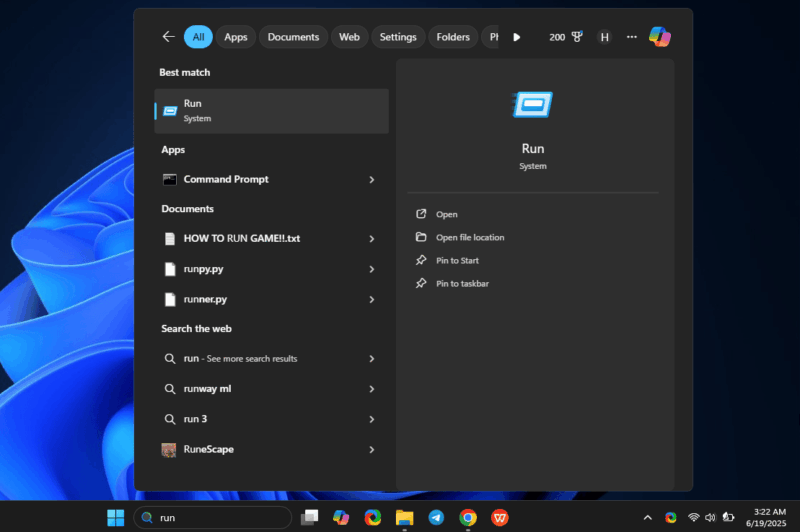
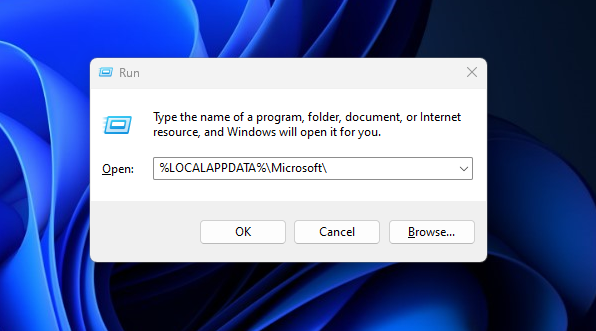
Input the following and click Enter: %localappdata%\Microsoft. This opens where Microsoft stores app data.
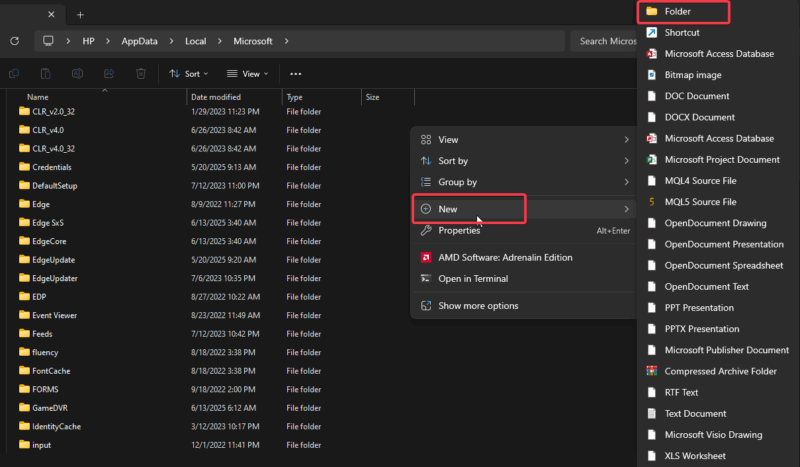
In the folder, right-click, select New -> Folder, and name it FORMS2.
After this, close Outlook and reopen to see that the crashes are gone.
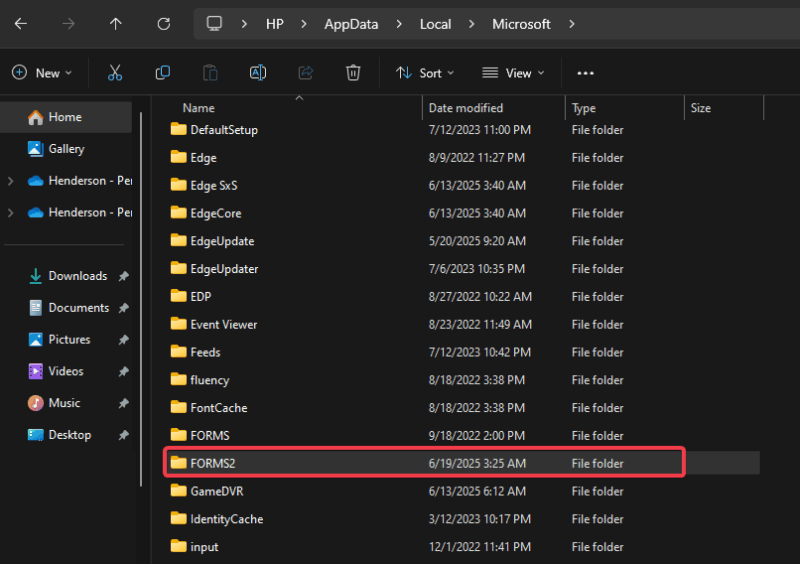
This workaround tricks Outlook into bypassing the buggy Forms Library, hence fixing Classic Outlook crashes for most users.
Note: Always back up important data before you start any data-related fixes to prevent Outlook data file errors.
Other Options to Consider If the Issue Persists
If the temp option fails to fix Classic Outlook crashes, consider disabling download shared folders under cached exchange mode settings in account settings.
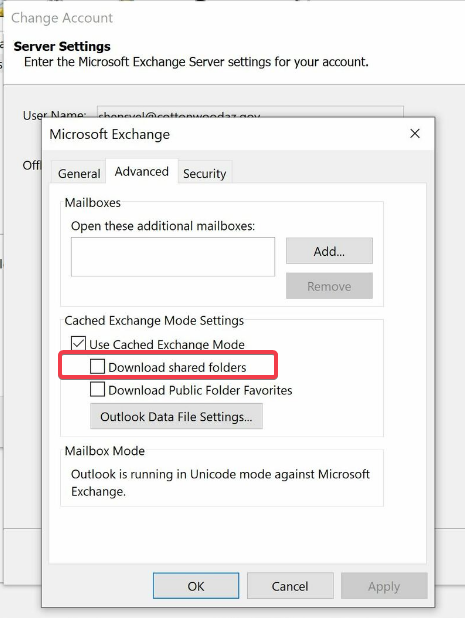
Also, you can switch to the New Outlook app or Outlook web to keep your workflow going pending the permanent fix.
In addition, constantly check for Office updates as the fix may be pushed out at any time. Go to File -> Office Account -> Update Options in Outlook and click Update Now.
You should also check Microsoft’s support page for more troubleshooting tips for Outlook crashes.
Fixing Classic Outlook crashes is straightforward with this workaround. Microsoft should release a solution as a patch real soon. So, try these steps and let us know how it goes in the comments! For more fixes, you can also check out this guide on ways to fix Outlook if it won’t open on Windows.








