
The address bar is the powerhouse of the browser, but it’s still so basic. The Firefox address bar just got some major upgrades to transform the way you search and use the browser.
Change Your Search Engine Mid Search
It’s tedious switching between default search engines in your browser’s settings. Firefox has finally fixed this issue. Open Firefox and click the magnifying glass to the left of the address bar. Choose your preferred search engine from the list. The symbol may also be the logo of your default search engine.
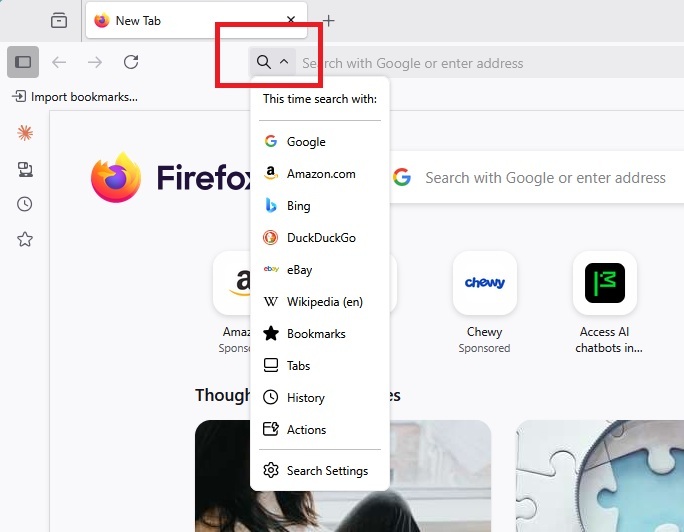
By default, it includes Google, Bing, and DuckDuckGo. Click the magnifying glass and select Search settings to add and/or remove options from this list.
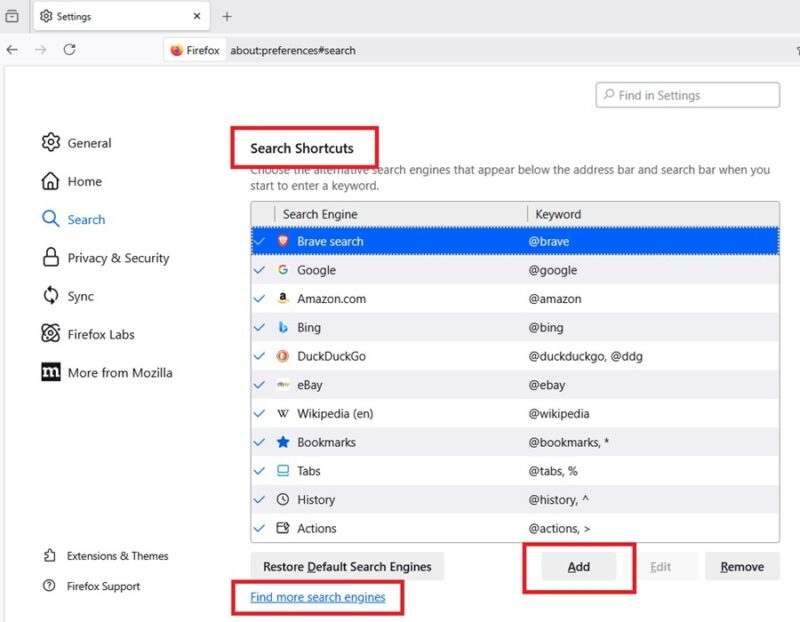
Scroll down to Search Shortcuts. Click Add to manually add a new search engine. Or, click the Find more search engines link just below the shortcuts box. Search for your preferred search engine and add it to Firefox. It’ll then appear in the shortcuts list.
You can also drag and drop any shortcut to move it higher in the list. If you have a shortcut you don’t want to use, click it and select Remove.
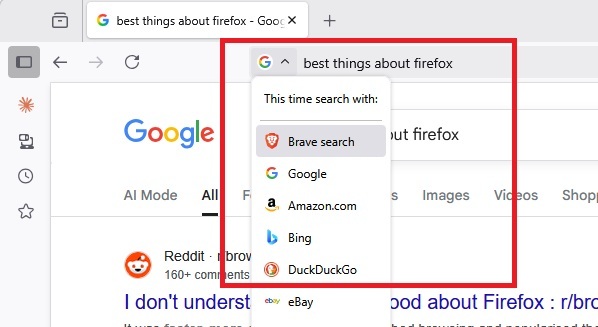
What I love most about this new feature is you can change your search engine mid search. Did you just search Google, but can’t find what you’re looking for? Click the search engine logo to the left of the address bar and select another option. The original query stays in place.
Use Keywords to Search Bookmarks, History, and Tabs
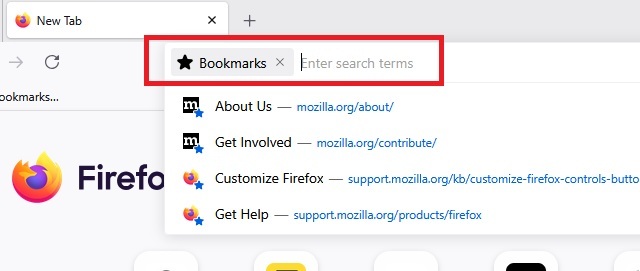
The Firefox address bar isn’t just for entering URLs or searching the Internet. It can also search for bookmarks, sites in your browsing history, open tabs. Click the magnifying glass (or last used search engine icon) beside the address bar and select what you want to search (Bookmarks, History, or Tabs).
As an example, if you select Bookmarks, you’ll see a list of suggested bookmarks. Or, enter your search query to find a specific bookmark not listed. Remember, this only searches through your bookmarks, so if you haven’t saved as site, it won’t pop up.
Perform Actions With Quick Action Shortcuts
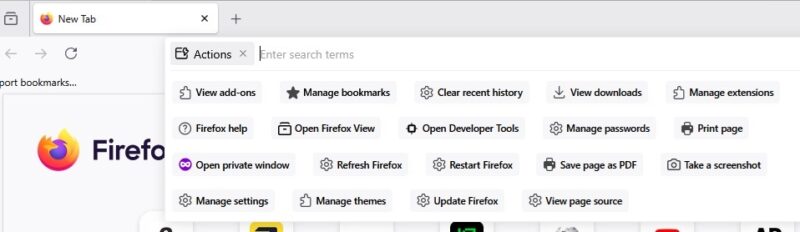
While this isn’t necessarily for search, the new Actions addition is a game changer. Forget about jumping to various menus to manage extensions, view add-ons, save pages as PDFs, or a variety of other actions.
Click the magnifying glass or last used search engine icon next to the address bar. Select Actions. Select any available icon from the list. You can also enter a search term to bring up the action faster. For instance, type save to bring up Save as a PDF.
Enter Shortcuts Versus Using the Drop-Down Box
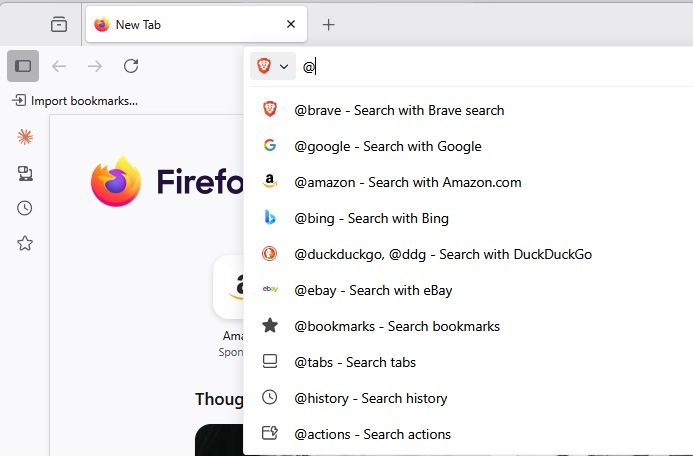
Sure, the new shortcut menu has transformed the Firefox address bar, but there’s more. Use the @ symbol to quickly jump to what you need. Want to search using Brave? Type @brave and enter your search query.
Need to save something as a PDF? Type @actions save and click the result.
If you open the shortcut menu (magnifying glass or search engine icon next to the address bar) and select Search settings, you can view the full list of shortcuts available in the Search Shortcuts list.
Also, when you type the @ symbol in the address bar, you’ll see a list of shortcuts.
Use Contextual Search Shortcuts in Firefox
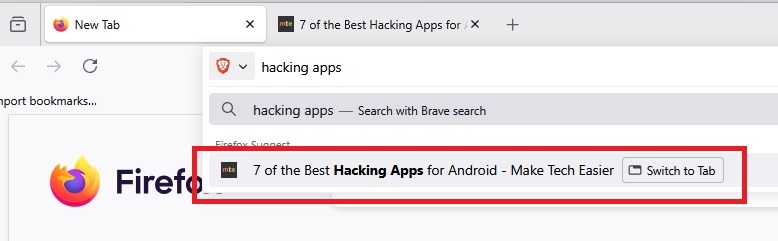
Firefox keeps track of frequently visited sites and searches. The browser also remembers open tabs. This is good news for you. When you try to search for something, Firefox offers up suggestions based on open tabs, your search history, and frequently visited sites.
For instance, I opened a post about hacking apps for Android in a new tab. I then started searching for hacking apps in the address bar. Firefox suggested my open tab to best fit my needs.
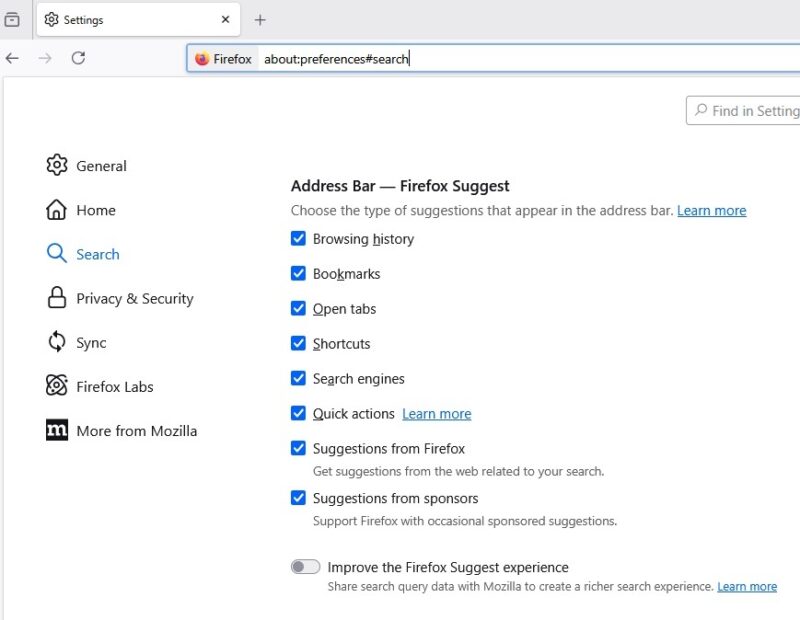
If you only prefer specific types of suggestions, click the shortcut menu and select Search settings. Scroll down to Address Bar – Firefox Suggest. Uncheck any options you don’t want to use.
If you’re changing this to improve privacy, you may also want to disable on-device AI models in Firefox.
Easily See When a Site Isn’t Secure
By now, all websites should use HTTPS, but there are still some that don’t. Sites with HTTPS encode your data to keep you safer. This doesn’t mean every site without it is bad, but if you’re transmitting any personal data, avoid sites that don’t have the S at the end of HTTP.
By default, Firefox tries to force an HTTPS connection. If that fails or if you have that feature turned off, the Firefox address bar makes it abundantly clear the site isn’t secure. You’ll see a Not Secure message next to the site’s URL.
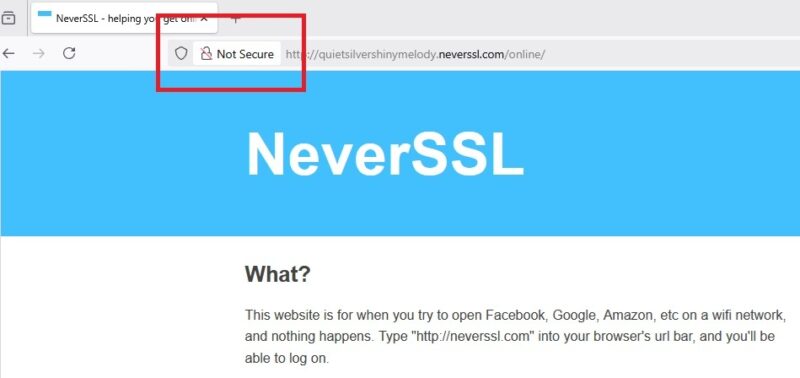
For secure sites, you’ll see a padlock and the https portion is trimmed off the URL.
All these Firefox address bar upgrades make searching easier than ever. If this change makes you want to switch to Firefox as your default browser, consider customizing your Firefox New Tab window. If Firefox starts to hog your CPU, try these troubleshooting steps.








