WhatsApp lets you stay in touch with your friends and family, but what if you want to reach out to a new person? Check our guide explaining how to find someone on WhatsApp and start chatting with them.
Good to know: if you ever need to find your WhatsApp number or URL, here’s how to get to them quickly.
1. Find Someone on WhatsApp via Phone app
You can start messaging someone on WhatsApp straight from your device. This way, you can make sure that you already have the person as part of your contact list on your phone.
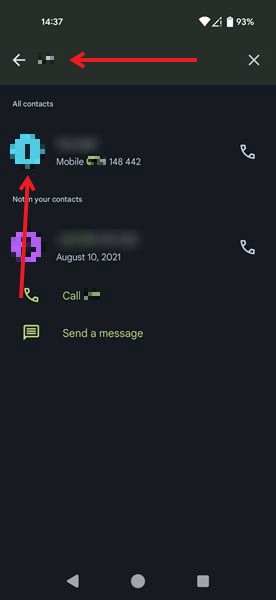
For that, open the Phone app on your mobile device. On Android, you can use the search bar at the top and input the person’s number. On iPhone, you’ll need to switch to the Contacts tab to start searching. If the person is in your contact list, their number and name should appear underneath.
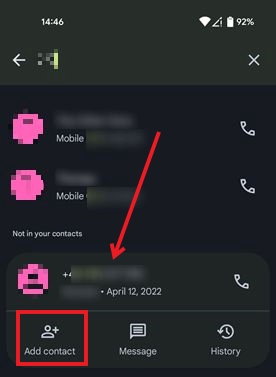
On Android, if you previously interacted with them but did not save their number, it will still show up in search. Tap on the number if you see it appear and then hit the Add contact button. Add the information pertaining to the contact such as name and then save the data for later use.
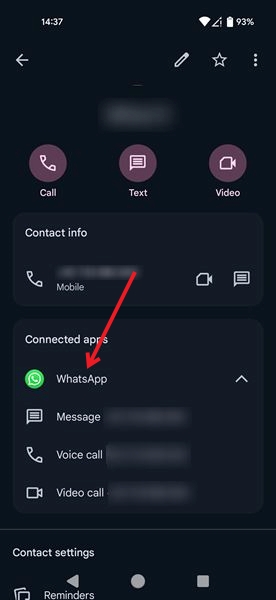
If you’ve previously saved the number and interacted with them before, tap on its corresponding profile picture (Android) or name (iPhone). You should be able to view WhatsApp listed underneath Connected apps (Android) or just below the contact’s phone number (iPhone). To start interacting with the contact on WhatsApp, tap on this section. On Android, you’ll need to select whether you’d like to message, voice, or video call. A new WhatsApp chat or call will immediately be initiated.
Tip: you can create a WhatsApp profile link and connect with others more effectively. Here’s how to get started.
2. Find Someone on WhatsApp in Your Phone Contacts
You can also quickly check whether you can message a particular person directly on WhatsApp.
On Android, tap on the green new chat button in the lower right corner. On iPhone, switch to the Chats tab and press the green + button in the upper right.
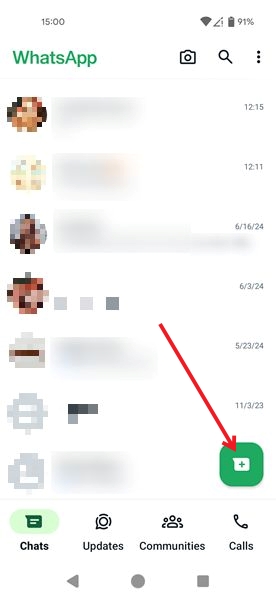
Swipe through your list of contacts that are available underneath until you find the person you wish to contact.
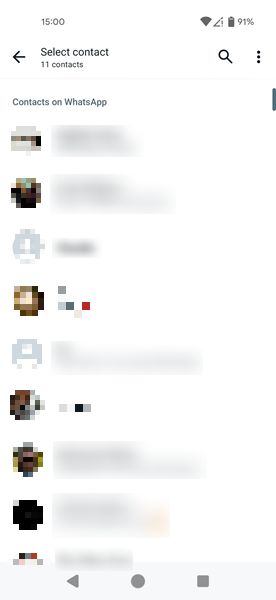
If you have too many contacts, try using the search bar at the top to search by name and find the person you’re searching for faster.
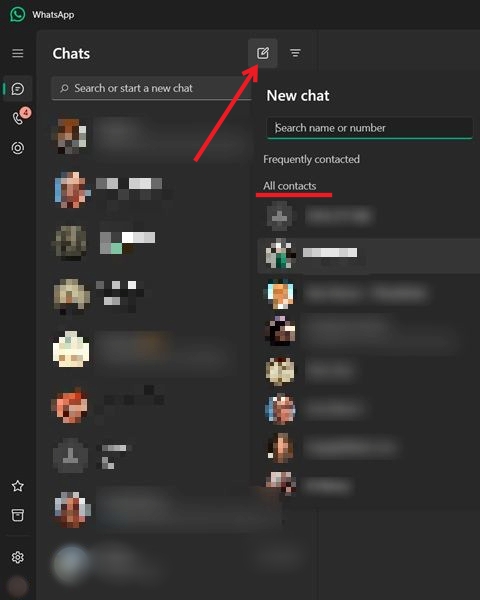
For those trying to do this on PC, click the pen-shaped icon in the upper left. The contact list will appear on the left and you can scroll through it.
FYI: learn how to send multiple photos easily via WhatsApp by checking our detailed tutorial.
3. Find Someone on WhatsApp Using Phone Number
Alternatively, you can also find someone directly on WhatsApp using their phone number.
Open WhatsApp on your phone or PC and bring up a new chat window.
On Android, you’ll have to press on the magnifying glass icon to start typing in the number.
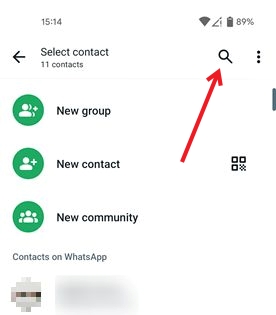
The results should start appearing underneath. Press on one to start messaging with a contact.
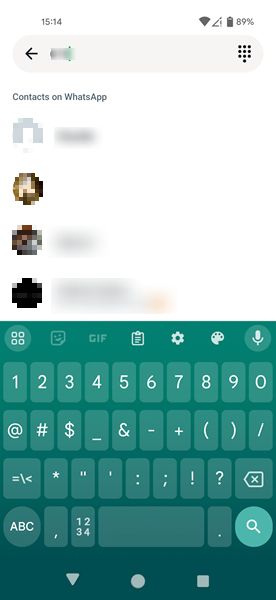
Alternatively, if you’ve not added the number you want to message as a contact yet, no problem. Press the green button and then select New contact. On PC, you have the option Phone number instead, which allows you to start a chat with a new number.
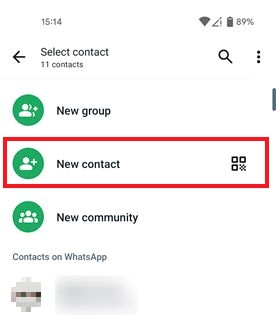
Add the details of your new contact and press Save.
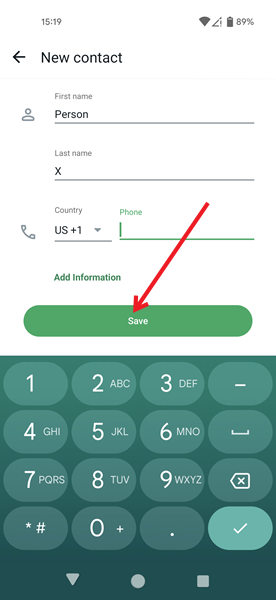
Now the new contact should appear in the list of contacts underneath. Press on their name to start an interaction.
Tip: upgrade your knowledge of Google Calendar and start using it for business purposes by going through our guide.
4. Find Businesses on WhatsApp
WhatsApp also lets you find businesses near you. If you’re in the UK, Colombia, Indonesia, or Mexico you might have this option. Make sure you’ve updated your WhatsApp app before trying this, however. Also, you’ll need to allow WhatsApp permission to access your location for this to work.
Open WhatsApp on your mobile device and press the green new message button.
Select the Businesses nearby option.
You should be able to browse through a list of categories including Restaurants, Grocery stores, etc.
Once you find a business you’d like to interact with, press the Chat button to start messaging.
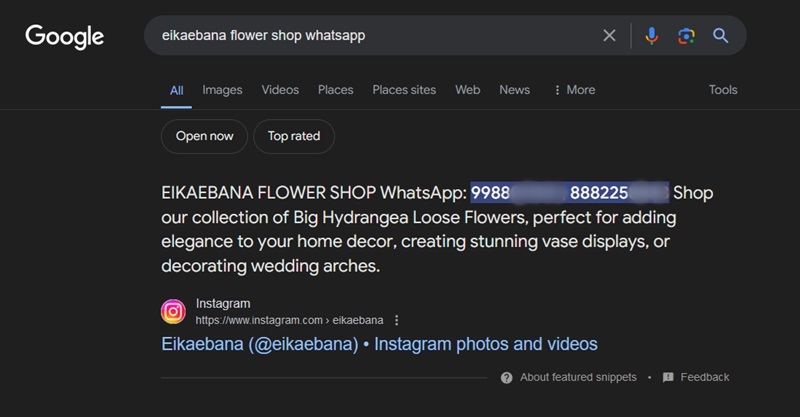
If you’re not in one of these regions and can’t use the feature yet, you can try a workaround. Open a Google page and type business name WhatsApp. If you don’t know the exact name of the place, tweak your search a little bit. Try something like bakery neighborhood name WhatsApp. You should be able to find bakeries that take orders via WhatsApp in your area.
Related: here’s how you can do a reverse image search from your Android phone if you ever need to.
Once you’ve connected with someone on WhatsApp, you might want to check our post to find out how to format text on WhatsApp to make your chats more engaging. Furthermore, get up to speed with the best sticker packs for WhatsApp that will bring your conversation to the next level.
Image credit: Pixabay All screenshots by Alexandra Arici








