If you want to update system-related drivers or want to purchase a new piece of hardware, you’ll need to know what model of motherboard is inside your computer. The most straightforward way is to open your PC case and visually check the motherboard model. The easiest way though, is to find it in Windows. This guide lists the most reliable ways to find the motherboard model in Windows.
Why is the Motherboard Model Important?
Knowing the motherboard model isn’t necessary for most users, as it doesn’t directly impact your day-to-day experience. However, there are times when it is necessary to know the motherboard model:
- You want to update the BIOS of your motherboard to keep it current
- You want to update the drivers of hardware related to your motherboard, such as the audio drivers.
- You’re purchasing a new case and want to know if the form factor of your current motherboard will fit it
- You want to purchase new hardware and would like to know if it’s compatible with your motherboard
- You’re purchasing a new motherboard or computer and would like to see the benefits and drawbacks versus your current motherboard
These are all pretty fringe cases and definitely not something you’ll be doing on a weekly, monthly, or even yearly basis. However, when the occasion does arise, the following Windows tools and third-party apps will be the most handy methods to find out your motherboard model.
Use the System Information Tool to Find the Motherboard Model
There’s a tool within Windows called System Information. You can find all information about your computer, including the motherboard brand and model number. This makes it useful when you want to check PC specs.
Press the Win + R keys to open the Run window. In this window, type msinfo32 and press Enter.
The System Information window will appear. There’s a lot of information here, but what you’re looking for are the fields labelled Baseboard Manufacturer and Baseboard Product in the System Summary section.
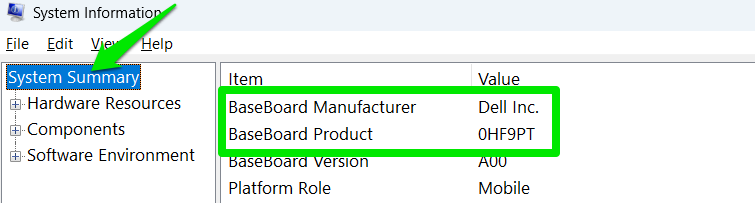
The Baseboard Manufacturer is the name of your PC motherboard brand, and Baseboard Product is the model number.
Run a Registry Query in Command Prompt
Microsoft has removed the WMIC command line tool, so it’s a little difficult now to get the motherboard model from the Command Prompt. However, you can run a Windows Registry query to extract the motherboard model information from the Registry using Command Prompt. Here’s how:
Open Command Prompt by typing “cmd” in Windows Search and selecting Command Prompt.
Here, type the following command and press Enter.
reg query "HKLM\HARDWARE\DESCRIPTION\System\BIOS" /v BaseBoardProduct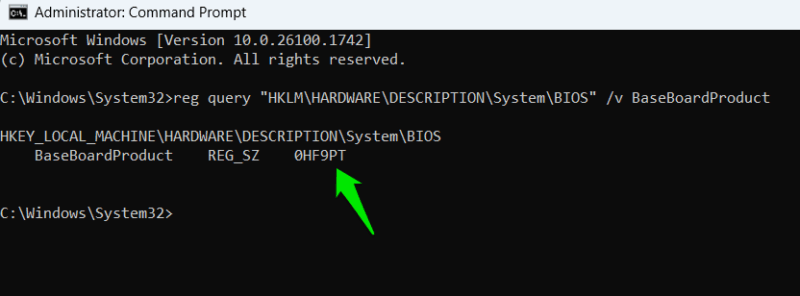
This command will reveal the exact motherboard model. However, it won’t list the motherboard manufacturer’s name. To find the motherboard manufacturer’s name, use the following command instead:
reg query "HKLM\HARDWARE\DESCRIPTION\System\BIOS" /v BaseBoardManufacturerFind Motherboard Model Using a PowerShell Command
You can also reveal the motherboard model using a PowerShell command. This is the new standard that replaced the WMI command line tool, which could fetch the motherboard information in the Command Prompt.
Type “powershell” in Windows Search and open Windows PowerShell.
Here, enter the following command:
Get-CimInstance Win32_BaseBoard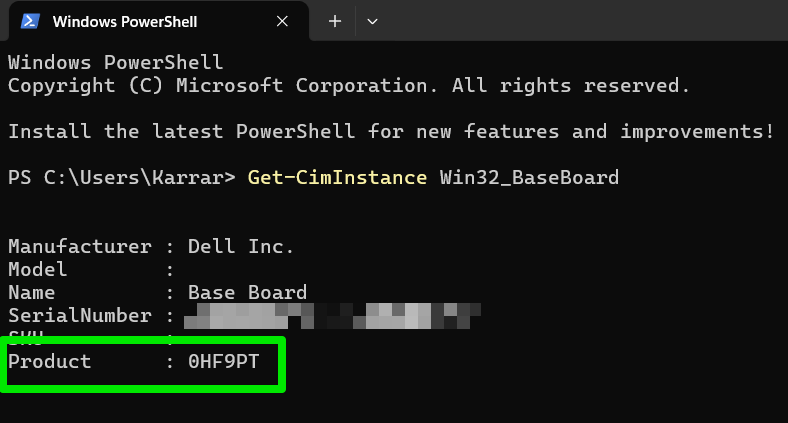
This command will reveal both the motherboard manufacturer’s name and model number. The model number is written next to Product.
Use Third-Party Tools to Find Motherboard Model
If you want an easy way to get the motherboard information, third-party tools can help. Even better, given how these tools are often recommended for system diagnostics, you may already have them installed!
CPU-Z
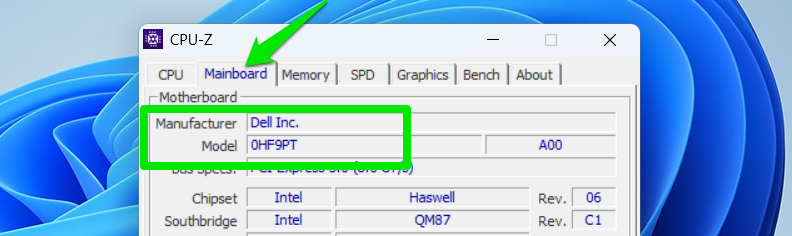
You probably have used CPU-Z for information about your processor and for benchmarking. You can also use it to find your motherboard’s model by clicking the Motherboard tab on the main window.
Speccy
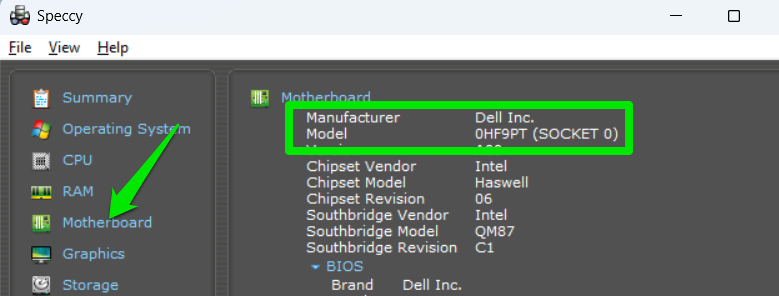
If you have used Speccy to monitor your system’s temperatures, you can also use it to check your motherboard’s model. Just look under the Motherboard field on the main page or click the Motherboard category on the left side.
Find the Motherboard Model from BIOS
If you don’t want to access Windows at all, you can also find the motherboard model in PC BIOS/UEFI. Just enter BIOS/UEFI, and you’ll find the motherboard model in the System Information section.
Finding the motherboard model in Windows isn’t difficult once you know where to find it. Among these methods, using the System Information tool will be the easiest, but other methods can also be useful depending on your needs. If you are finding the motherboard model of a laptop, you may want to know the laptop’s model as well.