


I’m subscribed to a lot of RSS feeds, and I often wish that I could filter the content that is displayed in each feed. Why? Well, everyday there are tons of articles on topics that I have no interest in, so it’s pointless to have those posts displayed in my feed reader. You may have a similar issue.
Instead of wasting time sifting through all of the feed items you don’t want to read, wouldn’t it be easier to completely filter them out? Today I’ll show you how to do that using the free online service Feed Rinse.
Export Your RSS Feeds
Before signing up for a Feed Rinse account, you should export your feeds from your RSS reader of choice. Doing this first will make things easier once you create your Feed Rinse account.
If you’re using Google Reader, you can export your RSS feeds by doing the following:
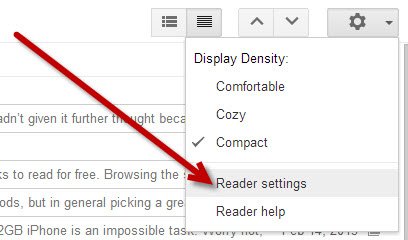
- Click on the Gear icon and then click “Reader settings.”
- Click on the “Import/Export” tab (between Goodies and Send To).
- Under the “Export your information” area, click on “Download your data through Takeout.” You’ll be directed to Google Takeout in a new tab.
- Click on the “Create Archive” button at the bottom of your Reader takeout information.
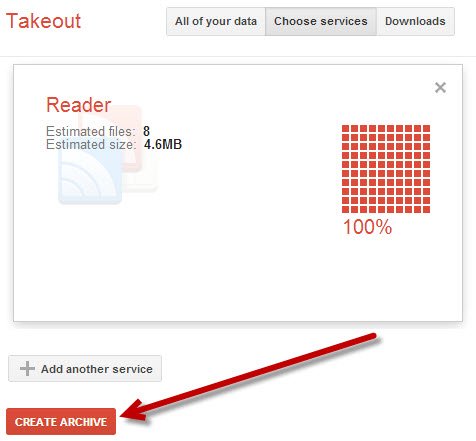
- Your archive will be created and you’ll be able to download it and save to your computer.
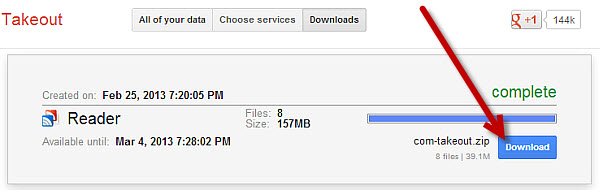
- Since your archive is downloaded as a zipped file, you’ll need to unzip the folder so that you have access to each individual file in your archive.
Filter Your RSS Feeds
Now that you have your RSS feed subscriptions from Google Reader, it’s time to import them into Feed Rinse for filtering.
1. Go to the Feed Rinse website, click on the “sign up now” button, and create a free account. With this account you’ll be able to filter up to 500 feeds.
2. Next, click on the “Let’s get started” button and you’ll be able to add your feeds. You can enter each feed subscription one-by-one (via URL), or use the subscriptions.XML file that you downloaded from Google Takeout.
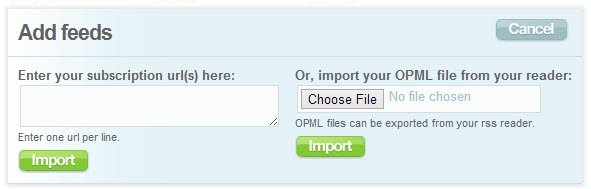
3. Once you click on the “import” button, in about 20-30 seconds, your feeds will be imported into Feed Rinse.
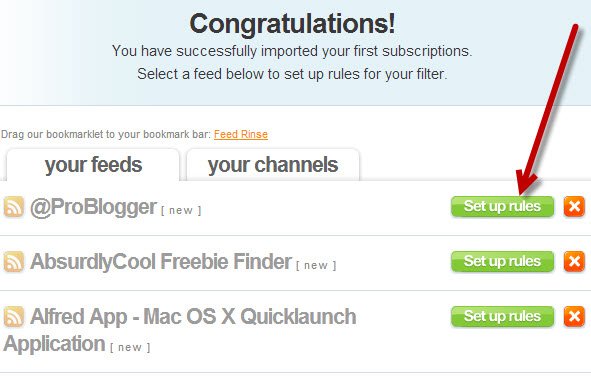
4. Now you can look through your feeds and choose the subscriptions you’d like to filter. When you’re ready, click on the green “Set up rules” button for the desired feed, to start setting up your filters. There are two rule options:
- You can choose to block specific posts and set the conditions that should be met in order for those posts to be hidden.
- You can choose to allow specific posts and set the conditions that should be met in order for those posts to be displayed.
5. There are numerous options for filtering your feeds, and you can have as many conditions as you’d like.
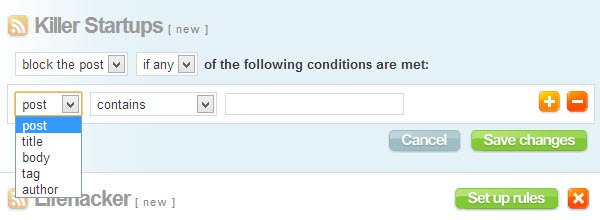
For example, you can hide posts that contain or do not contain a specific word in the title, body, or as a tag. Likewise, you can choose to only display posts that contain or do not contain a specific keyword phrase in the title, body, or tag. There are many possibilities here, which really allows you to tailor your RSS feed subscription to your liking.
Read Your Filtered RSS Feeds
Once you’ve gone through all of your feeds and set up rules, I’m sure you’re wondering how to read your custom feeds. There are two options, but the easiest method is to simple export the feeds.
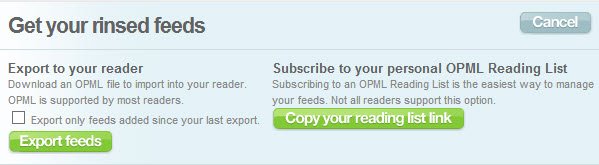
You can download an OPML file (containing your filtered feeds) from Feed Rinse and then import them to your preferred RSS reader.
If you’re using Google Reader: click on the Gear icon, go to “Reader settings,” click on the import/export tab, and then upload the OPML file downloaded from Feed Rinse.
After that, you should see them in your RSS feed reader, and you’ll be able to unsubscribe from the original feed – so that you won’t have duplicate items.