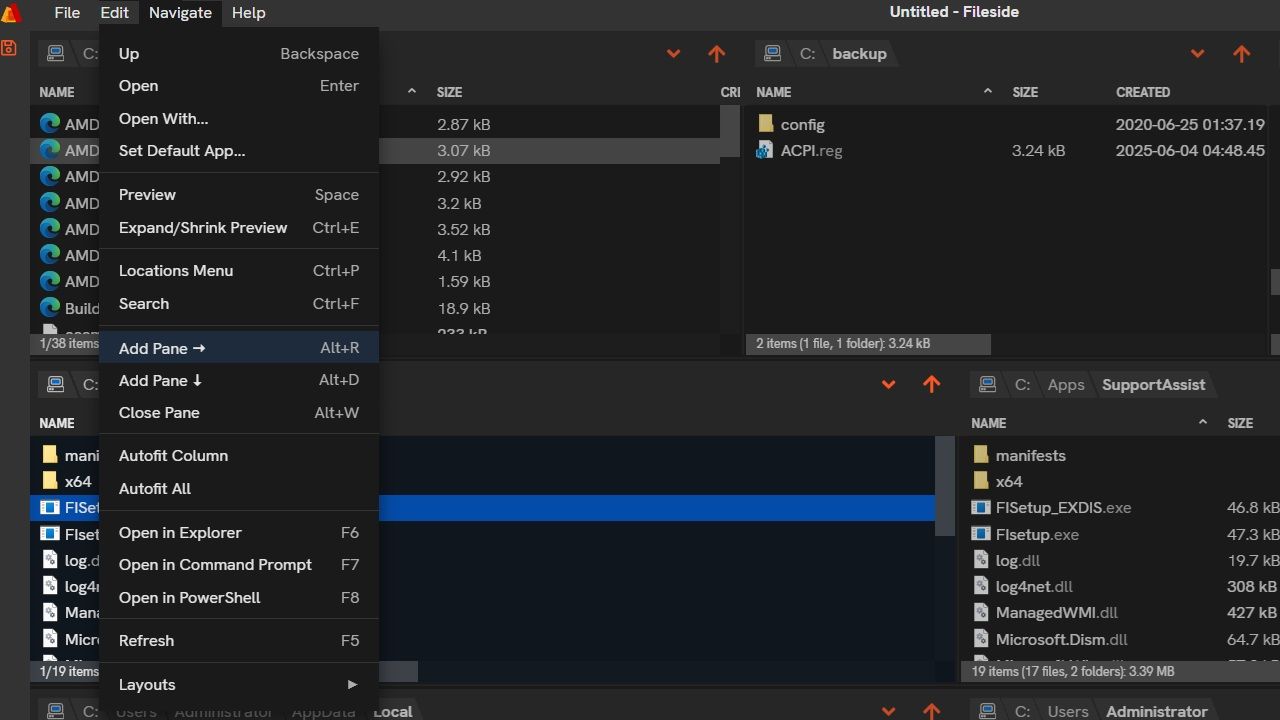
I recently started using Fileside, a third-party file manager for Windows, and it didn’t take long to notice what sets it apart. The lightweight app reduces mouse clicks, supports keyboard shortcuts, and allows file previews without opening them. The workflow feels more intuitive, aligning naturally with the tasks in a window. If you were looking for an alternative to the Windows File Explorer, Fileside is worth a try.
Fileside: a Multi-Pane File Manager for Windows
Windows 11’s File Explorer has tabbed browsing for better visibility and faster navigation. However, it still lacks true multi-pane layouts, which are a hallmark of macOS Finder.
Fileside, a third-party file manager, fills this gap with customizable panes presented in a clean, intuitive interface. As long-time Windows users, we’re used to juggling multiple File Explorer windows. Fileside’s multi-pane layout eases that extra effort by keeping everything in one window, thus reducing finger strain.
In a multi-pane setup, all folders and files intuitively adapt to your screen size and setup. On a standard 15-inch laptop, I found it easy to work with six or seven panes. With a large monitor or dual-display setup, you can manage several more. Pinning the installed Fileside app also eliminates the hassle of switching between scattered folders; it’s all there wherever you need it.
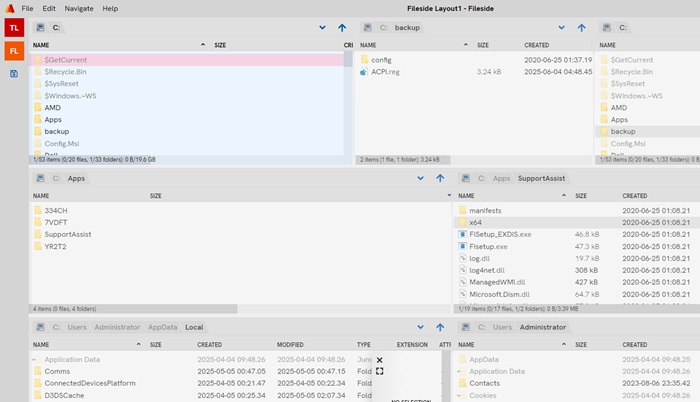
I found one of the best ways to use Fileside is by pinning it to the Windows taskbar for quick access. Just open it at any location where you need to manage files and folders.
From the Navigate menu, select Add Pane to insert panes horizontally or vertically. The interface is fully intuitive, making it simple to create nested panes based on your workflow. Click Close Pane when you’re done and it will vanish from the view.
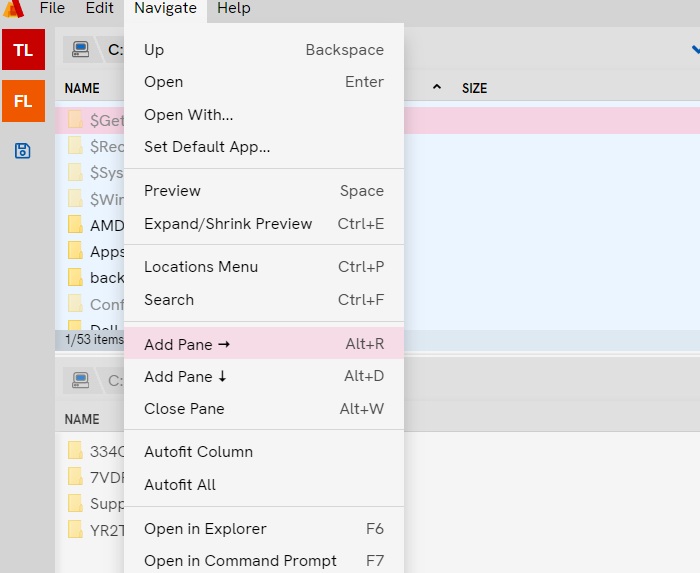
Of course, we don’t always need multiple panes. For everyday browsing, one or two File Explorer tabs often do the job. The issue with Windows File Explorer is that it doesn’t adapt to these varying user habits and mouse click patterns.
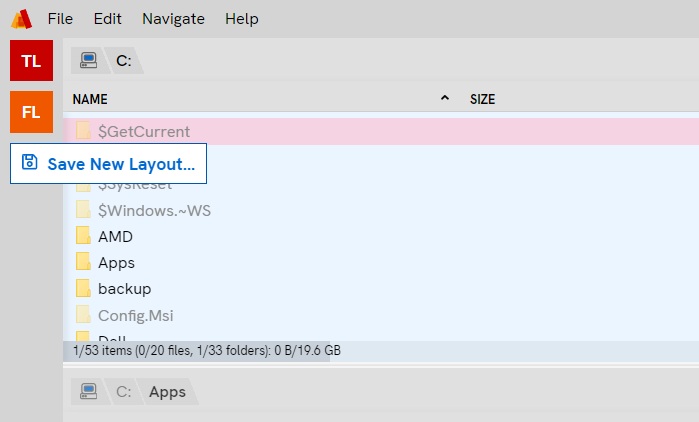
Fileside handles this differently. Just go to File -> Save New Layout to save a custom arrangement of panes, each represented by two-letter labels in the left column. Unlike restarting File Explorer or rebuilding its windows, Fileside allows you to quickly switch to your preferred layout in a click.
The best part about these multiple panes is that you can navigate them entirely using the keyboard. While Windows offers them, File Explorer is still fundamentally designed around mouse interaction. And that leads us to the next point.
Switch to the Keyboard Entirely – Forget the Mouse
One thing I never liked about the default Windows File Explorer is the constant hassle of clicking the mouse everywhere on screen.
With Fileside, it’s very different. Keyboard shortcuts are a core part of every Fileside session, accessible from top-level menus like Edit and Navigate, as well as individual file/folder items. If you make the effort to memorize just a few, you’ll rarely need to touch the mouse or trackpad while browsing.
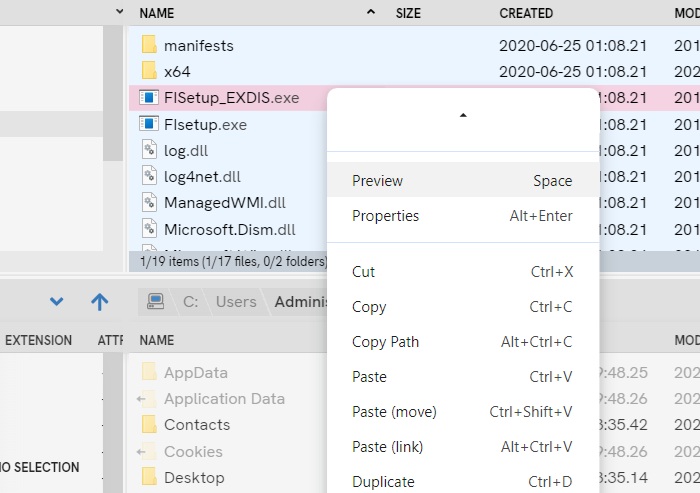
One of the most useful keyboard shortcuts in Fileside is the Space key. It instantly gives you a preview of any file you’re scrolling through. So, when browsing a series of images, for example, there’s no need to click each one to check what it’s about. The same goes for documents, videos, and other rich media files.
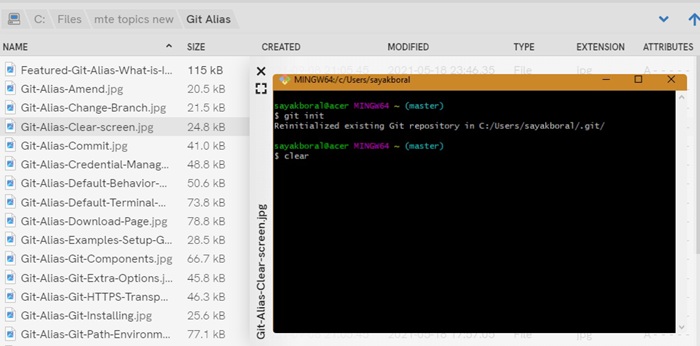
Related: the keyboard shortcuts on every window in Fileside work similarly as the various folder paths in Mac.
Access PowerShell and Command Prompt Directly in Fileside
If you want to use PowerShell or Command Prompt directly from a current folder. Fileside does it superbly. On a normal File Explorer, it’s quite tedious to navigate deep inside a nested folder, and copy its path from Properties.
With Fileside, you just do a right-click whatever location you’re in, and enter Open in command prompt/Open in PowerShell. The terminal will launch exactly at that point and from that path.
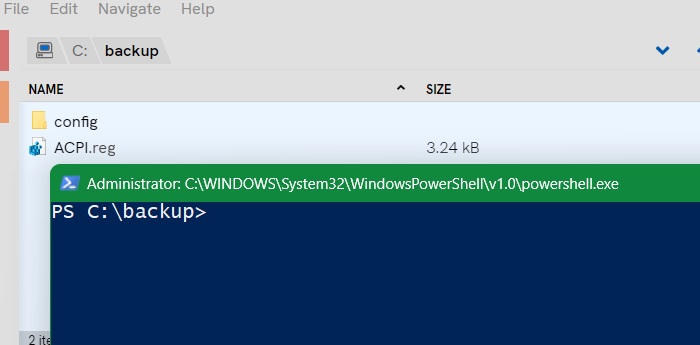
Whether you’re working with Windows environment variables, or working with various cmdlets in PowerShell, you no longer need the file manager to reveal the file path. It automatically opens for you at any folder location.
Related: there are quite a few useful ways to reveal file paths in Mac.
Easy Navigation With Quick Menu Access
The best part of Fileside is that file and folder navigation is very smooth and easy, both within the panes, and outside of it. On older Windows versions, you might recall buttons that let you go clearly back and forward through the File Explorer. While those buttons still exist, it’s tedious going all the way to the top left every time.
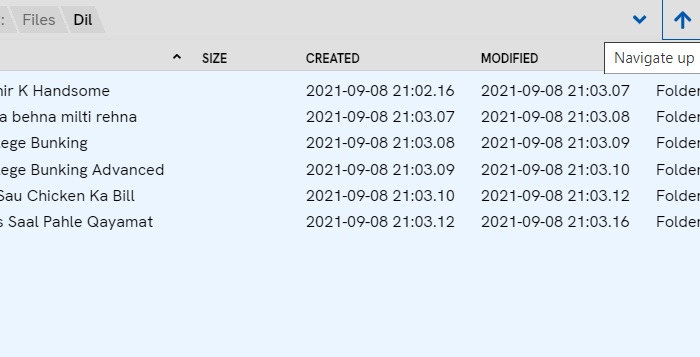
With Fileside, there is a handy Navigate up button which lets you go back, and of course, you just have to click a folder intuitively to go through its contents.
You can easily drag, resize, and adjust each pane to suit your needs. A convenient Autofit columns button, found in the Navigate menu, keeps your menu items tidy and organized. Similar to macOS Finder, Fileside offers a clear view of multiple folders and files side by side. You can also manage individual files or folders just as you would in Windows File Explorer.
I’ve tried multiple Windows File Explorer alternatives before, but they always fell short, prompting me to revert to the default. Fileside changes that completely. One hesitation for some Windows users might be the $25 price tag, though a full-featured 30-day free trial is included immediately on installation.
A strong incentive to buy is the license is perpetual, and works across multiple devices, including both Windows and macOS,. If you’re a Windows power user, this is one of the best file managers for productivity.
If you’re looking for free productivity enablers in Windows, try out Windows Edit, which gives you command-line text editing capabilities.








