
A clever FileFix attack is out in the wild that trick Windows users into installing StealC infostealer. Multiple social engineering campaigns have been detected trying to execute this FileFix attack. Let’s learn how this attack works and how to stay safe from it.
How This New FileFix Attack Downloads StealC Malware
After the last FileFix attack that bypassed Windows MoTW, this new FileFix attack can download an infected image that executes StealC infostealer (similar to EDDIESTEALER) in PC memory. Since the purpose of a FileFix attack is to bypass PC defenses by exploiting the file system, it’s especially dangerous once executed.
Below is the full step-by-step process of how this attack executes:
- The victim is lured to a phishing page (like a Facebook account suspension notice) where they are instructed to copy a path into File Explorer to view the incident report. However, when copied, the file path has a lot of space with a hidden payload at the end, so the user only sees the path pasted.
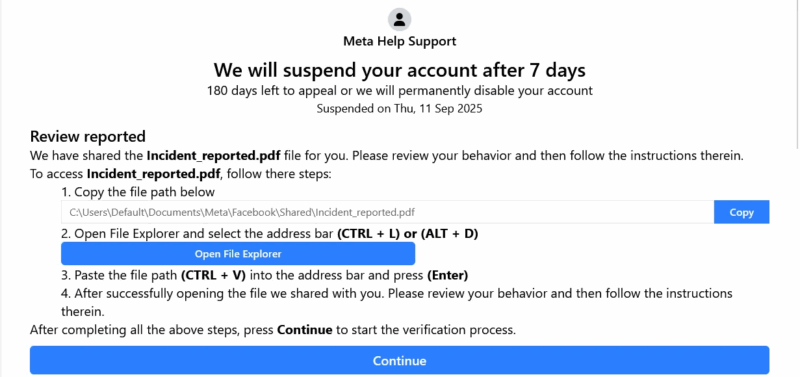
- When executed, it runs a PowerShell command that downloads an image file on behalf of the user that contains a hidden script.
- PowerShell then decodes the hidden content and loads the final malware into memory (no presence on disk, so no detection). In the recent attacks, StealC infostealer was discovered as the main payload that focuses on stealing browser cookies, saved credentials, crypto wallet data, and taking screenshots of active apps.
While StealC infostealer and Facebook phishing pages have been used in this FileFix attack, the same attack can be used in different phishing campaigns to install other types of malware.
While this FileFix attack is clever, you can still stay safe by being sceptical about phishing attempts and taking proactive security measures. Below are some ways to stay safe from a FileFix attack:
- Never Copy/Paste Commands in OS: don’t entertain any requests to copy/paste a path or command anywhere in the OS, like Run, CMD, File Explorer, etc. Even if you know what you are pasting and what it will do, it’s best to manually type it out.
- Harden PowerShell Security: many such attacks depend on running PowerShell scripts. You can harden the security of PowerShell so it doesn’t run malicious scripts unintended. Here’s a complete guide to securing PowerShell.
- Use an Antivirus that Inspects Memory: you should get an antivirus that has a powerful memory scanning feature. These antivirus programs can scan memory in real time to detect malicious code. Bitdefender and ESET both have a powerful memory scanning function.
- Use Standard User Account: most malware need to run specific commands with admin privileges. You shouldn’t use the admin account as the main account, as it’s more vulnerable to such automatic attacks. A standard user account is more than enough for daily tasks.
What to Do If You Have Already Executed the Malicious Command
If you think you have fallen for this attack and now your device is compromised, then the steps to protect your device are very different. Below are the steps you can follow to protect your PC and accounts. Just make sure you follow them in the exact sequence:
- Disconnect From the Network: the first thing you should do is disconnect from the network so the infostealer may not send information to the C2 server. The stealing process takes time, so the faster you act, the better.
- Change Accounts Password: use another PC or mobile device and reset passwords of all accounts that were logged in on the infected PC or had credentials stored on it. It’s necessary to do this step on a separate device and immediately, as hackers attack as soon as information is received.
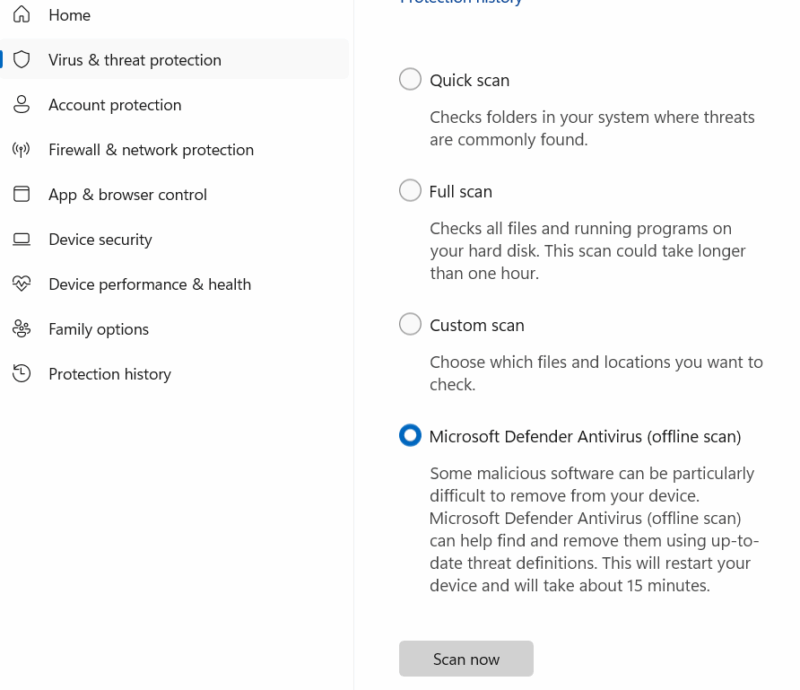
- Run Microsoft Defender Offline Scan: an offline scan turns off the PC and runs a full system scan from a separate (trusted) environment. It should catch the infostealer in most cases. In Windows, open the Windows Security app using Search and go to Virus & threat protection → Scan options → Microsoft Defender Antivirus (Offline scan).
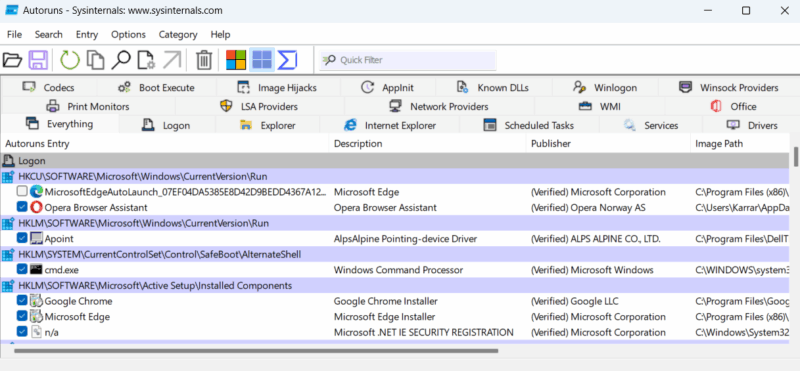
- Check Startup and Running Processes: after the scan, you should check all processes that run automatically on startup and current running processes to find and remove malicious files. For this, get the Autoruns and Process Explorer apps (download and move from another device offline). These apps will show all processes with information to confirm if a process is trustworthy or not.
- Reset/Restore Windows: If the above steps don’t work or you want peace of mind, you can reset Windows to ensure the infostealer is deleted (most aren’t created to persist after reset). Depending on your need, you can restore Windows, reset Windows, or clean install Windows.
FileFix and similar malicious attacks heavily depend on phishing and social engineering to execute commands. A good rule of thumb is to never entertain any type of unsolicited requests. You can also use these online security tools to further confirm suspicion.








