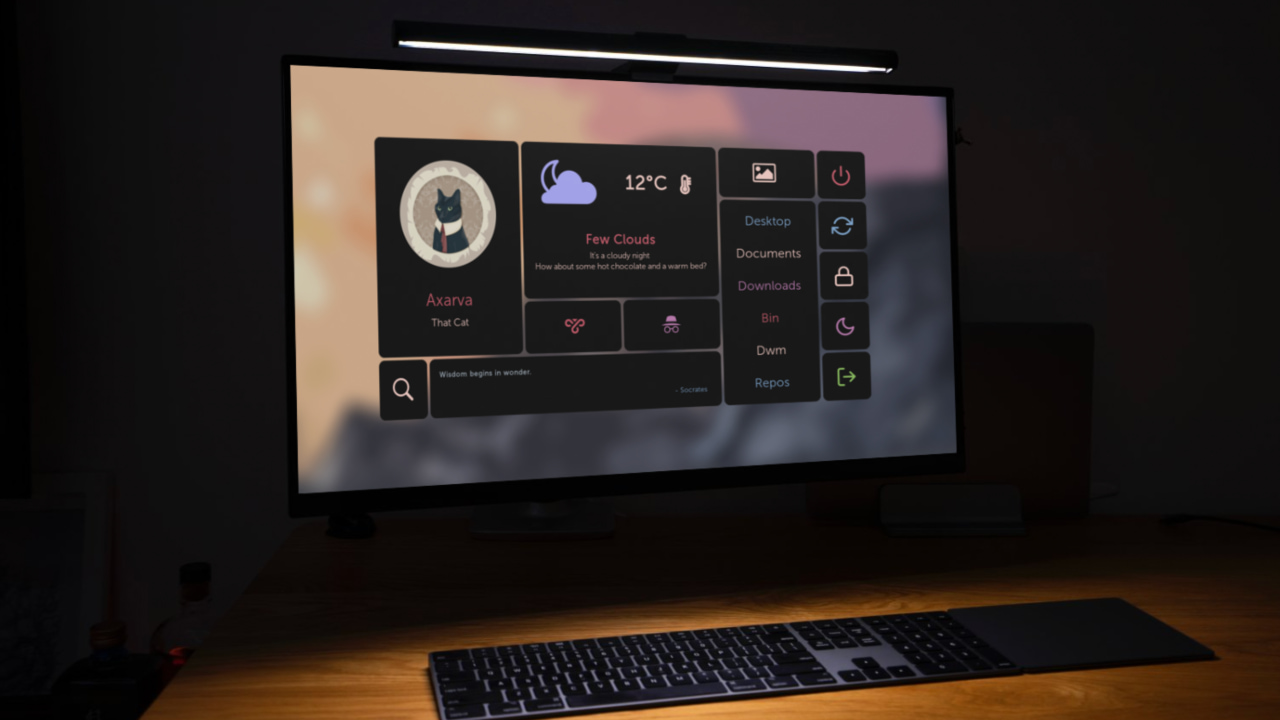
When it comes to customizing a Linux desktop, many people immediately think of Conky, a system monitor that displays all sorts of information right on your desktop. It’s a solid app, but it’s not the only one worth using. I’ve recently started using a newer tool called EWW, and contrary to its name, it does a fantastic job. EWW can display things like clocks, system monitors, and weather info, and features a handy GUI.
Good to know: 9 hidden customization settings to get the most out of your Mac
What Is EWW?
EWW stands for ElKowar’s Wacky Widgets, and as the name implies, it’s a widget system for Linux desktops. EWW allows you to create and display custom widgets on your desktop. Things like clocks, system monitors, weather info, music controls, and pretty much anything else you can think of, and it is independent of any particular desktop environment or window manager.
EWW is a standalone program written in Rust. It uses its own configuration language called Yuck (not a typo), which is inspired by Lisp S-expressions. It basically means you write your widget layouts in a structured text format (with lots of parentheses). If you’ve ever edited an HTML or XML file, this will feel somewhat familiar.
You define widgets, which are like templates or components, and windows, which are the containers or surfaces on which widgets are placed in the Yuck config file. For styling, EWW uses CSS/SCSS, yes, the same kind of CSS that styles web pages.
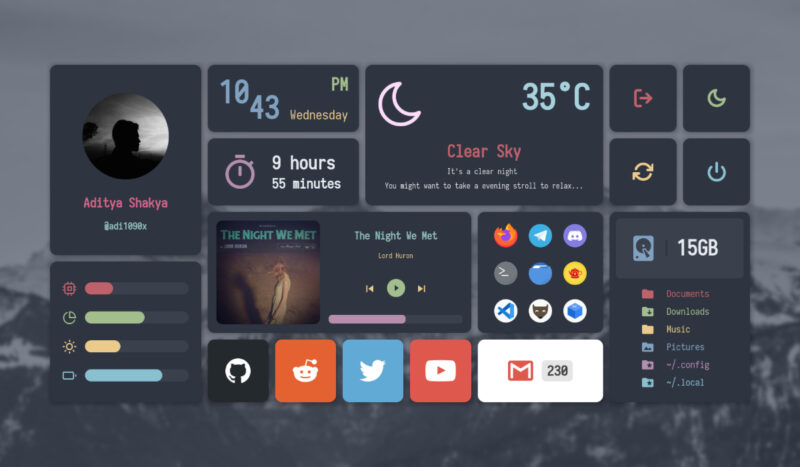
Because it leverages GTK for rendering, you can apply CSS styles to your widgets. That means you have a lot of control over fonts, colors, spacing, and other visual aspects, using a language that many people find straightforward to work with.
Using EWW
Initially, I was a bit intimidated, but EWW turned out to be pretty manageable. You install EWW through your distribution’s repositories or by building from source. Once installed, using EWW involves a few steps.
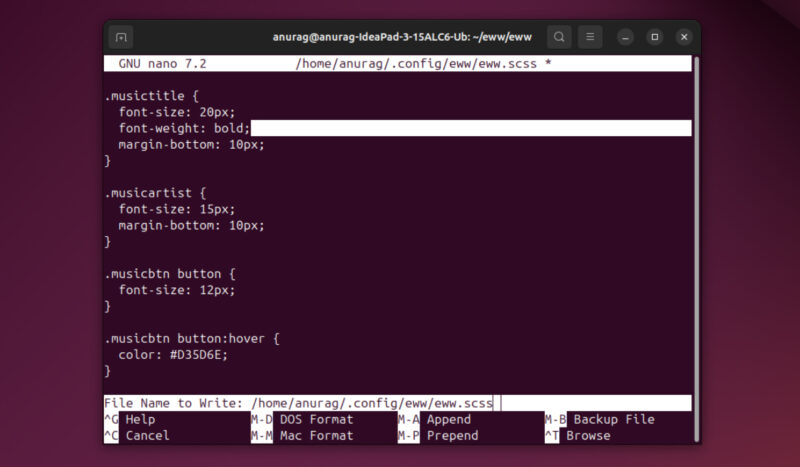
By default, EWW looks for a configuration directory. In there, you’ll create at least two files. One for the widget definitions (often named eww.yuck) and one for styling (named eww.scss or .css). The Yuck file is where you declare your widgets and windows, and the SCSS/CSS file is where you put the styles.
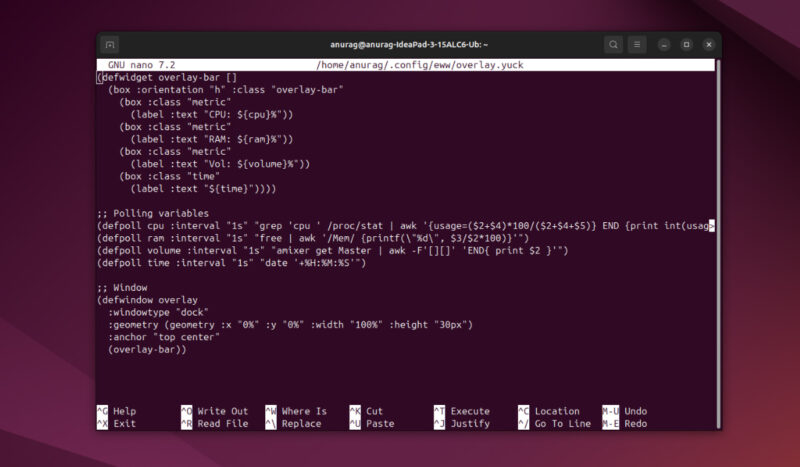
EWW’s config syntax is quite logical once you see an example. For instance, you might define a widget for a CPU monitor that shows CPU usage percentage, or a widget for a clock that displays the current time. Each widget can contain basic GUI elements like boxes, labels, images, progress bars, buttons, etc., which EWW provides as built-in building blocks.
For example, you could define a window called “sidebar” that has a vertical box of various info: CPU, RAM, disk usage, weather, etc. In Yuck syntax, it looks something like:
 (defwindow sidebar
    :monitor 0
    :geometry (geometry :x "0%" :y "0%" :width "200px" :height "100%" :anchor "top left")
  (box :orientation "vertical"
      (widget1 ...)
      (widget2 ...)
      ...))
This defines a window named sidebar on monitor 0, anchored to the top-left of the screen with a certain width/height. Inside it, there’s a vertical box containing widget1, widget2, etc. Those widgets would be defined elsewhere in the config using constructs.
EWW vs. Conky
Conky is a lightweight system monitor that has been around since the early 2000s. Written in C/C++ with Lua support, it’s designed to display system stats such as CPU, RAM, disk, and network usage directly on the desktop or in its own window. Its main purpose is passive, real-time information display.
EWW, on the other hand, is a general widget toolkit. It goes beyond monitoring by allowing you to build interactive elements like bars, music players, and app launchers. Where Conky is focused on system stats, EWW can be used to create almost any kind of widget or UI component, with the added ability to show and hide elements when needed.
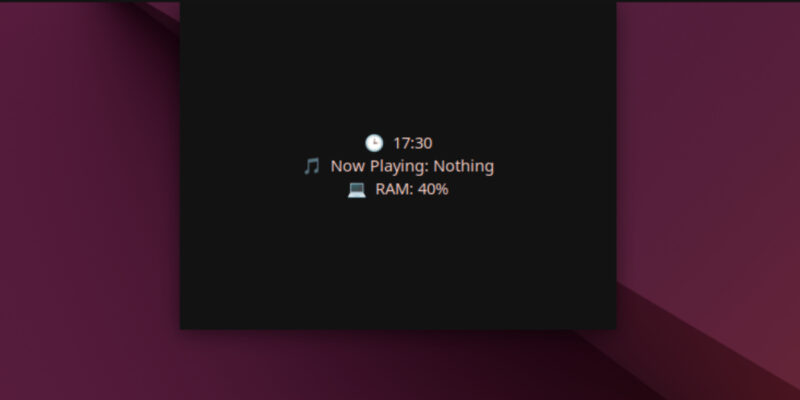
Both tools rely on text-based configuration. Conky typically uses a .conkyrc or Lua file, which can feel a bit dated and less intuitive. EWW uses the structured Yuck language combined with CSS styling, making it easier to theme and organize more complex setups. For a quick start, Conky is faster since there are plenty of ready-made themes available. EWW takes more effort upfront, but it gives you greater flexibility and control in the long run.
Functionality is another key difference. Conky excels at displaying a wide range of stats but offers little interactivity. EWW, by contrast, supports buttons, sliders, text inputs, and actions, so you can build widgets that do more than just display information, such as adjusting volume or launching apps.
My Experience With EWW So Far
I’ll be honest, setting up EWW wasn’t easy. It took a lot of trial and error, research, and more than a few curses. If you’ve worked with similar tools before, you’ll probably have an easier time than I did. For me, it was my first real dive into something like this (and coding is no joke).
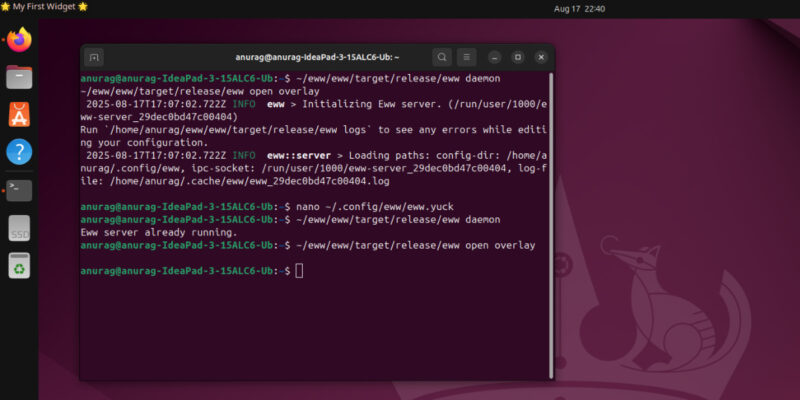
That said, it was worth the effort. Once I got EWW up and running, its value started to show. I began with the classic “hello world” widget, which was as basic as you’d expect.
But once I understood the basics, I started experimenting with more complex widgets, showing what’s playing on my system, monitoring RAM usage, tracking battery, adding a clock, and more. Everything worked smoothly once I got the hang of it.
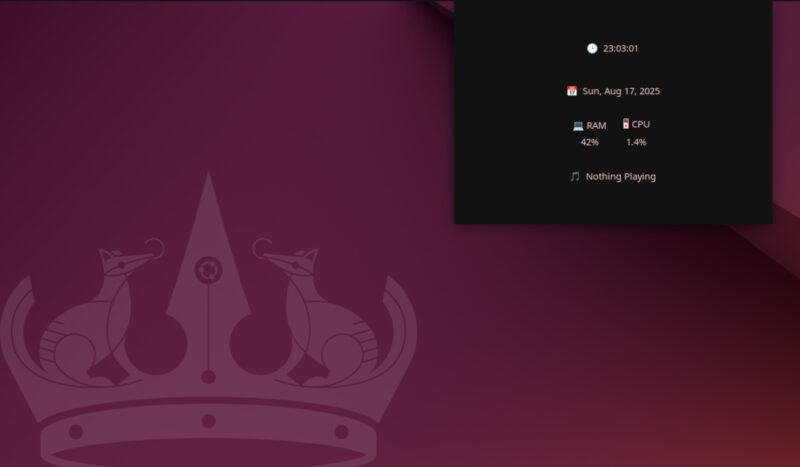
The documentation is surprisingly good, and the community is quite helpful. The Yuck syntax looked strange at first, but with the help of sample configs, I was able to make sense of it. Within a day, I had my first fully functional widget running.
Customizing a Linux desktop is just as easy as customizing a Windows PC. If you’re not sure where to start, take a look at some customized Linux desktops for inspiration.








