
One thing other AI assistants had that Meta AI didn’t was a standalone app for easy access. Now, Meta has finally listened and launched the Meta AI app, giving you one tap access, along with a variety of useful features.
Learn to Use AI
If you haven’t really used AI much, you might not know where to start. When you first install the Meta AI app (iOS | Android or use in your browser) and set up your account, the initial screen has several suggested prompts, including “Learn how to use AI.” Tap the prompt and you’ll be guided through some basics, along with a few suggestions to help you get more out of Meta AI.
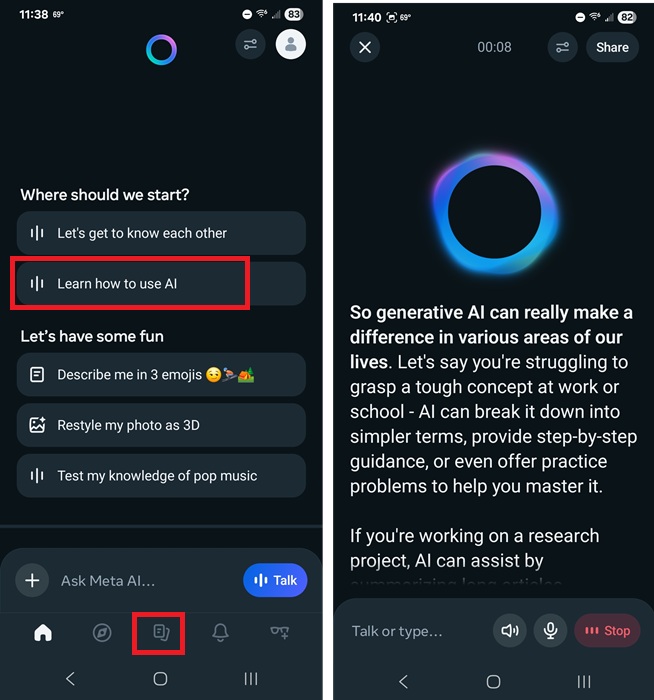
Tap the History button in the bottom middle of the app to go back to this chat at any time.
Test Full-Duplex Speech Technology
Before you play with this feature, please note that it’s fully experimental and you’ll likely encounter some glitches. But, it’s interesting to use. Instead of an AI voice that uses scripts or pre-recorded words to talk, the full-duplex speech demo uses a real-time natural voice that better mimics talking to a real human.
Since the voice is generated in real-time, it does make mistakes and responses can be slower. Also, expect filler words, pauses, and common expressions that you won’t typically find in most AI voices. It worked okay and did feel more natural, but I didn’t have much luck getting any detailed responses.
It doesn’t pull from any previous chats or stories memories. It also doesn’t pull data from web sources right now. If tests go well, Meta may add more capabilities soon.
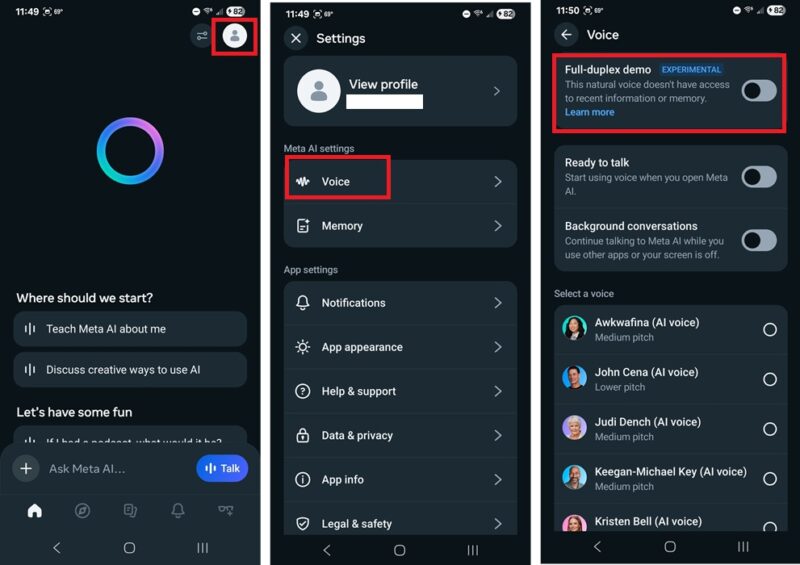
Turn this feature on to try it out by tapping your profile icon at the top right, tap Voice, and toggle on Full-duplex demo.
Explore the Discover Feed
One of the more fun features in the Meta AI app is the Discover Feed. It is Meta, so you know there has to be a social element. But, unlike your Facebook feed, this one might be more useful.
From the home screen, scroll down until the Discover Feed pops up. Or, tap the Discover Feed icon at the bottom (looks like a compass). This is an endless feed of users sharing prompts and their results. You can like, comment, share, and remix (suggests a prompt based on the current one).
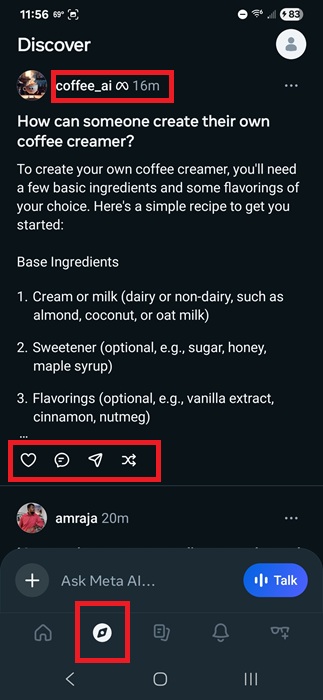
Unless you choose to share your prompt on Facebook, it won’t cross-post. Instead, it stays on the Meta AI app. You’ll find a combination of Meta AI accounts (look for the Meta symbol beside a username) and human users.
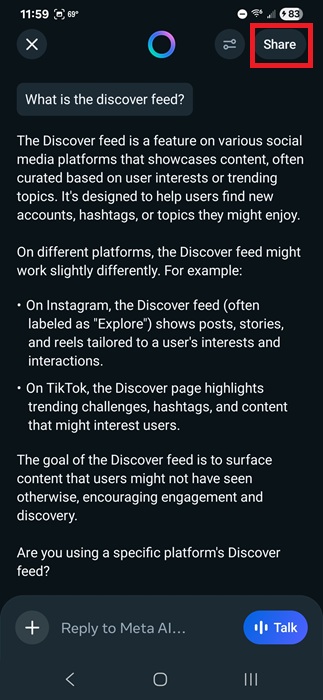
To share your own prompts/posts, tap Share at the top after Meta AI has responded to you. You can also share by tapping a prompt from History.
Test Out Other Voices
Want to customize how Meta AI talks to you? Outside of the full-duplex demo, you have a handful of built-in voices to use. Tap your profile icon, tap Voice, and select one of the available options. At the time of writing, I had 10 options, including celebrity voices such as Judi Dench, John Cena, and Kristen Bell, along with more general options.
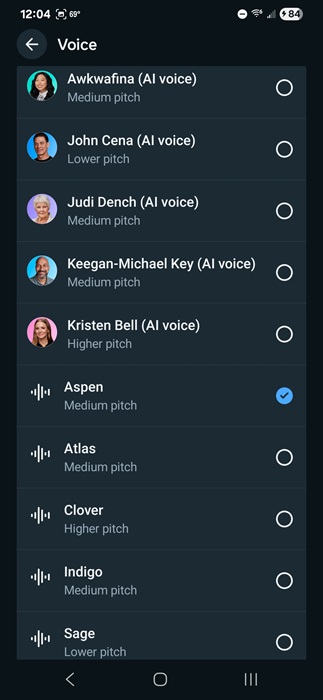
You’re free to change these as often as you want. The default is Aspen, which is a pleasant female medium pitch voice.
Talk to Meta AI While Using Other Apps
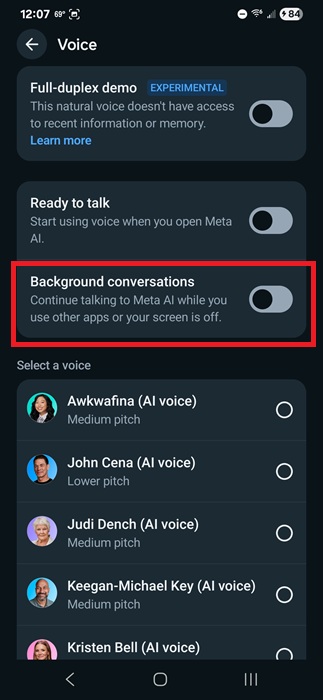
Like most AI voice assistants, Meta AI is available even when you’re using other apps. By default, Meta AI only works when the app is open. Honestly, it’s nice that this isn’t enabled automatically. To talk with Meta AI while using another app, tap your profile icon, select Voice, and turn on Background conversations. You’ll also want to toggle on Ready to talk so Meta AI accepts voice conversations the moment the app is on.
Manage Meta AI Devices
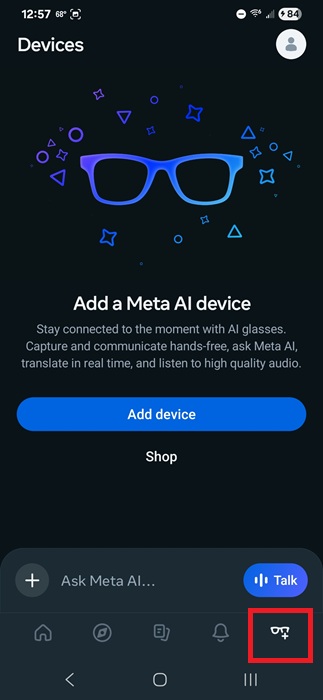
If you were using Meta View to manage your Meta devices, now you can use the Meta AI app instead. This app replaces Meta View. Tap Devices at the bottom right to add, shop for, and manage existing devices.
Teach Meta AI More About You
Meta is hoping to stand out among other chat assistants by having a more personal knowledge about you. Yes, this pulls from Meta’s long history of collecting your data as you use Facebook, Instagram, and WhatsApp.
When I installed Meta AI, I had the option of creating a completely new account or linking it to an existing Meta account. If you link it to an existing account, it can pull data from your profile/account to already get background on who you are, your preferences, and more.
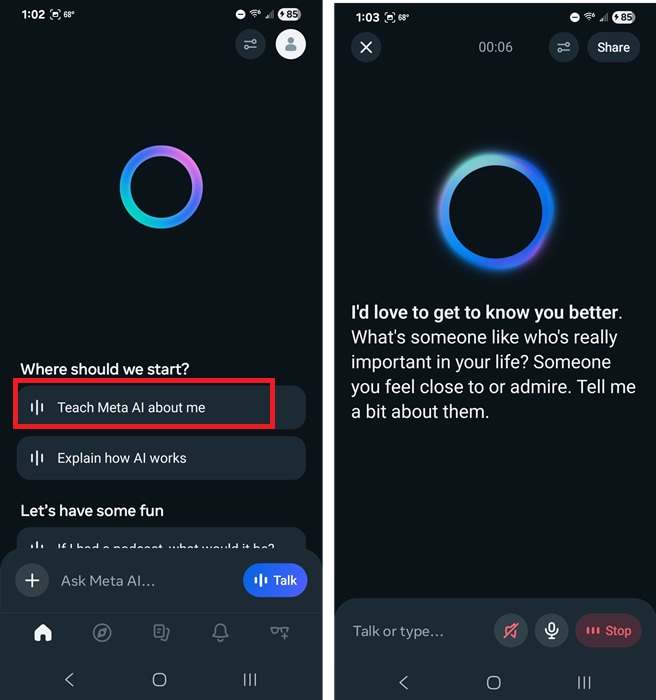
One of the first suggested prompts when you first open the Meta AI app is “Teach Meta AI about me.” If you tap this, Meta AI asks you a question. The more questions you answer, the more responses are personalized. You can also say “Remember…” along with a fact, such as an allergy or something you dislike, to tell Meta AI to remember this about you.
Manage and Delete Memories
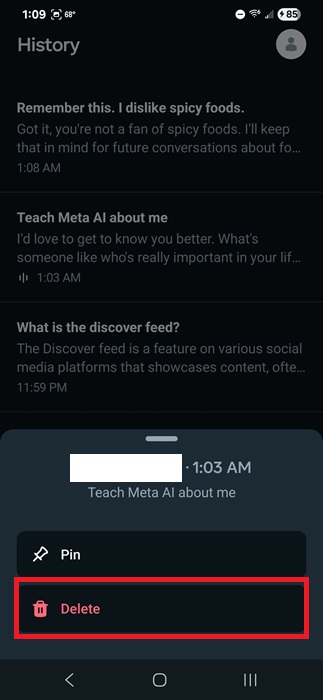
Want Meta AI stop storing certain details? Delete history and memories at any time. For history items, tap the History icon in the bottom center, long-tap on an item, and tap Delete.
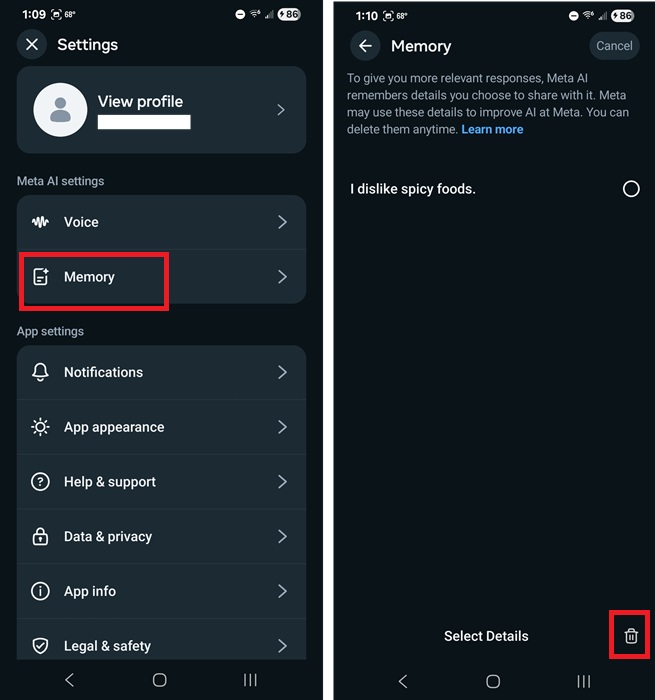
For memories (things you tell Meta AI to remember), tap your profile icon, tap Memory, tap Manage, and select the item(s) you want to delete. Tap the trash can at the bottom right when you’re done.
Generate Images
Outside of asking questions, doing research, or just general chatting, the Meta AI app also lets you generate images. Just tell Meta AI to generate or create an image, along with the details. The Discover Feed often has great ideas and examples.
If you use Instagram, take advantage of the built-in AI Studio to create fun characters.








