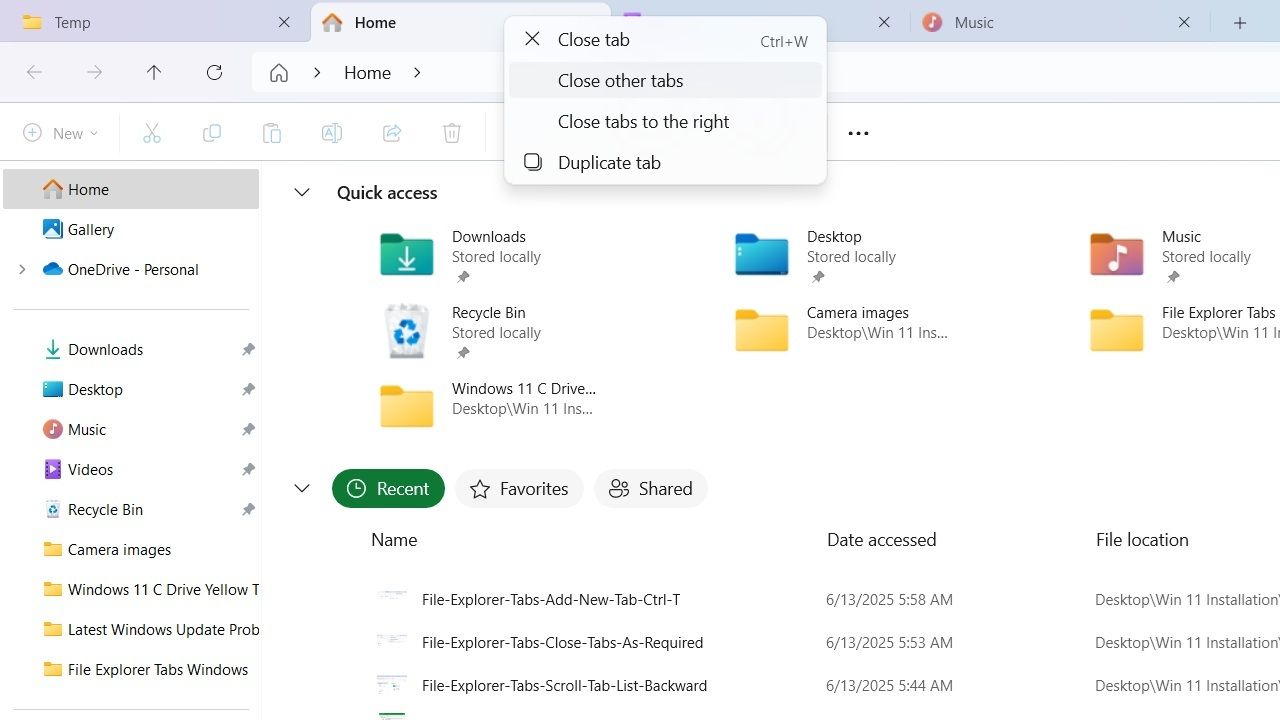
Within any File Explorer window in Windows 11, you can enable tabs that are evenly spaced and support horizontal scrolling. These offline tabs work much like a browser’s tabbed webpages. Let’s explore all the useful things you can do by enabling tabs in Windows 11 File Explorer.
What Are Windows 11 File Explorer Tabs
From Windows 11 version 22H2 onward, you can use a multi-tabbed File Explorer on top of the context-menu command bar (it’s the horizontal bar displaying multiple icons for New, Cut, Copy, Paste, and Rename actions).
Keeping multiple tabs open side by side removes the need to open multiple File Explorer windows at once. With tabs alone, you get a single view of all the folders you’re currently browsing.
Windows 10 does not support this feature natively, though there are workarounds.
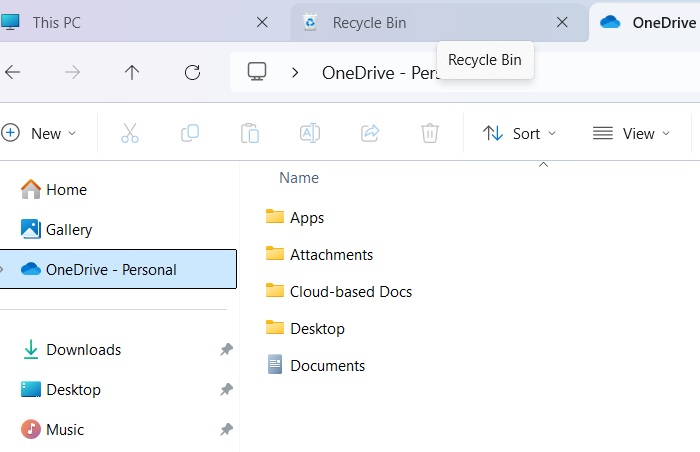
Each tab you create has its own unique set of files and folders and can be opened or closed independently. You can scroll smoothly from one tab to the next and quickly reorganize the files and folders. All the tabs disappear once you close the main File Explorer window.
Tip: check out our guide to fix common File Explorer issues in Windows.
Enable Smarter File Explorer Tabs in Windows 11
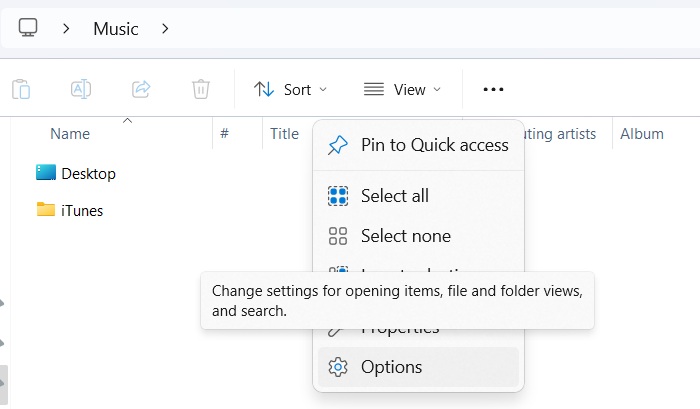
Windows 11 24H2 made the File Explorer tabs smarter. They let you restore an exact set of tabbed Windows. For that, click the three-dot menu on top of a File Explorer window, and select Options.
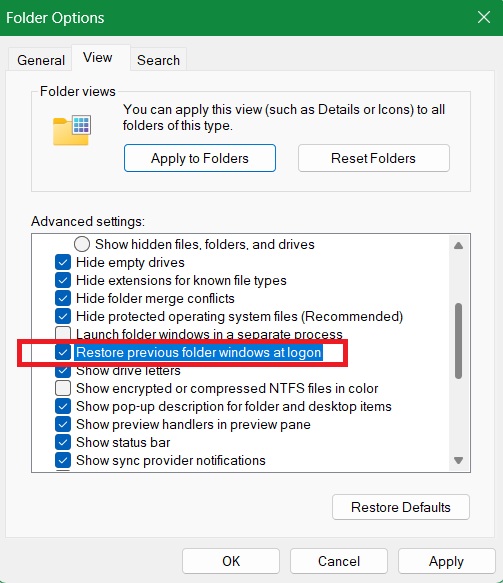
A new Folder Options pop-up menu opens. Go to View, and check the box for Restore previous folder windows at logon. Click Apply -> OK.
Related: you can also restore an exact set of tabbed menus using a state of hibernation or sleep.
Add New Tabs in File Explorer
To add new tabs in a Windows 11 File Explorer window, click any + button in the top bar, which is right above the command bar. You can also use a keyboard shortcut: Ctrl + T. The previous tab window you had open appears on your right side. You can change the folder path and open as many new tabs as you want.
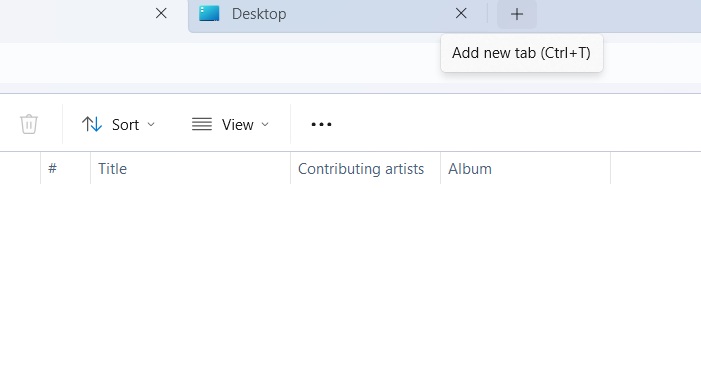
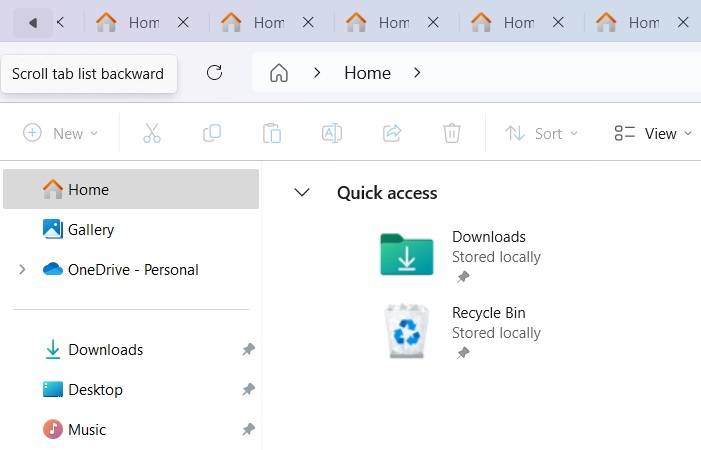
There is no limit to the number of tabs you can add for scrolling. It renders automatically based on your screen size. However, if you open too many tabs, they will automatically arrange into a Scroll tab list, allowing you to move backward or forward. To get rid of them all, just close the main File Explorer window.
Did you know? You can now enable AI actions in Windows 11 File Explorer.
Close File Explorer Tabs
You will need to close any open tabs after you’re done with all the folders and files you are working with. To switch off a single File Explorer tab, hover your mouse pointer near the top bar and click any “X” symbol. You can also close a solitary tab by right-clicking anywhere on the top bar or through the keyboard shortcut Ctrl + W.
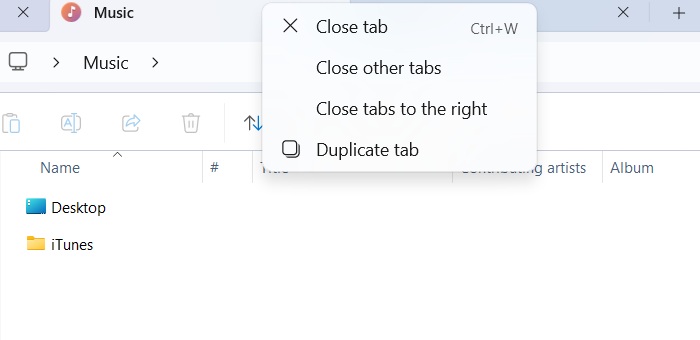
From the same menu, you can also close all the other tabs in File Explorer except the one you’re currently working in. Alternatively, choose Close tabs to the right. There is also an option to Duplicate tabs as shown here.
Check it out: learn how to hide files and folders in Windows.
Cut, Copy and Paste Files Between Different Tabs
You can easily cut, copy and paste files and folders between multiple open File Explorer tabs. As soon as you click on any file or folder inside a tabbed menu, the context menu shortcuts in the command bar are activated. Now it’s just a matter of choosing the relevant symbol for cut or copy. You may also select multiple files and folders at once (along with their subfolders).
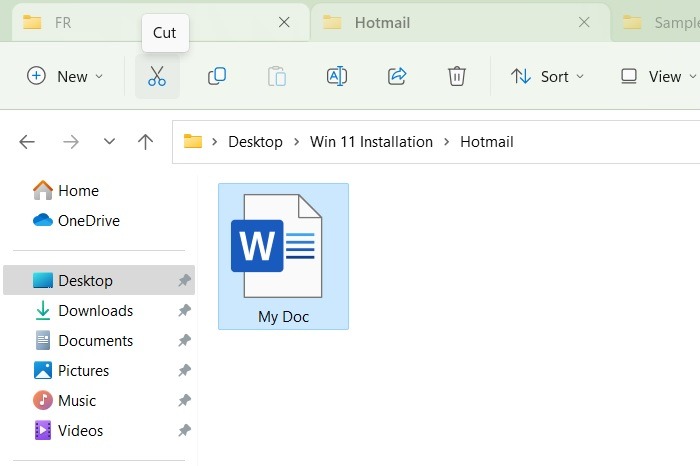
After your mouse pointer moves to a new tab, the Paste option will be activated. Thus, you can paste your content anywhere in a visible tab.
If the copy/paste function has stopped working on your PC, here are some things you may want to try to bring back this functionality.
Drag and Drop Files Between Tabs
One of the best features of multi-tabbed File Explorer is the relative ease with which you can drag and drop files and folders from one tab to another. Previously, you had to keep multiple File Explorer windows open next to one another.
To use the drag-and-drop method in Windows 11, go to a source tab where you can select one or more files or folders.
Click on the source files and folders together and drag them all the way to the destination tab. Don’t release the mouse pointer.
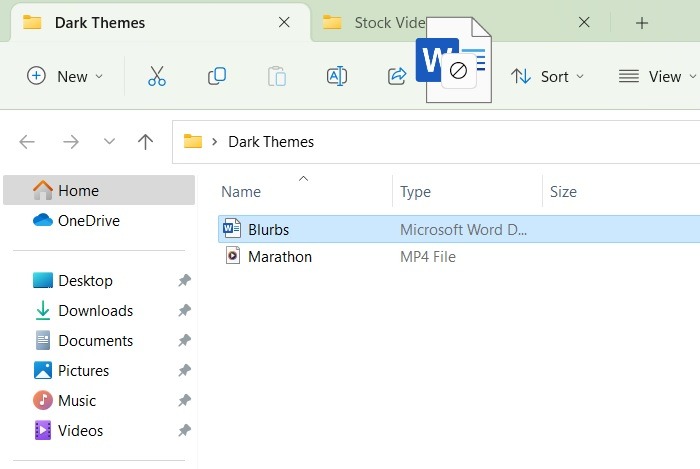
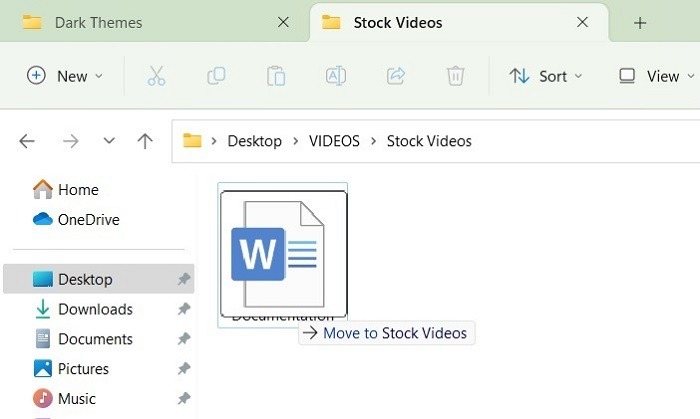
When you move to a new tabbed window, you should see a status message that reads Move to *Folder.
Release the mouse pointer to drop the contents in a new folder.
Also read: check out all the different ways to restart File Explorer in Windows.
Keep Multiple Windows Open to Maximize File Explorer Tabs
Windows 11 makes it convenient to operate a different set of tabs for each and every File Explorer window that is open at any given moment. This allows you to scale up to hundreds of different tabs at a given moment, something that just wasn’t possible in the past. It is a good option for multitaskers.
Ever wasted time looking for a specific file? Learn how to use Windows File Explorer filters to search files by type, date, and more.
Does Having More Tabs Open Use More RAM and CPU?
Browser-based tabs definitely consume more system resources. And it’s a good idea to not keep multiple browser windows open forever.
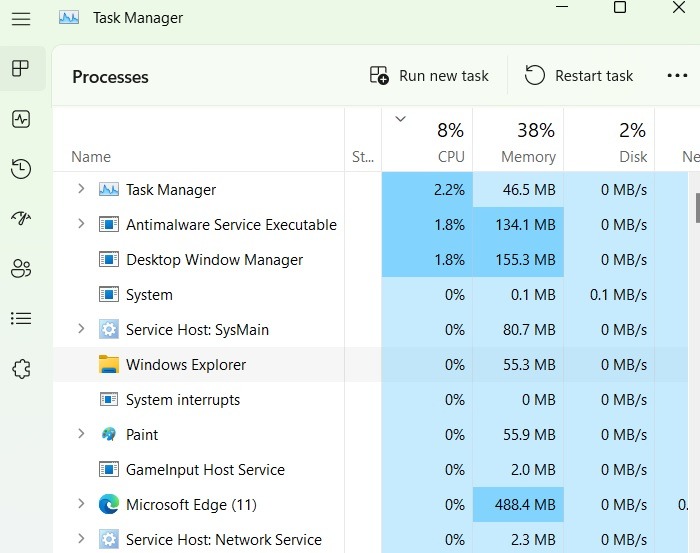
However, the impact of File Explorer tabs in Windows 11 is very minimal. In the following example, we kept more than 50 of these tabs open across a few windows. According to the Task Manager Processes summary, the overall impact on the CPU was minimal (0%), and the memory impact was only 56 MB.
Also read: here’s a quick primer on finding out which background processes consume the most memory in your system.
What are the Options for Windows 10 Users
Are you using Windows 10? While you won’t be able to use the full-fledged File Explorer tabs found in Windows 11, there are a few workarounds that you should consider.
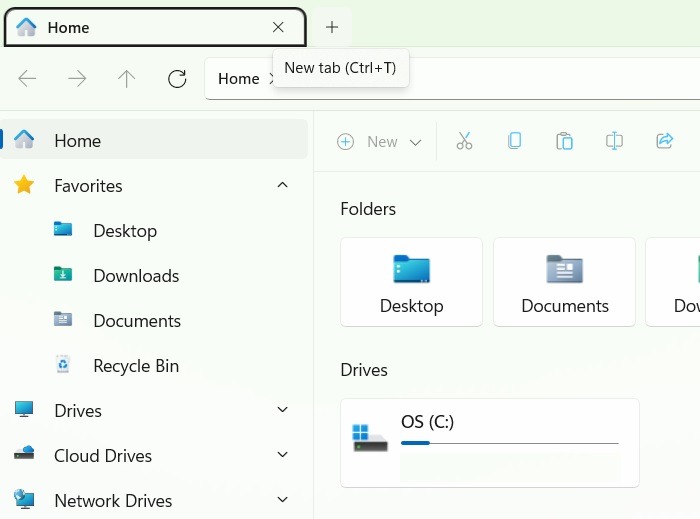
The Files App comes very close to replicating the Windows 11 experience on a Windows 10 desktop. The look and feel are very similar, and you even get Windows 11-like context menus.
While using this installed application, you can create new tabs with a simple + button and through a Ctrl + T shortcut.
You can also use the Modern File Explorer in Windows 10.
Had enough of using the same old file manager app in Windows and wondering what else is out there? Check out these File Explorer alternatives that are worth exploring.
Apart from tabs in Windows 11 File Explorer, another great productivity feature is to add Google Drive to it.








