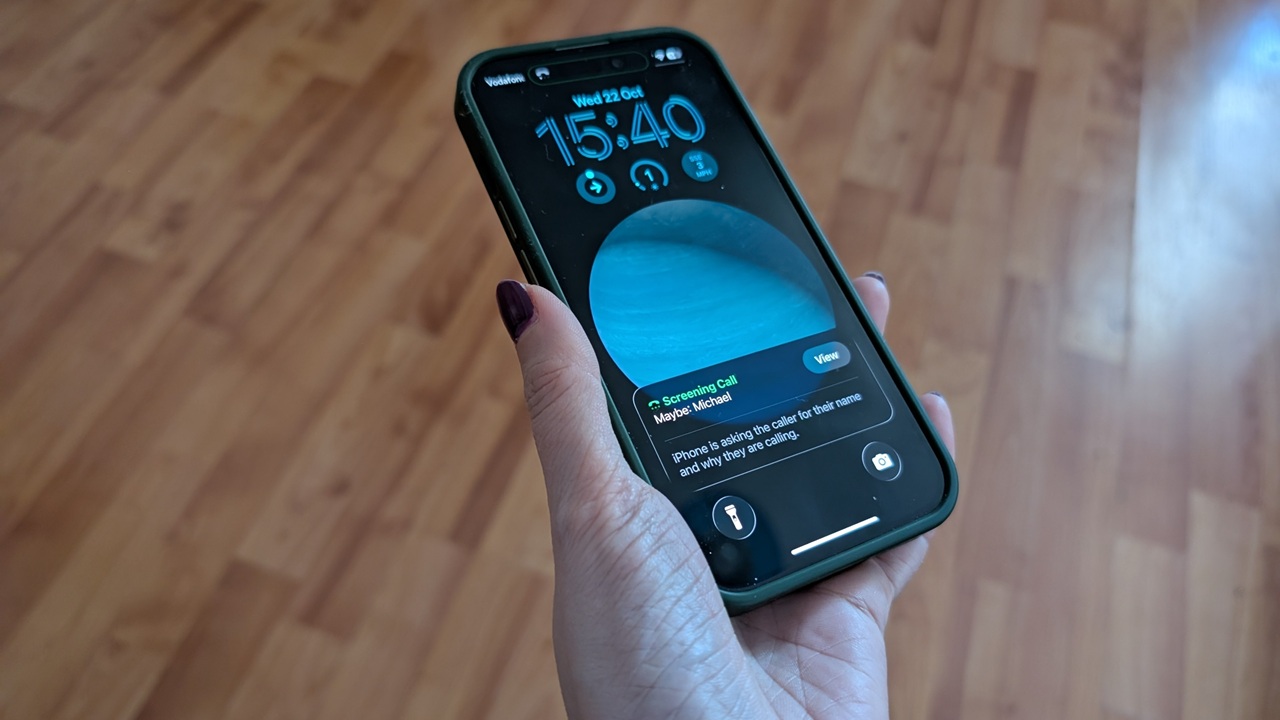
One of the smartest updates in iOS 26 is an anti-spam call feature that screens incoming calls and asks unknown callers to state their reason for contacting you. Unfortunately, availability for this option varies, and you may find it missing on your phone, even after installing the latest software version. You’ll be glad to know that there’s a workaround that will let you use it anyway. This post walks you through the steps.
Good to know: if you don’t like the Liquid Glass animations in iOS 26, learn how to tone them down.
Step 1: Change Your iPhone’s Region
First, make sure you’ve updated your iPhone to the latest iOS 26 version. Go to Settings -> General -> Software update to see whether the software is available for your device. Check whether you have a supported model here.
The call screening feature in iOS 26 isn’t an Apple Intelligence feature, so any iOS 26-compatible iPhone model should have it. Yet, many people (including myself) are missing this feature on their device.
The reason? Call screening is currently not officially supported in all regions. Apple is likely to expand it in the future, but for now, not everyone gets to enjoy the perks of this anti-spam feature. However, I found a workaround that lets you unlock the option on your device.
What you need to do is change your iPhone’s region to one that supports the feature, such as the U.K. or the U.S., by following the instructions listed here.
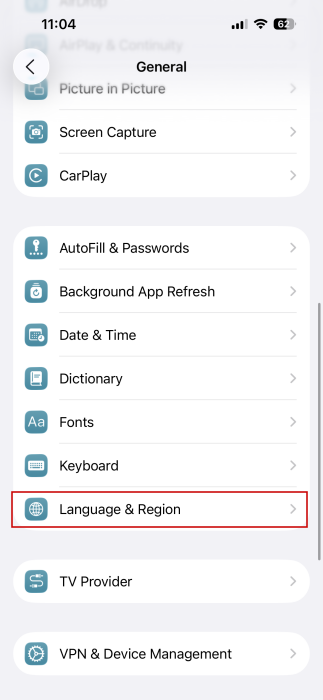
Open the Settings app on your phone, and navigate to General -> Language & Region.
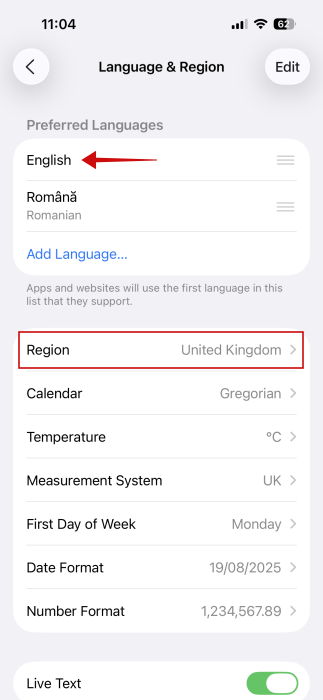
Tap on Region, and change it to one of the regions listed above. Also, make sure English is set as your Preferred Language at the top.
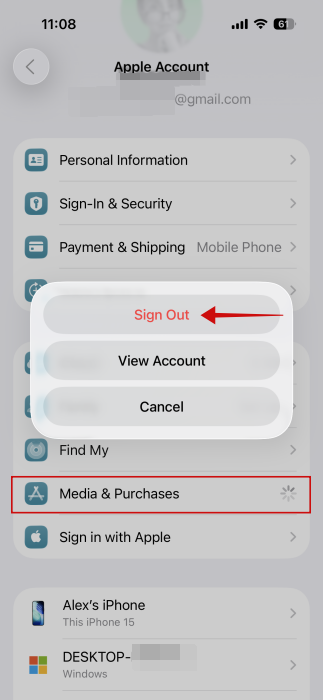
This was enough to make the option appear on my iPhone (after a restart), but if you’re still not seeing it on your device, you may also need to do the following: go back to Settings, and tap on your name at the top.
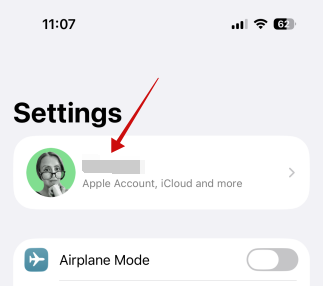
Tap on Media & Purchases. Select View Account in the pop-up.
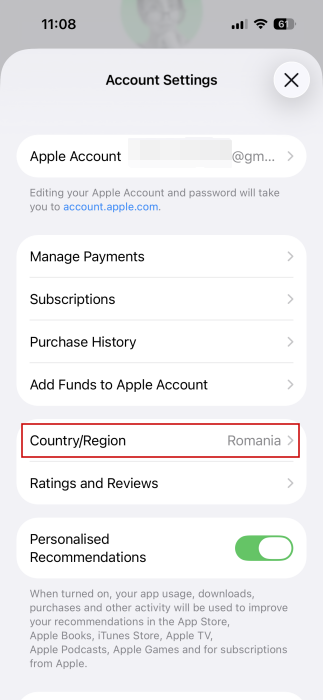
Tap on Country/Region, and make your selection.
Press Continue on the next screen, agree to the Terms and Services, then add a payment method and press Done.
Restart your iPhone. If you have to deal with a situation where your iPhone is stuck at the Apple logo, learn how to restart it.
What happens if you change the region?
You may be wondering what happens when you change your iPhone’s region from the Account Settings page, and rightly so. Your selected region controls which features, content, and services are available to you. This could mean missing out on certain apps, streaming services, or specific movies once you make the switch. In fact, even core features such as Messages or FaceTime may be missing in some regions.
However, you’ll be switching to a region like the U.K. or U.S., where most Apple features and content will still be available..
It’s important to note that if you have active subscriptions or credit in your Apple account, it may be best to hold off on switching regions. If you don’t, you could risk losing access to both.
Step 2: Enable Your iPhone’s Call Screening Feature
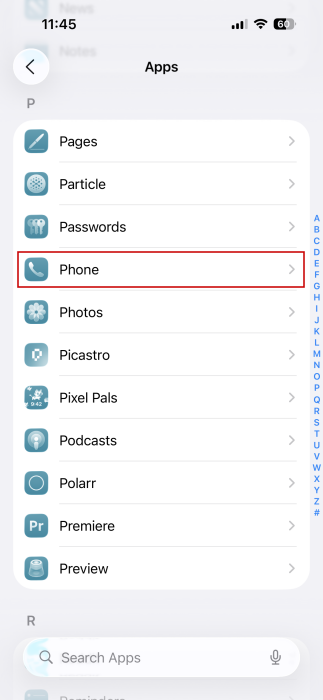
Open the Settings app, and navigate to Apps -> Phone.
Swipe down to find the Screen Unknown Callers section. Select the Ask Reason for Calling option.
You can also opt to Silence all unknown callers. However, I don’t advise that, as you may miss important calls from banks, delivery services or public services.
Tip: is your iPhone is not ringing for calls? Learn what you can do about it.
How Call Screening Works on an iPhone
Should you get a call from an unknown (meaning unsaved) number, your iPhone will ask them to provide more information about why they are reaching out to you.
Note that the phone won’t ring while the caller is being interviewed. You will see a notification appear at the top of your screen (in Dynamic Island if your phone has one) that you have a pending call. If the phone is locked, you will see a notification on your lock screen.
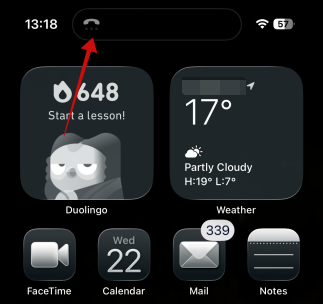
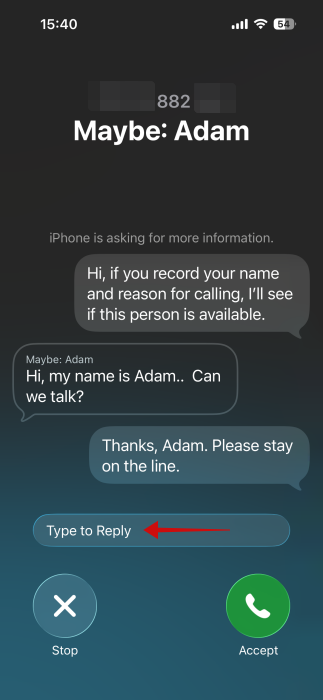
Tap on it to open a screen where you can see the ongoing conversation between your iPhone and the other person on the line. Your device will transcribe what they are saying in real time.
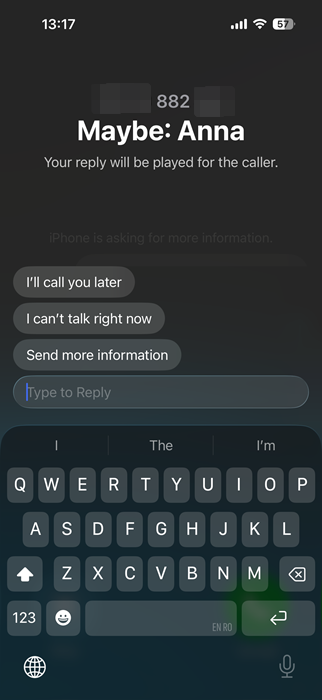
If you can’t talk at the moment, you can opt to reply from this screen by typing your answer in the Type to reply box.
Alternatively, use one of the suggestions.
If you would like to take the call, tap Accept. If not, the whole exchange will go to your voicemail.
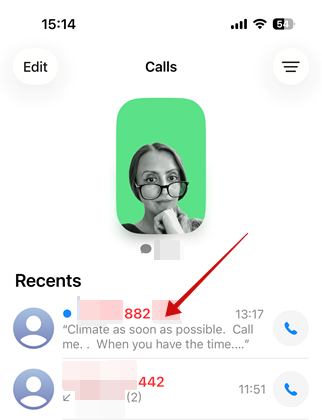
You will be able to access these missed calls easily from Recents in the Phone app.
If you tap on a call, you’ll have the to reply to that audio message.
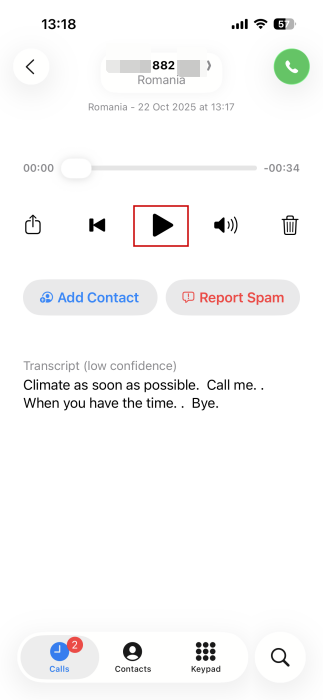
From here, you can also quickly Add the Contact to your iPhone or simply call them back. If you believe the caller had bad intentions, you can also report the number as spam.
Some Limitations
Because the call screening feature is set to an English-speaking region, the robot answering the call on your behalf will speak in English.
At the same time, transcripts from local callers may come through jumbled or simply inaccurate, even if they speak English. That’s not a major problem, as you can listen to their full message via voicemail, but if you want to respond in real time to a call, you may not be able to understand what they are saying.
It should also be noted that your iPhone will automatically screen calls for you. You can’t manually enable the feature for select calls or during a call.
In the last year, I’ve been noticing an increase in spam calls, with most of them in English, so this feature turned out to be surprisingly useful for me. If you work with foreign colleagues or are often getting international calls, this may be handy to have.
iOS 26 has much more to offer. Explore, for example, callback reminders, which can help you ensure that you never forget to return a phone call.








