
Emergency Restart is a hidden Windows feature many users haven’t heard of, simply because Microsoft doesn’t officially document it. It’s purposely designed as a final step for Windows problems, thanks to its forceful behavior, which also explains its low recognition. But what exactly is Emergency Restart, and when should you use it? Read on to find out.
What is Emergency Restart in Windows
Normally, when you shut down Windows or restart it, Windows does a “graceful” shutdown. This involves saving data and closing all processes/services, flushing file system and registry buffers, and unmounting volumes. If you initiate an Emergency Restart, Windows adds a “force” flag to the reboot API that immediately closes all processes and skips shutdown handlers. Afterward, it directly starts the firmware reboot path (ACPI).
This whole process doesn’t take more than 2-3 seconds. However, you will also lose all the unsaved data as this function terminates processes instantly. This makes it great for situations where Windows becomes totally unresponsive and terminating processes or a regular restart doesn’t work.
Unlike holding the power button which cuts power to the system, this is a software-based solution that does something similar. Both methods ultimately force close everything on the PC and allow you to restart the PC in a clean state. However, unlike the power button, Emergency Restart at least lets Windows know that it’s restarting the system and keeps power intact.
How to Use Emergency Restart
Now the big question is, if the system is unresponsive, how are you supposed to use a software-based command? Thankfully, the Emergency Restart option is hidden inside the well-known Ctrl + Alt + Del screen, aka Secure Attention Sequence (SAS).
You probably already know that this screen can be accessed even if Windows is frozen, since it works at the kernel level. Therefore, Emergency Restart is available even when Windows is unresponsive because it’s part of the SAS. Here’s how to execute it:
Press the Ctrl + Alt + Del keys to open the SAS. Hold the Ctrl key and click on the Power button at the bottom right corner. The Emergency Restart message will appear with a warning that all your unsaved data will be lost. Click OK here to initiate the restart.
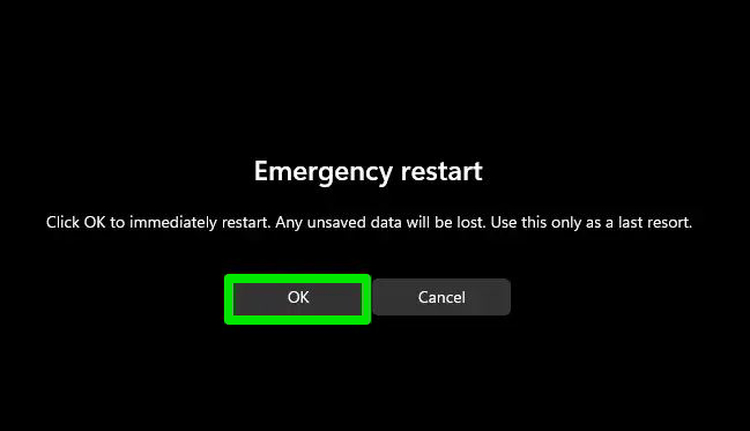
You might see a processing circle for a second, and the PC will immediately restart. We tested using this function with no programs open and multiple heavy programs open, and it always restarted in under 2 seconds.
When to Use Emergency Restart
Since both holding the power button and the Emergency Restart get you out of a stuck Windows, it’s understandable if you are confused about when exactly to use it. Below are a few reasons for using Emergency Restart:
- Fix Stuck PC During Remote Access: you can’t pull the plug or hold the power button during remote access. If your PC freezes to the point you can’t fix it using the Task Manager or the regular restart function, use Emergency Restart.
- It’s Less Aggressive: holding the power button abruptly cuts power from the components. In rare cases, this can cause hardware issues and even file corruption. During Emergency Restart, the components stay active just like a regular restart.
- It’s Faster: Emergency Restart is still a warm boot, which means the PC immediately turns on after closing everything.
- It Can Be More Convenient: depending on your PC setup, you may not always have easy access to the power button. Emergency Restart will let you force restart your PC in just two clicks.
Emergency Restart should be the priority method to force the PC to restart in critical conditions, it’s less aggressive and faster. Only when it doesn’t work, then removing the power and troubleshooting hardware problems will be your last resort.








