
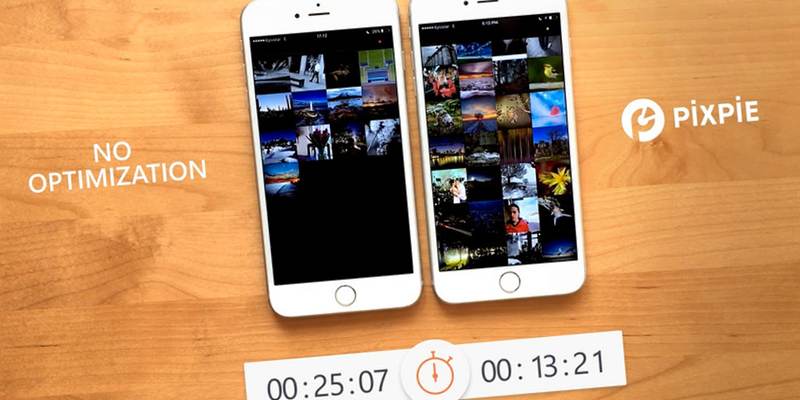

We could start by talking about how a picture paints a thousand words, but that would be just stating the obvious. Everybody knows it, and that’s why finding a text-only web content is next to impossible today. The problem is images are a lot bigger in file size than text; and in a world where everybody worships page load speed, you need to web-optimize your images to stay on the top of the chart.
Then comes the second problem. Optimizing images each time before uploading them to the Web can be a tiring routine, especially if you have several articles that you need to publish every week. Automation is the key, and if you run a WordPress site, there’s a plugin for it.
Also read: 5 of the Best Image Optimization Plugins for WordPress
Image Optimization in Automation
PixPie is a WordPress plugin that will help users to optimize images uploaded to the media library on the fly. This includes all generated thumbnails. Once set up, all processing is done automatically behind the scene without users having to tinker with anything.
By using intelligent lossy compression, the resulting images are visually identical to the original while being significantly smaller. Compared to the original, uncompressed, distortion-free images, the processed images score 0.95 or higher in the SSIM index.
Note: SSIM or Structural Similarity Index is a method for measuring the similarity between two images. The SSIM index is a full reference metric.
Other things you can do using PixPie is fast bulk optimization of your existing media library and use the API key and secret on many sites/blogs without touching any root or command-line access. It comes with a statistics page of your total savings. And since PixPie works on the server level in the background, all the images you upload via WordPress mobile will also be optimized.
However, there are limitations. The free version of PixPie limits users to 500 images per month – which is more than enough for most WordPress users. There’s also the 25 MB file size limit per file.
Setting Up the Plugin
Seasoned WordPress users will be familiar with the plugin installing routines. Go to “Plugins -> Add New” from the sidebar menu, then search, install, and activate PixPie.
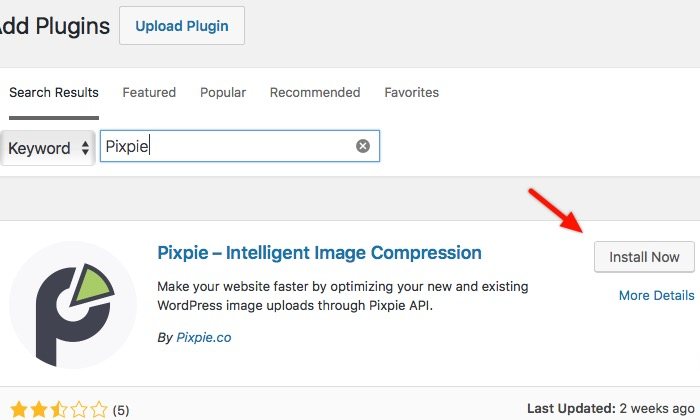
Upon activation, the plugin will ask you to register for a free account. All you need to do is to fill in your email and choose a password before clicking the “Sign Up” button. If you somehow lose your way, you can find this sign-up form in the “WP PixPie Plugin -> Settings” menu.
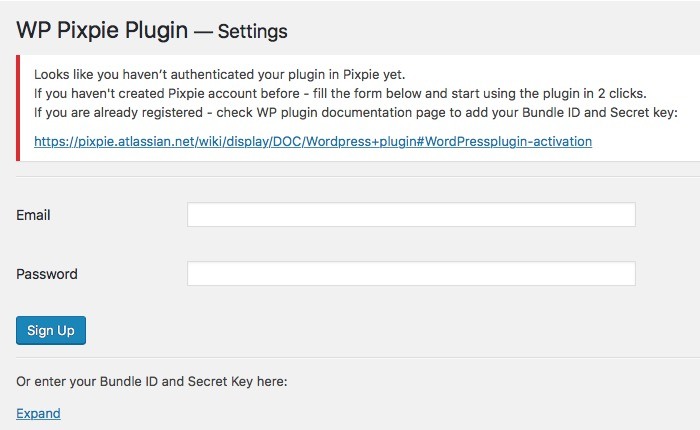
You will be brought to the PixPie site to finish the registration by adding your name and putting a checkbox in the captcha. After that you will arrive back at the “Settings” page with your “Bundle ID” and “Secret Key.” You can use these combinations at your other sites.
After choosing which image sizes the plugin should use to compress, click “Save Settings” to finish the setup process. Please note that these settings will vary from one site to another so you might see different options on your site. Please also note that these options will use up your 500 images per month of free compression.
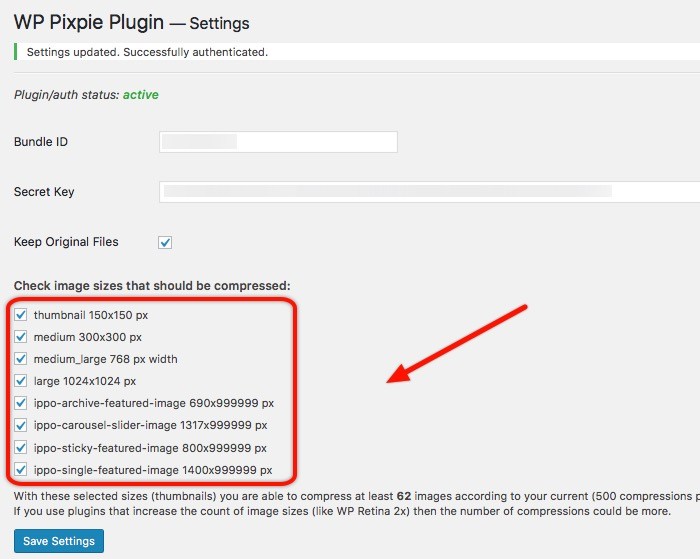
This is also where you can opt to keep your original images by checking the box.
One More Thing
Actually, there’s nothing you should do beyond this point. Just do your usual blogging activities, and PixPie will handle the image optimization part automatically. All the images you upload will be compressed for you in the background as long as they are within the free plan limit.
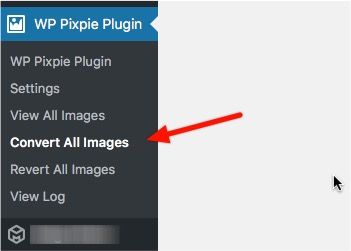
If there’s one more thing that you could do it would be to optimize the images in the library that were uploaded prior to installing the PixPie plugin. To do that, go to the “WP PixPie Plugin -> Convert All Images” menu from the sidebar.
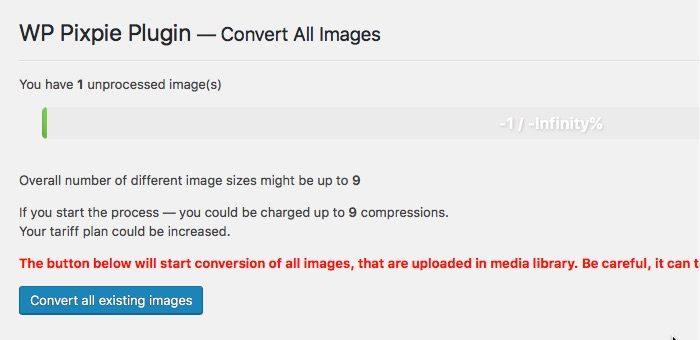
Here you can see how many unprocessed images you have in your library and how many conversions you will be charged for based on your previous settings. To continue the process click the “Convert all existing images” button and let PixPie do its magic.
Do you optimize images for the Web? Have you tried PixPie? Or do you have other favorite applications or plugins for the job? Share them using the comments below.