Learning a new language is hard, no matter what language it is. Even though many apps use gamification to make it easier, they don’t always work well. Duoreader lets me turn my daily reading time into a fun, simple way to learn and practice a new language.
Duoreader is Cross-Platform
Since I tend to read on my Windows laptop, Android phone, and Android tablet, I need something that works across my devices. Currently, Duoreader is available for iOS, Android, Windows, and on the web. So, even if your operating system isn’t supported, you can still use the web version.
No matter which version you use, it’s completely free. No strings attached. Unlike nearly every language learning app, you won’t have to upgrade to access more content or get unlimited lives. It’s all about learning as you read.
No Account Needed to Start
I honestly hate apps that require me to sign up for an account just to see how things work. Duoreader doesn’t require any sign up to access the content in the app. Simply download the app or visit the website, choose your native language, and then choose your Language to Learn.
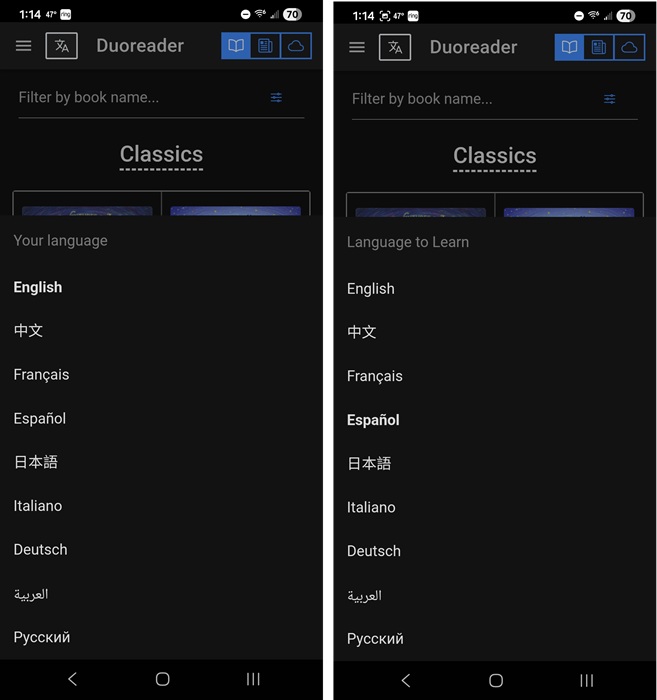
For me, English is my native language and I’m learning Spanish. There aren’t a huge number of languages – only nine for now.
As soon as you choose your languages, you’re ready to start reading. Change your languages at any time by tapping the Languages button to the left of the Duoreader header.
Collection of Classics and News Articles
If you don’t have any ebooks yourself, don’t worry. A large collection of classic novels is included in the app already. Plus, reader multi-lingual news stories from the United Nations and other reputable sources.
Jump between ebooks and news articles by tapping the Book and News icons at the top right.
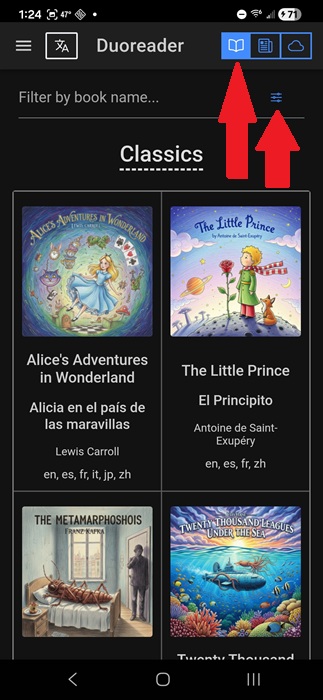
It’s easy to browse the collection and I’m sure you’ll likely recognize many of the titles. Even if you’ve already read them, you’ll now be reading them in your new language.
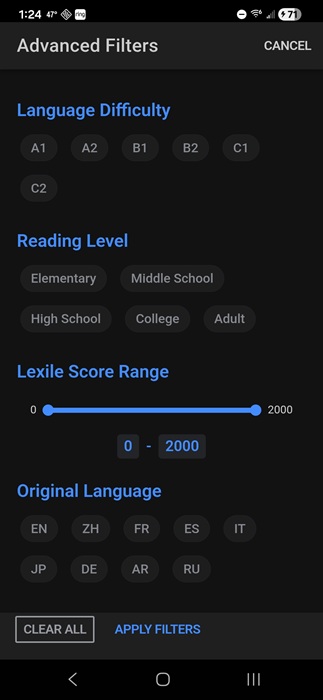
To make it easier to find the right book, tap the Filter icon just above the Classics heading. From here, choose your language difficult level, reading level, Lexile score range, original language, and tags (such as fiction, mystery, etc.). Tap Apply Filters to filter the results.
Add Your Own Books and Articles
Duoreader only supports EPUB and PDF files. It’s a bit of limitation if your ebooks are in different formats. You can always convert your ebooks to EPUB if you need to.
Here’s where Duoreader gets a bit limited. The upload feature is still in a testing phase and sometimes glitches. Your uploads may also get randomly deleted, so make sure you have a local copy as well.
The app warns you not to upload any sensitive or private documents as security isn’t guaranteed for uploads. A good rule of thumb is to just upload ebooks you own or general articles. Try these free ebook libraries to get more books.
To upload content, tap the Cloud icon at the top right. Tap My Books and Add Custom Books. Then, sign in with your Google account. I do wish there was another login option. I’m not a huge fan of using third-party logins. But, it’s the only option Duoreader offers.
Choose the book’s language. This is the language the book is written in and not the language you’re learning. Then, tap Upload Book.
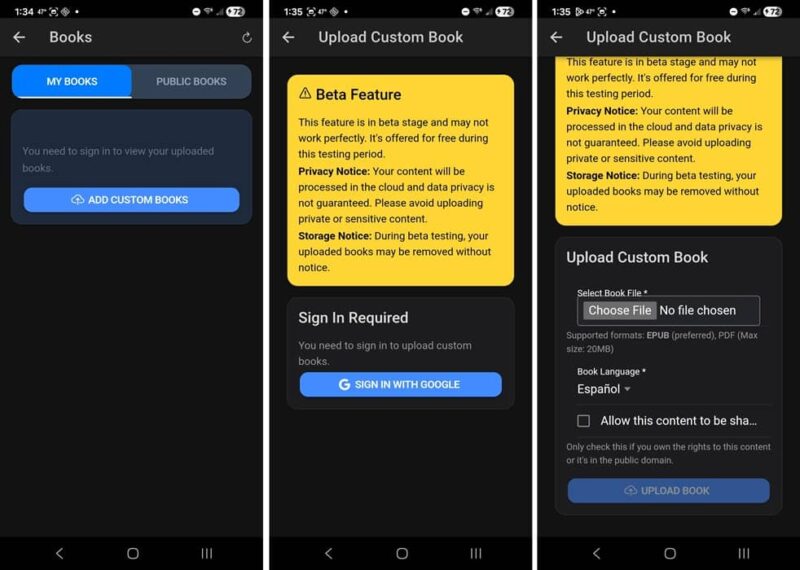
You can upload the content as a public book for others to access. Don’t do this unless you own the content yourself or it’s a public domain book or article.
As long as you’re signed in with the same account, your custom uploads sync.
One issue I ran into is some content doesn’t translate. In many cases, I had to choose the language I was learning, especially with EPUB files, during the upload process. This seemed to trigger the auto-translate service.
The app uses AI to translate custom uploads. The feature is relatively new, but since I’ve been using it, the results have been nearly perfect with only a few hiccups. I think those are mainly due to dialects and slang used in the books. I compared the results using other translation services.
Dual Reading to Learn Languages Faster
Here’s what really make Duoreader my go-to language learning app. It wasn’t just another app that let me translate a section or highlight text to see what it means.
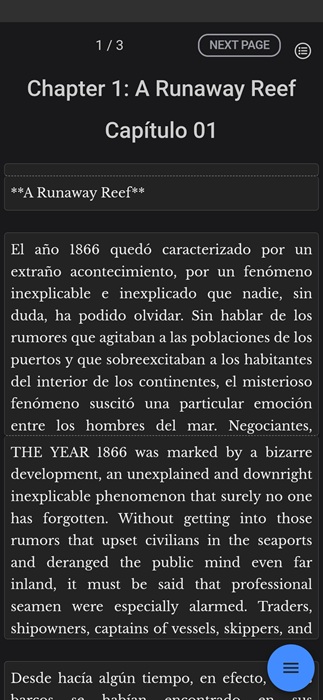
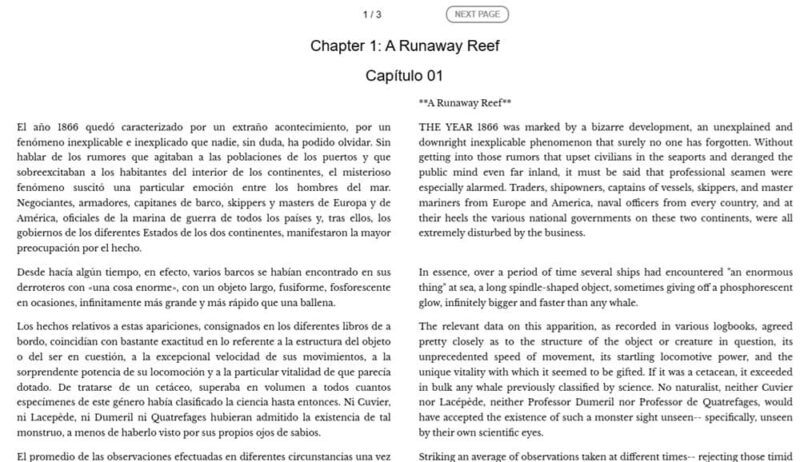
Instead, you read both languages at once. Depending on the device, you’ll either see the book/article side by side in each language for parallel reading (tablets, computers) or sentence by sentence (or paragraph by paragraph) in each language (phones).
I personally find the mobile version to be a little easier since it breaks it down into smaller sections. But, it also takes much longer to read this way.
For example, here’s a comparison of Twenty Thousands Leagues Under the Sea on my phone versus the web reader:
Auto Reading and Definitions
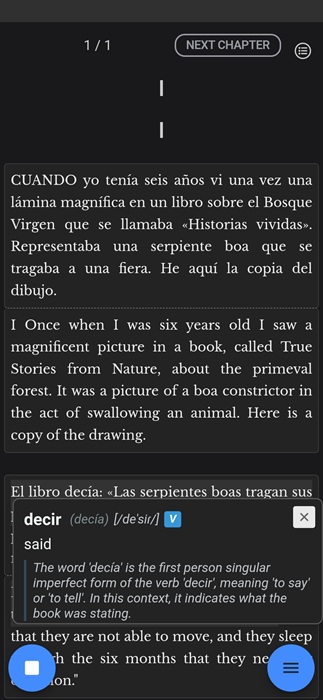
Want to hear how your new language sounds to get the pronunciation correct? By default, if you single click or double tap a sentence, the app starts reading aloud using your system’s default text-to-speech app.
Open the hamburger menu from the home screen or at the bottom right when a book is open to change the Read Aloud settings, including choosing different voices. You can also change the display settings and even hide the translation if you want to use it as a standard ebook reader.
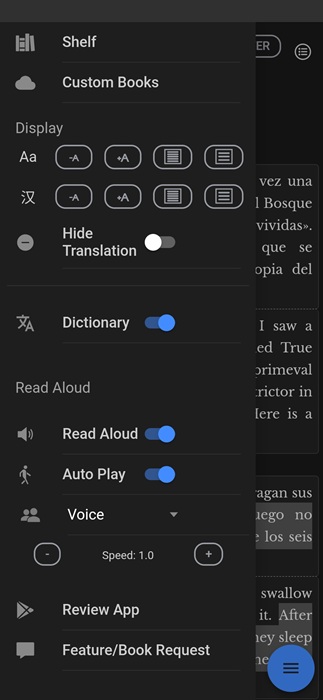
Either press the Stop button or double-tap/click to stop the read aloud feature. Single-click or tap a word (while the reader is active or when the reader is disabled) to get a definition. Using the definition feature helps me to better understand the parts of speech.
No, Duoreader isn’t going to replace your main e-reader, but if you want to learn a new language in a more immersive way, give it try. I’ve found far more success using this method and complementing my education with more traditional language learning apps.








