
Don’t stick with your ISP’s DNS. Public DNS resolvers offer so much more, like encrypted connections, ad blocking, content filtering, and protection from malicious sites. What is even better is to have a DNS changer tool to quickly switch between your favorite DNS resolvers to have a resolver for every need. Below you’ll find 5 of the best DNS changers for Windows.
What are DNS Resolvers
A DNS resolver is a component in your network that translates human-friendly domain names (like example.com) into IP addresses (like 93.184.216.34) that computers use to route traffic. By default, your ISP uses its own DNS servers to do this conversion, which are often not the fastest. This is where dedicated public DNS resolvers can make the process faster and more secure.
There are many uses for public DNS resolvers. For example, they can block known malicious websites, block ad servers, or just encrypt the connection to prevent anyone from seeing your activity. Below are some popular DNS resolvers that are worth considering:
- Cloudflare DNS: they have one of the fastest DNS resolution times and encrypt the connection to prevent others from snooping on you.
- Google Public DNS: offers high uptime with amazing resolution speed, but logs queries for 24-48 hours.
- AdGuard DNS: automatically blocks known ad servers and trackers.
- Quad9: blocks known malware domains with a continuously updating list.
- NextDNS: highly customizable filters for malware, ads, parental controls, along with detailed logs. However, you need to sign up for an account for customization, or it will apply inappropriate content filters only.
1. DNS Jumper
One of the most comprehensive DNS changer tools, especially if you are looking for the fastest DNS resolver. By default, DNS Jumper shows a list of 33 DNS resolvers to choose from, along with name and location. When you select a resolver, it will show its exact IPv4 and IPv6 address, along with an option to test its resolution time in milliseconds.
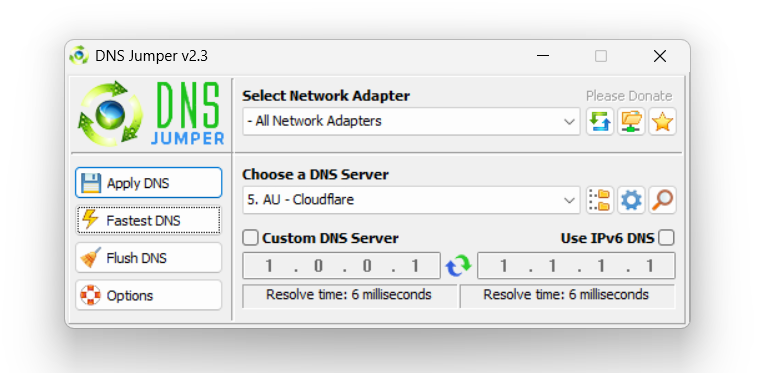
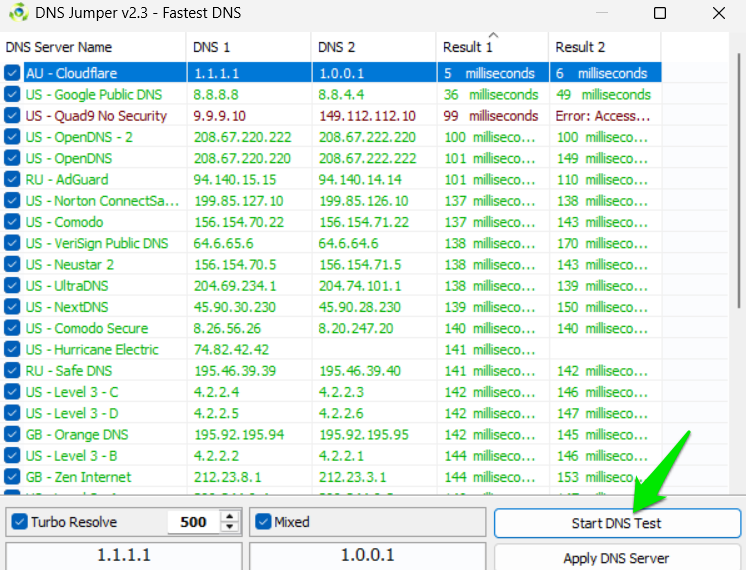
The more interesting feature is its DNS tester to find the fastest DNS resolver for your specific location. Click on the Fastest DNS button in the left column and then Start DNS Test to test the DNS resolvers. Once the test finishes, it will rank the DNS resolvers based on resolution time. This is great when you are trying to optimize network connection.
You can also use a custom DNS if you know the address by unlocking the Custom DNS Server option and entering the IPv4 and IPv6 addresses.
2. ChrisPC DNS Switch
ChrisPC DNS Switch also offers a big list of 34 DNS resolvers by default and the option to add your own DNS provider. The more interesting feature is its DNS categorization. Next to the list of DNS resolvers, you can select what type of resolvers you want to choose. The following are the categories and what they mean:
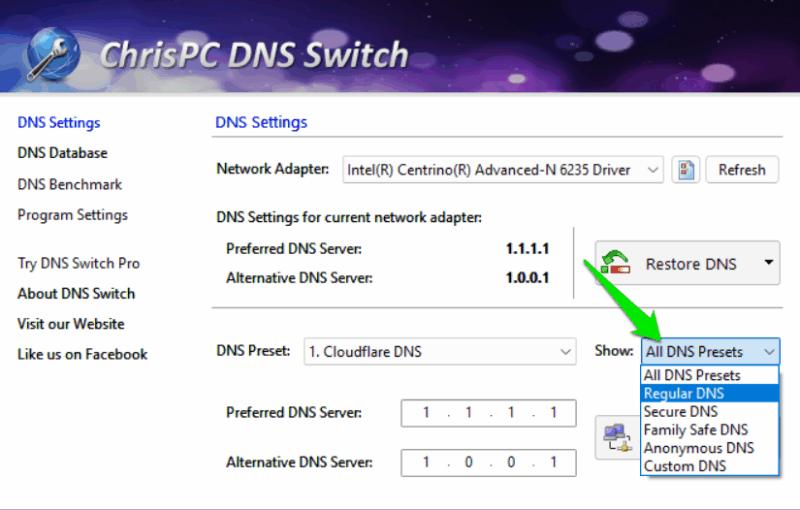
- Regular DNS: this is a list of the best DNS resolvers that focus mainly on optimized performance with nothing special. Great for daily use.
- Secure DNS: these DNS resolvers protect you from malicious websites, like fake malware websites or phishing links in emails.
- Family Safe DNS: use a DNS resolver from this to filter inappropriate content, like adult content or websites that encourage violence.
- Anonymous DNS: use these to anonymize your details to unblock restricted websites.
Apart from categories, it also lets you benchmark DNS resolvers and create a custom list of resolvers, but these features are in the Pro version.
3. QuickSetDNS
When it comes to simplicity, it’s hard to beat Nirsoft’s QuickSetDNS tool. By default, it only comes with 3 DNS resolvers to choose from: Cloudflare, Google Public DNS, and Quad9. These are enough if you just want the best DNS resolvers, or reliable security (in the case of Quad9).
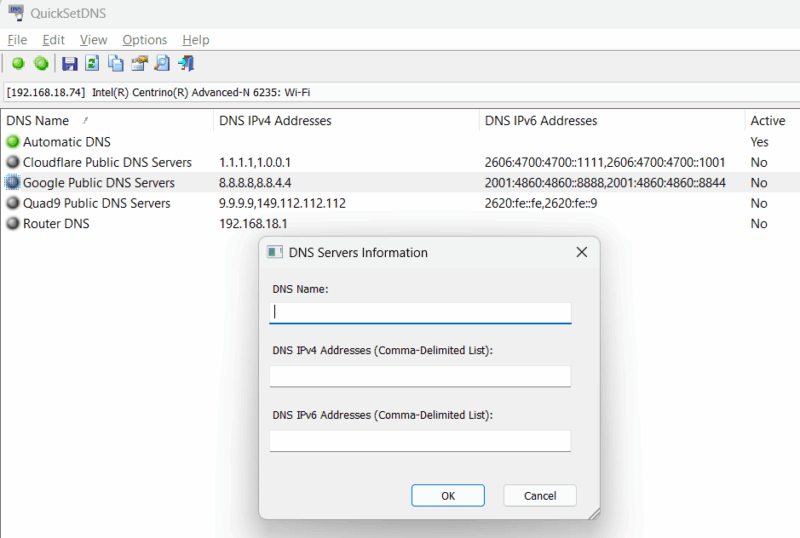
Its main strength is the ability to add your own DNS addresses and manage them. From the File menu, click on New DNS Server to add a name and DNS address. Once added, you can see it in the list to quickly switch to with a shortcut. You can copy the DNS addresses from public lists or even other apps in this list.
4. Smart DNS Changer
While Smart DNS Changer has many other network-related tools, we will only talk about its DNS changer. Its main focus is on reliable DNS resolvers and family security. Therefore, it only has 10 DNS resolvers by default, and it shows which ones filter content and how powerful they are.
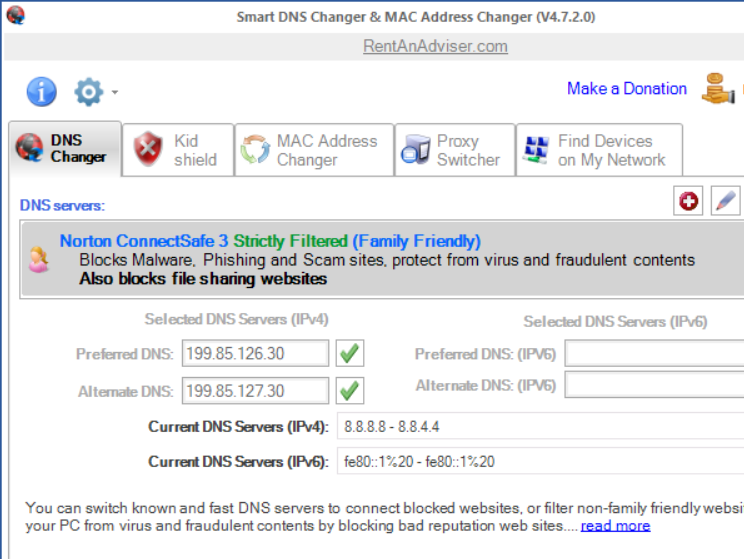
You can either go for non-filtered ones that usually focus on optimizing network performance, or go with Filtered or Strictly Filtered tags. The Filtered ones only block harmful content like adult content, and the Strictly Filtered also block social media and other similar sites that you may not want your kids to access.
There is also a Kid Shield section where you can apply different DNS addresses to different user accounts in Windows.
5. NetSetMan
NetSetMan is an all-in-one network management suite, but it has a network profile switch option that lets you switch DNS resolver along with other things. In each profile, you can select a custom IP address, DNS resolver, and manage TCP/IP settings. For DNS resolvers, it gives a list of 7 of the best by default, and you can easily add more by clicking Edit.
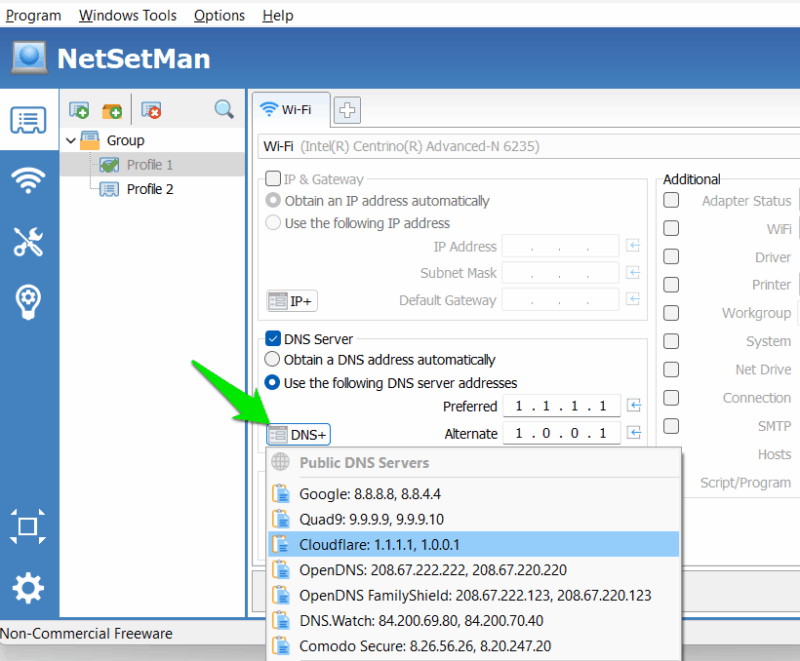
You can repeat the process to have as many profiles as you like to switch between. The best part is that you can activate profiles automatically based on triggers like time, user account, Wi-Fi connection, location, etc.
You can use any of these DNS changers to always have the best DNS resolvers at your fingertips for every need. If you prefer to stick to a single provider, we recommend NextDNS as it lets you apply different filters based on your needs.








