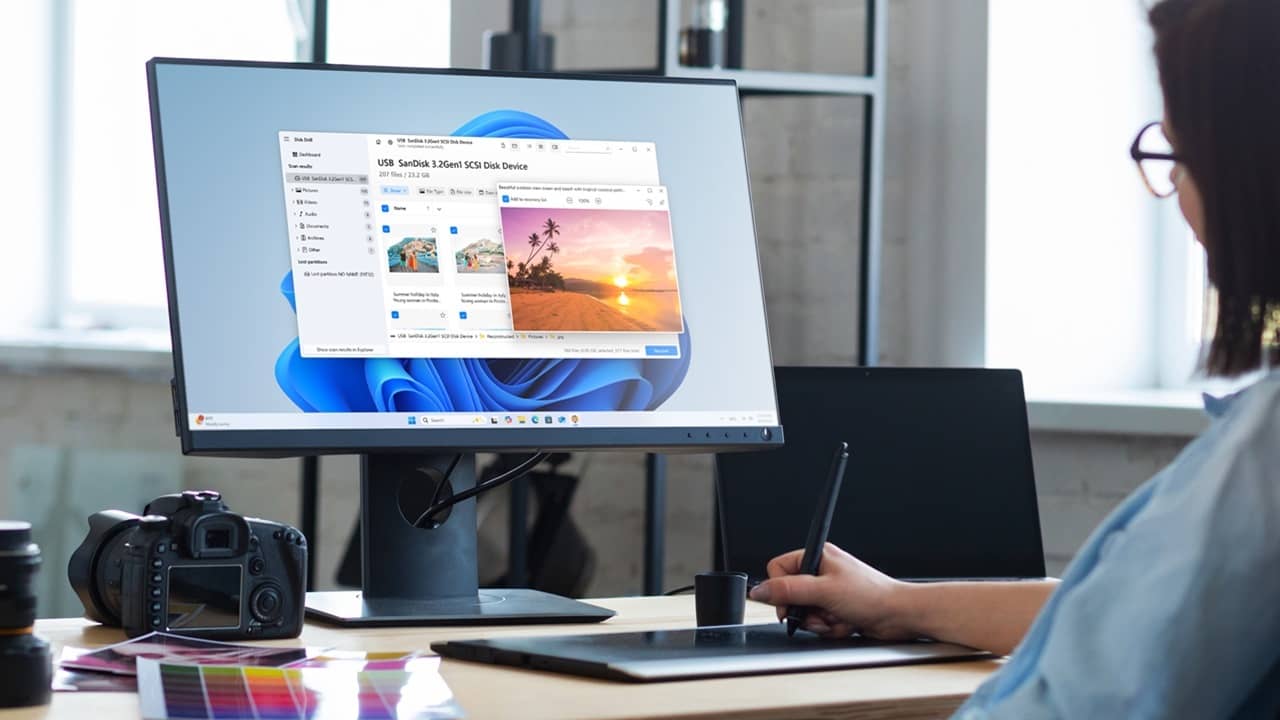
Videos and photos are priceless, usually because you’ll never get that same footage again. Imagine going from feeling that devastating loss when a drive is damaged or corrupted to immense joy when your photos and videos are recovered. That’s what Disk Drill 6 offers: hope when you’re feeling hopeless.
This is a sponsored article and was made possible by CleverFiles. The actual contents and opinions are the sole views of the author, who maintains editorial independence even when a post is sponsored.
How Disk Drill 6 Works
Disk Drill 6 is the latest in a line of recovery software from CleverFiles. It’s designed for both professionals and everyday users to recover photos and videos from cameras, drones, and damaged drives.
It’s available for both Windows and macOS. For this review, I’m using the Windows version.
The latest version of Disk Drill introduces advanced data recovery and builds upon the previous version. Where most recovery tools fail is putting together fragmented files. Instead of full files, you get bits and pieces.
Disk Drill pieces each fragment together, including from formatted SD cards and corrupted drives on cameras. Even on GoPro cameras, recovery is possible, though you’ll need to remove the SD card and insert it into your computer, versus directly connecting your GoPro.
For best results, choose your exact camera and cluster parameters. This isn’t required, but it does let the tool cater to your exact device, boosting your recovery chances.
What’s Possible With Disk Drill
Disk Drill 6 doesn’t advertise itself as a miracle or guarantee. However, it does boast several significant improvements and features for recovering audio, video, and photos:
- Advanced Camera Recovery – works to recover even deeply fragmented files from popular camera brands.
- Support for Microsoft’s ReFS (Resilient File System)
- Remote RAID detection along with recovery of SSH
- APFS recovery for Windows
- BitLocker-encrypted partition recovery on Mac
- Byte-to-byte backup for up to 60% improved success rate for failing drives
- Up to 25% faster scans
- Improved recovery results with up to 20% more files recovered from exFAT, NTFS, and APFS partitions
- Recovery for HDDs, SSDs, USBs, SD cards, iPhone/Android (only with Mac)
- Works for nearly any file type, not just audio, photo, and video
In addition to file recovery, Disk Drill also does the following:
- SMART monitoring to monitor drive health
- Data shredder (Mac only)
- Clean up files and duplicate file finder (Mac only)
Getting Started
A free version of Disk Drill 6 lets you see if the software is right for you before you buy. For Windows, this means 500 MB of files and unlimited previews. For Mac, you only get files protected by Recovery Vault or Guaranteed Recovery, along with unlimited previews.
For Windows, you need Windows 10 x64 or newer or Server 2016 or later. For Mac users, you’ll need macOS 10.15 or later. Sequoia, Ventura, and Sonoma are supported along with Apple Silicon (M1-M4) support. You’ll also need 1 GB storage, 4 GB RAM, and a x64 1 GHz CPU or better.
Getting started is simple. Download the correct version of your operating system, then install it. For me, the site detected my version with no problem.
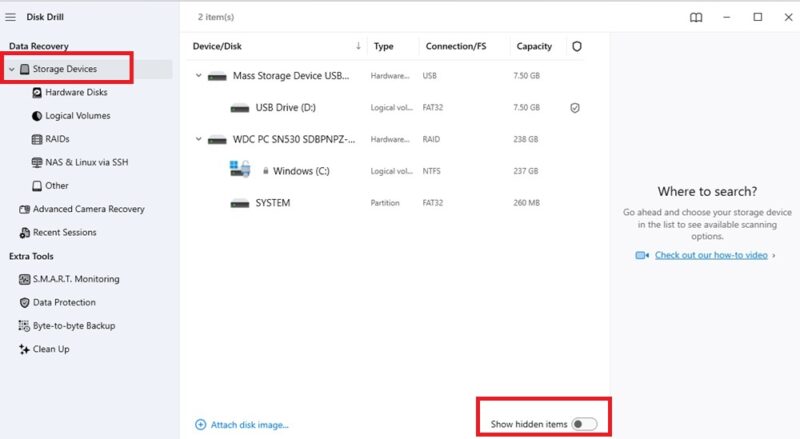
The interface is fairly straightforward and immediately shows you all connected drives, including your internal drive(s). You can easily filter devices by choosing different options under Storage devices. This includes connecting network drives. If you’re not seeing a drive for any reason, try toggling on the Show hidden items option at the bottom.
Starting the Recovery Process
To try Disk Drill 6, I loaded an SD card with 22 files, including desktop wallpapers and several video files, then formatted the card multiple times. It’s also important to note that this same SD card had had files stored on it previously and had been formatted for this test.
I chose the drive in software and selected Search for lost data. Since this isn’t a camera or drone, I chose Universal Scan.
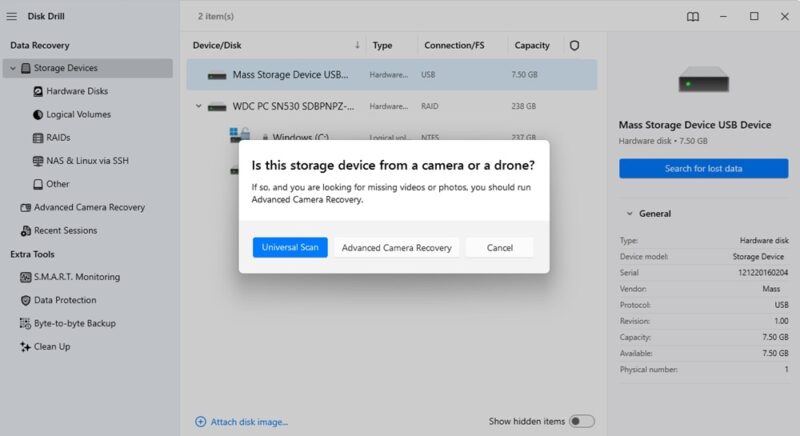
Then I just had to sit and wait. Within seconds, most of the files were already listed as found on my 8 GB SD card. The tool also found a lost partition.
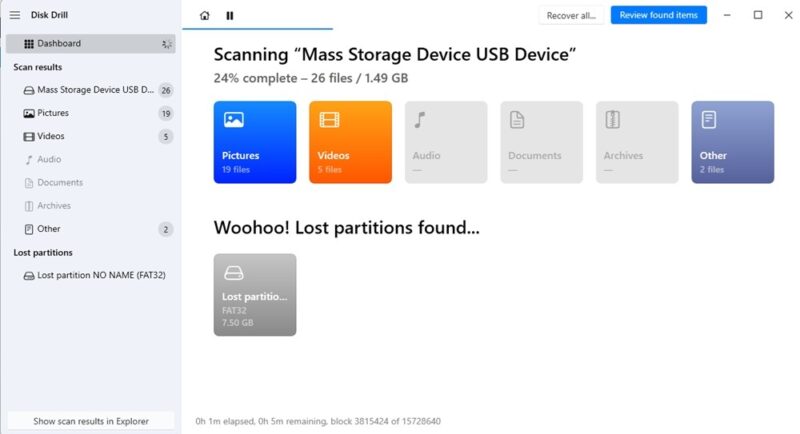
The entire scan only took seven minutes. I’ve used other recovery tools in the past, and I can definitely say this was significantly faster than what I’m used to. Usually, a faster scan means subpar results, but I was surprised to see how well it worked.
Every recovered file lets you preview it to see if it’s the right file. You also get a recovery chance. For my test, all my images listed a low chance of recovery, but my videos listed average and high chances.
You can check just the items you want to recover or choose Recover All. Since I’m using the free version, I chose three files that added up to just 424 MB.
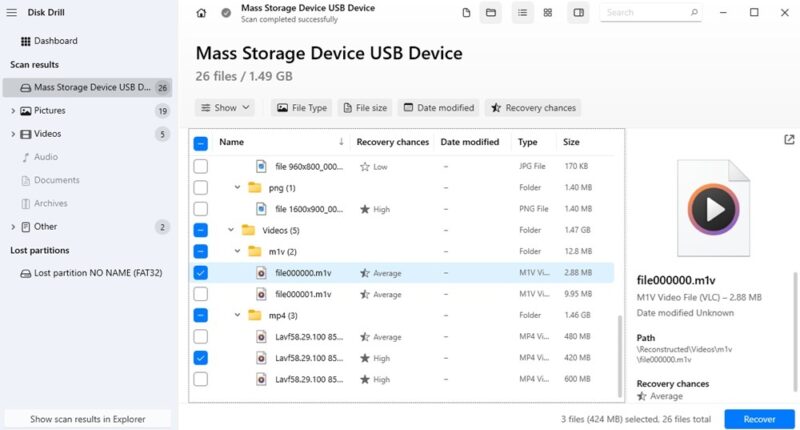
Next, choose where to store your recovered files. Don’t store them on the drive you just recovered from. If the drive is corrupted or damaged, you could just lose the files all over again. Or, you may overwrite the data you’re trying to recover.
The time it takes to recover depends on the file types, damage, and how large the files are. For me, it only took around a minute, but it was just three smaller files.
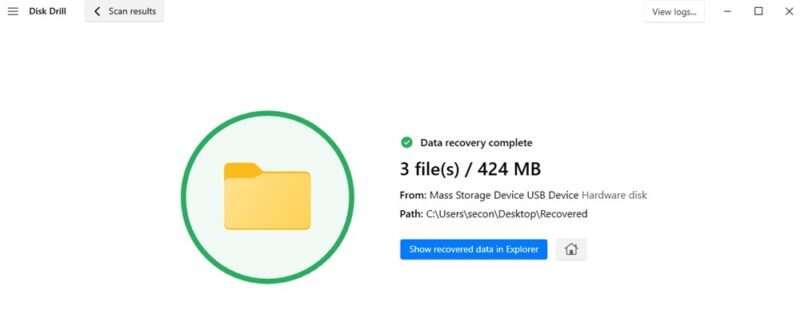
Despite my image saying a low chance of recovery, it was perfect. The videos also recovered flawlessly.
Using Advanced Camera Recovery
I no longer have a digital camera, but I do have SD cards. If you’re trying to recover data from cameras, choose Advanced Camera Recovery. Then, select your camera type, cluster size, and cluster start. If you don’t know these, that’s okay.
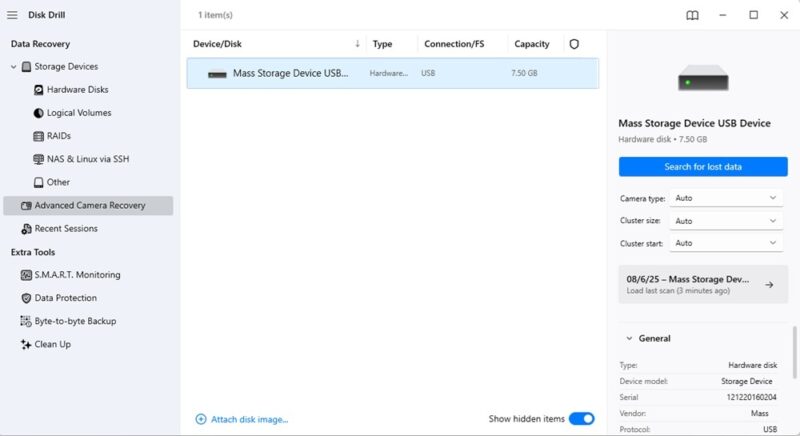
The process works the same as scanning any other device. Preview and restore the files you want. I got the same results.
But this method does scan more in depth and works better for cameras, drones, and SD cards formatted for those devices.
Other Options With Disk Drill 6
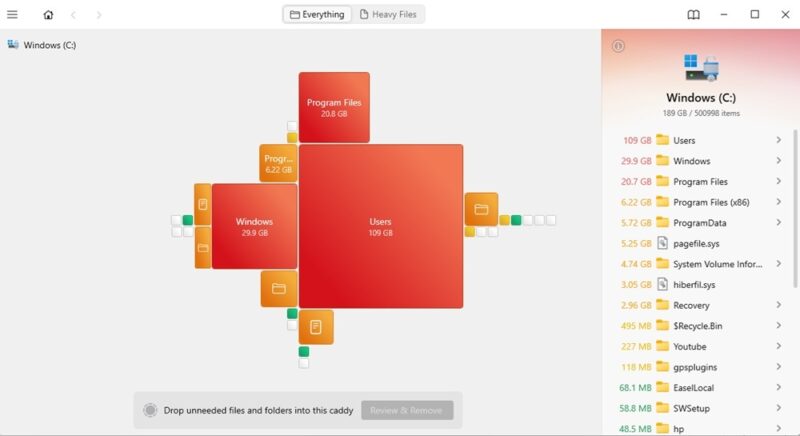
As I said, Disk Drill isn’t just for file recovery, though that is what it does best. I checked out the Clean Up feature. This lets you see a map of your files to see what’s hogging all your space. It only takes seconds, and it’s nice to see a breakdown of what’s on your PC.
You can also create a Recovery Vault. Set aside a location to work as an extended Recycle Bin in case you accidentally delete something. This keeps your metadata to make restoring files easier.
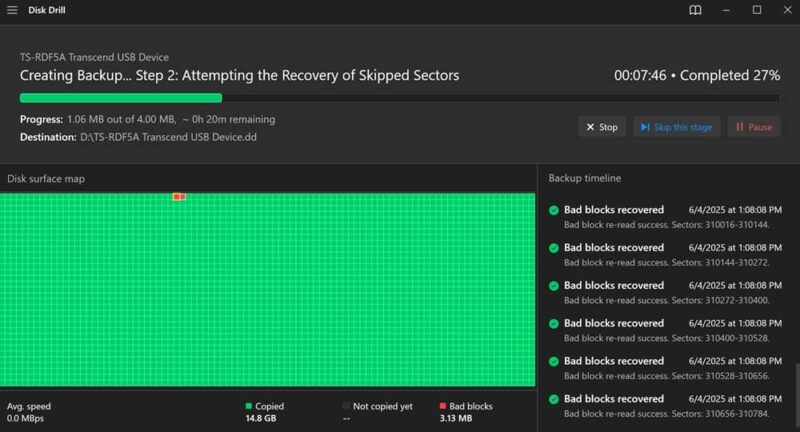
Finally, use the Byte-to-byte Backup to create a backup of a failing drive. You’ll get a warning saying this could damage your drive further, but if you’re trying to back up as much as possible, it’s worth the risk. Then, use Disk Drill 6 to recover any corrupted files from the backup image.
Plans and Pricing
The free version is obviously too limited to be of much use. But I do appreciate being able to preview everything Disk Drill 6 may be able to recover. This let me know in advance whether the software was right for my needs.
If you see a high chance of recovering files you thought were lost forever, it’s well worth upgrading to the Pro plan. It’s just $89 for unlimited recoveries and can be activated on three devices, but only for a single user. Get lifetime upgrades for just $19 more.
Or, if you need more users (up to 10), upgrade to the Enterprise plan for $499 with lifetime upgrades for just $99 extra.
In my experience, Disk Drill 6 is one of the fastest data recovery tools I’ve tried. I couldn’t be happier with how well the tool pulled files from an SD card that had been used and reformatted multiple times.
If you have a damaged or corrupted camera, SD card, or hard drive, try Disk Drill 6 for free.