


The Gemini AI icon is visible on Gmail and other Google Workspace apps. Some users are unhappy with its forced integration in their favorite Google apps, and the lack of an easy opt-out. If you rarely use Gemini, aren’t keen on AI tools, or wish to avoid deeper ties to Google’s ecosystem, here’s how to disable Gemini in Gmail on desktop and Android/iOS devices.
Understanding Gemini’s Role in Gmail and Google Workspace Apps
Right now, Gemini is being added as a productivity helper in Google Workspace Labs. It is a rebranding of GSuite products which comprise Gmail, Chat, Docs, Forms, Sheets, Slides, Meet, and more.
Gemini in Gmail aims to provide personalized smart replies by catching your tone and writing style, copying it in every response you send. For that, it will serve as an active component of Gmail’s Help me write personalized writing tool, which you have to manually activate it.
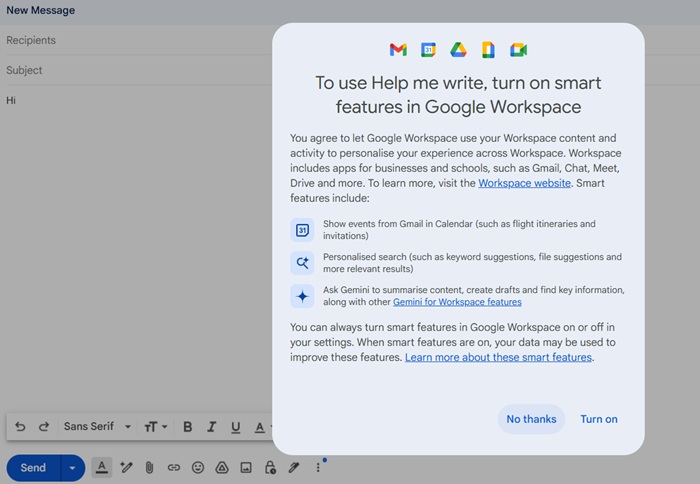
Even if you do not want this intrusion into your private email space, the Gemini feature cannot be uninstalled from Gmail and other Google Workspace apps.
Gemini confirmed the same thing to me in a prompt – at best, you can keep it disabled.
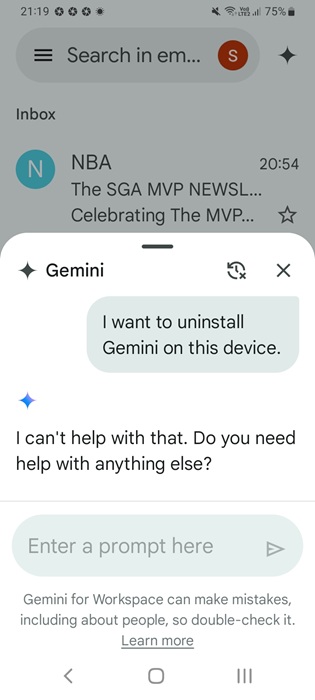
Google emphasizes that Gemini only accesses your email content when necessary, based on your prompts. However, many users would prefer the option to opt out.
Gmail has had Smart Compose for a long time, a useful tool you could easily turn off. But Gemini? It is different, you cannot seem to avoid it across Google products. It is slowly rolling out to all Google apps. Gradually it will play a bigger role in Google’s ecosystem, replacing the former Google Assistant.
Disable Gemini in Gmail on a Desktop Browser
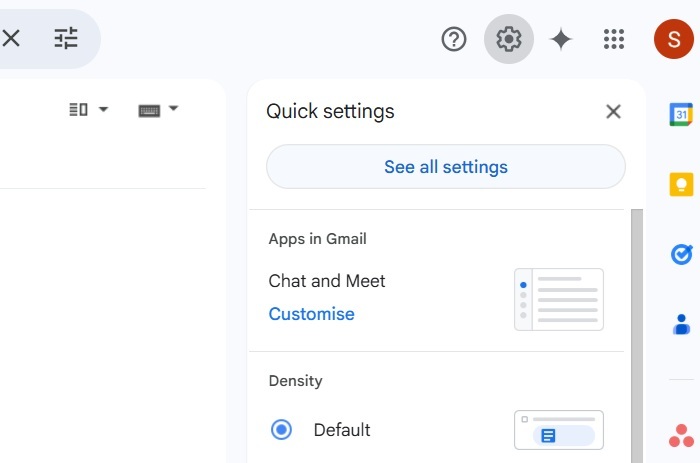
On a desktop Gmail browser, click the prominent gear-shaped Settings icon on top right corner. Click See all settings which will take you to the settings page.
Under General -> Smart features, toggle off the Turn on smart features in Gmail, Chat, and Meet option.
Next, click Manage Workspace smart feature settings.
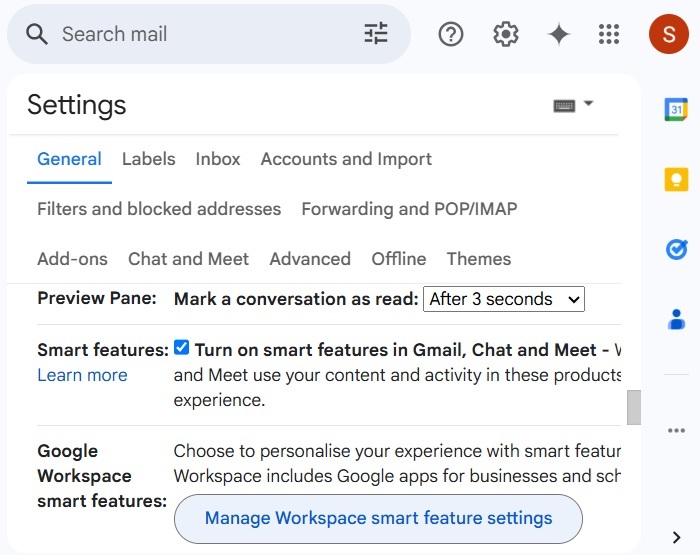
Turn off the Smart features in Google Workspace option, which is enabled by default.
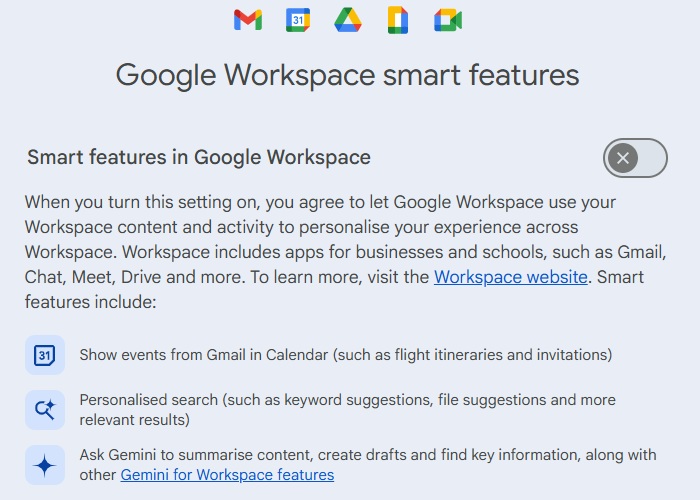
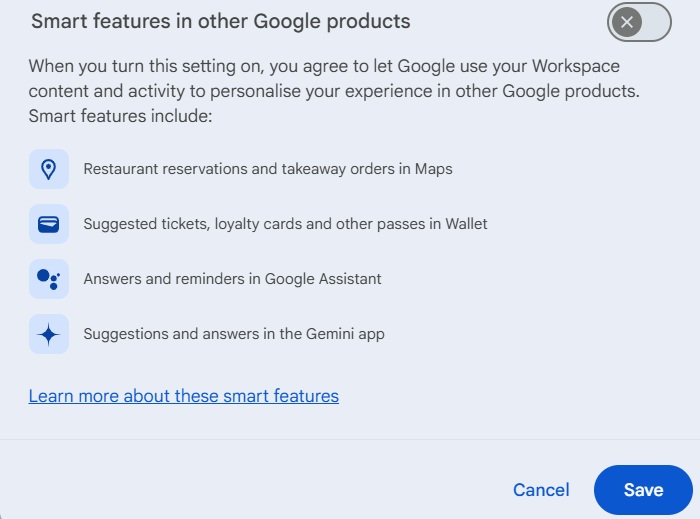
Right below the above, toggle off Smart features in other Google products. This will turn off Gemini in Maps, Wallet, and Google Asisstant.
Click Save at the bottom of the screen to save these changes.
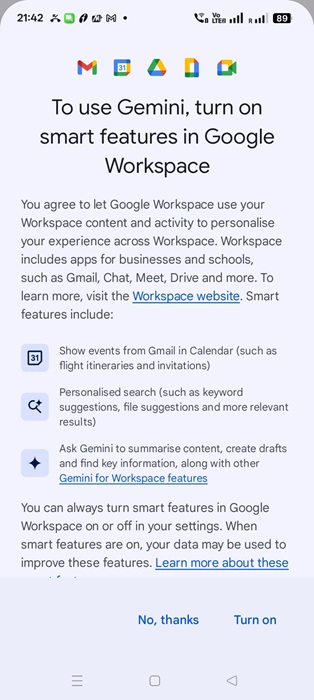
Moving forward, when you tap the Gemini icon in Gmail or other Google Workspace apps on any device, you will need to select Turn on to activate smart features.
Be careful not to enable this by mistake, or Gemini will be turned back on all devices associated with your Google account.
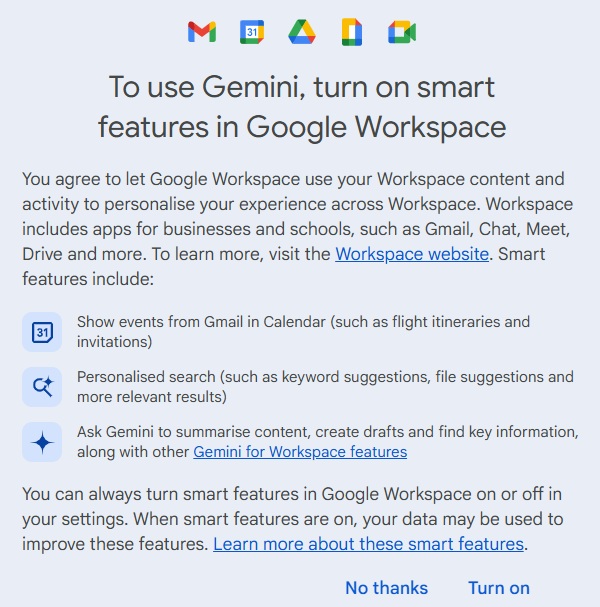
Note: It’s easier to disable Gemini from Gmail, than through other Google Workspace apps like Meet or Docs which require Google Admin console.
Disable Gemini in Gmail on Android/iOS
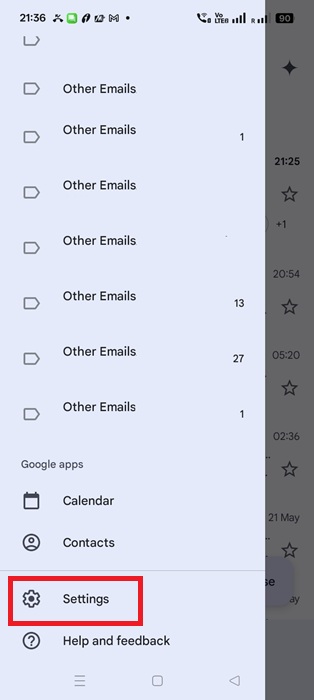
On the Gmail app in Android/iOS device, click the three lines menu on top and select Settings at the bottom left.
Under General Settings, you can see your Gmail account. If you have multiple Gmail accounts, choose the one for which you want to disable Gemini.
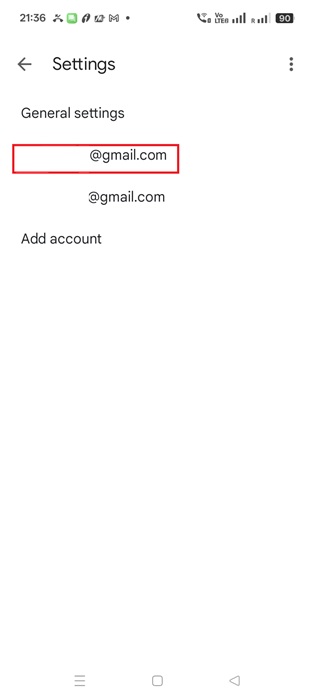
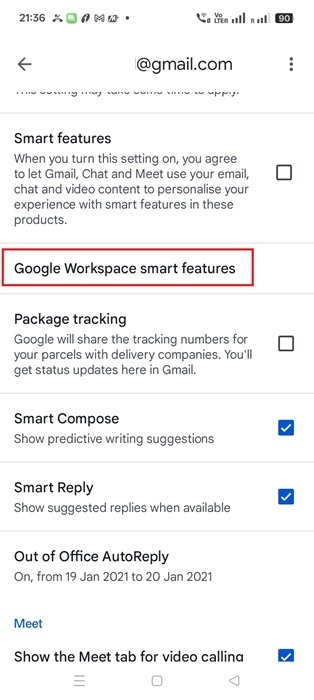
Turn off Smart features which is enabled by default. After that, click Google Workspace smart features.
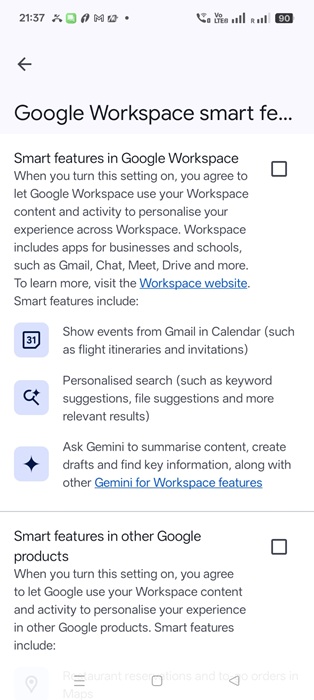
Turn off the options for Smart features in Google Workspace, and Smart features in other Google products.
Go back to your Gmail app home screen on iOS/Android. Next time you click Gemini icon in Gmail app on any mobile device, or other Google Workspace apps, you will be asked to click Turn on to enable it again.
Once you disable Gemini in Gmail and Google Workspace apps in Android, you can also switch back to the default Google Assistant.
We have covered how to disable Gemini in Gmail. However, there is a key limitation to note. Many Google apps, like YouTube and Google Photos, are not part of Google Workspace. The Gemini integration in those apps works differently and is not impacted by turning off Gemini in Gmail.
Many Gmail users do enjoy using Gemini. There are ways to make it better by adding extensions. You might also want to use Gemini Advanced for free.