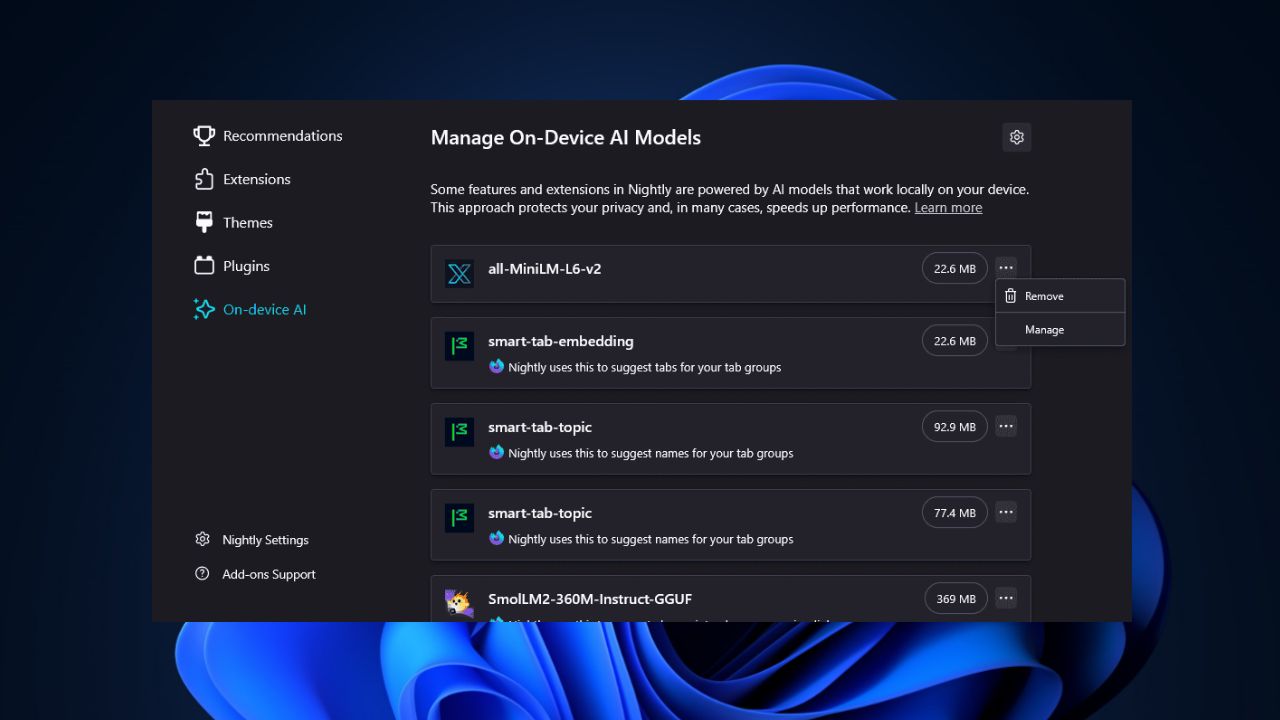
Firefox recently rolled out a new update that includes the On-Device AI section, which shows the local AI models powering features like Smart Tab Groupings and Link Previews. While the AI features are handy, you may be among those who want to disable them to boost performance or for privacy reasons. Irrespective of the why, we’ll show you the steps to disable AI models in Firefox without breaking a sweat.
Why Disable Firefox’s AI Models?
Privacy is one of the reasons why you might want to disable AI models in Firefox. Even though Firefox AI models run locally and don’t use any cloud data sharing, some users still prefer no AI processing at all.
Removing AI models may reduce the resource usage on low-spec PCs and make them snappier. Hence, improving your browsing speed.
It might simply be a case of your browser, your rules! Maybe you’re not a fan of features like the Firefox AI link previews or tab groupings. So, removing the models stops AI suggestions.
In addition, there are mixed reactions from tech communities about AI, with most preferring the simplicity without it. So, you might want to go with the majority for now.
You might want to disable Copilot features in Microsoft Edge if you’re tweaking other browsers too.
Disable On-Device AI Models in Firefox
To disable AI models in Firefox, you need to update to Firefox 140 or later to ensure you have the On-Device AI section. Launch Firefox Nightly and navigate to Menu -> Help -> About Firefox and update it.

Then head to Menu -> Add-ons and Themes. Now locate the On-Device AI section under the Add-ons Manager.
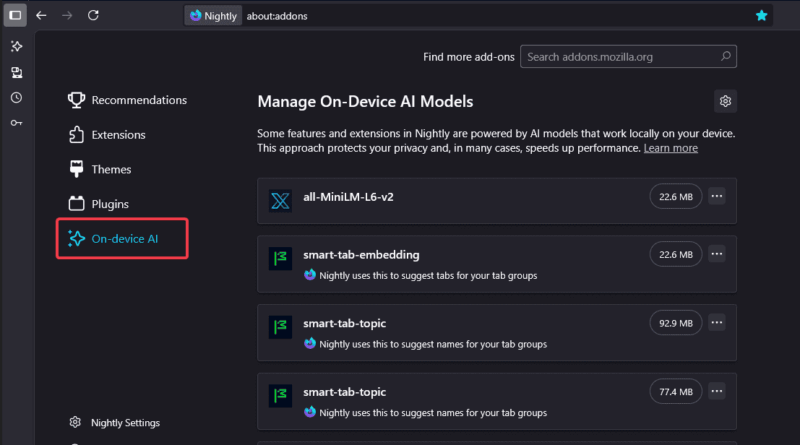
You’ll see several models with details for each, including file size, model card version, and last updated date. For example, the models for Smart Tab Grouping are Smart Tab Embedding and Smart-Tab Topic. While SmolLM2-360M-Instruct-GGUF is for link previewing.
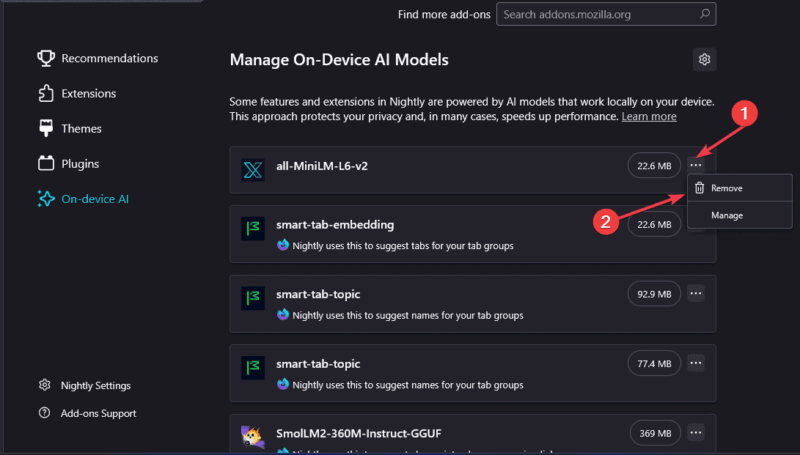
To remove these AI models, click the options menu beside them and click Remove. Then, confirm your actions in the prompt. Core features like tab groupings still work, just without the AI suggestions.
Now, test Smart Tab Grouping or Link Previews to confirm the AI suggestions are gone.
Extra: You can also turn off Google AI in search results for a cleaner browsing experience.
What Happens After Disabling AI Models
Once you disable AI models in Firefox, expect the following effects:
- Features like Smart Tab Grouping and Link Previews will stop suggesting AI-powered groups or key points. You’ll revert to what it was before AI integration.
- Your browser might run faster and become snappier, especially on older or low-spec devices.
- No data leaves your PC, and you have extra control over your privacy.
- If you ever reactivate these features, they’ll re-download the models automatically.
For more ways to lock down your browser, check out our guide to protecting your privacy in Firefox here.
It is super easy to disable AI models in Firefox, and by doing that, you take control of your browsing experience. Whatever your reasons for removing the AI models are, this guide has you covered. Simply give it a try and let us know how it goes in the comments!








