
Windows automatically generates system restore points until its set limit, potentially leaving you with dozens you’ll never use. Deleting all restore points at once is straightforward, but how do you remove only selected ones? For example, those consuming too much space or exposing sensitive data. This guide will show you how to individually delete restore points in Windows.
Delete Individual Restore Points Using Command Prompt
The most reliable way to delete restore points in Windows is to use the vssadmin command-line tool, which is used to create and delete shadow copies. It can list all your currently created restore points and delete them individually.
To identify restore points in the command line, we’ll have to use the restore point creation date. Here’s how to find it:
Press the Win + R keys and type rstrui.exe in the Run dialog to open System Restore. Here, select the Choose a different restore point option and click Next.
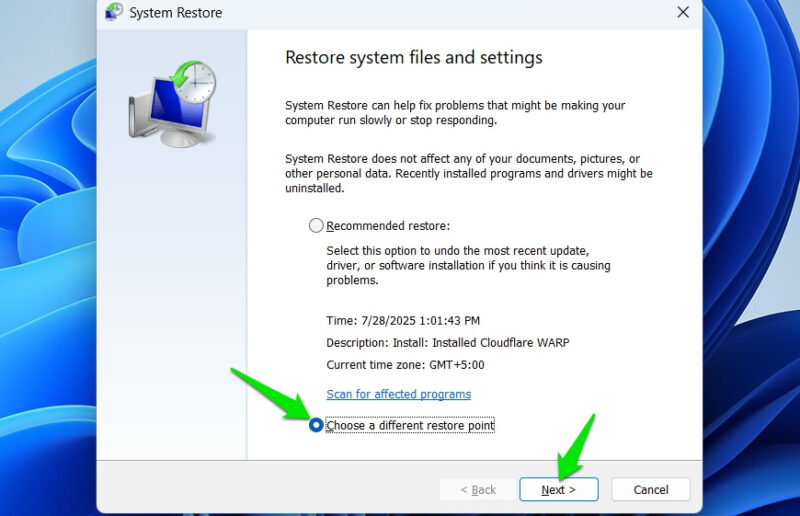
Afterward, check the option Show more restore points to view all restore points. Take note of the date and time of restore points you want to delete.
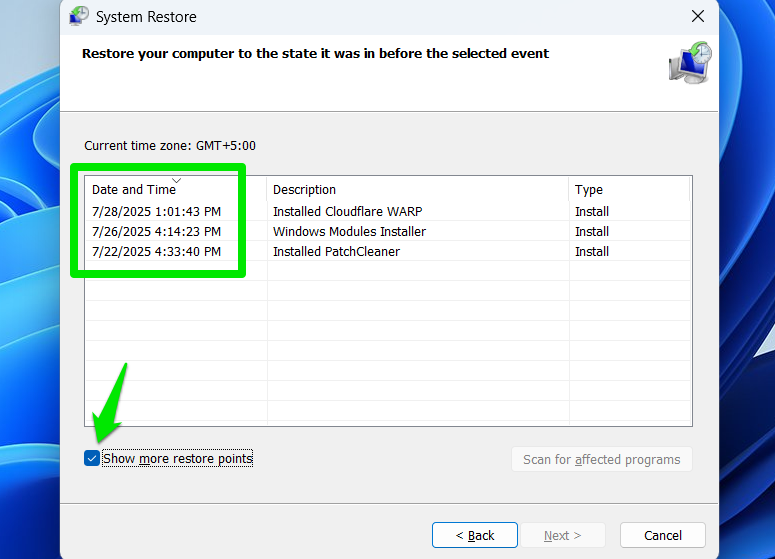
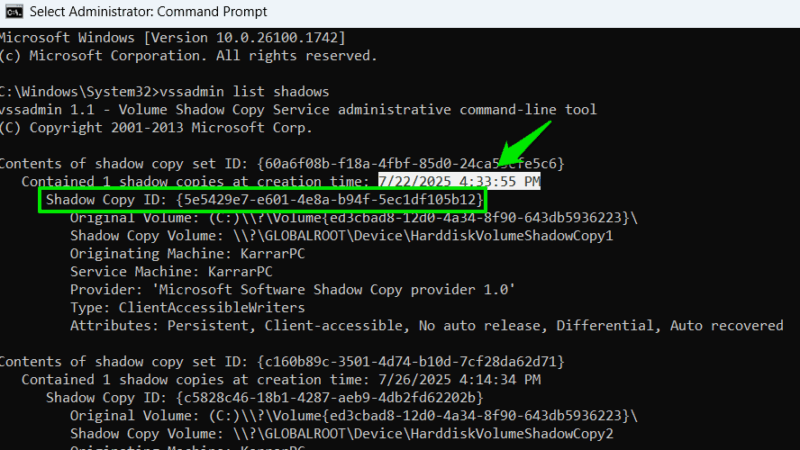
Now, search “cmd” in Windows Search, right-click on Command Prompt, and select Run as administrator. Enter the following command here and press Enter.
vssadmin list shadowsThis will list all restore points with a bunch of associated information. You need to look at the creation time to find the restore point you want to delete. Once identified, copy its Shadow Copy ID (including braces), like in our case, it’s {5e5429e7-e601-4e8a-b94f-5ec1df105b12}.
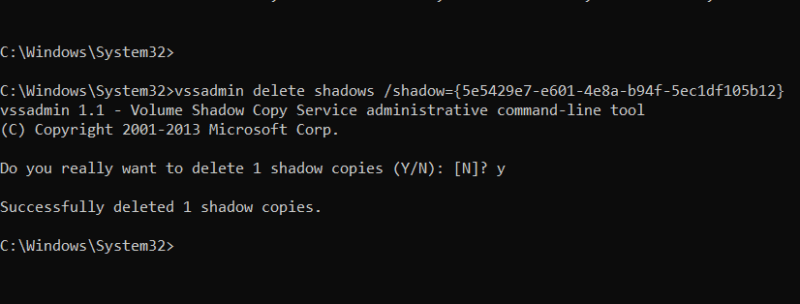
Next, use the following command and replace the ID at the end with the ID of the shadow copy you want to delete:
vssadmin delete shadows /shadow=(Shadow Copy ID)The resulting command should look like this:
vssadmin delete shadows /shadow={5e5429e7-e601-4e8a-b94f-5ec1df105b12}You’ll be asked to confirm the action, input Y, and then press Enter to confirm deleting the restore point. You can repeat the process to delete all the restore points you want to delete.
Use a Third-Party Tool to Delete Individual Restore Points
Although vssadmin is straightforward, deleting multiple restore points one by one can become tedious if you do it frequently. A third-party tool can make this process easier by automatically identifying all restore points and letting you delete with a single click.
We recommend CCleaner for this purpose. While its main function is deleting junk data, it also has a secondary tool to manage restore points.
Open CCleaner, and go to Tools -> System Restore, and you will see all the restore points currently saved. Select the restore point you want to delete and click on Remove at the bottom to delete it. You can hold the Ctrl key and select multiple restore points to delete altogether.
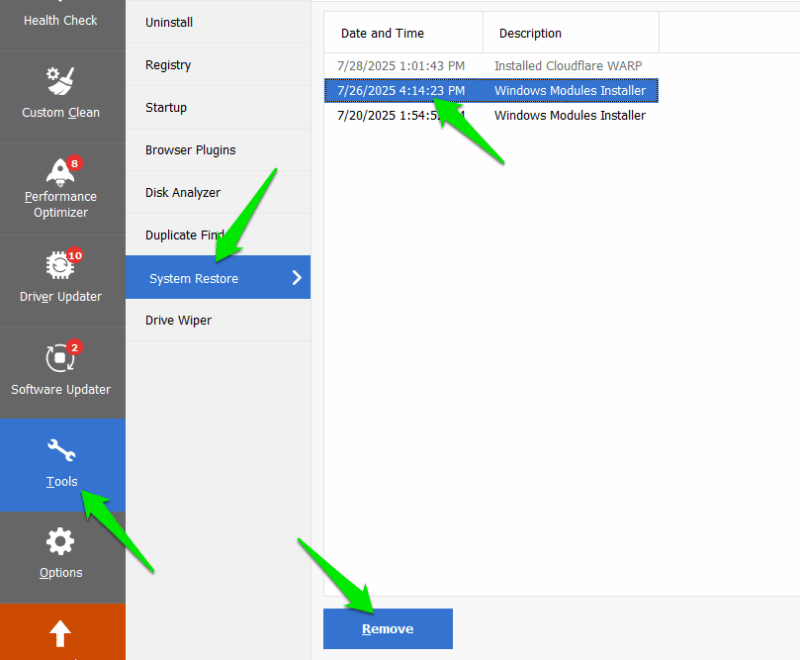
For safety reasons, CCleaner won’t let you delete the latest restore point to ensure you always have one point to revert to. You can freely delete all the other restore points individually.
Bonus: Use Windows Disk Cleanup
If you are deleting restore points to create space in the drive but don’t want to risk deleting all restore points, then you can also use Disk Cleanup to only delete old restore points while retaining the latest. Open Disk Cleanup using Windows Search, go to the More Options tab, and click on Clean up under the System Restore and Shadow Copies section.
Managing restore points is very important, especially considering it’s data that can keep growing in size. We’ll recommend using vssadmin if you have a single restore point to delete; installing a third‑party app may not be justified for a one‑off task. If you are having issues with restore points, here are all the fixes for System Restore.








