


RSS feeds are extremely useful, as they let you perform a digital tap on the shoulder of your subscribers whenever you publish new content. But what if you could turn that tap into a personalized handshake? By customizing your RSS feeds, you can add special messages, custom links, and even promotional offers. This guide explains how to create a WordPress custom RSS feed.
Discussion: are RSS feeds still relevant? Read on to find out.
[mte_toc]How to Customize the RSS Feed in WordPress
When it comes to fine-tuning your WordPress RSS feed, options are abundant, but they’re not equally straightforward. Sure, you could delve into the backend and tweak your RSS feed manually, but there’s an easier path: third-party plugins.
One third-party WordPress RSS customization plugin that you may already have installed is the All in One SEO. This plugin is known mainly for offering a comprehensive suite of search engine optimization tools that help website owners supercharge their sites to achieve higher rankings in search engines.
The All in One SEO plugin also comes with a capable RSS content editor that’s capable of enhancing your feed in various ways: from adding automatic credits at the end of each post to monetizing your feeds with Google AdSense, affiliate links, or banner ads.
Installing the All in One SEO Plugin
Ready to harness the RSS customization power of the All in One SEO plugin? Take a look at the installation process:
- Log in to your WordPress dashboard.
- Head to “Plugins -> Add New.”
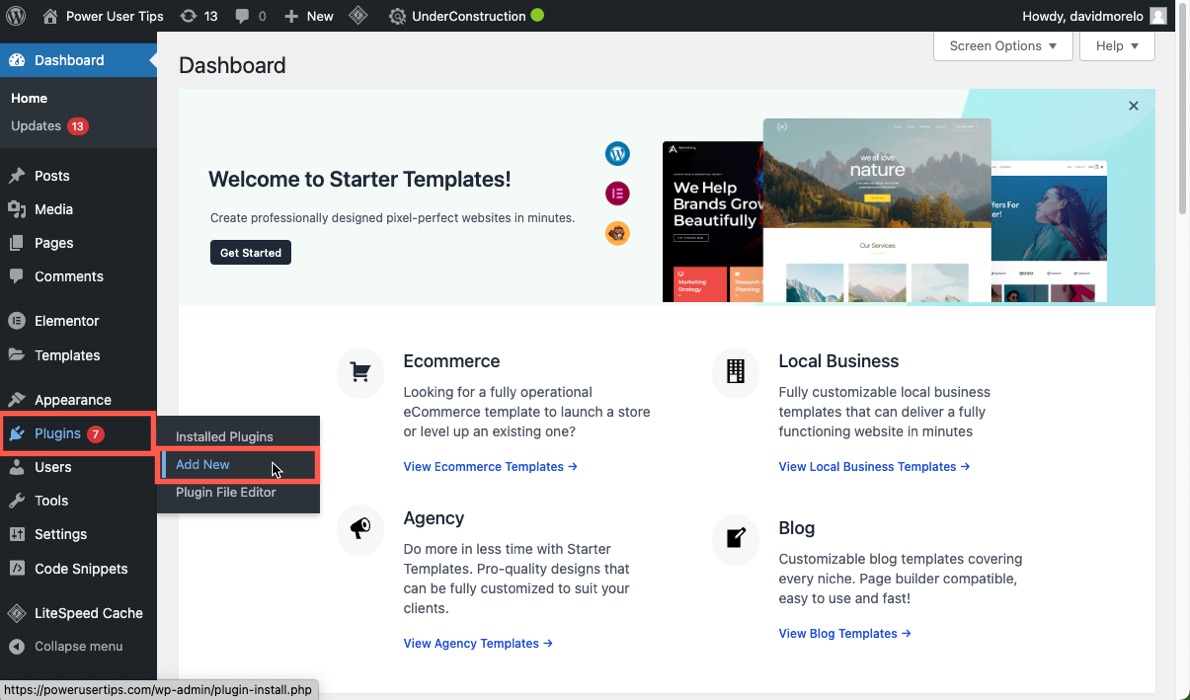
- Search for the “All in One SEO” plugin.
- Find the All in One SEO plugin in the results, and click “Install Now.”
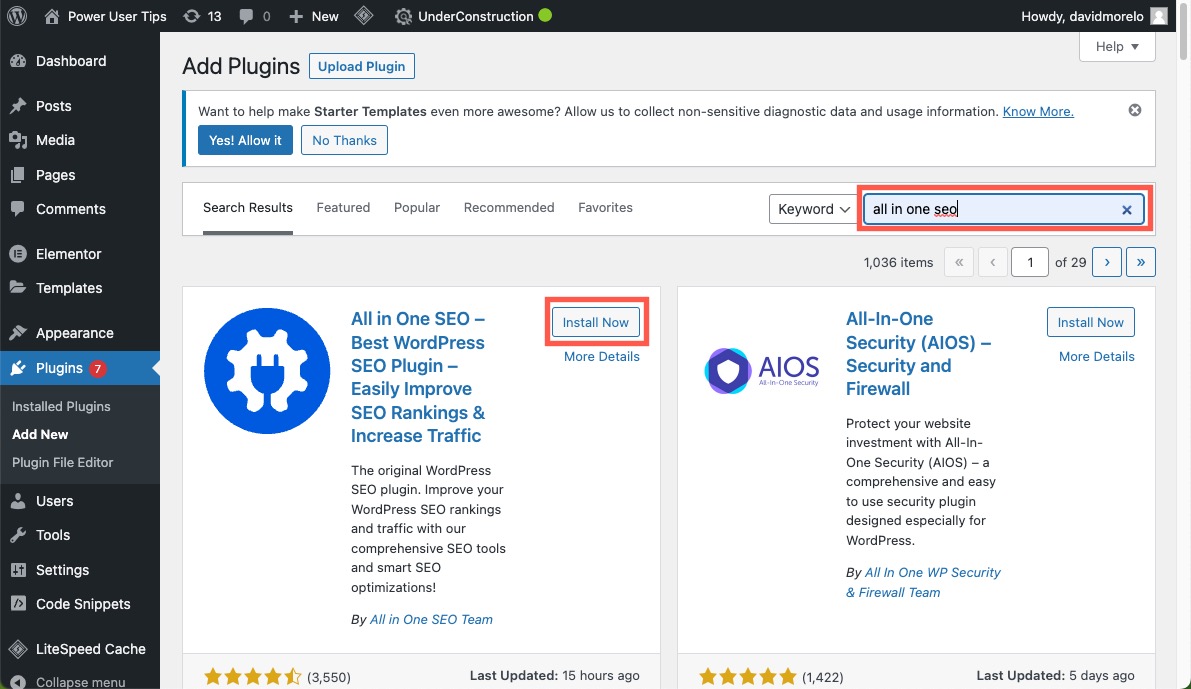
- Click “Activate.”
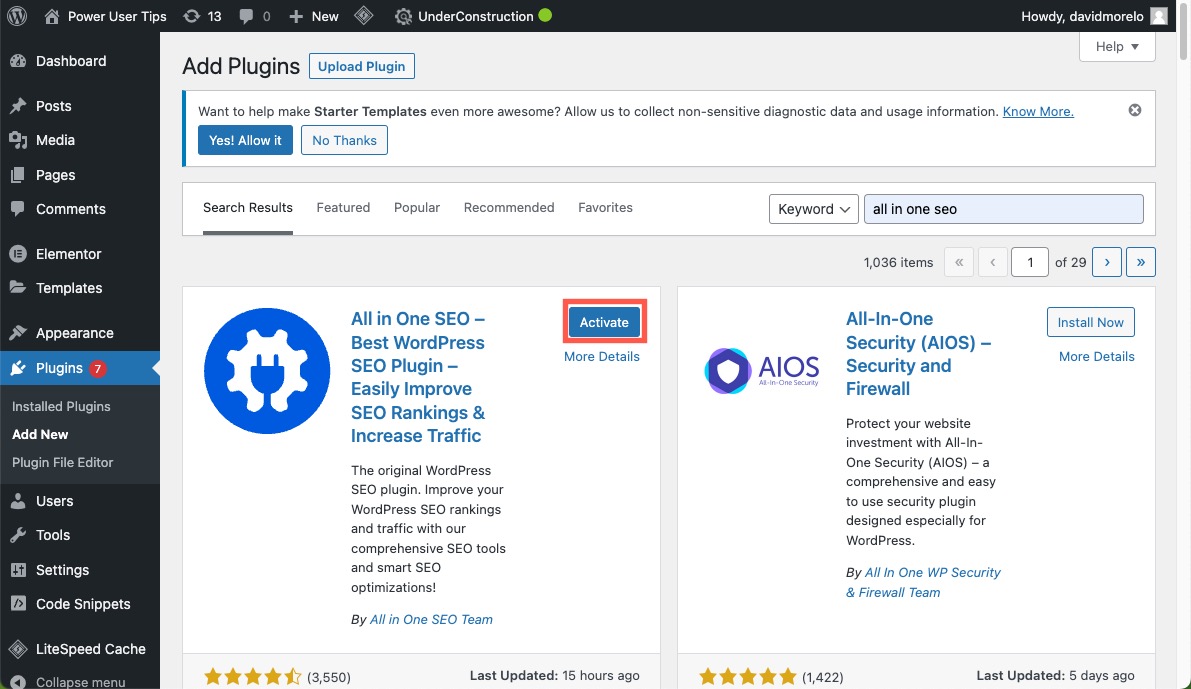
- The All in One SEO plugin will present you with a setup wizard. We recommend you follow the setup wizard if you plan on taking advantage of the plugin’s extensive SEO features. If not, go back to the dashboard, and follow the instructions below.
FYI: are you an Obsidian user? Learn about the Obsidian community plugins you should install.
Customizing RSS Feeds with All in One SEO
It doesn’t take much effort to customize RSS feeds in WordPress using the All in One SEO plugin. Just follow these steps:
- Click the “All in One SEO” tab in the left pane, and navigate to “General Settings.”
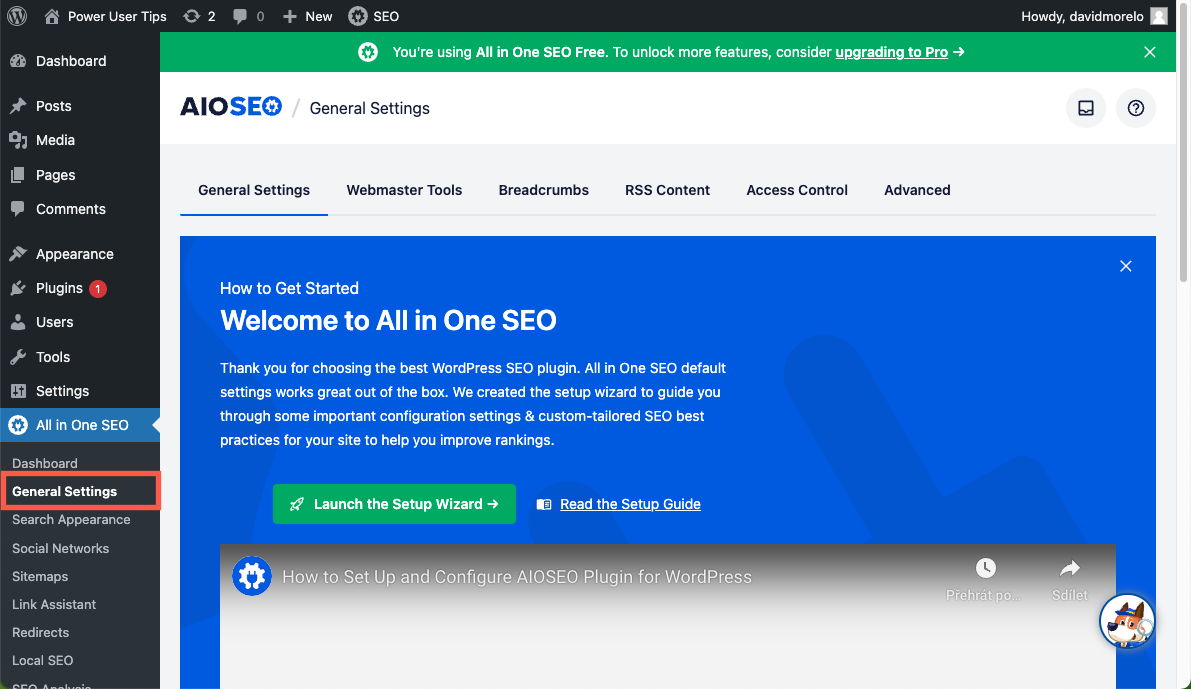
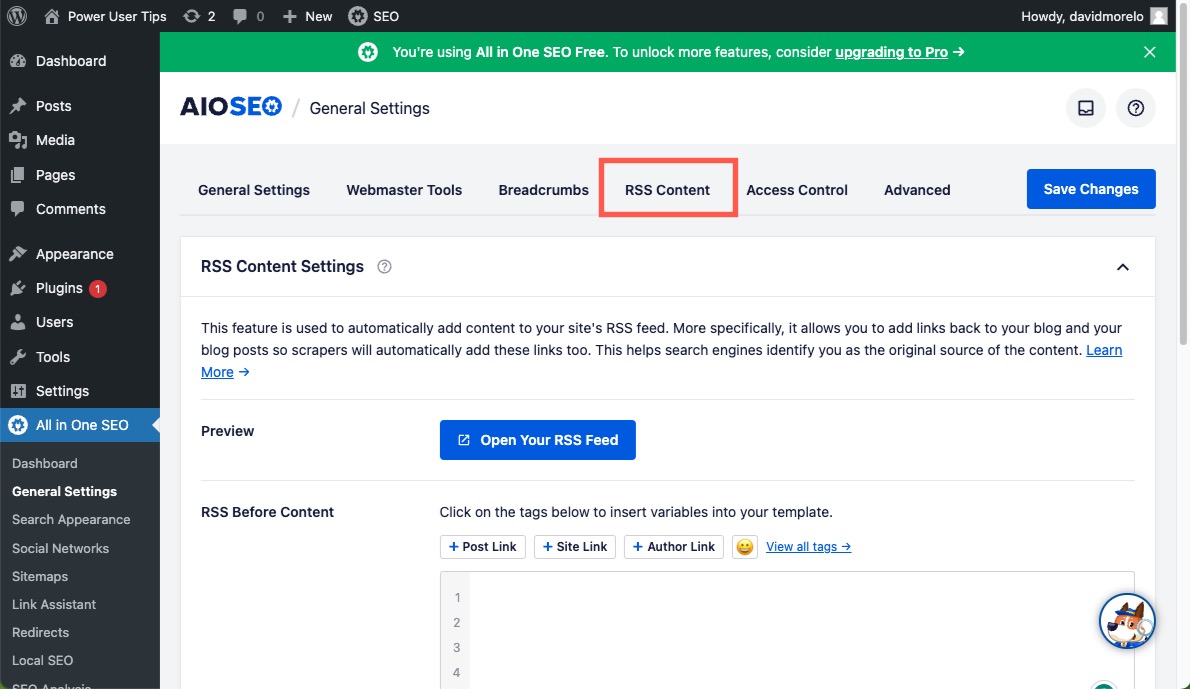
- Go to the “RSS Content” tab.
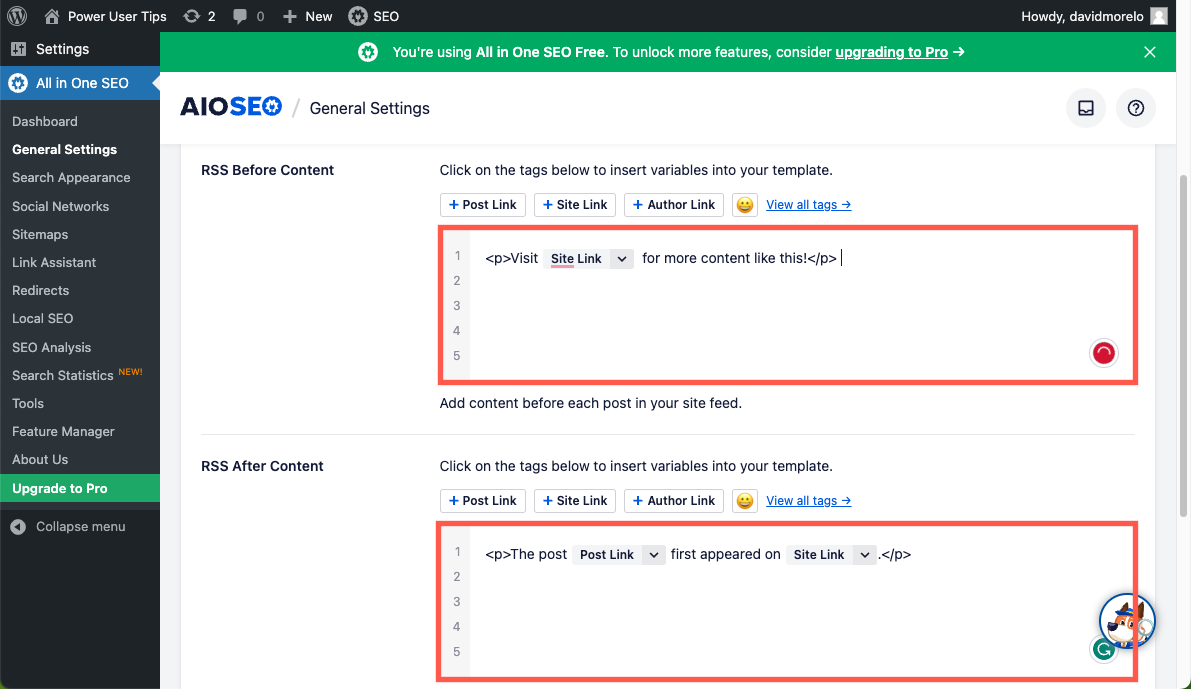
- Add custom content before and/or after your site’s RSS feed.
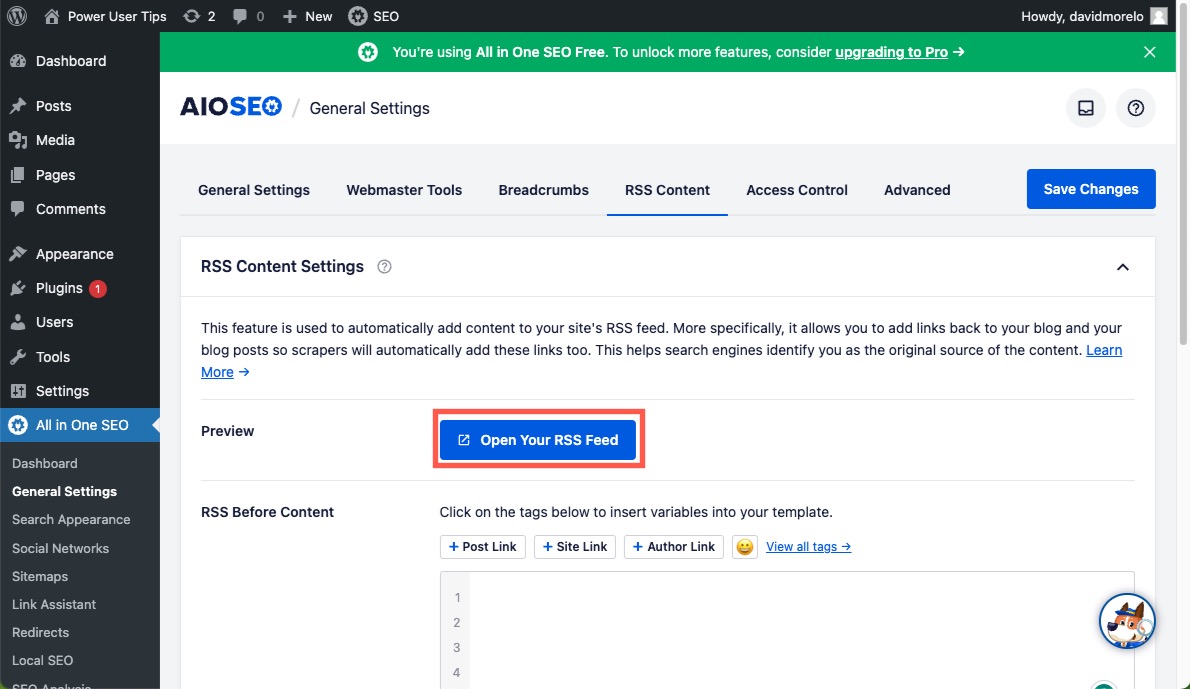
- Click the “Open Your RSS Feed” button to preview the changes.
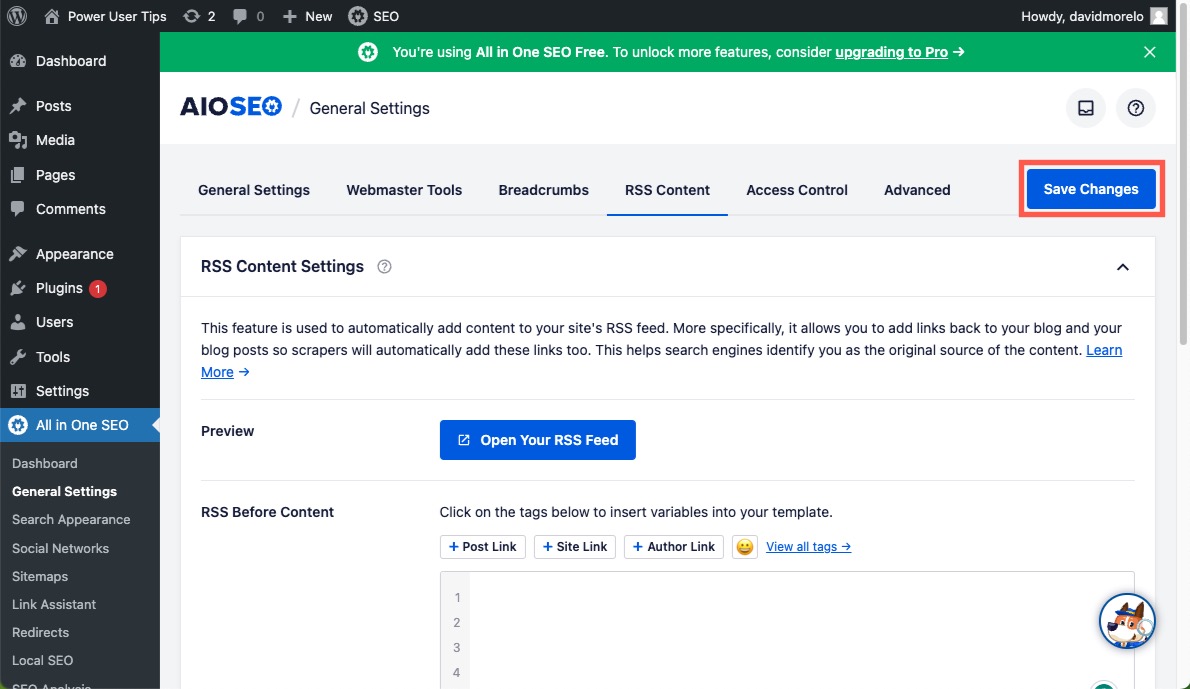
- Click “Save Changes” once you’re happy with how your RSS feed looks.
It’s a breeze to make a custom RSS feed in WordPress with the All in One SEO plugin. It supports many Smart Tags that let you dynamically include various information, so don’t hesitate to use them to their full potential.
Tip: looking for a good RSS reader? We have some of the best Windows RSS readers right here.
Frequently Asked Questions
Do I need an RSS feed for my WordPress website?
An RSS feed isn’t a required part of a WordPress website, but it does go a long way in ensuring that your returning visitors don’t miss out on any new content, so it’s highly recommended.
What is my RSS feed URL?
For WordPress websites, your default RSS feed URL is typically your domain followed by “/feed/”. For example, if your website is “example.com,” your RSS feed URL would be example.com/feed/.
Can I create a custom RSS feed without a WordPress plugin?
Yes. While plugins make the task easier, if you’re up for a bit of manual work, you can set up a custom RSS feed without a plugin. For a detailed guide on how to achieve this, check out this tutorial on how to create custom RSS feeds.
Image credit: Pexels. All screenshots by David Morelo.