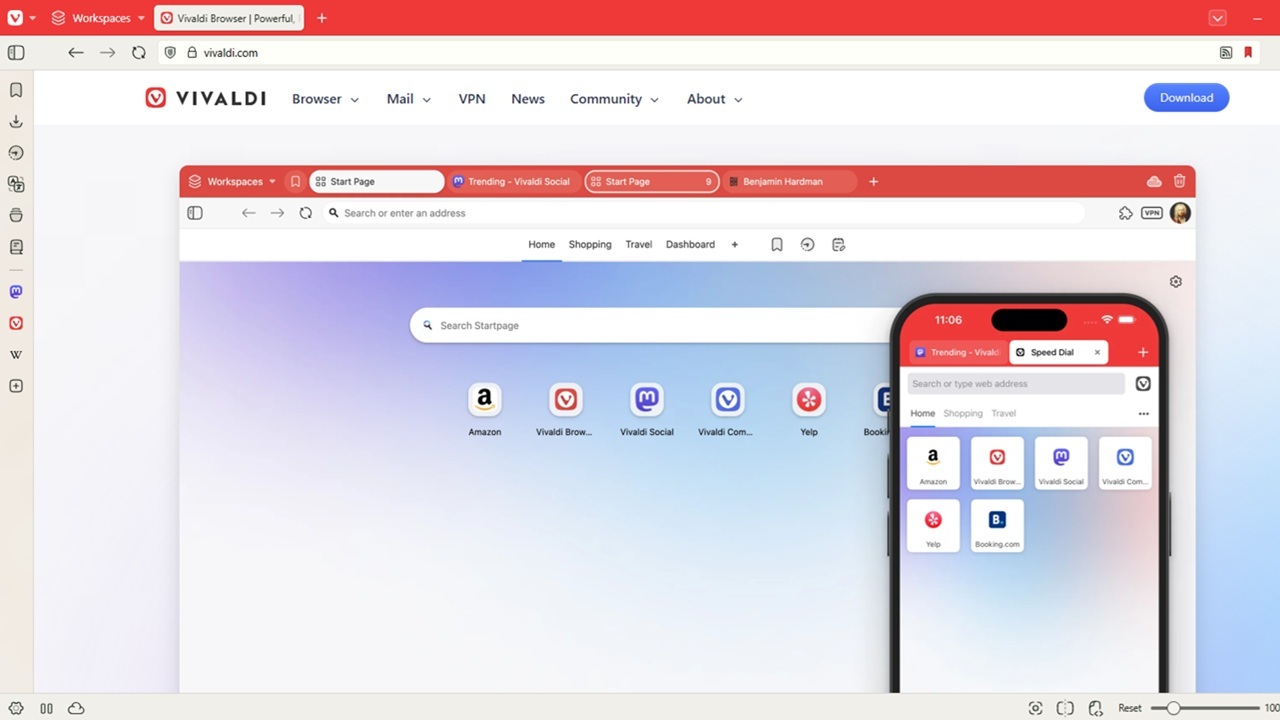
Your browser shouldn’t make you adapt to it. It should adapt to you. If you are a fan of the Vivaldi browser, you will be happy to know that now you can fully customize it to create the browser that works best for your productivity and needs.
Place Your Tabs Where You Want Them
Tabs don’t have to just be at the top of your browser. Update to the latest version of Vivaldi and move them to the bottom, left, or right of your screen.
Press the V menu button at the top left and select Settings. Select Tabs in the left sidebar.
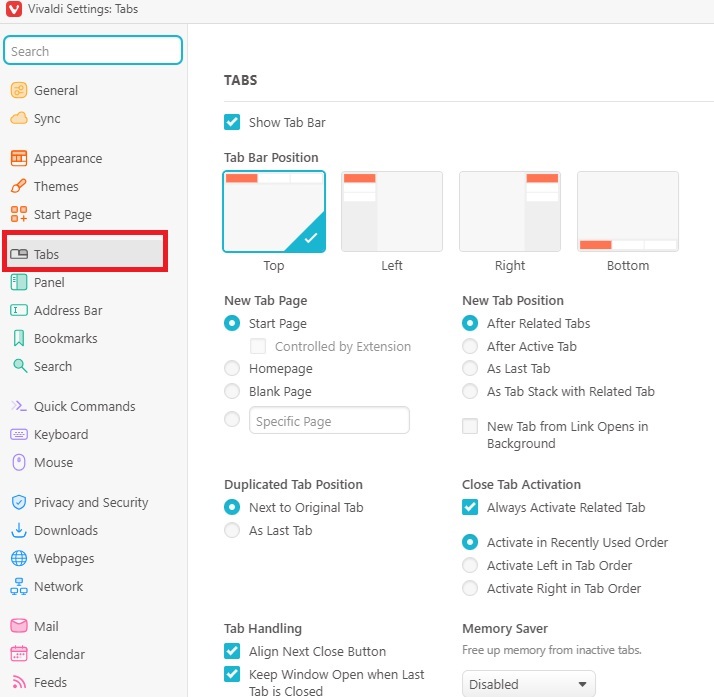
Choose the position that works best for you in the Tab Bar Position section. Then, take a few minutes to browse through all the other tab settings. A few things you might want to customize include:
- How new tabs open
- What’s on the new tab page (consider adding a favorite site if you use it often)
- Choose how tabs display and load in the Tab Display section
- Choose how tabs stack (compact, accordion, two-level, or default) in Tab Stacking
- Mute tab audio in all tabs or just inactive tabs
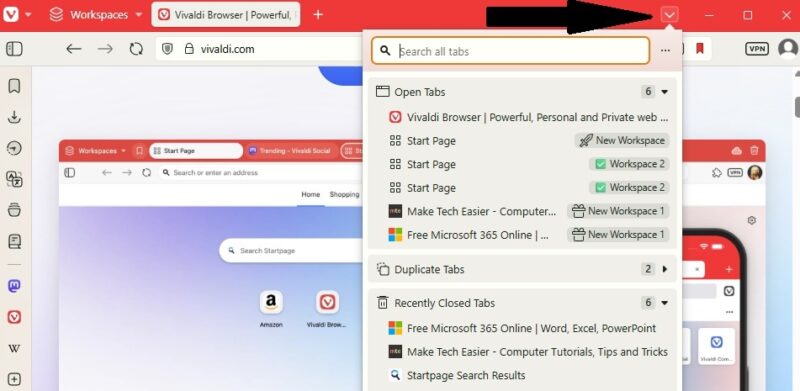
Also, view and manage your open and recently closed tabs at any time by clicking the Tabs button. Search and jump to tabs easily in one place.
Customize Vivaldi’s Toolbars
Browser toolbars often have too many or too few options. This leaves you digging around in menus for your most used tools, while tools you never use take up valuable real estate in your browser.
Vivaldi lets you customize multiple toolbars through a simple drag and drop method. Right-click any toolbar option and select Customize Toolbar. This one setting lets you customize all the toolbars in one place.
Select the toolbar you want to customize from the drop-down menu. You’ll see a list of all available icons along with their names.
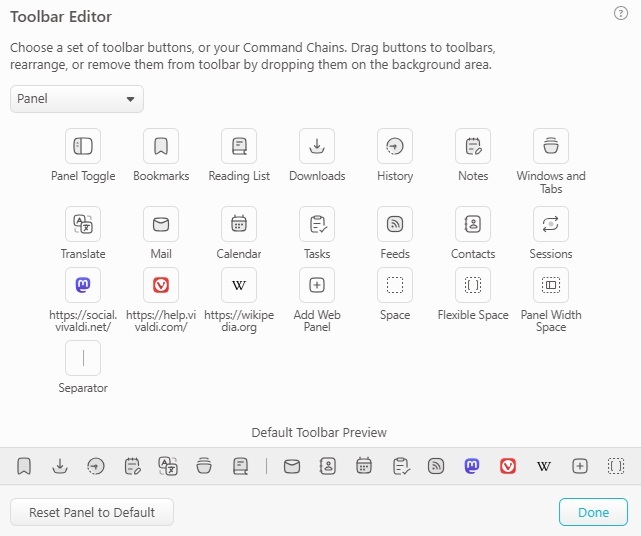
Drag and drop any icon and place it where you want on the toolbar you’re editing. The Toolbar Editor shows you what the toolbar looks like with all the current options selected.
Note: you have to drag the icons to the actual toolbar. You can’t add options just by clicking an icon within the Toolbar Editor.
If you want to remove an option, drag it off your toolbar into the background area of the browser. If you don’t have the Toolbar Editor open, right-click any icon and click Remove from Toolbar.
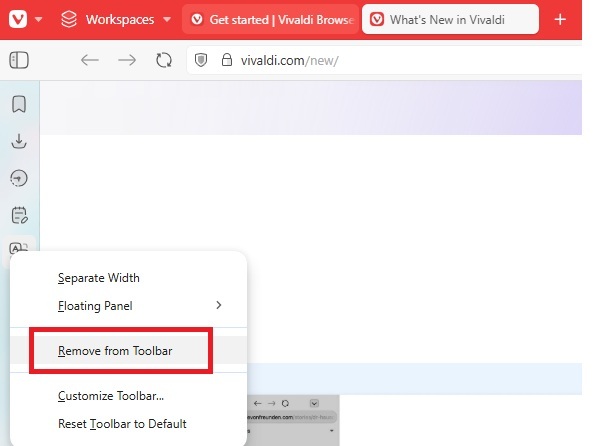
When you’re done, click Done. If you want to start over, click Reset Toolbar Name to Default.
You can mix and match toolbar options between toolbars. For instance, if you prefer the Address Bar options to be on the bottom of your screen, move them there. Want to mix the Panel Bar and Tab Bar options? Go for it. It’s your browser, so customize it the way you want.
Customize the Vivaldi Menu
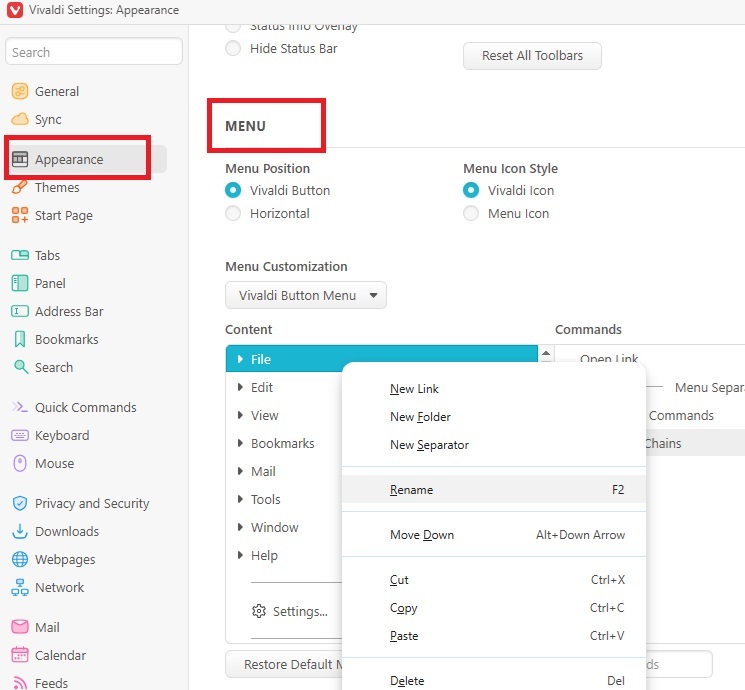
You’re not limited to just customizing the toolbars. Change the Vivaldi menu as well. Click the V icon at the top left and select Settings. Select Appearance and scroll down to Menu.
From here, choose where to place the menu (behind a button or horizontal) and whether to use the V icon or the hamburger menu style. Then, select the menu you want to customize under Menu Customization.
Drag and drop options to reorganize them. Right-click to rename options, add folders, add separators, and even delete options.
Change the Overall Appearance
Much like you can do with Firefox, you can also customize Vivaldi’s theme. Click the V menu icon at the top left, select Settings, and choose Themes.
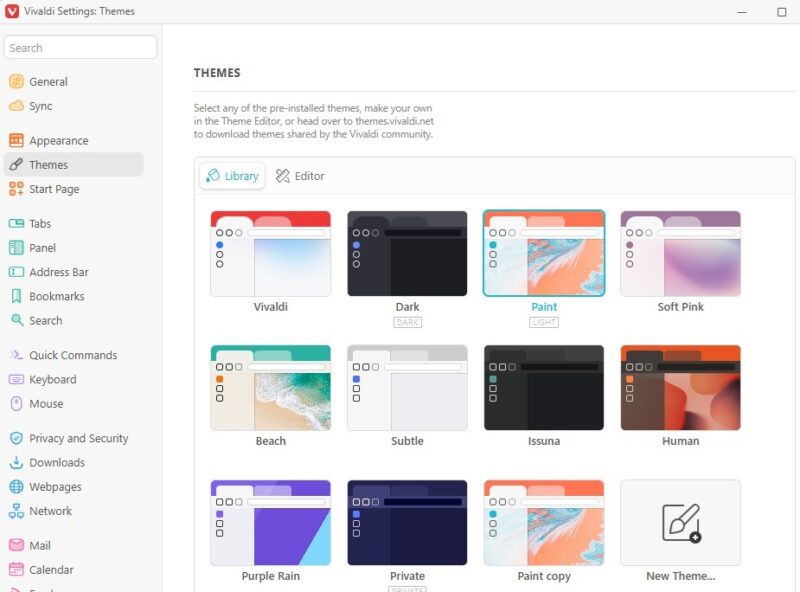
The Library tab shows pre-set themes. This is a quick way to change the theme on New Tab pages, along with the overall color scheme. Click New Theme to create one of your own and enter the Editor window. Click the Get more themes link just below the theme list to find even more pre-made themes.
If you want to create a brand new theme or edit the current theme (either one of your or a pre-set theme), click the Editor tab just above the list of themes. From here, change colors, settings, icons, and the background image. Pick any image you want, including images you’ve downloaded to your desktop.
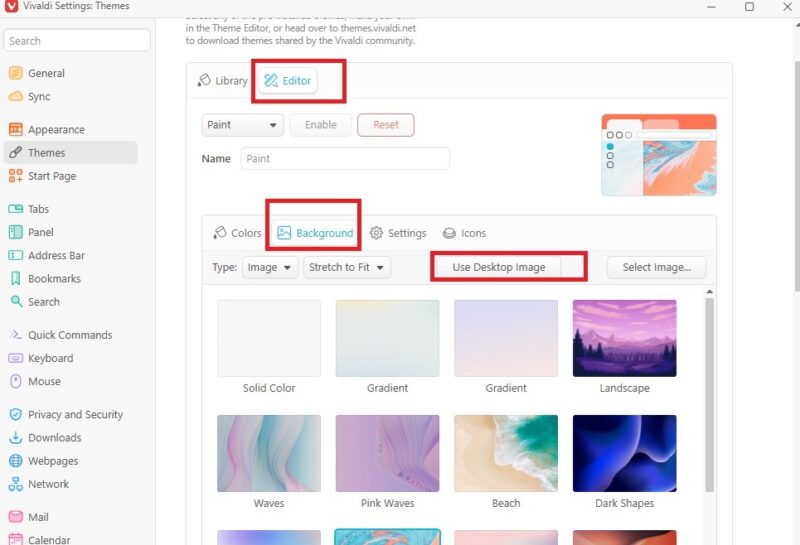
If you use Bing Wallpaper for your desktop, click Background -> Use Desktop image to switch the image daily. This is only in the Editor window.
If you scroll down, you can also set a Theme Schedule, enable/disable Razer Chroma Theme Integration, and enable/disable Philips Hue Theme Integration. A reset button is at the very button if you need to start from scratch.
Customize Workspaces
If you use your browser for different activities, such as working from home, a hobby, or just general browsing, setup custom workspaces in Vivaldi.
Look for the Workspaces icon (three stacked squares) in the top toolbar. That’s where it’s located by default. If you don’t see it anywhere, right-click on any toolbar and select Customize Toolbar. Locate Workspaces and drag it to the toolbar you want to add it to.
Clicking this icon shows you current workspaces you’ve created and lets you create new ones.
Load the tabs you’d normally use for a specific activity, such as work. You might have your email and cloud-based productivity tools loaded in different tabs. Expand Workspaces, expand New workspace, and select New Workspace with selected tabs.
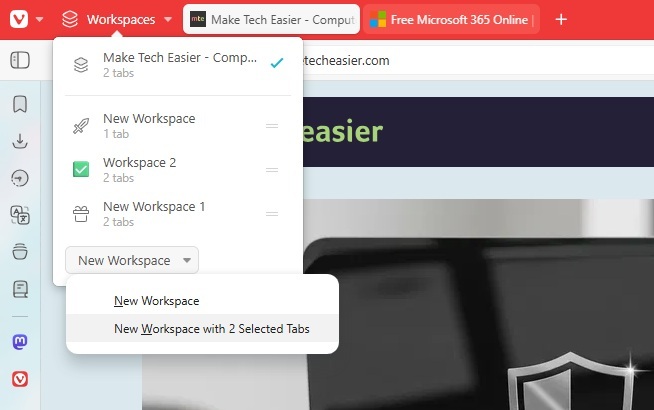
Name your new workspace and choose an icon, if you want. Then, when you select that workspace, all your tabs are ready for you
You might notice there aren’t any options to customize Vivaldi’s AI. This is because Vivaldi doesn’t cram AI into your browser, nor does it want to become an AI browser. You can still open AI tools in Vivaldi in tabs if you want to use them.








