
I’m a coding enthusiast who’s always exploring different editors that can make my development tasks easier. Over the years, I’ve tried everything from lightweight editors to full-fledged IDEs. I’ve always been curious to see which tool could truly improve my workflow. Recently, I decided to try Cursor, an AI-powered editor built on top of Visual Studio Code. What makes it different is its AI-driven features like smart autocomplete, natural language code editing, and project-wide codebase indexing, all designed to make coding faster and more efficient. Is it worth using? Let’s find out.
Getting Started with Cursor
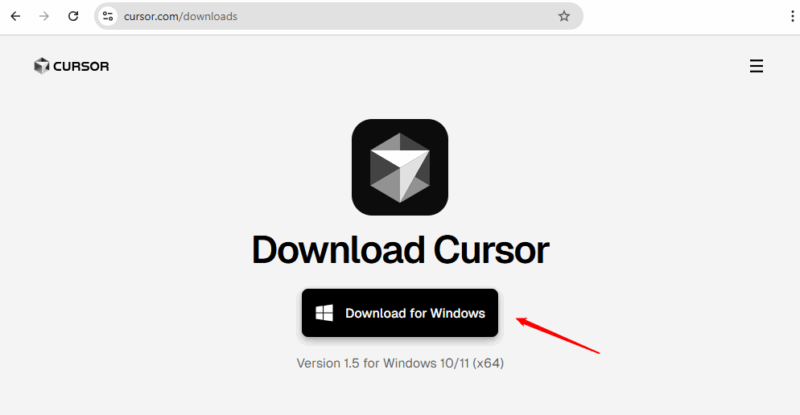
To get started with Cursor, you need to download it from the official site. It’s available for all major operating systems; you can download the respective installer for your operating system and begin using it right away.
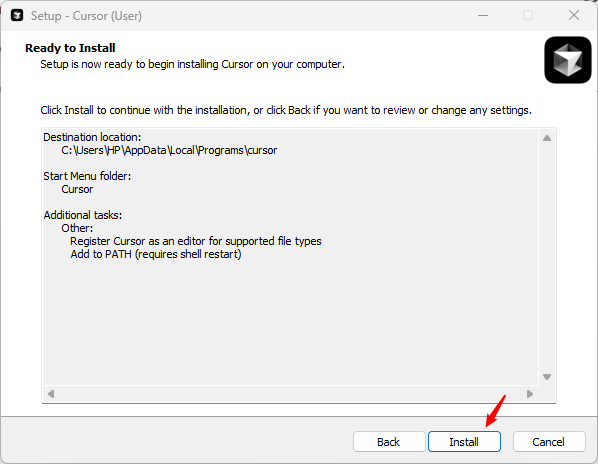
Launch the installer, accept the license agreement, follow the on-screen installation instructions, and click the Install button to begin the Cursor installation.
Once the Cursor installation is complete, select the Launch Cursor checkbox and click Finish to complete the setup wizard.
Instant Code Generation
One of the first things that impressed me was how quickly Cursor generates code snippets. For example, while working on a Next.js project, I wanted to add a welcome section. Normally, this would take several minutes of setup, structuring the JSX, adding styling, and testing the layout. Instead, I simply placed my cursor in the file, pressed Ctrl + K, and typed a short instruction: “Create a simple welcome section with a heading, description, and a button”.
Within seconds, Cursor produced a clean, functional snippet.
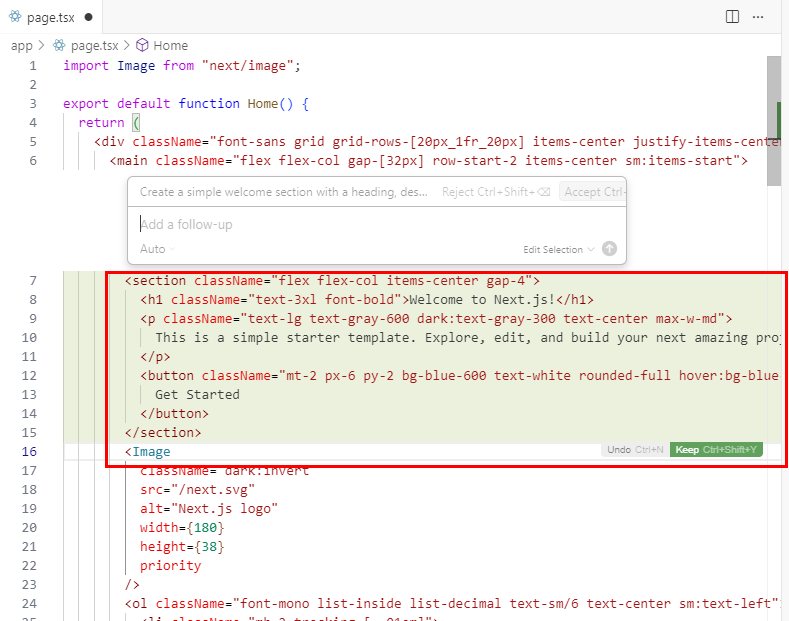
Here, I can refine the section with additional instructions or adjust the details to match my project needs. Once I confirmed the code with Ctrl + Enter and saved the file, a new section was added to my project instantly.
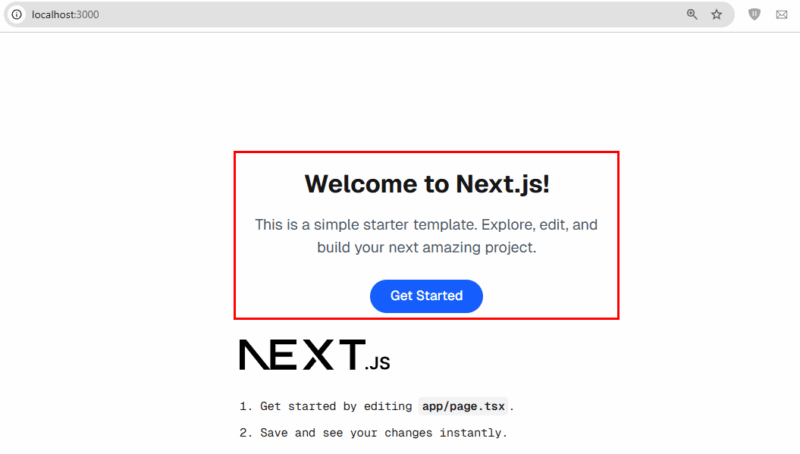
A task that would normally take minutes to configure was completed in seconds. It truly felt like having a coding partner who instantly understood my idea from just a brief instruction.
Built-in Chat Window
Another notable feature of Cursor is its built-in chat window. It makes coding much easier and faster. You can press Ctrl + L to open a sidebar and ask questions. For example, I asked, “How can I center a div in CSS?”; Cursor showed the answer instantly.
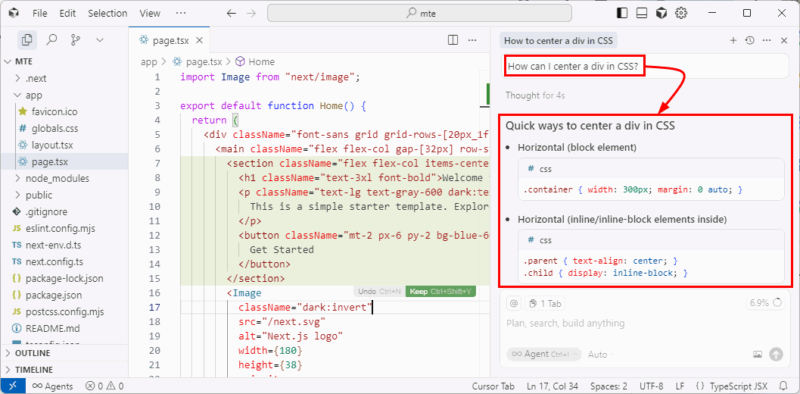
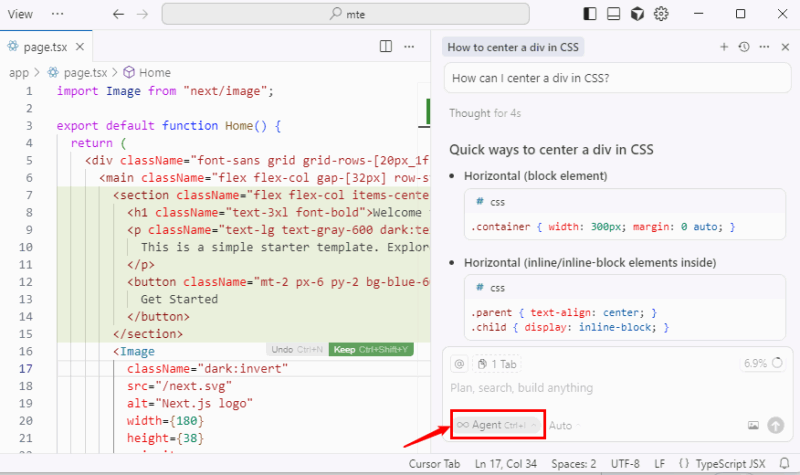
I can also switch to a different AI model, which means I’m not restricted to GitHub Copilot.
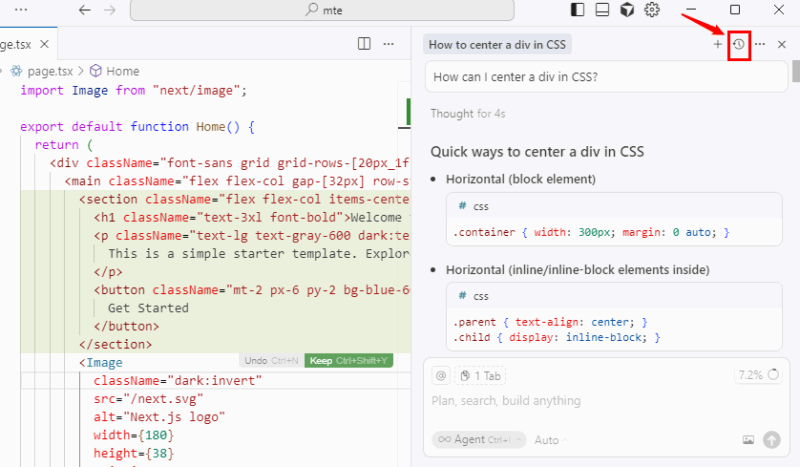
Another useful feature is that the chat keeps a history of my previous questions for quick reference, and I can also send highlighted code snippets directly as context to get more accurate answers.
This feature makes it easier to debug or understand specific parts of my code without switching to another tool.
Image-Based Prompts
Cursor also supports image-based prompts. Instead of relying only on text, I can upload an image as part of my prompt and let Cursor handle the rest.
For example, I added a Dark-Light layout image into the chat and asked, “How can I build this layout?” Cursor immediately analyzed the structure and generated the corresponding code snippet. It accurately interpreted the visual elements and translated them into working code without requiring me to explain everything in detail.
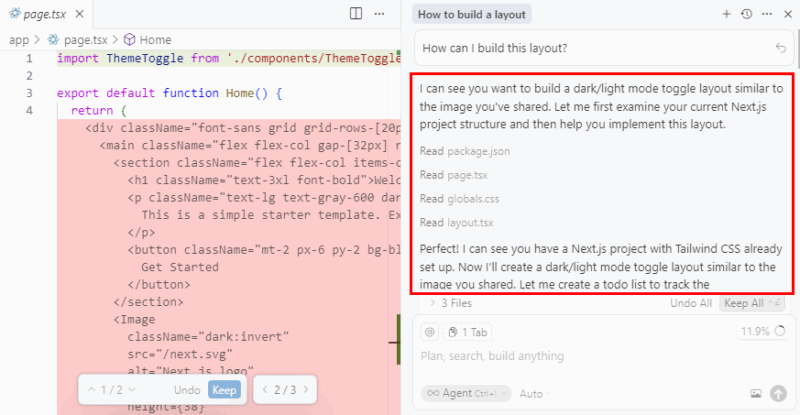
As a frontend developer, I see this as a major advantage. It eliminates much of the trial and error that typically accompanies replicating designs, allowing me to move faster with cleaner results.
AI-Powered Terminal Commands
One area where I struggle quite often is remembering the exact syntax for terminal commands. I usually end up Googling or double-checking the documentation, which interrupts my workflow. Cursor has made this problem almost disappear.
While working in the terminal, I pressed Ctrl + K and simply typed: “Create a new file called mteExample in the main folder”. Within seconds, Cursor generated the correct command for me. I hit Enter, and the file appeared instantly.
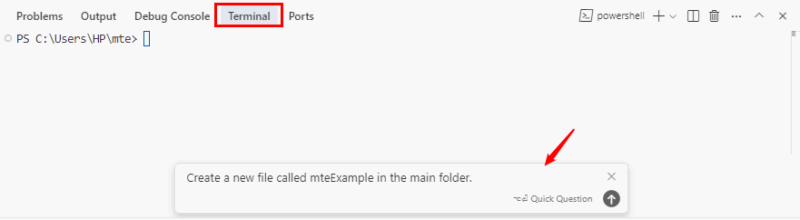
What I really like about this feature is how it removes the guesswork. Instead of worrying about whether I’ve typed the right flags or used the correct syntax, I can just describe what I want in plain English and let Cursor handle the details. It might seem like a small thing, but over time, it saves me countless minutes and keeps me focused on the actual coding instead of struggling with command-line syntax.
Cursor Pricing
I’ve used both the free Hobby plan and the $20/month Pro plan. The Hobby plan was sufficient for initial exploration and light coding, giving me a couple of weeks to test Cursor’s AI features before its limited usage forced me to upgrade to the Pro plan for continued access.
Now, I’ve been using the Pro version for some time, and it’s been a game-changer. Features like unlimited Tab completions, Background Agents, and Bugbot make coding faster and smoother. For regular coding, $20 a month feels well worth it.
I haven’t tried the Ultra plan, and honestly, spending $200 doesn’t make sense unless you need very high AI usage or early access to new features. The Pro plan already gives me everything I need to code efficiently and manage all my projects.
Other Useful Cursor Features
Here are other useful Cursor features that can make your coding experience even smoother and more efficient:
| Feature | Description |
|---|---|
| Agent Mode | Handles multi-step tasks across different files using natural language prompts. |
| Smart Autocomplete & Tab | Predicts full code snippets and lets you accept them quickly. |
| Smart Rewrites | Automatically corrects, improves, or refactors selected code. |
| Codebase Understanding | Answers questions about your project with full context, no need to open files manually. |
| Documentation Generation | Creates or updates documentation from your code and chat sessions. |
| AI Commit Messages | Generates clear, customizable commit messages with one click. |
| Notepads | Lets you keep notes or project docs inside the editor itself. |
| Bug Finder (Bugbot) | Detects errors in your changes and suggests fixes. |
| @Web Query | Lets you search the web directly from inside the editor. |
| Privacy & Security | Keeps your code local and protected (SOC-2 certified). |
| VS Code Extension Support | Works with your favorite VS Code extensions for a smooth workflow. |
Difference Between Cursor, VS Code, and Other Editors
Cursor, Visual Studio Code, and other code editors serve different needs. Cursor builds on VS Code and adds AI features like context-aware suggestions, multi-line edits, and Agents, making it perfect for developers with coding experience who want to work faster.
VS Code, on the other hand, is beginner-friendly, flexible, and can be extended with plugins, including AI tools, so it works well for all skill levels. Other editors like Sublime Text, Atom, or JetBrains IDEs vary in speed, features, and complexity, catering to specific preferences or project needs.
Overall, Cursor is great for experienced developers seeking AI help, VS Code works for everyone, and other editors serve more specialized purposes.
Who Should Try Cursor AI
From my experience, Cursor feels like the right tool if you already know how to code and just want to work faster and smarter. Since it looks and works almost like VS Code, I didn’t feel lost at all, and the AI features made a big difference when writing, fixing, or refactoring code. I also like knowing that it has privacy options, which gives me peace of mind when working on important projects.
For junior developers who already know the basics, it can feel like a helpful guide that explains things and shows examples when you need them. When I want to handle bigger tasks, tools like Agents and Composer really come in handy.
That said, I wouldn’t recommend it for someone with no coding background at all or for those who need to work completely offline because it’s just not built for that. For beginners, I would recommend starting with VS Code or other user-friendly online code editors before moving on to Cursor.








