
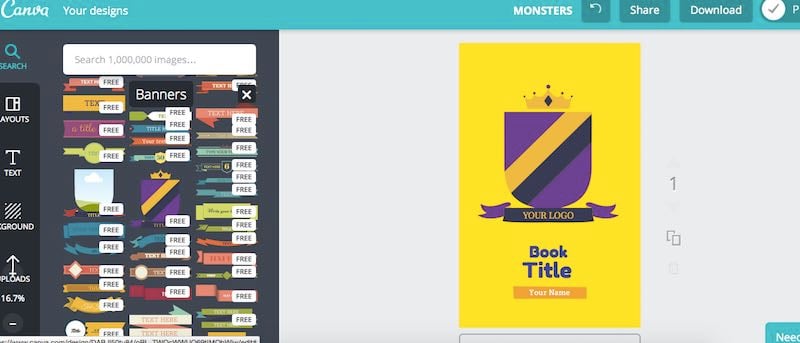

Whether you’re a student or a blogger who wants to take your writing to the next level, publishing an eBook seems like a daunting task. It might even seem more daunting if you think about creating a beautiful and professional looking cover without spending a dime.
The good news is, you can create a unique eBook cover that’s free, professional looking, and even beautiful with Canva.
Canva is a “tool that makes design simple for everyone.” It is available on any web browser and on the iPad.
By using Canva, you can create an eBook cover in less than 30 minutes. There’s no need to spend hours creating it or to hire a professional graphic artist.
Before you jump in, make sure to have the following things ready:
- Your Canva account (Use Google Plus, Facebook, or email to sign up)
- eBook’s title and other text you want to include
- A general idea of the layout and design
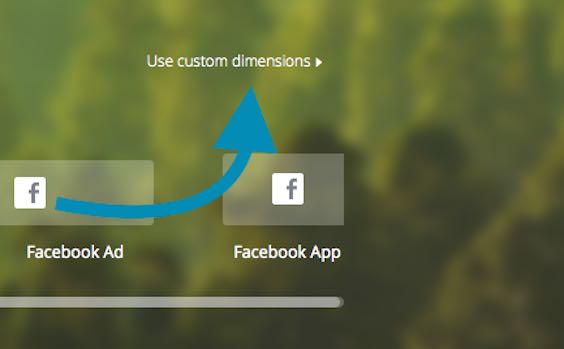
1. Choose Kindle size eBook cover or “Use Custom Dimensions.”
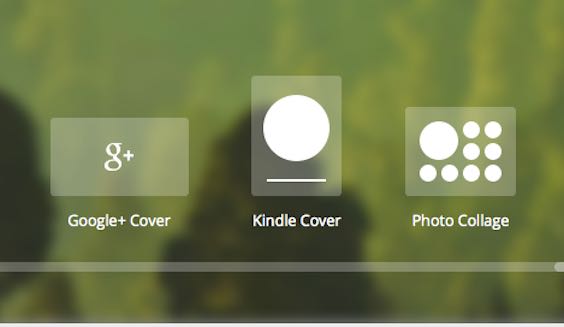
Most eBooks nowadays are published on Amazon. Your best bet is to choose the Kindle size, but you can also choose custom dimensions depending on the size of your PDF file. Did you use an A4 or A5 size? If so, make sure to enter the correct width and height.
2. Choose a free layout
After choosing “Kindle” or “Custom Dimensions,” you will be routed to a blank page. On the left side of the dashboard, all the existing layouts created by Canva artists are displayed.
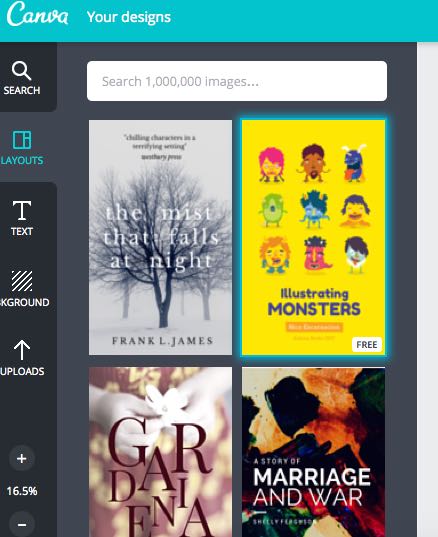
While you’ll come across paid content, there are tons of free layouts you can choose from. Start with a “base” layout that you think complements the style of your eBook.
Don’t worry if you think the colors or texts are off. You’ll have the option to easily delete and replace all the elements, so that you can come up with your own unique design.
If you’re lucky, you might find the perfect layout. All you need to do is change the title and the author’s name and delete unnecessary details.
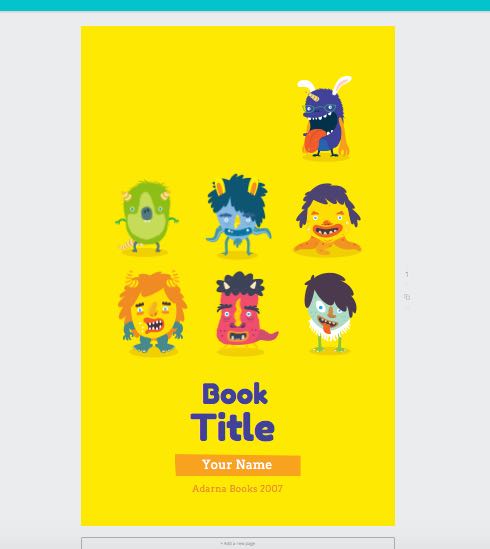
3. Add design elements
If you want to create a one-of-a-kind eBook cover that you’d be proud of, you can add text, stickers, icons and images. Everything can easily be dragged, dropped and deleted. You can also change the size and color of every element – whether it’s the font or the images.
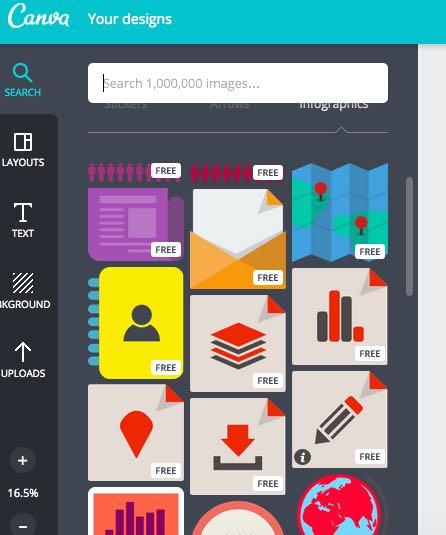
4. Upload your own image
While there are a ton of free images available in Canva’s library, you have the option of uploading your own image and adding it to your design.
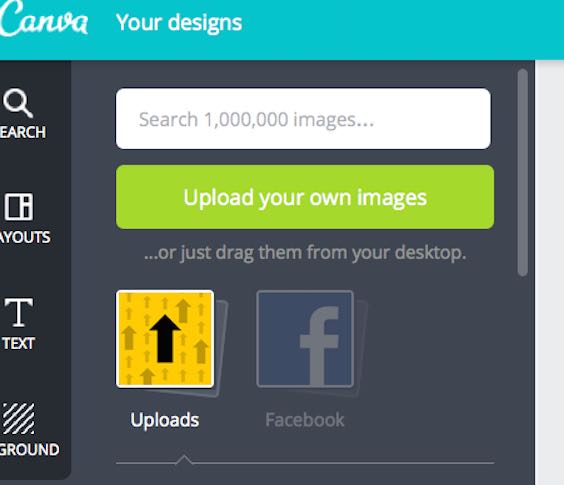
Let’s say you’ve captured the perfect artsy photo on your smartphone, simply click on upload. Or you can grab one of your photos from Facebook. Once it’s uploaded, click the photo and it will be added to the existing design. You can also resize the image and even add filters.
5. Download the eBook cover
Are you satisfied with how the cover looks? Great! You’re now ready to download it. You have two options: download it as a JPG or PDF file.
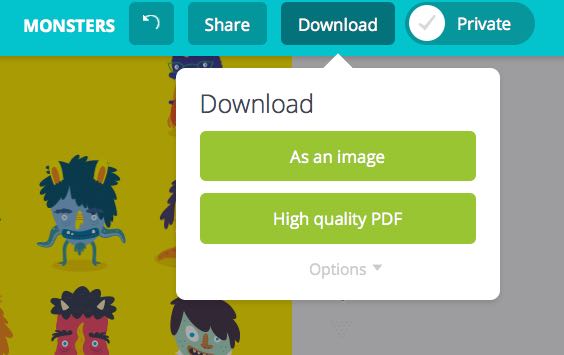
Don’t like the look of your eBook after downloading? No worries. You can always go back to Canva if you want to make changes. Just log back in and choose your eBook cover under “Your Designs.” You can resume editing and download the new version.
Conclusion
If you don’t like Photoshop or don’t want to hire a graphic artist, Canva is arguably the best design tool to help you easily create a beautiful eBook cover.