
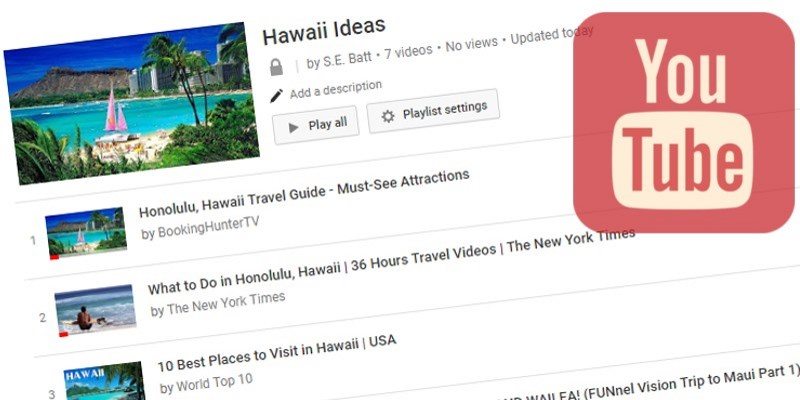

If you’re a YouTube power user, you may want to create a collection for videos. Perhaps you’re gathering tutorials for your favorite hobby craft and want somewhere to keep them all. Maybe you’re planning on a vacation with friends or family and would like to save all your inspirations to share with others. Whatever your reasons, a YouTube playlist is very useful for collecting, revisiting, and sharing large batches of videos.
Making a Playlist
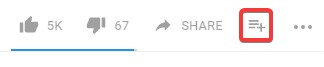
If you’re watching a video and you’d like to create a playlist based on it, it’s very easy to do so. Simply scroll down and look for this button below the player on the right:
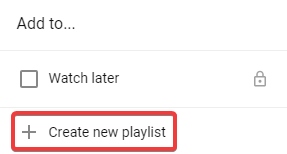
If you’ve never made a playlist before, the menu that appears should be relatively empty. To make a new playlist, click the “Create new playlist” button at the bottom.
A new popup will appear asking for two things: a name and a publicity setting. For the name, give your playlist something memorable and easy to identify.
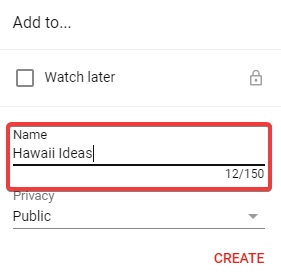
The privacy settings require a little more thought:
- Public allows anyone to see the playlist. This includes people who look at your playlists on your YouTube channel and people who have access to its link. People will also be able to find your playlist in search results. If you’re creating an inspiration playlist called “Hawaii Ideas” and someone searches YouTube for something similar, it’ll appear in their searches.
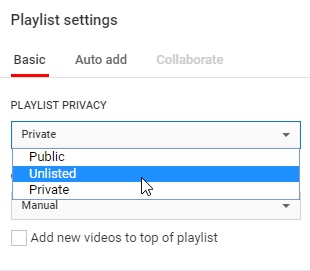
- Unlisted will stop your playlist from appearing in other people’s searches, as well as appearing on your channel. However, if you give someone a direct link to the playlist, they can see all your videos. This is ideal if you want to share the playlist with select people.
- Hidden makes the playlist totally invisible to anyone bar yourself. This is perfect if you’re assembling a list for personal reasons and don’t really want other people snooping, even if they manage to get a direct link to the playlist.
Once you’re finished customising the playlist, click “Create.”
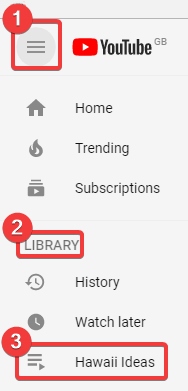
Your playlist will now be created. It will only contain one video so far – the one you just added. You can see it at any time by clicking the options button at the top-left and finding it under “Library.”
Editing the Playlist
Adding Videos
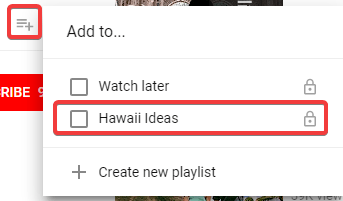
Now that we have a playlist ready, let’s add videos to it! If you find yourself watching a video you’d love to add, simply repeat the same steps as above; however, instead of creating a new playlist, click on the name of the playlist you want to add it to.
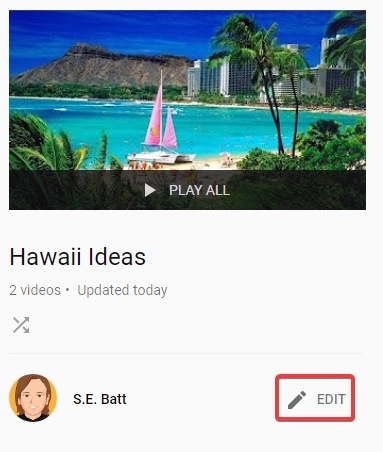
You can also add videos by opening it from your library, as detailed above. Once on the playlist screen, click the “Edit” button. This will bring you to the “edit playlist” screen.
On the right side under the playlist’s title, click “Add videos.”
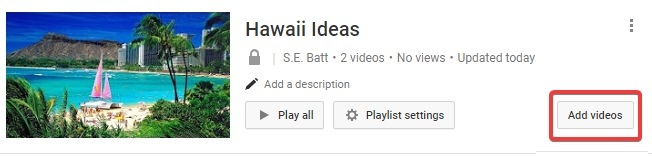
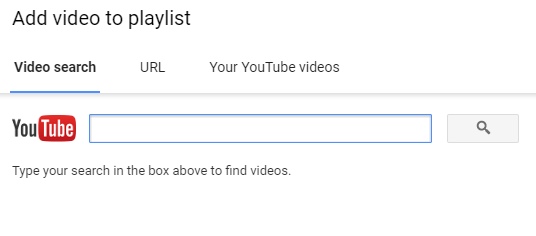
This will bring up an interface that allows you to search and add YouTube videos on the fly. You can add videos via URL and pick choice videos from your own channel. This makes for a nice “batch add” option if you’re wanting to add a lot of videos without visiting each one individually.
Arranging and Deleting Videos
If you have some videos that are “out of order” or shouldn’t be there at all, access the “edit playlist” screen as you did above. Then, hover over a video and click on the cross button that appears on the top right to remove it.

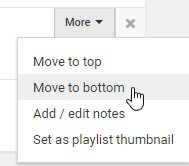
Similarly, you can click the “More” button beside the cross to move the video to the top or bottom.
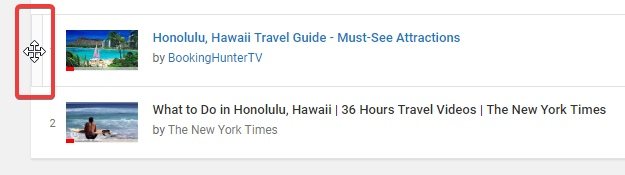
If you have a more precise location for the video in mind, you can drag it up and down using the handle on the left.
Sharing and Collaboration for Your Playlist
If you set your playlist privacy as Public or Unlisted, you can share your playlist with others via a link. Simply access the playlist from your library, copy the URL, and paste it where you want to share it. Anyone who clicks the link can view and play the videos on the playlist but can’t edit its contents.
If you’d like to change the visibility of the playlist, go to the “edit playlist” screen as above. Click the button called “Playlist settings.”
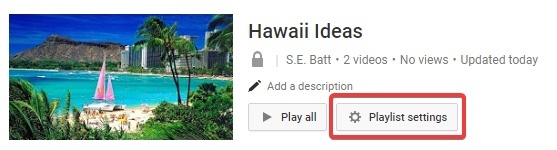
Under “Playlist Privacy” you can change the visibility of the playlist.
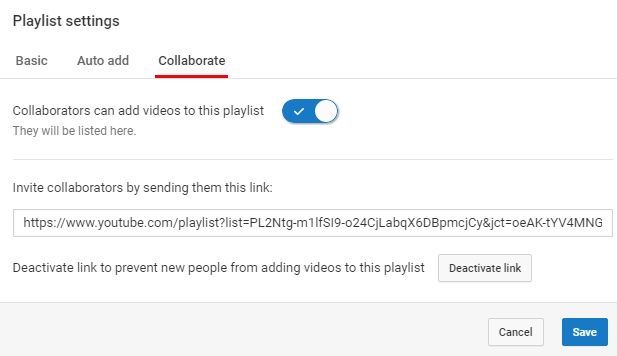
In the same screen you can add collaborators to edit your playlist with you if you’ve set its visibility to Public or Unlisted. Just go to the “Collaborate” tab and enable collaboration, then share the link YouTube gives you with trusted persons. Once they’ve accepted the invite, they can help add videos to your playlist.
Playing with Playlists
If you want to collect or share a large amount of YouTube videos at once, a playlist is the ideal way to do it. Now you know how to set one up, how to edit it, and how to share it with friends and family.
Do you see yourself making use of playlists in the future? Let us know below!