

These days, people love using online maps when they need directions. People aren’t so willing to purchase an atlas or travel guide anymore, opting instead to load directions on their GPS and have it guide them. With the new additions that digital maps can bring, however, there’s definitely benefits for creating your own custom map to show to other people.
If you’ve tried sharing information with friends through Google Maps, you may have noticed that it has issues sharing complicated custom maps. Thankfully, there’s Google My Maps that allows you to create fleshed-out interactive maps to share with friends, family, or anyone else who may need it. Unfortunately, My Maps is quite hidden away, so you’ll be forgiven for not knowing it even exists!
Accessing My Maps
Confusingly enough, the easiest way to get to My Maps isn’t via Google Maps – it’s by going to Google Drive instead! Head there and click on the “New” button at the top-left. You won’t see My Maps unless you highlight the “More” option at the bottom.
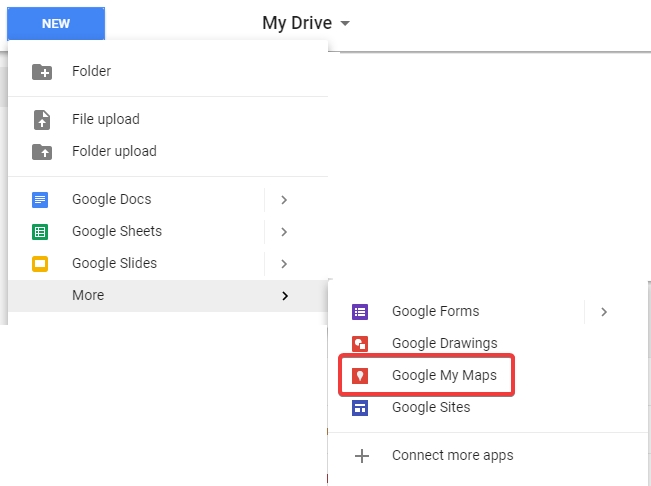
When you select My Maps, a new tab will open with a map in it. This also creates a map file within your Drive, so you can safely close the tab without losing your progress. Make sure you name your map something memorable so you can easily find it later on.
Making a Map
Now that we’re in the My Maps screen, it’s time to make a map. For the sake of this article, we’re going to be planning a vacation trip from Paris to Versailles with friends. Once we arrive in Versailles, we’re going to want to stop off at a restaurant. How do we get from Paris to Versailles? When we arrive, where should we eat? By using My Maps, we can make an interactive map to share with others and allow everyone to add their opinions.
Using Layers
The first thing you should familiarise yourself with are layers. This allows you to separate elements of the map, making it easier to navigate. Here, we’re going to make one layer for the directions to Versailles and another to hold the potential restaurant locations. That way we split our map into two distinct features, making it easier to manage. To make a layer, simply click the “Add layer” button at the top-left underneath the map’s name.
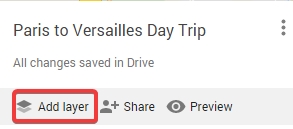
My Maps automatically makes a layer for directions, so we won’t make a layer for that. We will, however, make a layer called “Locations” for later.
Making Directions
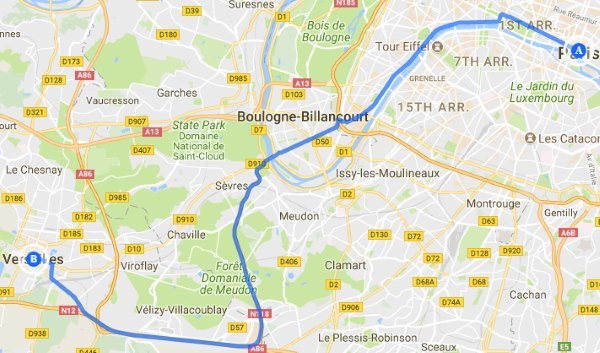
First, how do we drive from Paris to Versailles? To have Google Maps automatically find directions for us, click the “Add directions” button below the search box.
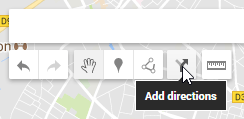
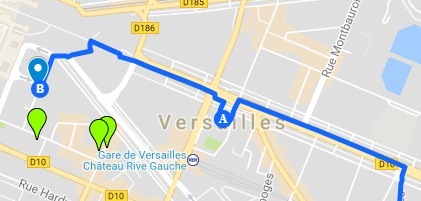
We can then select the method of transport. On My Maps we can choose between going by car, cycling, or walking. For now, we’ll tell Google My Maps to find the best driving route between Paris and Versailles. The following is the result.
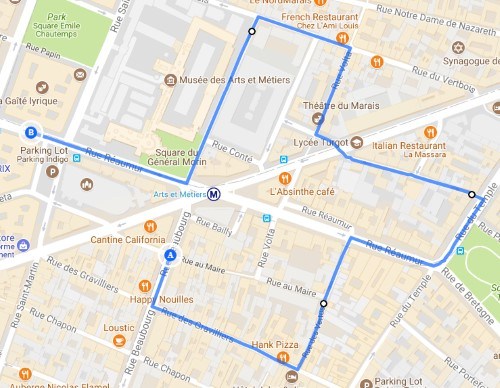
If you’d like, you can manually click on the spots you want to travel between. To do this, click the “Draw a line” button, then select the method of transport you want to take. Now, every time you click on the map, you add a new waypoint to the journey. This is a great tool if you want to take a detour and visit somewhere else before arriving at your destination. Once you’ve reached the end of your path, simply click on the final waypoint a second time to finish mapping the path.
Adding Locations
So now that we know how to get to Versailles, it’s time to find a place to eat. Here, we enter “restaurants in versailles” into the search box and press Enter. Once done, My Maps points out every restaurant it can find.
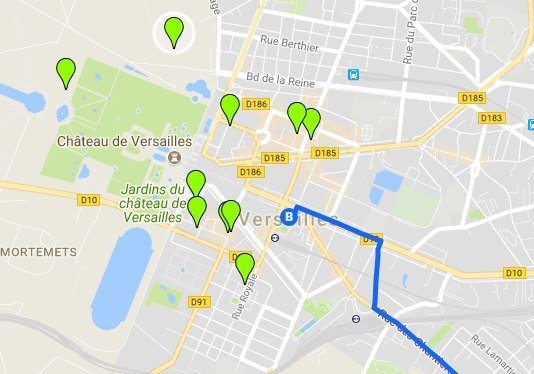
We can click these markers for more information about each restaurant. Once we find a restaurant we like the look of, we can add it to a map layer. We created a “Location” layer earlier, so let’s add the restaurants we like to it! We first ensure the Locations layer is selected by clicking it, then we click “Add to map” on the restaurant details to add it to that layer.
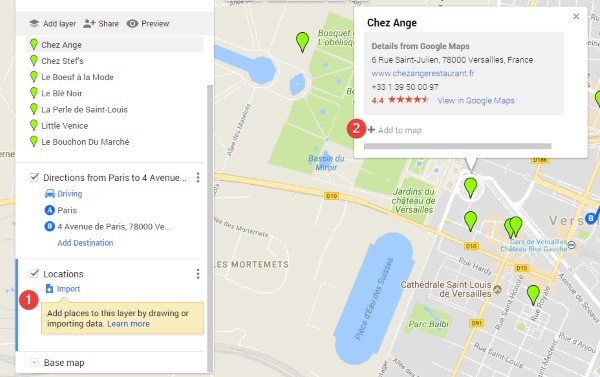
“Chez Ange” is now on our selection of restaurant locations. If we like, we can click the paint bucket icon that appears when hovering over Chez Ange on the Locations layer to change its color on the map.
Once added, we can get directions to the restaurant by clicking “Directions to here” on a restaurant’s information page and entering Versailles as our starting point. Now we know how to drive from Paris to Versailles, then how to get to Chez Ange when we arrive.
Sharing the Map
Once we’re done filling out the map, we can click Preview to see how the map will look to other people.
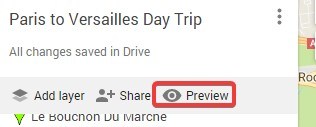
A new tab will open, showing the map as our friends would see it. This gives us a chance to see if we missed anything and make changes. Once done, we head back to the map page and click “Share.”
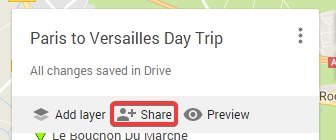
We can now copy the link that My Maps provides and paste it where we need to share it. Others can now look at the map, see the routes we’ve mapped out, and click on elements for more information.
Mapping Made Easy
It can be tricky to share complicated routes and travel details with Google Maps alone. Thankfully, My Maps makes it easy to share an interactive map with routes, locations, and even custom paths.
Do you find yourself sharing digital maps a lot? Let us know below.