
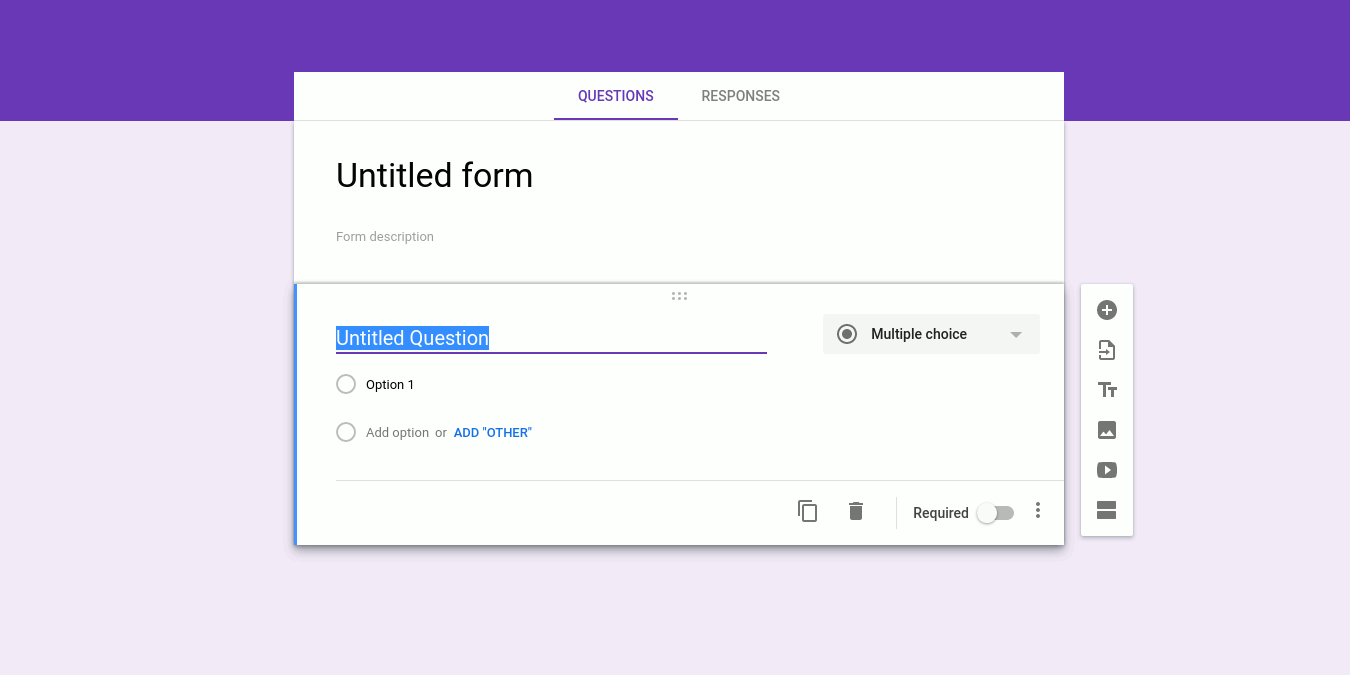

The default installation of WordPress doesn’t come with the ability to create forms. This means that if you want to add a form (such as a Contact Us form), you will need to install a form-builder plugin.
If you are not keen to use a form-builder plugin, you can also make use of Google Forms to add forms to your site. This is especially useful when you want to share a particular form to various emails lists, sites and platforms. With Google Forms, all the answers are saved in the same location, and that definitely simplifies things.
How to Create a Google Form
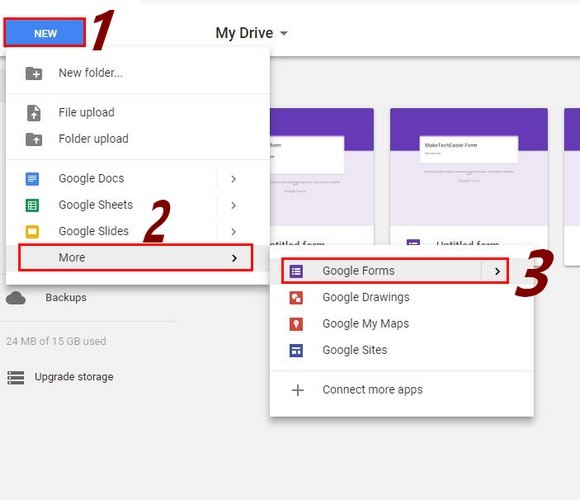
Before you even open WordPress, go to Google Forms and create the form you want to add. You can also create the form through Google Drive. Click on the “New” button and move the cursor to the “More” option. Click on the “Google Forms” option when the new side window appears.
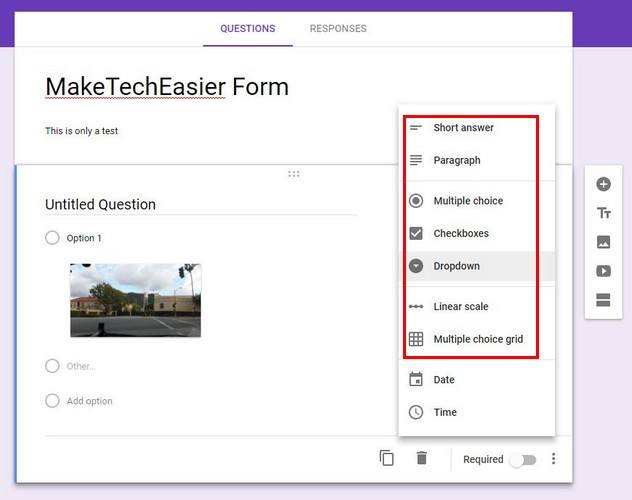
You can either choose from a blank one or from a template with various designs. Make sure to give your forms a good title and description. You don’t even have to worry about deciding on a form field since Google’s AI technology chooses the best one.
It detects the type of questions you’re asking and chooses the best one. If it were to choose the wrong one, there’s always the option of manually selecting the one you want. By clicking on the drop-down menu in the types of answers, you can either have the answers be a short answer, paragraph, multiple choice, checkboxes, dropdown, or linear scale.
If you need to gather a lot of information, you can add another section to your form. Click on the icon that looks like an equal sign right below the video option. The new section will automatically appear with the same options to add video, images, etc.
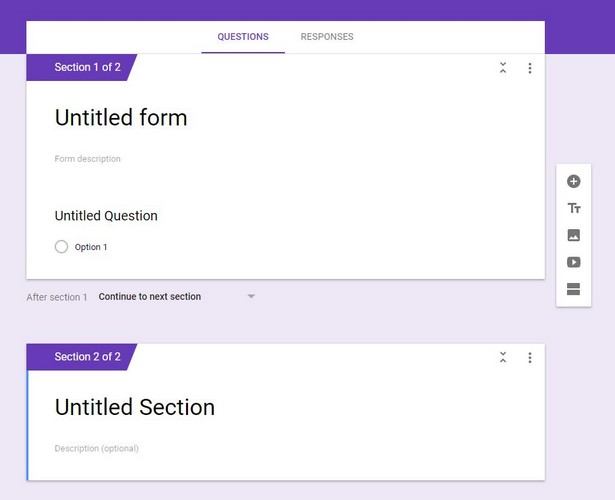
Clicking on the three vertical dots, you get the options to either delete the section, merge it with the first one, or add a duplicate section.
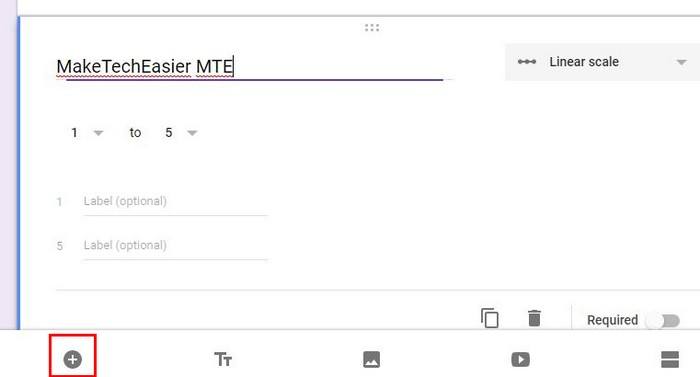
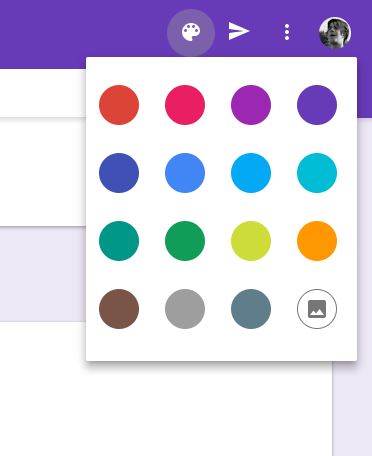
To add a new question, just click on the “Add” button that’s beside the options to add images and videos. Once you’ve added everything you need, click on the “Send” button at the top-right to get the embed code. Beside the Send button are the Color palette and the Settings options to customize the form even more.
Adding Collaborators
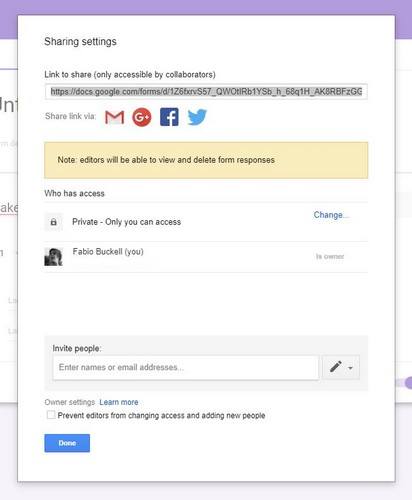
Adding more people to your Google Form is also an easy task. Click on the three vertical dots and choose the “Add Collaborators” option. The new window will show you an option that’ll allow you to share the link through Gmail, Google+, Facebook, or Twitter. At the bottom you can also prevent the collaborators you add from adding anyone else to the project.
Sharing Your Google Form
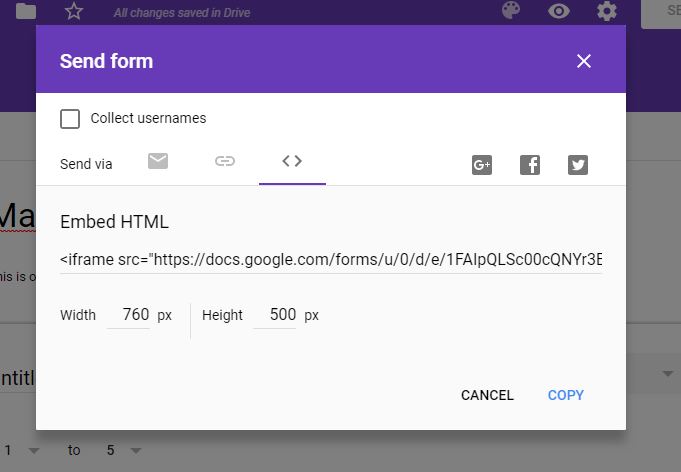
After clicking the send button, a popup will appear, click on the Embed tab and then on the copy option on the bottom-right. Just in case you need more sharing options, you can also share by email and with a link by clicking on the first two icons.
Adding Your Google Form in WordPress
Open WordPress if you haven’t done so already and go to the admin area. Edit the page or post where you want the form to appear.
Click on the Text tab on the post and paste the code that you copied earlier. Hit publish if you’re ready to go live or save your changes. If you want to see what your form looks like, you can always click on the visual tab or click on the Preview button.
Conclusion
The reasons why you might need to create a Google Forms are extensive, but now you know how easy it is to customize and add it to WordPress. What are you creating your Google Form for? Share your ideas in the comments.