

Screenshots are great when you want to save what you’re looking at for later or share it with someone else. In some cases, however, a PDF file might be better. If you’re trying to save something to study later and want to be able to highlight or copy text, you’ll need to save the site as a PDF file. There are a number of ways you can accomplish that in Chrome, both with built-in features and extensions.
1. Print as PDF
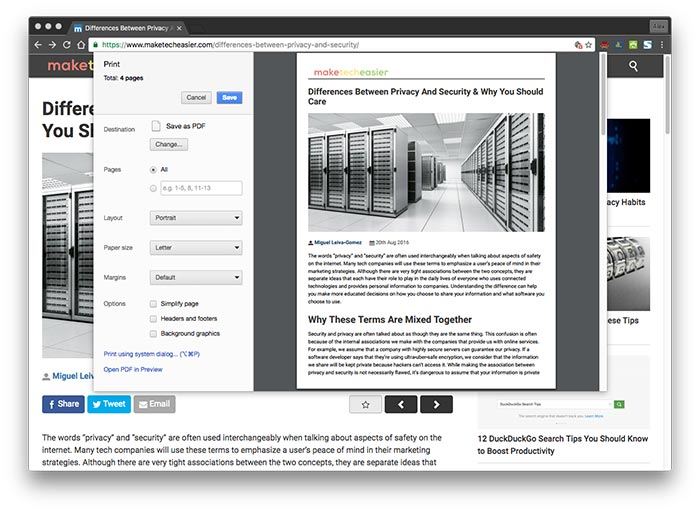
This one is obvious, so let’s get it out of the way first. Chrome has a built-in, if limited, function that allows you to essentially save the printout of a website as a PDF. For sites that print well, this is the perfect solution. Unfortunately, many sites don’t look that great when you try to print them, and some are completely unreadable. If there are a number of elements on a page, numerous ads or complex navigation, you might not even see what you’re trying to print. But if you want to save a recipe or something similarly simple as a PDF, this is the way to go.
2. Print Friendly & PDF
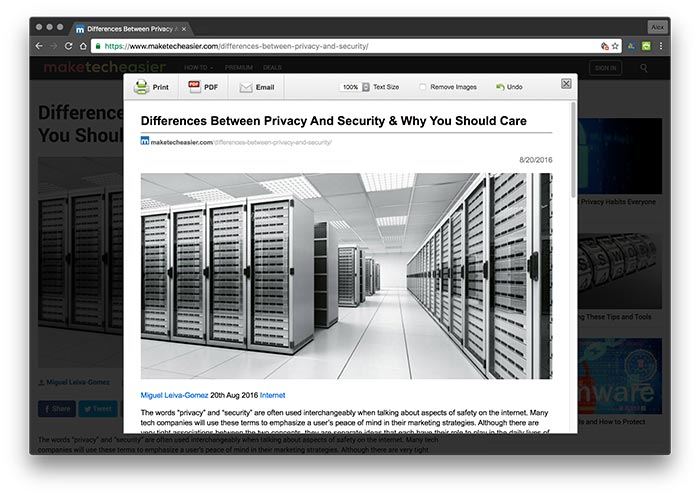
My favorite Chrome extension for turning webpages into PDFs is Print Friendly & PDF. Once installed, the extension sits in your toolbar, ready for use. When you click it, a popup window will appear, showing you a preview of what your PDF will look like. There are a lot of cool features under the hood, including the ability to remove elements (like ads), change text size, remove images or email directly from the preview. When you’re done, the PDF will have the original URL at the top of the page, so you can find the original site any time you need to. And as a bonus, you can also use this to make cleaner looking printouts and print directly from the Print Friendly popup window.
3. Read Mode + Print as PDF
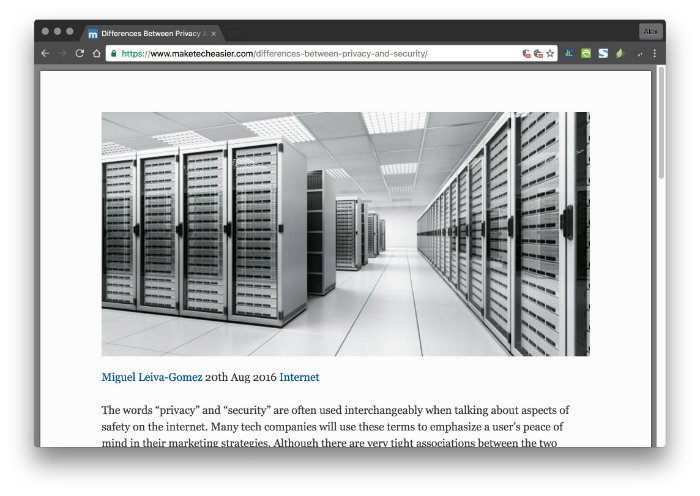
The Chrome extension Read Mode aims to make reading on the web more comfortable by detecting the main text of a page, stripping out everything else, and presenting that to you. Conveniently, you can also print that page. After you’ve installed the extension, click the glasses icon in your menu bar to apply Read Now’s cleaner formatting. Then, print and save as a PDF, as mentioned up top.
4. Save as PDF by pdfcrowd.com
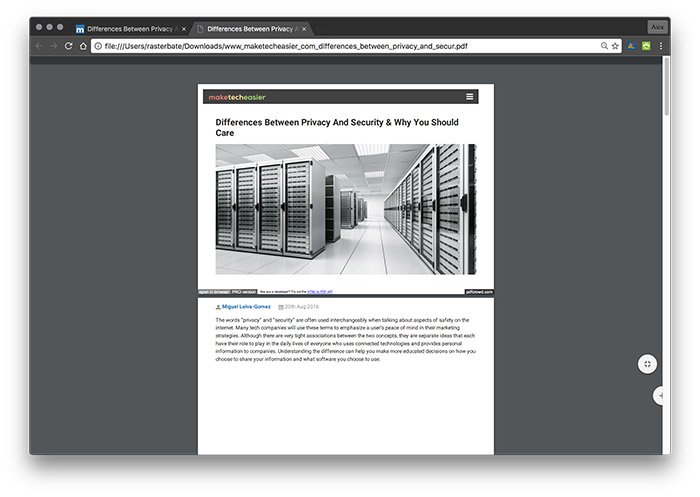
Save as PDF was created by pdfcrowd.com, which is one of the most popular web services for converting webpages to PDFs. Like Print Friendly, you install the extension and then click on its icon in the toolbar to activate it. Unlike Print Friendly, you won’t see any kind of preview – the PDF-ified webpage simply downloads automatically. The formatting isn’t as clean, and things tend to come out in landscape format, but it’s faster and less complex than Print Friendly.
5. PDFmyURL.com
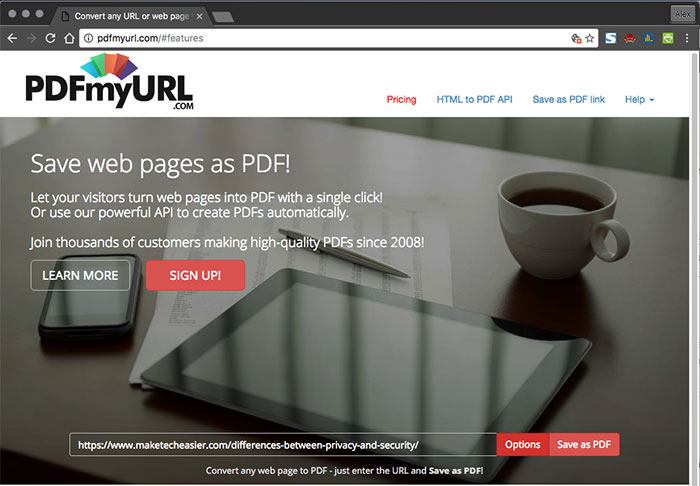
There’s definitely more than one website that will convert a URL into a PDF, as even the most casual Googling will reveal, but pdfmyurl.com is the most powerful. While any user can access the free options, the paid version, which starts at $15/year, gives you incredible control. You can do simple things like select page size and orientation or perform more complex tasks like watermarking pages or adding rights management and encryption.
Bonus: Fireshot
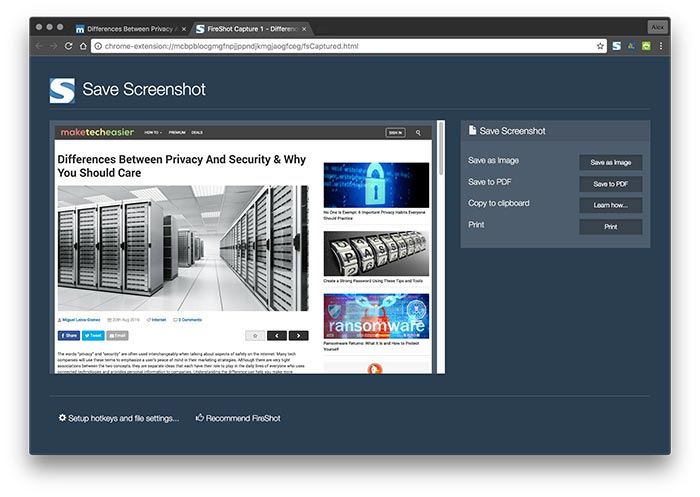
If you actually just need more control over a screenshot, Fireshot is a great tool. It can capture screenshots of full webpages (even infinitely scrolling ones) and then quickly save as a JPG or PDF. While none of the text in the PDF will be selectable, it’s still a great option if you really just need a souped-up screenshot tool.
Conclusion
When you want to obtain a PDF of a site, you should always try the built-in Save as PDF function in Chrome. If this mangles the site’s styling, then Print Friendly is an excellent option. For power users or enterprise needs, PDFmyURL.com is an excellent choice, but be prepared to pay.