
In Windows, it’s common to see available drive space steadily shrink over time, even when you’re not adding new files. Although Windows Storage Sense efficiently removes temporary files, some types of data are permanent and keep accumulating. If your storage is filling up despite no new data, you should clear the following data.
1. Windows Updates Residual Data
New Windows updates download lots of data to update the system, but where does it go after the PC is updated? It actually retains most of the data to ensure you can revert later in case you face any issues. While it does have a built-in mechanism to delete old updates over time, it’s notorious for holding old updates for a long time or even permanently.
If your PC is working fine on the current update and you don’t expect to revert back to the previous update (most people never have to), you can delete this residual data to avoid data accumulation. We’ll use the built-in Disk Cleanup tool for this, as it can safely delete most such data.
Search “disk cleanup” in Windows Search and open the Disk Cleanup app. Select your drive and then click on Clean up system files.
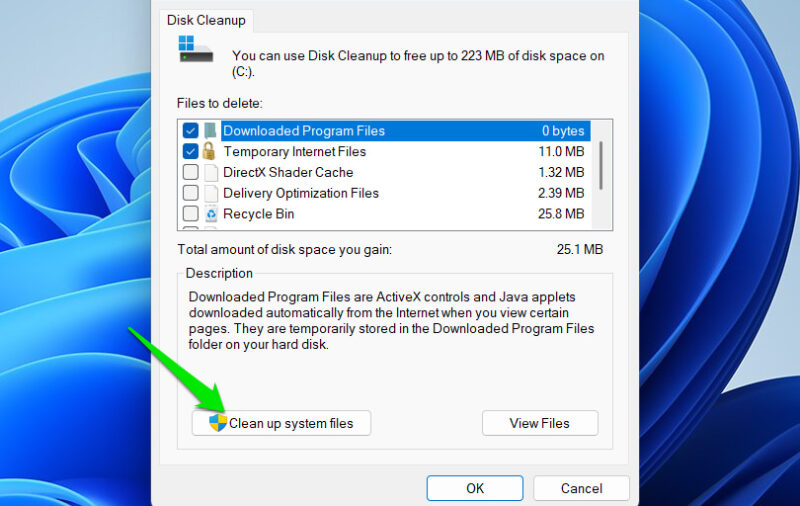
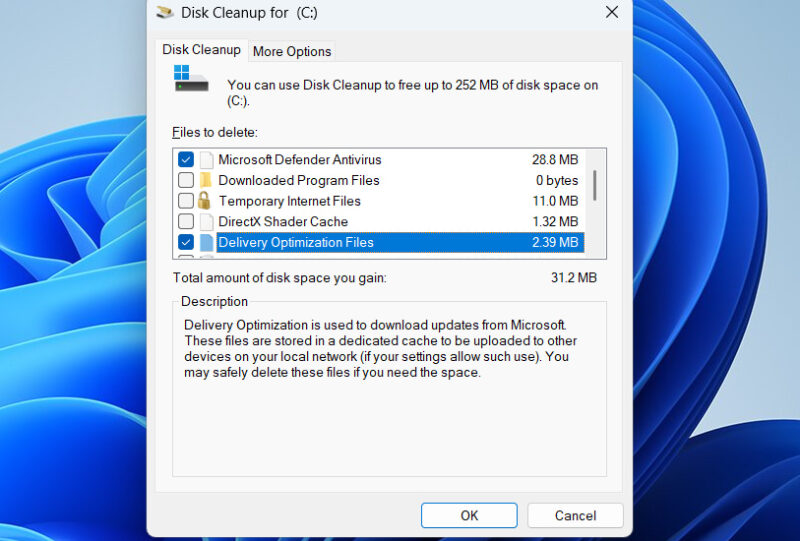
You’ll find a bunch of options related to updates (available only if they hold data), such as Delivery Optimization Files, Windows Update Cleanup, Temporary Windows installation files, etc. Select all of them and click on OK to delete them.
2. App Data Left By Uninstalled Programs
Windows’ built-in uninstaller more often than not leaves residual program data and Registry entries. This can both bloat the Registry and take unnecessary space on your drive. While this data can be in many places, like Program Files and ProgramData, most of it is found in the AppData folder in the user’s folder.
You can manually delete it by going to “C:\Users\*YourUserName*\AppData” and finding all folders inside Local, localLow, and Roaming folders that belong to the deleted programs. The folders will either be listed by program name or it’s developer’s name. Just select and delete them.
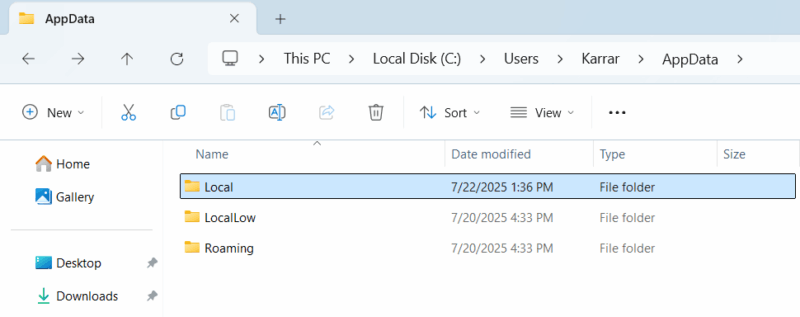
However, we recommend using an uninstaller program for this purpose. They can automatically find and delete this leftover data and fully uninstall future apps as well. Bulk Crap Uninstaller is a great free and open-source app for this purpose. It will clean both leftover data and Registry entries.
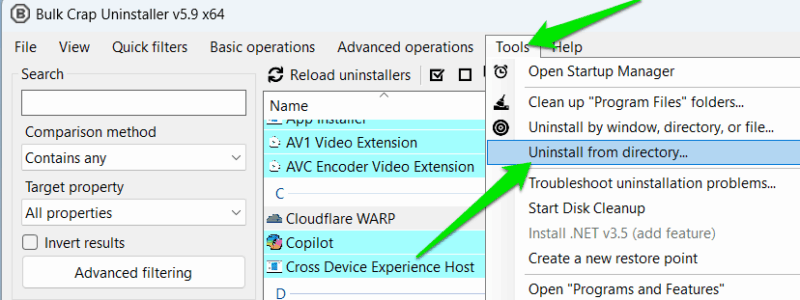
To delete leftover data in the AppData folder, click on the Tools menu in Bulk Crap Uninstaller and click on the Uninstall from directory option. You can then select the AppData folder in the user folder to search and reveal all leftover data. Make sure you double-check the data to ensure it doesn’t delete anything important.
3. Leftover Patch Data in Apps/Games That Are Continuously Updated
Many, if not most, apps and games download patches and updates over time. While they are usually configured to delete unnecessary data, many don’t optimally get rid of it, or keep old data for repairs.
Unfortunately, how this data is managed is different for each program. If you downloaded from an app/game platform like Steam, Microsoft Store, Epic Games Launcher, etc., then you can try the delete cache option in them. For direct downloads, you’ll have to look for the folder inside the program’s main folder, usually named like cache, patch, or update.
A sure way to reset all extra data is to reinstall the latest version of the app/game. This will not only delete unnecessary patch data but also optimize large archives to free up space.
4. System Restore Points
System Restore saves the current state of your PC to let you easily revert to it if you face problems. It’s a great protection feature, but it can eat up a lot of space over time. It stores restore points until its max allowed limit is reached, which is 15% of your total drive space (i.e. 150GB for a 1TB drive).
You probably won’t need all of these restore points in most cases, yet they will take dozens of GBs of space over time. If your PC is working fine, you can delete all restore points and then create a new one. Here’s how:
Press Win + R keys and type sysdm.cpl in the Run dialog to open System Properties.
Here, move to System Protection, select your drive, and click on Configure.
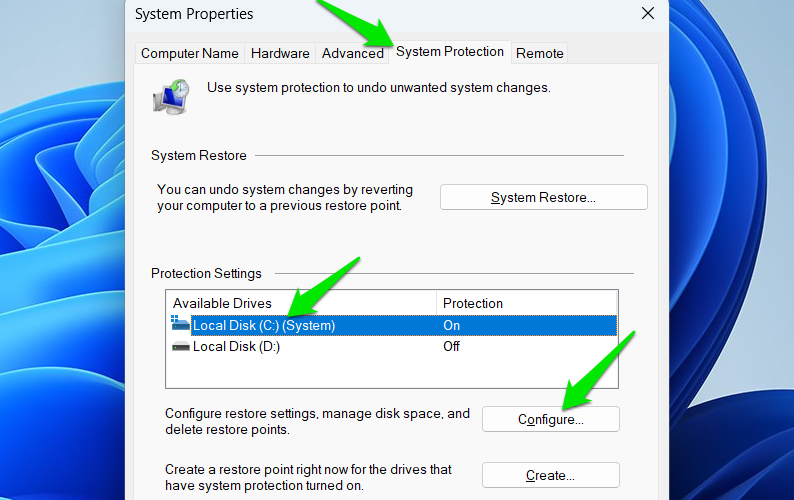
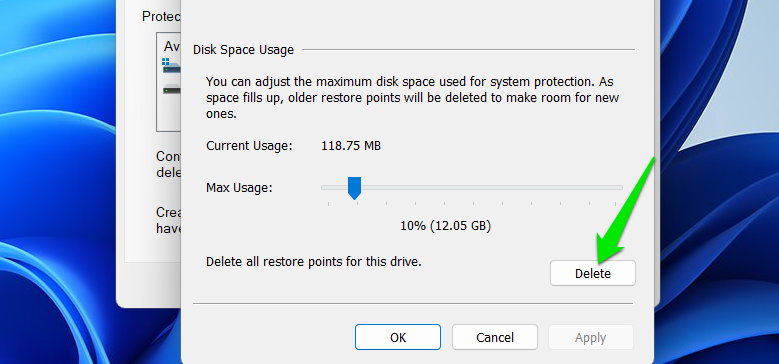
Afterward, click on Delete at the bottom and confirm the prompt to delete all restore points. You can then create a new restore point to have as protection.
Depending on your total storage and how much data you have, you can easily free up dozens of GBs of space by deleting all this data. If you are low on storage and desperately need more space, here’s how to clean up the “C” drive and also gain more storage without deleting anything.








