System slowdowns usually have a clear cause. Fans spin faster, applications hesitate to open, and responsiveness drops even when nothing obvious appears on the screen. Although there can be multiple reasons for this, one of the most common causes is background applications quietly consuming CPU time and memory.
Linux provides strong control over background activity through graphical tools built into modern desktop environments. With a few clicks, you can see what is running, decide what should remain active, and prevent unnecessary apps from starting automatically.
List or Identify All Running Background Processes
You can’t control what you can’t see, so the first thing we need to do is to list all running background apps or processes. Fortunately, Linux includes built-in tools designed for this purpose. On GNOME desktops, you can use System Monitor, while KDE Plasma relies on KSysGuard. These tools give you a live view of what’s running right now.
Simply open your system menu and search for System Monitor. Once it launches, head straight to the Processes tab. This screen lists every running process, including background services. You’ll see columns for CPU usage, memory consumption, and sometimes disk activity.
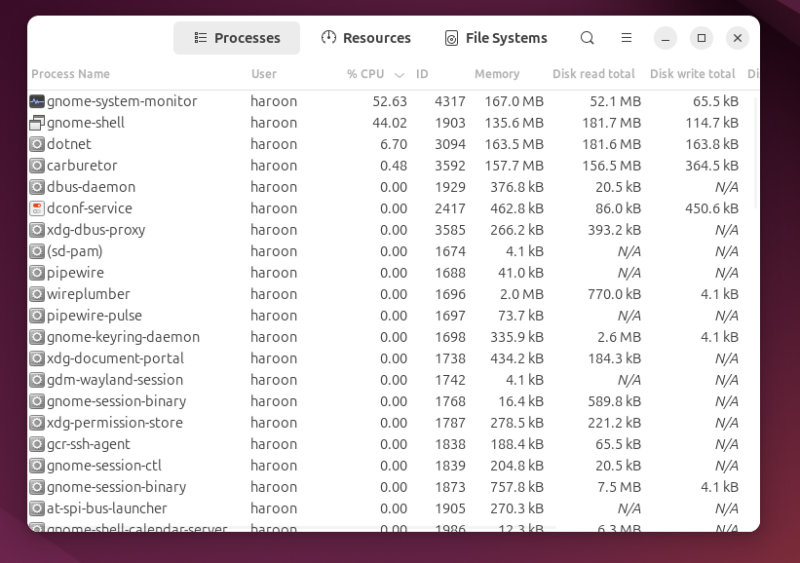
At first glance, the list may look overwhelming. Don’t panic – many entries belong to core system services and should remain untouched. You only need to focus on applications you recognize, especially those familiar apps that continue running without visible windows. These apps often stay active even when you’re not using them.
I recommend sorting processes by Memory or CPU usage to make things easier to manage. Click the column header, and the heaviest apps float to the top. This simple action reveals which background apps consume the most resources.
Some system monitors also group processes by user. This view helps separate system services from user-launched apps. Stick to user processes unless you know exactly what a system service does.
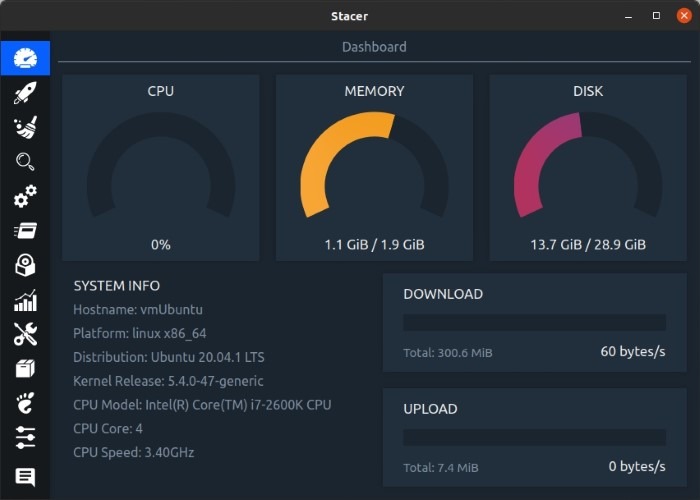
If you want a more advanced system monitor, you can install Stacer or Sysmon, which work similarly to System Monitor but offer extra features. If you prefer the terminal, commands like top and htop show a real-time view of running processes with live CPU and memory usage, while ps aux provides a complete snapshot of all active processes.
Kill or Stop Unnecessary Background Processes
Once you identify a resource-hungry background app, the next step is stopping it. System Monitor allows you to right-click a process and select various options such as changing priority, stopping processes, killing processes, and others. Below, you also have an End Process option, which sends a graceful request for the app to close.
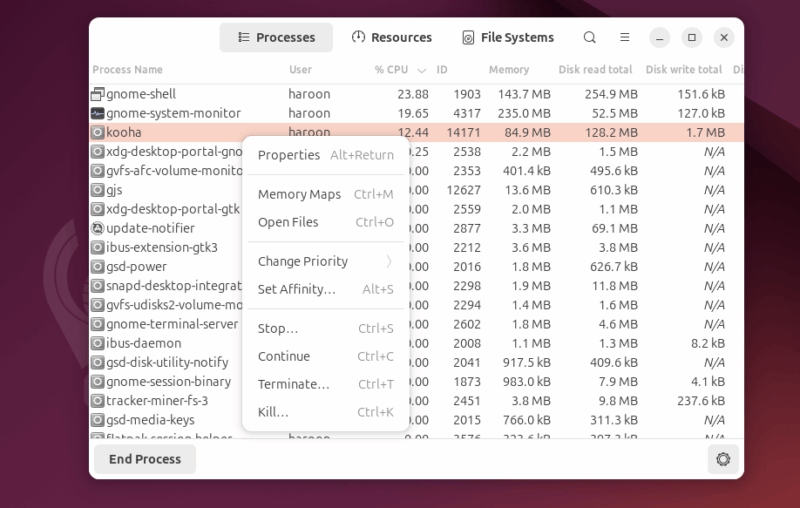
If an End Process ignores that request, you can use the Kill Process option, which forcefully terminates the specific process. However, careful selection matters here. You should leave processes with unfamiliar names, as well as those labeled as system services, daemons, or core components, untouched.
Some desktop environments also offer quick app controls in the system tray. Right-click icons near the clock, and you may find options like Quit, Pause Sync, or Exit. These tray apps often run silently in the background and never announce themselves.
In KDE’s System Activity Monitor, you’ll also find signal-based actions. Sending SIGTERM closes an app cleanly, while SIGKILL stops it immediately.
For terminal users, stopping a background process is often faster and more direct. You first need to identify the process ID (PID). Once the PID is known, you can stop the process cleanly by running:
kill PIDIf the process becomes unresponsive, you can force it to stop using:
kill -9 PIDThis command immediately terminates the process. When you don’t want to manually look up a PID, name-based commands offer a quicker alternative. For example, running pkill process_name or killall process_name stops matching background processes in a single step.
Prevent Apps From Starting Automatically
Once you have identified the source of the issue, prevent it from auto-starting when you log in. Linux desktop environments include startup managers that let you control which apps launch automatically when you log in.
If you are a GNOME user, you can manage startup behavior using Startup Applications or GNOME Tweaks. Simply search for Startup Applications in the application menu and launch it.
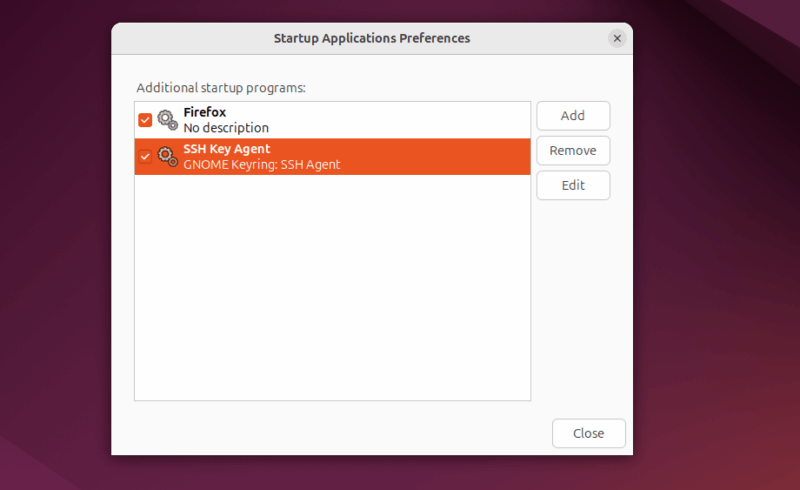
Once you open the startup manager, you’ll see a list of apps that launch during login. These apps start quietly and consume resources before you even open them. Go through the list carefully and disable the apps you don’t need to run as soon as you log in.
Be cautious with system-related entries. Hardware services, accessibility tools, input methods, and graphics helpers often need to start automatically for proper system behavior. Leave these enabled unless you clearly understand what they do.
After cleaning up your startup list, reboot once. Many users notice faster boot times and reduced background activity right away.
Check app-specific startup settings
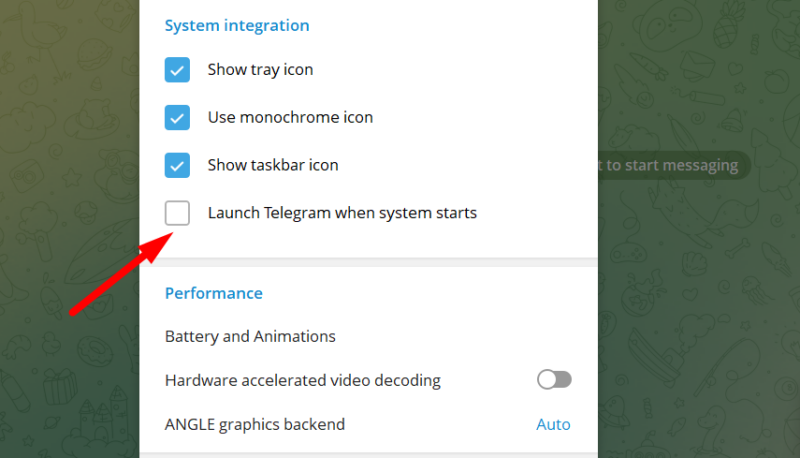
Some applications do not appear in the system startup list because they manage startup behavior on their own. In such cases, open the app itself and look inside its Settings or Preferences menu. Apps like Discord, Steam, Zoom, and Telegram often enable startup options by default. Disabling startup behavior from inside the app is sometimes the only way to fully stop them from running in the background.
Monitor Background Resource Usage Regularly
Cleaning up background apps is not a one-time task. Regular monitoring helps ensure new problems do not appear later. You don’t need to constantly open a full system monitor. Most Linux desktops let you add small system monitors directly to the panel or taskbar.
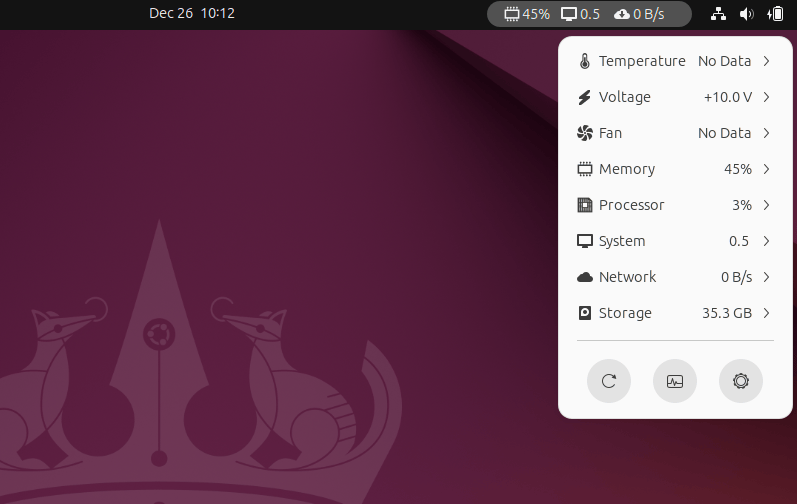
On GNOME, extensions such as Vitals show live CPU and memory usage near the clock. On KDE Plasma, built-in widgets like CPU Load Monitor and System Monitor Sensor can be added to the panel or desktop to display real-time graphs for CPU, RAM, disk, and network activity.
These widgets provide instant visibility. When the system slows down or the fan becomes active, a quick glance reveals whether a background process is consuming extra resources.
Final Thoughts
The beauty of Linux is the control it gives you. Taking control of background processes and apps is one simple step that transforms your Linux experience by improving performance and responsiveness. Beyond this, you can also manage system updates, keep storage clean, and choose lightweight Linux distros to further enhance speed and overall system efficiency.








