
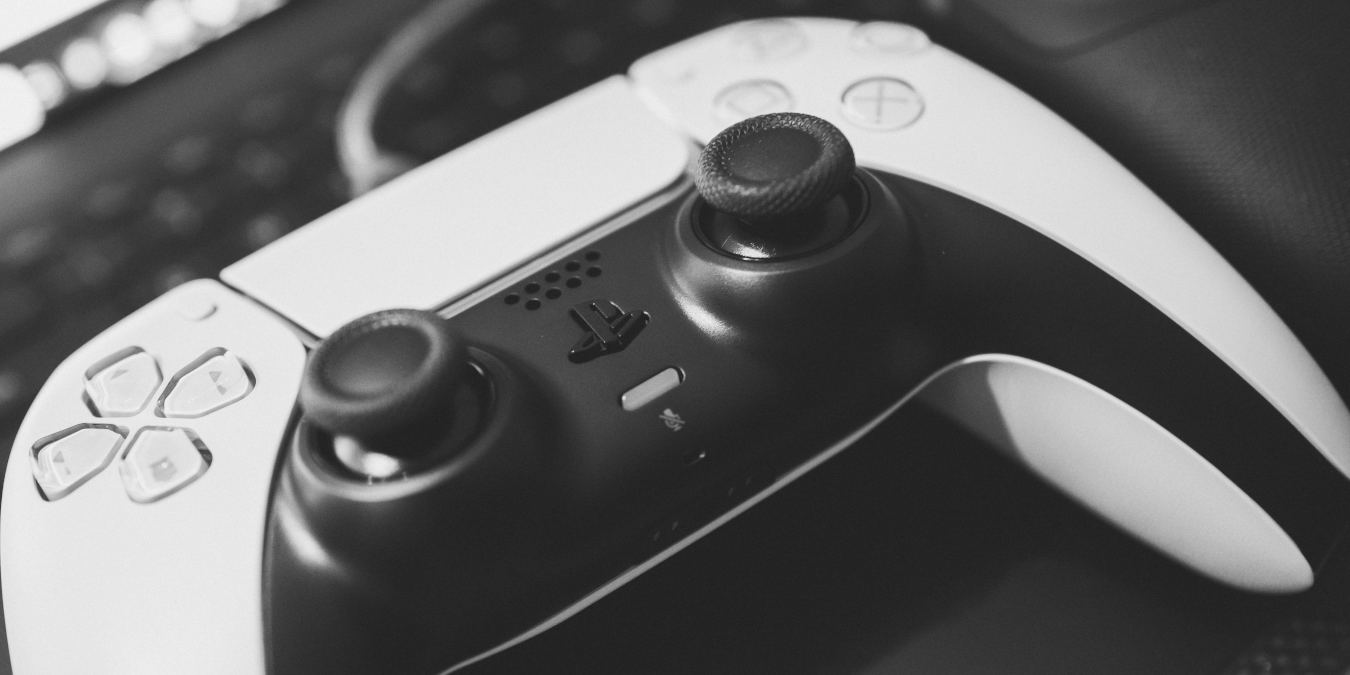

The DualSense controller designed by Sony for its PlayStation 5 console has been the talk of the town since its release due to its unusual form and new features, all meant to bring the player an “all-in-one” experience. With its ergonomic grip and longer handles (compared to its competition), why would you buy a gamepad specifically for PC when you could simply use this one? Here we show how you can connect your PS5 controller to your PC.
Also read: How to Connect a PS4 Controller to Windows 10
Connecting a PS5 Controller to a PC via Wire
Perhaps foreseeing that its controllers would be beloved enough by its users they’d want to use it to play their PC games as well, Sony Interactive designed the DualSense to work in concert with your computer out of the box.
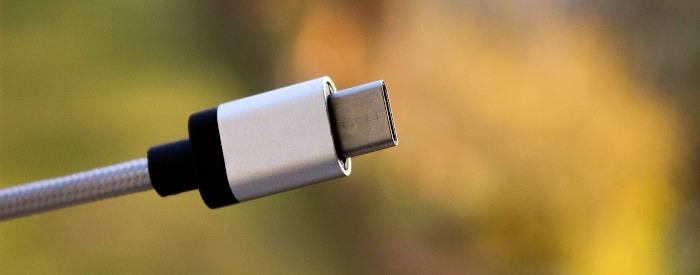
If you already have a USB-C port on your PC, you can just plug the PS5 controller into the USB-C port of your PC, and you’re done! The device will just install itself.
Otherwise, you’re going to have to either use the USB-C to USB-A cable that comes packaged with the PS5 or buy another one so you don’t have to switch cables around every time you want to play on a different platform. (Buying through this link may earn us a commission, at no extra cost to you.)
Connecting a PS5 Controller Wirelessly
Although the PS5’s DualSense controller has wireless capabilities, it doesn’t have any kind of dongle that can make it interact in such a way with your PC. What it does have is universal Bluetooth connectivity, but not every computer can take advantage of that.
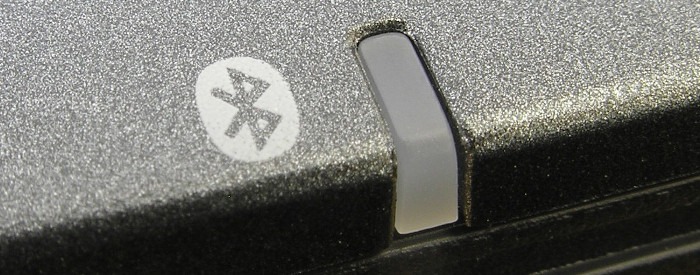
If your PC doesn’t have a Bluetooth adapter (most mid-range gaming laptops have an integrated one), you’re going to need to provide one. USB-based Bluetooth adapters are pretty common and pretty cheap nowadays. You can get something like this one or this one, both of which cost under 15 bucks.
Once you’ve hooked up the dongle to your computer, you can start pairing your DualSense by holding down the PS and Create button for as long as it takes for the central light to start flashing.
Next, go to the Bluetooth interface on your PC (usually, in Windows 10, this would be the “Action Center” found inside your notifications bar) to start pairing. If you’re asked for a code, just type 0000, and it should set up your controller to work with your system wirelessly.
Compatibility Issues
Even when it is connected, not all games will support the controller. It may make some PC games misbehave and sometimes not recognize the device. You’ll have to email the developers when that happens, as there is unfortunately no universal way to deal with this issue.
At the moment, the only game launcher application available for navigating its interface that currently supports DualSense fully is Steam in the form of its “Big Picture” mode.
To configure your controller to use Big Picture, simply go to your Steam settings, navigate to “Controller,” and click the button that says “General Controller Settings.” Once there, just enable “PlayStation Configuration Support” if it’s not already enabled.
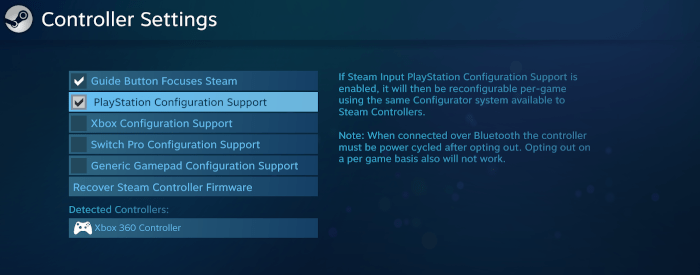
And that’s it! You’ll now be able to use your PS5 controller to control Steam’s interface.
After looking at this guide, you’ll hopefully be less intimidated at the prospect of enjoying the ergonomics, durability, and great handling of Sony’s latest controller through your PC playtime experience. Next, you can learn how to check for controller deadzones and calibrate a controller in Windows 10.