If you often download a PDF just to upload it again to Google Drive, Chrome now has a built-in fix. As of November 2025, you can save a PDF to Google Drive from Chrome with a single click inside its own PDF viewer. It’s a small upgrade, but it saves time and keeps your Downloads folder clutter-free.
Use Chrome’s Native Save to Google Drive
The native option is the fastest and cleanest way to save a PDF to Google Drive from Chrome. There’s no extra software to install, and the file is sent directly to the cloud without ever touching your computer.
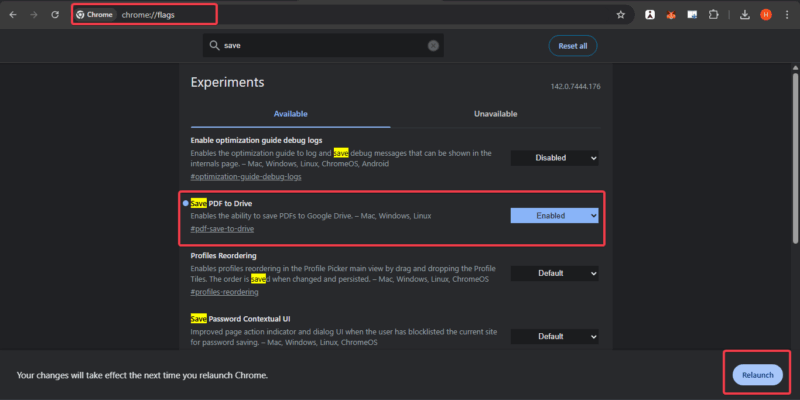
First, ensure you’re running Chrome 140 or newer. You can confirm this in Settings -> About Chrome. This feature is active by default for most users. However, if the Drive icon is missing, go to: chrome://flags/ and search save PDF to drive. Set it to Enabled, and restart the browser.
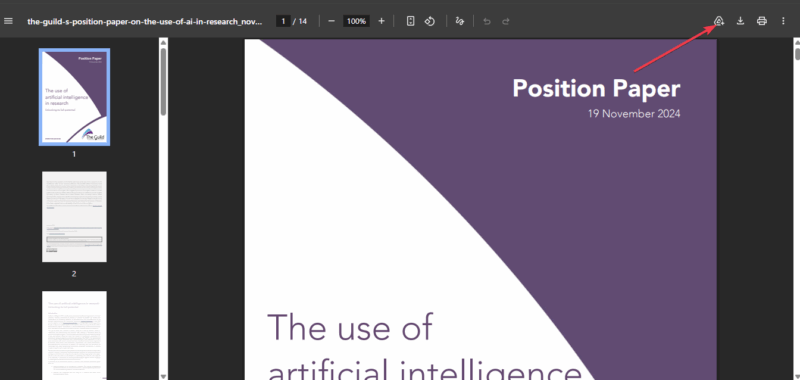
To make the feature work, click any PDF link to open it in Chrome’s built-in viewer. In the top-right toolbar, look for the Drive icon with an arrow next to the Print and Download buttons.
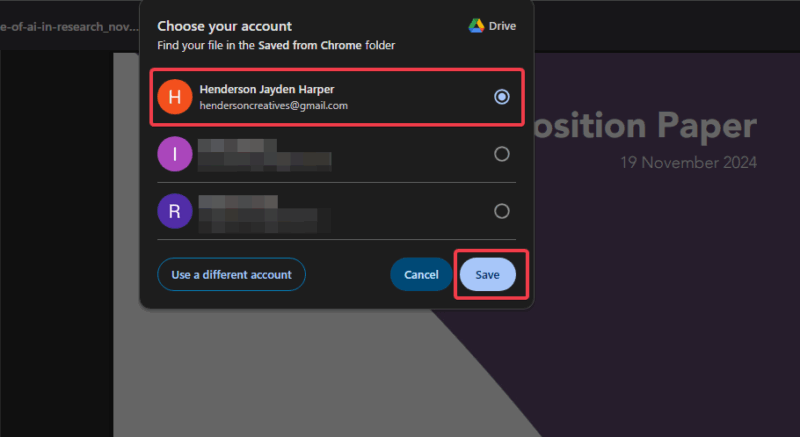
Select the Drive icon and choose the Google account you want to use. This is great if you switch between personal and work profiles.
Choose a folder in Google Drive or leave the default, and click Save. The upload usually finishes in a few seconds. When it’s done, Chrome shows “upload successful” and gives you a button to open the file directly in Google Drive.
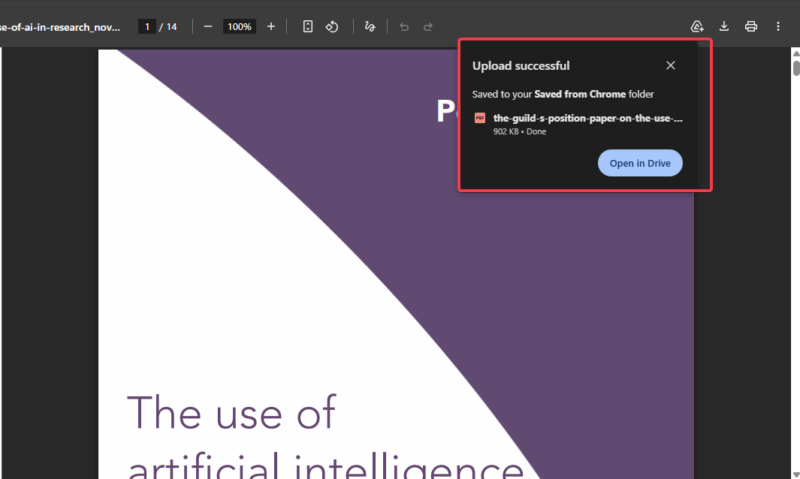
Every file saved this way is placed in a folder called Saved from Chrome, which keeps everything organized. For a similar workflow in non-Chromium browsers, see our guide on saving files to Google Drive in Firefox.
Save PDFs via Official Extension
If you’re on an older Chrome version or prefer more options, Google’s official extension is an excellent alternative. Unlike the built-in tool, it can save entire web pages as PDFs and handle more file types.
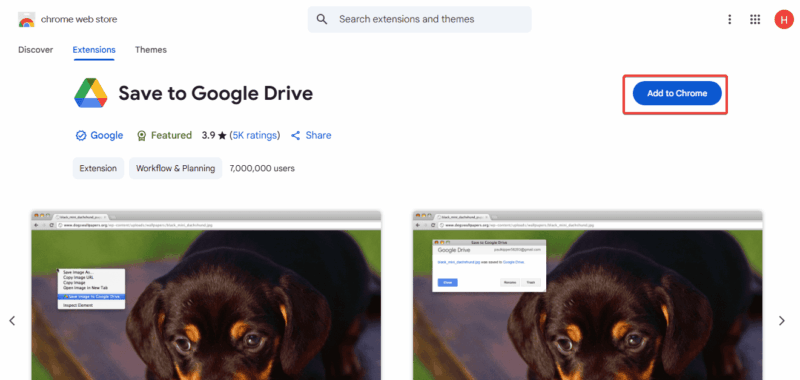
To set it up, open the Chrome Web Store and search for Save to Google Drive. Click Add to Chrome and grant the requested permissions.
Open the PDF or any web page, press Ctrl + P or select Print from the Chrome menu.
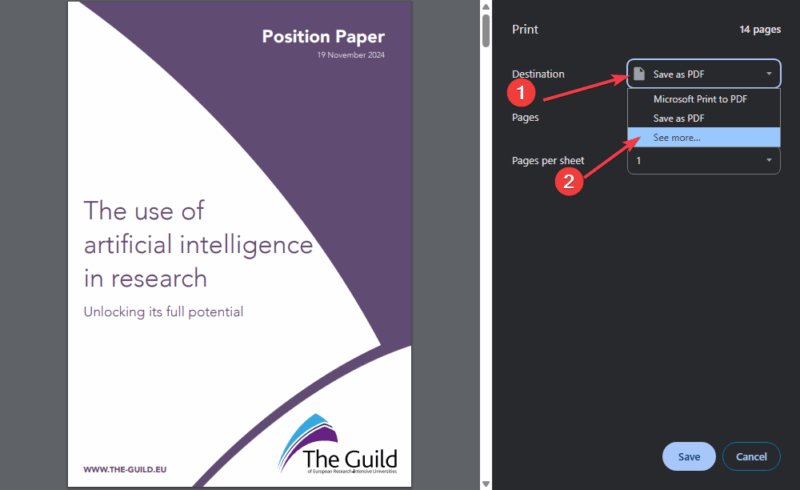
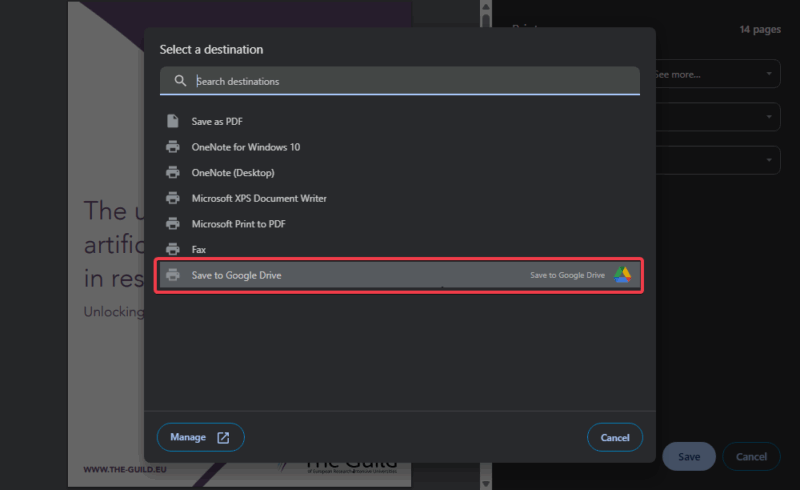
Change the destination to Save to Google Drive, select your folder, and click Save.
The extension works similarly on Android: open the file, tap Share, then Print, and select Save to Google Drive. For more details on handling PDFs in Chrome on Android, see our guide on viewing and managing PDFs on Android.
Quick Tips and Limitations
- If you use multiple accounts on Chrome, always stay signed in with your main Google account to skip the account selection step.
- The built-in feature only works when the PDF opens in Chrome’s viewer. If a site forces a download, use the extension instead.
- There’s no folder selection, as everything goes to the same “Saved to Chrome” folder during upload. So, manual organization may be required.
- You need a strong Internet connection as there’s no offline queue yet. So, larger files can take longer to transfer over slow connections.
If you want more efficiency, you can check how to use Google Drive to boost productivity.
Being able to save a PDF to Google Drive from Chrome directly is one of those small but meaningful productivity improvements. The built-in option is fast and seamless, while the official extension offers more options.
Once you start using either method, the old download-to-upload routine feels painfully outdated. So, give it a spin today and tell us how it works for you.








