
Chrome’s Enhanced Protection mode offers powerful security beyond standard filters by proactively detecting threats instead of relying solely on known malware lists. It does require sharing anonymous data, which is why it’s off by default, but the benefits far outweigh the trade-off. We bring you five compelling reasons why you should enable Enhanced Protection in Chrome.
1. Finds Latest Threats in Real-Time
Chrome standard security uses a known list of malicious URLs to detect and prevent access to malicious content. While the list is updated as soon as new threats are detected, it still can’t protect against unknown threats. With Enhanced Protection enabled, Chrome uses machine learning and AI to scan samples of the content to identify threats.
Chrome can detect many new malicious websites and zero-day malware by looking at page scripts, loading behavior, hashes, etc. that can indicate malicious intentions. This means it will provide protection against threats that haven’t been detected yet, ensuring better protection against the latest threats.
2. It Can Detect Sophisticated Phishing Attacks Using Gemini Nano
Phishing attacks have become quite sophisticated these days, such as homograph attacks. Phishing pages can look almost the same as the original, even the URL. Chrome has incorporated Gemini Nano to deal with such advanced attacks.

Gemini Nano is a lightweight version of Google Gemini, optimized to run locally in Chrome. It scans page scripts, text language, and page screenshots to compare with the original website to find subtle changes. This allows it to detect phishing attempts that could deceive even the most savvy users.
Google explained that the LLM extracts these security signals and anonymously sends them to Google Safe Browsing to confirm. Preserving performance and privacy is also a top priority by anonymizing data, managing tokens, and adding throttling mechanisms.
3. Deeper Download Scanning
For downloads, Enhanced Protection goes a step further to send the contents of suspicious files to Google Safe Browsing for deeper scans. This doesn’t happen for all downloads. The file needs to give certain signals that it’s unsafe and not already found on the blocklist to trigger this scan. Google confirms that the file is deleted after the scan and is only kept temporarily for security reasons.
Best of all, it works for zipped files even if they are encrypted. If it’s password protected, Chrome will ask for the password to scan it. Otherwise, it will automatically scan without your input, giving an insecure download blocked warning if detected.
4. Protects You Across Google Services
When you are logged into your Google account, this Chrome protection also expands to the Google services you use. Notably, it will affect content inside Gmail, Google Search, and Google Ads. For example, it will scan phishing email attempts and malicious URLs inside Gmail.
It will also scan Ads and results in Google Search and warn you about a possibly malicious page by marking it. This will ensure you don’t even click on the infected page to expose your device.
5. You Are Contributing to a Safer Web for Everyone
The main benefit of Enhanced Protection is that it can detect new threats as soon as they attack. Google automatically blocks and reports a threat as it’s discovered, so it gets blocked for everyone without needing further scanning by everyone else.
The newly identified threats are also blocked for Chrome standard protection users. Furthermore, since Google Safe Browsing is publicly available and app developers can use it for protection in their apps, your contribution strengthens the security of all apps that use Google Safe Browsing. The more people use Enhanced Protection, the more secure the protection becomes.
How to Enable Enhanced Protection in Chrome
If you are ready to enable Enhanced Protection in Chrome, here’s how to enable it in both the Chrome desktop and mobile apps.
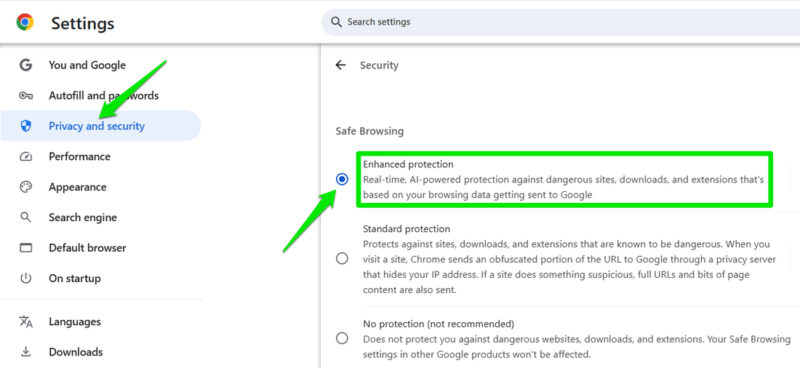
Open Chrome Settings from the main menu in the top-right corner.
Here, move to Privacy and security → Security and choose Enhanced protection under the Safe Browsing section.
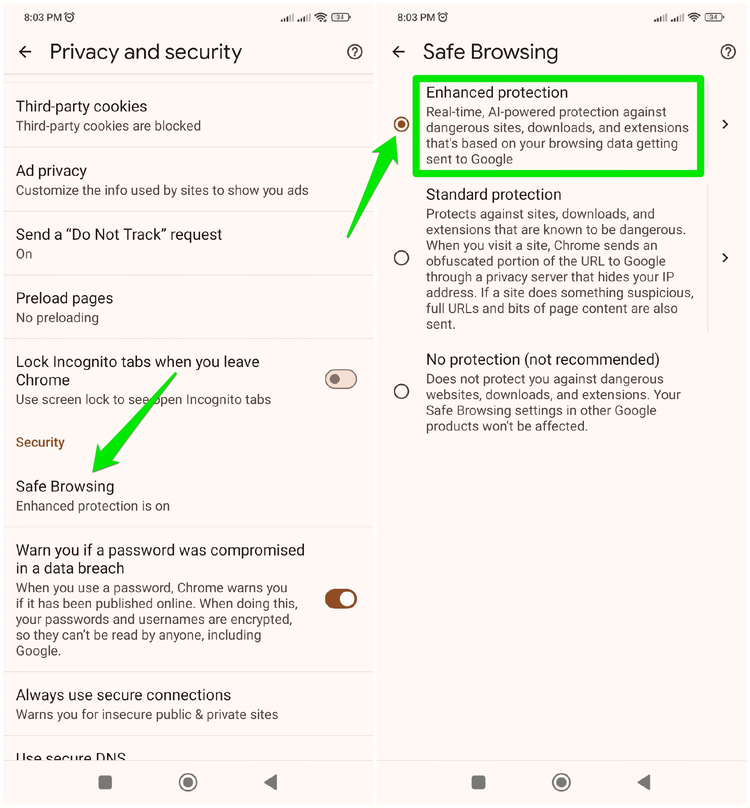
On your Android or iOS device, open Settings from Chrome’s main menu, go to Privacy and security → Safe browsing, and select Enhanced protection.
Enhanced Protection does raise some privacy concerns, but Google confirms that it collects anonymous sample data and deletes it after scanning. Honestly, getting protection against unknown threats seems like one of the rare instances where sharing data seems like an acceptable trade-off. To further enhance Chrome security, you might be interested in these Chrome security extensions as well.








