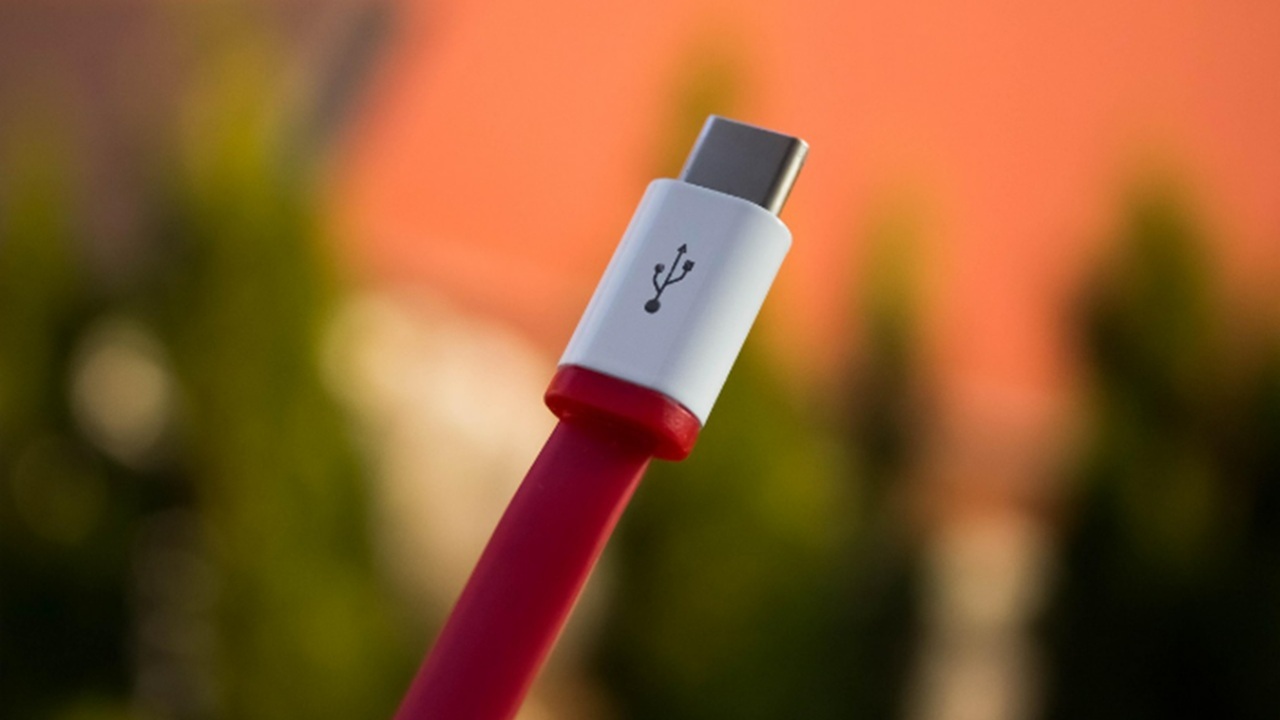
It’s tempting to just grab any USB-C cable or charger for your device, but wait. They’re not all the same. Make sure to choose USB-C cables and chargers designed for your device or you might not get the results you’re looking for.
Why Picking the Right One Matters
By calling USB-C a universal option, it’s easy to think all USB-C cables and chargers work with every device. Just like all devices have different features, so do USB-C cables and chargers. Choosing the wrong one could lead to:
- Frustratingly slow data transfers
- Slower charging speeds
- Not charging or transferring data at all
- Device overheating
- Charger and/or device damage
Always choose USB-C cables and chargers specifically for your device’s needs. Ideally, stick with the charger/cable combo that comes with your device. Though, charging adapters often don’t come included anymore.
Understanding Wattage
The first thing to check is wattage. This includes both what your device needs and what chargers and cables are rated for. You can easily find chargers and cables ranging from 5W to over 100W. The lower the wattage, the slower your device will charge.
But, the wattage you need depends on your device. Using a 20W charger on an older smartphone that doesn’t support faster charging isn’t going to charge it faster. It’ll still charge slowly. Using a 5W charger on a smartphone that supports fast charging means your phone takes significantly longer to charge.
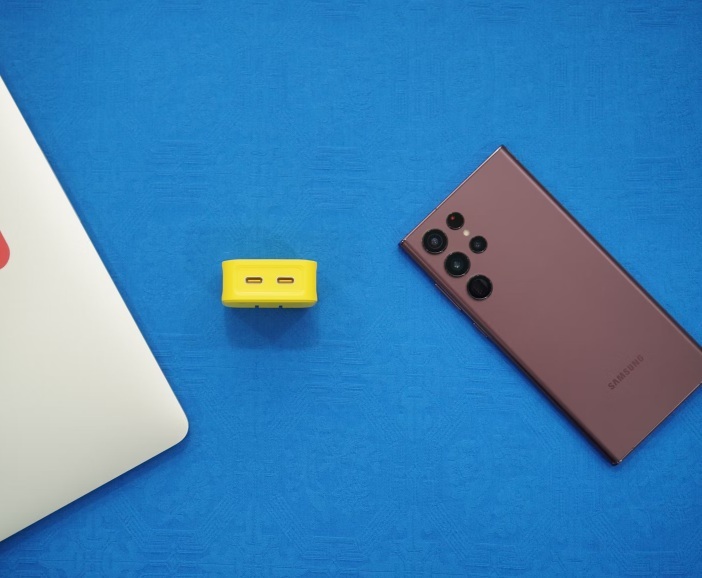
For most newer smartphones, an 18-30W charger works well. For laptops, a 60-100W charger is ideal. If you have a gaming or higher performance laptop, opt for 100W or higher chargers.
Look at the Power Consumption
The big question is how do you know exactly how to choose USB-C cables and chargers for your device. Take a look at your device’s power consumption. You’ll typically find this in your device’s manual or product specs.
The good news is, if you do use a higher wattage charger and cable, you typically won’t overload your device. Most gadgets have built-in protections to ensure they only pull the power they need.
If you notice your USB-C device isn’t charging or won’t power on, always check the cable and charger. If it doesn’t meet your device’s minimum requirements, it won’t charge or power your device. In fact, it could damage the charger and/or cable by trying to pull more power than the charger can handle.
Match Your USB-C Cable and Charger
It’s not all about your device. Mixing and matching your USB-C cables and chargers won’t always give you the results you’re looking for. You’re always limited by the slowest or least powerful of the two. So, that fast charging adapter you bought still won’t fast charge a device if the cable can’t handle it, and vice versa.
Always choose USB-C cables and chargers based on their specs. Pair them accordingly to get the best results.
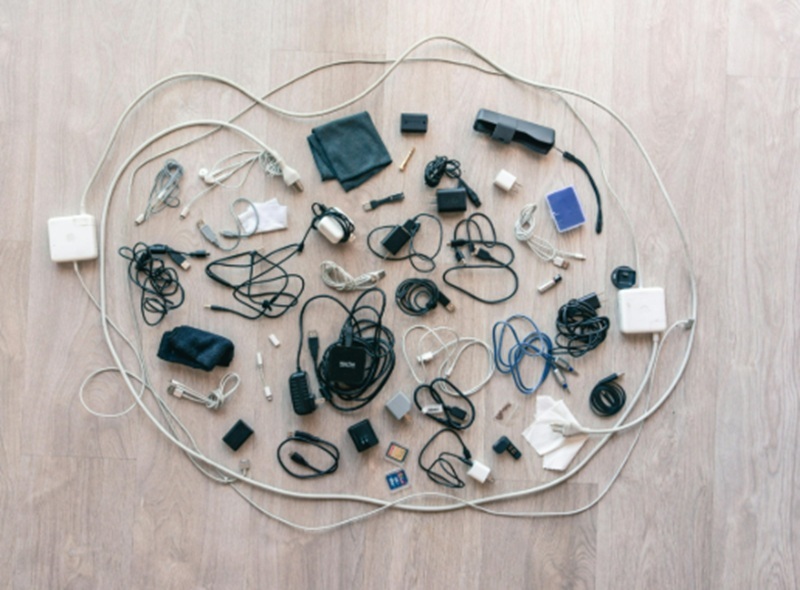
I know in a crowded drawer of cables and chargers, everything looks similar. That’s why I label everything. I love using cable labels, such as Mr. Label Nylon Zip Ties and Wrap-It Storage. Small, white labels, like Avery Multi-Use Removeable Labels, work great for charging blocks.
If you’re not sure what cables and chargers are capable of what, try using a USB tester. These test USB cables, chargers, ports, power banks, and devices. The Eversame 2-in-1 Type C USB Tester works well and it’s a handy troubleshooting tool if you ever need to see if a cable, charger, or port isn’t working. There are also several ways to check the power output of the USB ports on your computer.
Consider Data Transfer Speeds
So far, I’ve mostly talked about charging, but data transfer is just as important. A common misconception is all USB-C cables handle charging and data transfers. That’s just not true. While many do both, some only do one or the other.
Typically, charging-only cables are slightly thinner and more flexible than data transfer cables. If you try using a charging cable to transfer data, your devices won’t recognize each other.
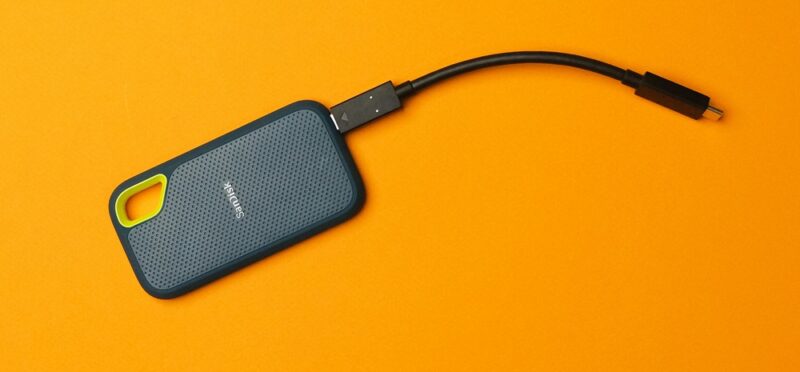
There’s one more thing to think about – how quickly the cable transfers data. Older USB-C 2.0 cables are usually only capable of 480 Mbps, aka excruciatingly slow, especially with larger files. USB-C 3.0, 3.1, and 3.1 Gen 2 range from 5-10 Gbps, making them ideal for larger files and faster transfers.
For the highest data transfer speeds, look for USB-C USB4 cables. These offers speed up to 40 Gbps.
Of course, your cable speed is limited by the port it’s connected to. Using a USB-C 3.1 Gen 2 cable in a USB-C 2.0 port means you still only get 2.0 speeds.
Choose USB-C Based on Safety Features
USB-C cables and chargers are getting less expensive nowadays. But, avoid those super cheap, way too good to be true deals. These low quality cables and chargers often promise the world, but can’t deliver. Even worse, they don’t have any built-in safety features to protect your devices.
A few things to look for include:
- Over-voltage, over-current, and short-circuit protection
- Braided exterior for added durability
- e-marker chips (mainly for laptop charging cables)
- Shielding and reinforced tips
- USB-IF (USB Implementers Forum) certification
It’s always worth paying just a little more to get the right USB-C cable and/or charger. It’ll last longer and work better with your devices.
If you’re trying to choose USB-C cables and chargers, try our guide for the best options for charging and data transfer. And, if you need a USB-A device or port to work with USB-C, try these adapters.