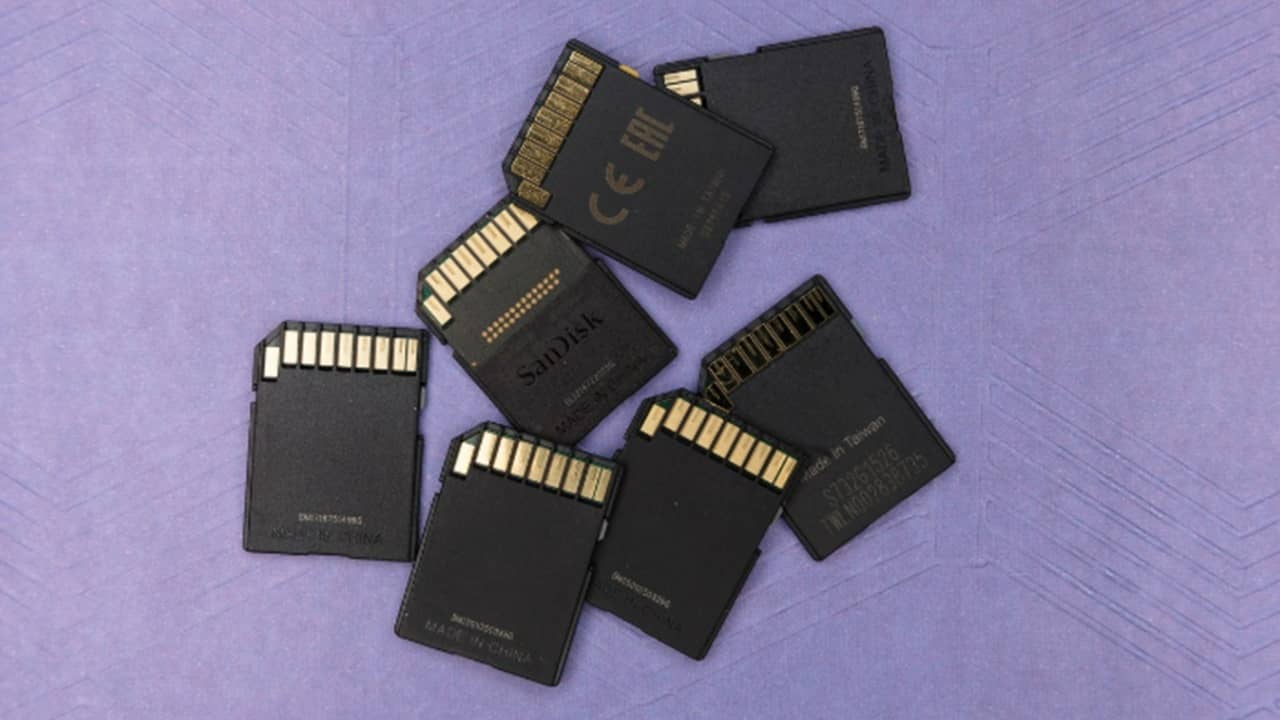
SD and microSD cards are used for storage in a variety of devices, but unfortunately there are many fake SD and microSD cards floating around on the Internet. Even reputable online marketplaces like Amazon aren’t immune to the influx of useless cards being flogged to unsuspecting consumers. That’s why you need a fake SD card test to avoid getting scammed.
Antivirus Tools Dislike SD Card Test Tools
Don’t be surprised if your antivirus sounds the alarm when trying some of the tools below. Since they access your device’s hardware, antivirus often sees them as a threat. All of the above has been verified through VirusTotal for safety.
1. H2testw
Platforms: Windows
H2testw has been around for a long time, and for a good reason. This reliable tool tests the true capacity of an SD/microSD card, as well as the read/write speed of the drive. The latest update solved an issue with the tool having trouble with larger capacity devices.
H2testw was originally developed by a German software engineer. As such, the website that hosts the fake SD card test software, as well as the software itself, is in German. When you launch H2testw, select either German or English as your language. Click Select target, set how much space to test, and whether you want to write and verify or just verify.
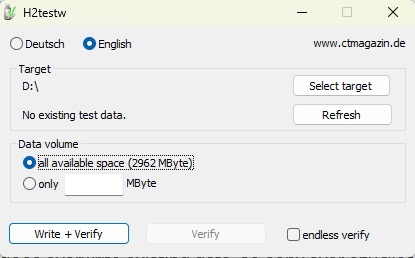
Please note that the tool does overwrite existing data, so back up your files and format it before running the test.
2. FakeFlashTest
Platforms: Windows
If you’re looking for something a bit speedier than H2testw, consider FakeFlashcopy overTest. It’s similar to H2testw in that it writes data to your SD card in order to determine read/write speed and capacity. However, FakeFlashTest speeds up the fake SD card test by offering a “Quick Size Test.” This function writes and reads 512 bytes of data at random sectors across the card, making it faster and better for large capacity drives.
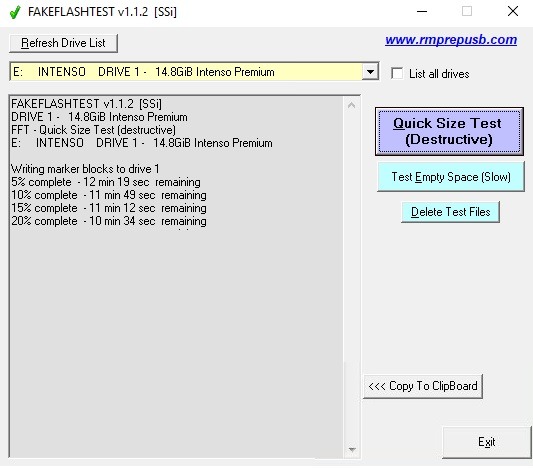
Press Quick Size Test for a quick test. This does wipe any data on the card, so back it up first. Use Test Empty Space to test without deleting data.
3. Novabench
Platforms: Windows | Mac
Novabench is a benchmarking tool for your entire computer, not just storage. While a premium version is available, the free version lets you run basic tests. This is more than enough to run a quick SD card test. The default is to run a full benchmark. Or, click the arrow beside Start All Benchmark Tests and select Storage. Select your drive and start the test.
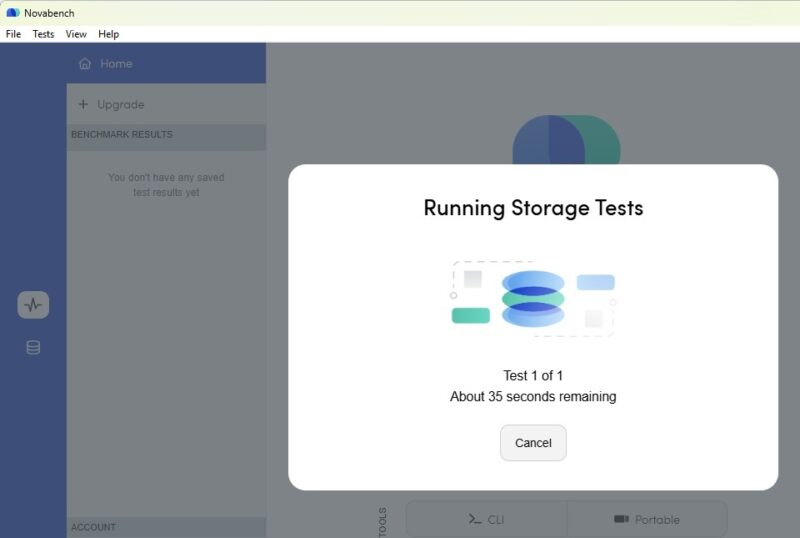
Check your results to determine if your SD card is legit. Minor variations, especially on older cards, could just mean the card is failing.
4. Blackmagic Disk Speed Test
Platforms: Windows | Mac
If you’re a Mac owner and want to verify your SD cards, Blackmagic Disk Speed Test is for you. This free utility was designed to test the speed of larger drives; however, it will also work as a fake SD card test. The only downside is that Blackmagic Disc Speed Test was designed for people working with large files, such as video clips.
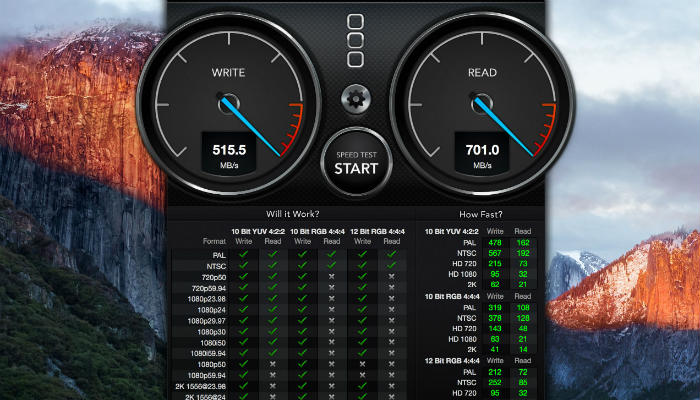
Consequently, the app writes large blocks of data to your storage device and then reads that data to verify performance. Unfortunately, this means that the test takes quite a bit of time to complete. If you need to format your SD card first on Mac, use these steps.
For Windows users, you’ll need to download the latest Desktop Video software and run the Disk Speed Test grouped with Blackmagic Design.
5. AJA System Test
Platforms: Windows | Mac
AJA System Test helps check SD card speed on both Windows and Mac for free. It’s not only simple to use, but also provides detailed graphs to see if performance is consistent or not. If there’s a major fluctuation, there’s likely something wrong with the card. Of course, if you’re testing older cards, this could also be an indicator that it’s starting to go bad.
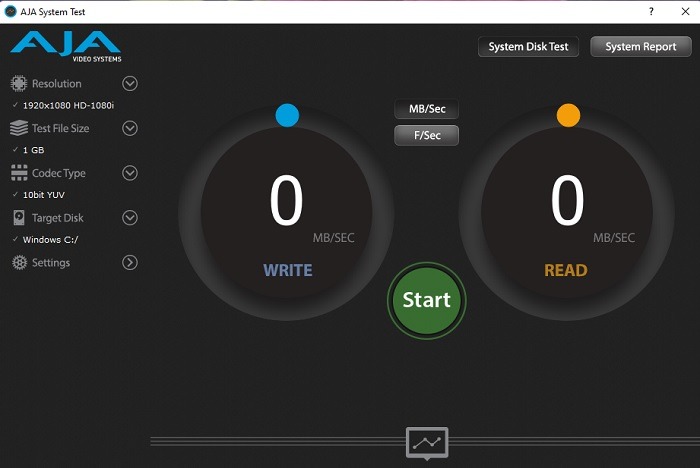
If you have a new SD card, you shouldn’t see any major fluctuations and the speed should match what’s advertised. Minor fluctuations on the graph are normal as speed varies when adding files. Press Start, choose the data size to write to the card (I suggest using an empty SD card to avoid data loss), and run the test.
When installing this, you don’t need to install all components and drivers. Just the core app.
6. Speed Out
Platforms: Windows | Mac
Speed Out is a super simple portable SD card test tool. All you have to do is download it and run it directly from the folder. It writes temporary files to your SD card to determine the read and write speeds. Choose your drive, click Start, and get results.
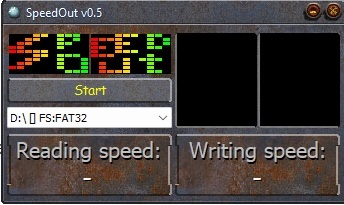
If you want to see more detail, this probably isn’t the best tool to use. However, if you want something to put on a flash drive to use on various computers, it’s a great option. One downside is you may get inaccurate results when using USB 2.0 ports. Speed Out recommends only use USB 3.0 compatible SD card readers. Consider these USB-C adapters to ensure your USB card reader works on most devices.
7. USBDeview
Platforms: Windows
USBDeview is a small portable SD card test tool from Nirsoft. It instantly detects all USB and SD devices connected to your PC. To test the speed, right-click your SD and select Speed test. Confirm the drive letter and press Start test.
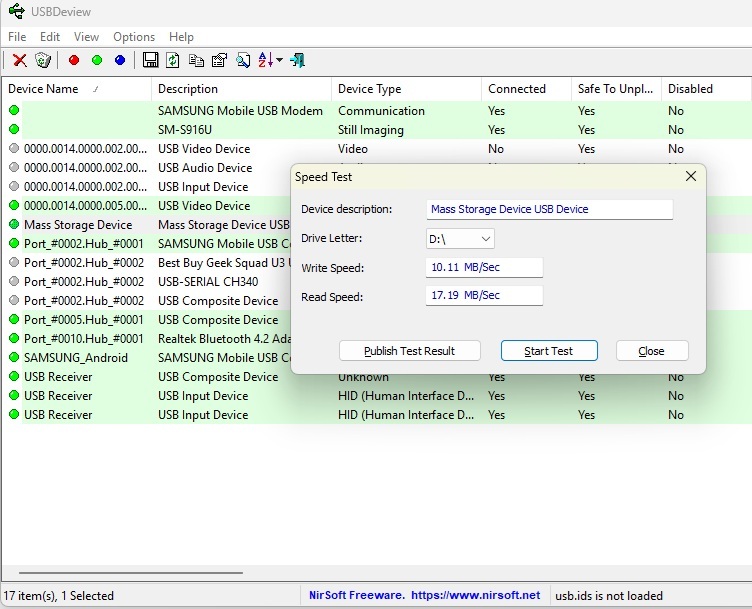
The tool reads and writes a 100MB file to determine the speed. It’s an ultra simple tool, but works well for speed tests.
8. True SD Card Capacity & Speed
Platforms: Android
It’s not the catchiest name, but True SD Card Capacity & Speed does its job well. It’s only for Android devices. If you don’t have a desktop or laptop, it’s the perfect tool for quickly testing out SD cards. The simple design walks you step-by-step through how to use and how the process works.
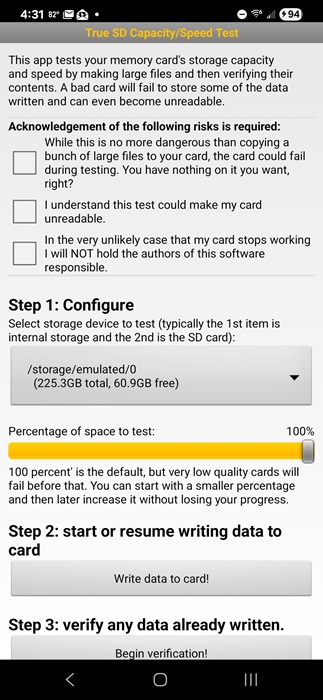
After reading the warnings, choose your SD card and perform each step in order. As the app warns, please leave your screen on while the tests are running. I suggest formatting your SD card first just to be safe. If you’re having trouble, try these tips.
How can I be sure I’m buying a real SD card?
First, stick with reputable sites and brands. Second, skip deals that sound way too good to be true. Unless it’s a site and brand you trust that’s currently having a major sale, such as Black Friday, you’re not going to get a reliable SD card for 50% off or more. You’re definitely not getting a 256GB SD card for $5 or lower like you might see advertised on Wish.com or similar sites.
Ideally, stick with the following brands:
- Samsung
- SanDisk
- Kingston
- Lexar
- PNY
- Transcend
Avoid buying from third-party sellers. For example, if you’re shopping on Amazon, buy directly from Amazon or the SD card brand’s Amazon store. Amazon is full of fakes, so read the reviews carefully before ordering.
Another option is to buy from a brick-and-mortar store. While you’ll find the occasional damaged card, most are legitimate.
A final rule is to skip the refurbished SD cards. You’re just opening yourself up to a damaged, worn out, or even malware ridden card.








