Your PC handles thousands of “digital doors” called ports to keep you connected to the internet. There are many situations where you may need to track these ports, such as to fix network issues or even detect suspicious activity. This guide will show you the most reliable ways to check ports in Windows.
Check Ports in Windows Using Command Prompt
The most common way to check ports in Windows is by using the built-in netstat (Network Statistics) tool. The netstat command has multiple switches that can be individually used, but we’ll use the full command here to reveal all information. Here’s how.
Open Command Prompt as administrator and run the following command:
netstat -abnoThis will steadily bring up a list of open ports that is probably quite long, along with the Windows processes that are using them. Here, the Local Address, State, and PID are the main columns you need to see to track ports:
- Local Address: it will list your PC IP address and the port number separated by a colon, like this
0.0.0.0:135. In this example,135is the port number. - State: this will show LISTENING or ESTABLISHED status. LISTENING means the program is waiting for a connection, and ESTABLISHED means a live connection is exchanging data.
- PID: the Process ID (PID) is a unique number to identify processes. You’ll need it if a port is not showing the process name, so you can identify it in the Task Manager.
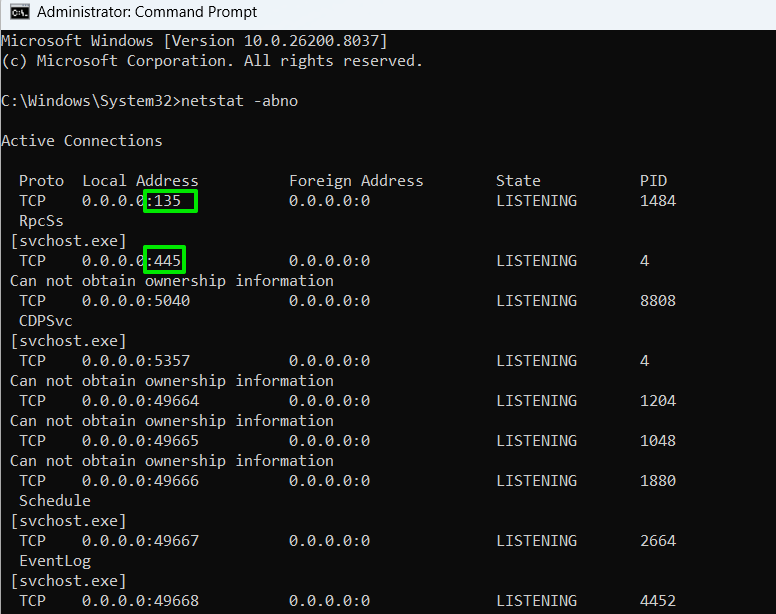
Using the information in these columns, you can detect what’s running on a specific port and possibly kill the process if it’s causing conflicts. This information is also vital for setting up port forwarding.
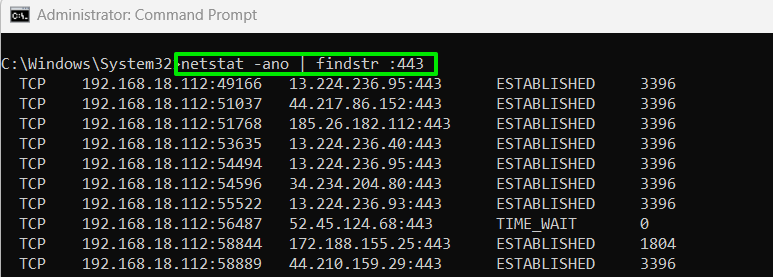
If there is too much data, you can also use the findstr command to reveal connections on a specific port easily. For example, to view the port 443 status, you can type netstat -ano | findstr :443. We removed the -b switch as process names can mess up the findstr formatting sometimes, but it’s not necessary to remove.
Check Ports in Windows Using PowerShell
If you prefer a bit cleaner list, you should use PowerShell instead. Using the Get-NetTCPConnection and Get-NetUDPEndpoint commands, you can reveal all ports in use in clean columns and rows.
Open PowerShell as administrator and run Get-NetTCPConnection to see TCP connections and Get-NetUDPEndpoint to see UDP connections. It will reveal the local IP address, port number (under LocalPort), state, and PID (under OwningProcess). If PID isn’t revealed, put PowerShell in full screen and run the command again.
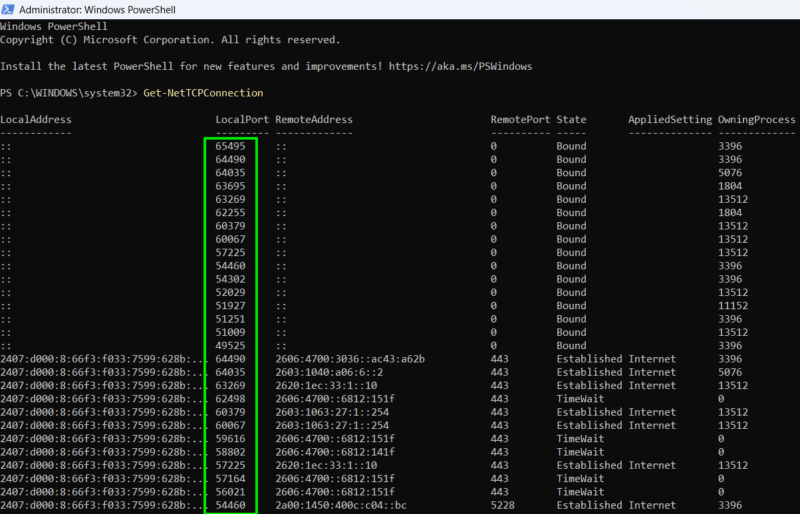
Unfortunately, it doesn’t show the name of the process in this list. You’ll have to use the PID and match it in Task Manager to find the process.
Use Resource Monitor to Check Ports in Use in Windows
If you prefer a GUI-based method, then Resource Monitor is a great built-in tool to check ports in Windows. Just search “resource monitor” in Windows Search and open the Resource Monitor.
Here, move to the Network tab and open the Listening Ports section. It will show all required information, including process name, PID, port number, and protocol. More importantly, it has a Firewall Status column that shows the current firewall status for a specific port. If a specific port is blocked, you can easily view it here.
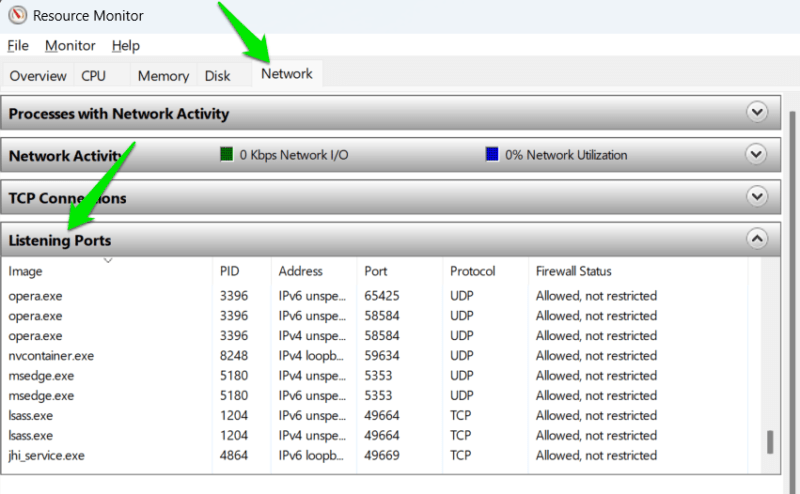
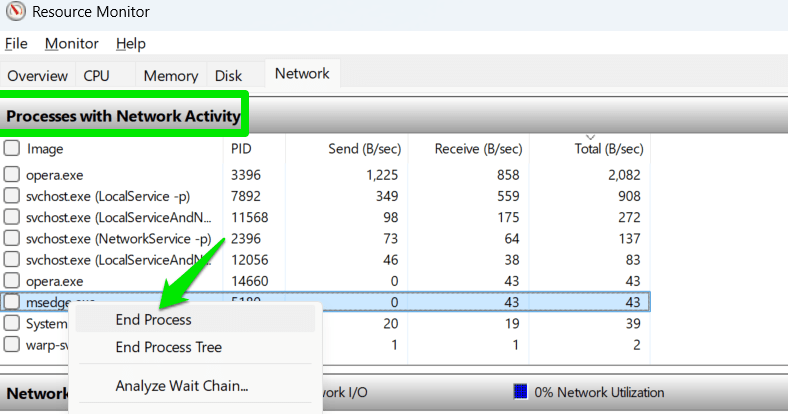
You can click on the column headings to sort the lists, like you can click the Port heading to sort and easily find a specific port. If you find a conflicting process, you can also close it right inside the Resource Monitor. Just open the Processes with Network Activity, right-click the process, and select End process.
Use TCPView to Check Ports in Windows
If you don’t mind installing a third-party app and want to have more control over what’s going on with all your ports, you can use a lightweight app called TCPView. This immediately brings up a list of processes and their associated ports.
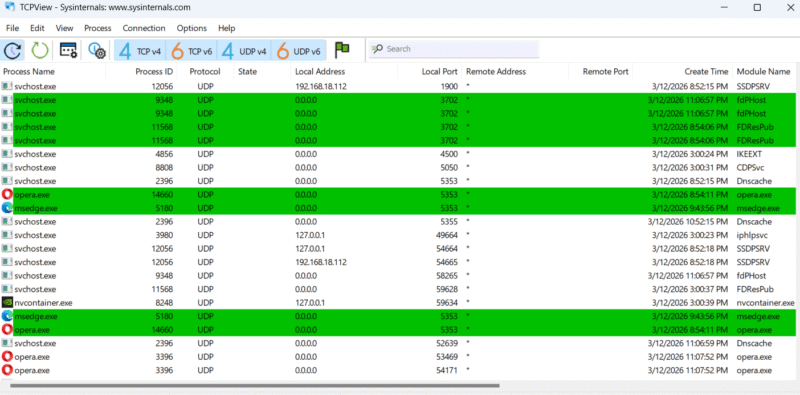
What makes this better than the other methods is that you can actively see the ports opening, closing, and sending packets. Just look for the green, red, and yellow highlights. You can also reorder the list by clicking the column headings, making it easier to find the process you want or two separate processes vying for the same port.
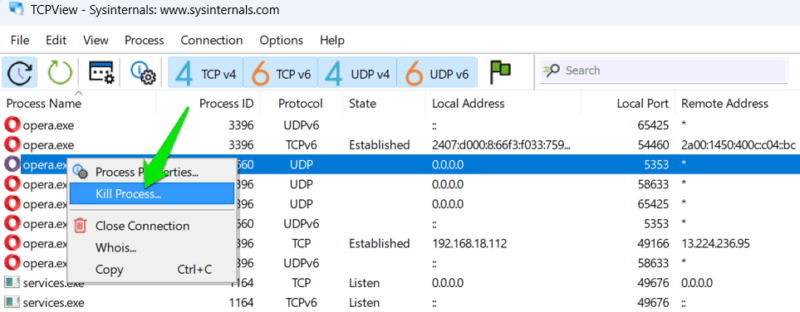
If you do find a process or connection you want to close, just right-click that process and select End process. You can even click Close Connection to leave the process open, but stop it from listening on a given port.
The information gained from these methods is most useful when you already know the problem, like a Windows error that shows a port blocked error. If you are troubleshooting network issues, you’ll need to run related diagnostic commands to find and fix issues.