
Ever wish you could browse the internet without leaving a trace? Maybe you’re tired of ads following you everywhere, or you just desire to keep your online activity private. Sure, you could use a VPN or set up Tor manually, but that can be confusing and time-consuming. That’s where the Carburetor comes in. It’s a simple, one-click Linux app that runs a local Tor proxy, meaning it takes all the data coming from and going to your computer and securely routes it through Tor’s multiple layers of encryption.
With its clean GNOME-based interface, Carburetor fits seamlessly into your Linux desktop. Let’s dive in and explore its key features, along with how to install and use it on Linux.
Key Features of Carburetor
You can still use the Tor Browser, but it only protects your web traffic, not your entire system. For full system-wide privacy, Carburetor is the tool you need. It runs Tor quietly in the background and routes all your applications through it, such as, your web browser, email client, and even file downloads.
- Carburetor runs a local Tor daemon and instantly exposes a SOCKS5 proxy that your apps can use without any complicated setup.
- It’s lightweight and efficient, running quietly in the background without draining many system resources.
- It includes a simple graphical user interface (GUI) with an easy one-click toggle for managing your Tor connection.
- Carburetor enables system-wide Tor routing, allowing you to anonymize traffic from all your applications, not just your web browser.
- It provides clear visual feedback with a single Start/Stop button and real-time connection status indicators.
- You can also inspect logs or customize settings such as proxy ports and bridges directly from the interface.
- For users facing network censorship, Carburetor includes an optional Fascist Firewall Mode and bridge support to bypass restrictions and blocked connections.
- It automatically manages the Tor daemon, circuits, and connection health with smart background handling.
- Works out of the box with most SOCKS-compatible apps without modifying system files or network settings.
Setting Up Carburetor
Carburetor is available as a Flatpak on Flathub. This mean you can get a consistent installation and reliable performance across all major Linux distributions. However, before you begin, make sure Flatpak is installed on your system. Most modern Linux distributions include it by default, or make it easy to enable.
Once Flatpak is set up, install Carburetor with this:
flatpak install flathub io.frama.tractor.carburetorThat’s all it takes. Flatpak bundles the app with all its dependencies, so you don’t need to worry about Python packages, GTK runtimes, or version conflicts.
Carburetor is also available in the AUR (Arch User Repository) and in some community repositories for other distributions. However, for the most recent and stable releases of the Carburetor tool, I recommend using the flatpak installation method.
Note: Because Flatpaks run in a sandbox, Carburetor may request permission to access network resources or system functionality. This is completely normal and necessary for setting up the local proxy and managing network routing.
How to Use Carburetor
After installation, launch it from Applications menu or by using this:
flatpak run io.frama.tractor.carburetorYou’ll see a clean, simple window. Click Connect, and Carburetor will automatically start the Tor daemon and establish a secure connection.
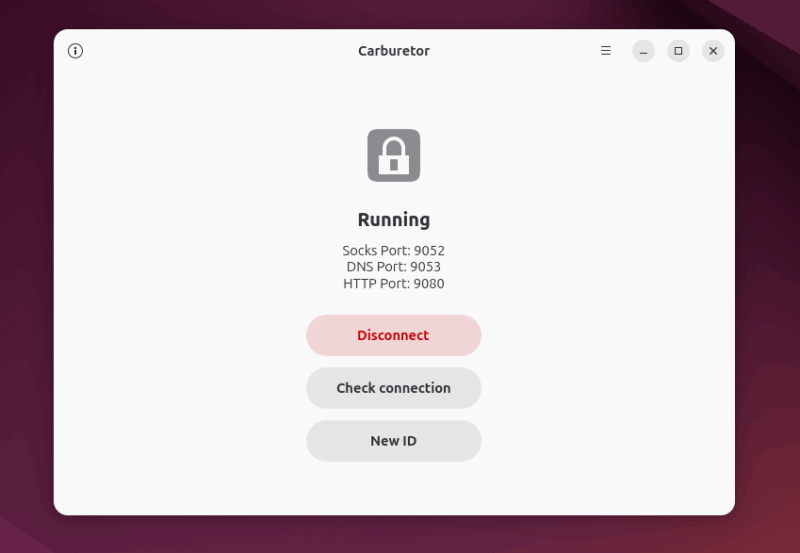
Carburetor, by default, creates a SOCKS5 proxy on your local machine at address 127.0.0.1 and port 9052. This act as a private, internal doorway to the Tor network that only your computer can access.
After Carburetor tool connects, it’s time to verify that it’s actually working. Simply open your web browser and visit any site that displays your IP address. If Carburetor is doing its job (and it will be), you’ll see an IP address that isn’t yours.
Some sites, like Check Tor Project, will even confirm that you’re using Tor. That’s your sign that you’re now invisible to anyone trying to track your real location.
Advanced options
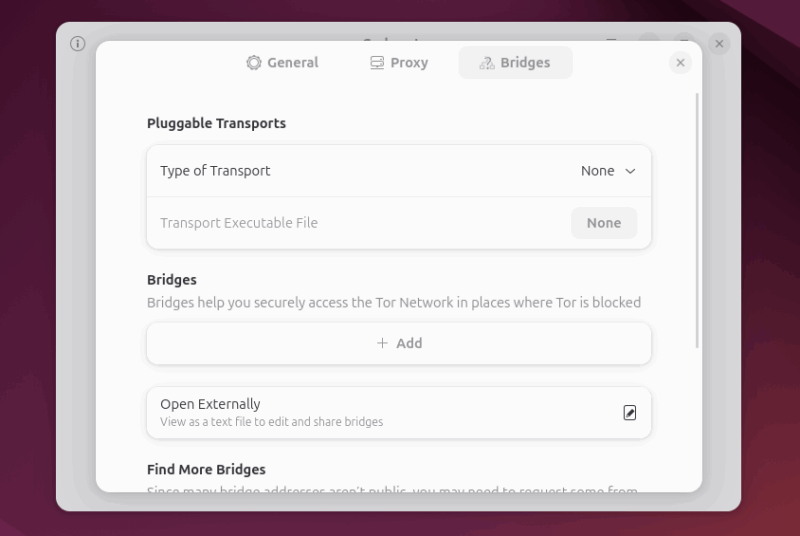
Carburetor also offers you several advanced options, such as changing the proxy port, inspecting connection logs, setting up bridges if you’re in a region where Tor is blocked, and selecting specific exit nodes or countries (if supported). You can access these options from the Preferences menu.
Keep in mind that Tor anonymizes your connection, not your identity. Avoid logging into accounts tied to you, simply use HTTPS websites whenever possible, and expect slower speeds because Tor routes traffic through multiple relays.
Manual proxy configuration
By default, Carburetor exposes a SOCKS proxy on 127.0.0.1 (localhost). On most systems, the default port is 9050, though depending on your setup it might differ slightly (some configurations use 9052 or others). To route your applications through Tor, simply point them to this SOCKS proxy.
For example, in Firefox, go to Preferences -> Network Settings and select Manual proxy configuration. Then, set SOCKS Host to 127.0.0.1, Port to 9050, and type of port to SOCKS v5. Also, check Proxy DNS when using SOCKS v5 to prevent DNS leaks.
After saving, visit Check Tor Project again to verify your connection. It should say, “Congratulations, this browser is configured to use Tor“. If it doesn’t, double-check your proxy settings or make sure Carburetor is still connected.
Final Thoughts
Many people look for easy ways to stay invisible online, and the Carburetor Linux tool makes it simple even for beginners. Further, you can also take some useful approaches to improve your Linux system privacy and security, or even check out privacy-specific Linux distros.








