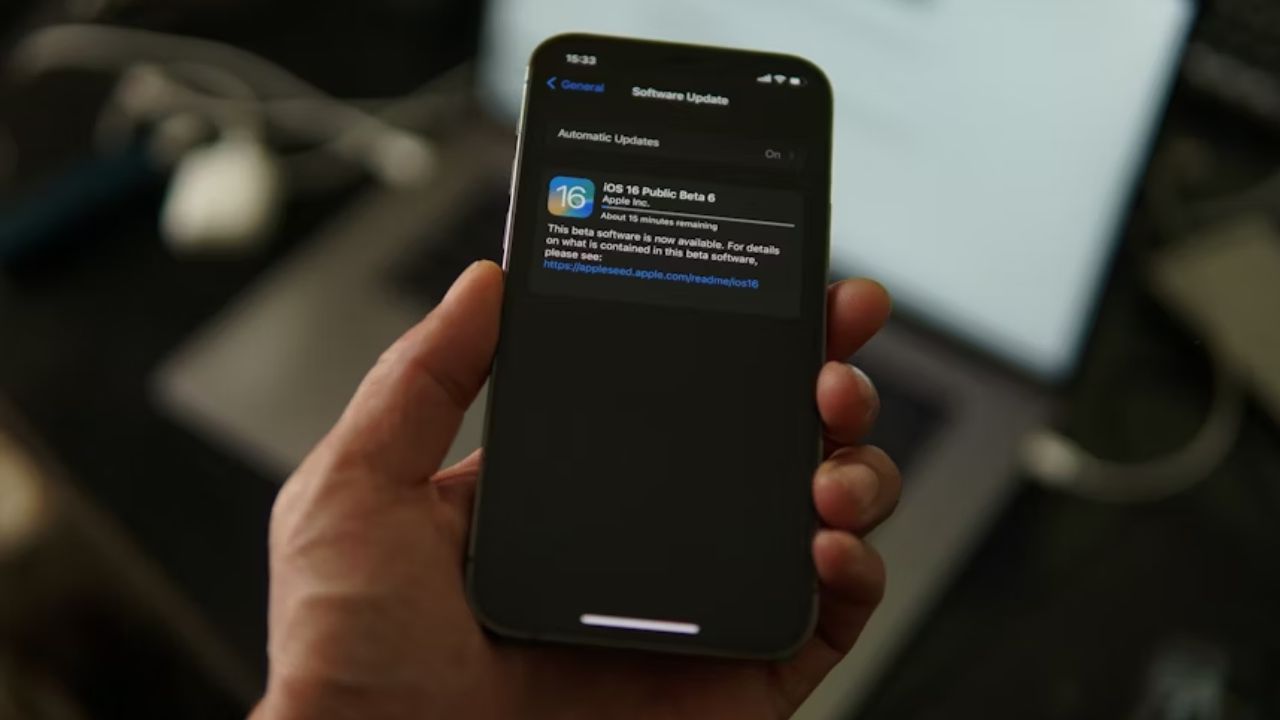
If you’ve ever started an iOS update and instantly regretted it, you are not alone. Maybe it’s eating up your storage, or you’re worried about bugs crashing your phone with the new update. Whatever the reason, you can cancel an iOS update on your iPhone with a few simple taps. Let’s walk you through the steps to stop those pesky updates so your phone stays how you like it.
Why You Might Want to Cancel an iOS Update
New iOS versions often come with bugs and glitches that you’d rather avoid. Besides, updates eat space and power. So, if your iPhone is low on space or battery, an update is a bad idea.
Maybe you just love your current setup and don’t want to change it. Knowing how to cancel an iOS update gives you control to stick with what you love.
For more on keeping updates under control, check out how to update iOS safely.
Stop/Pause the iOS Update During Download
If the update’s download is in progress, you can slam the brakes. Here’s how to stop an iPhone’s update in its tracks:
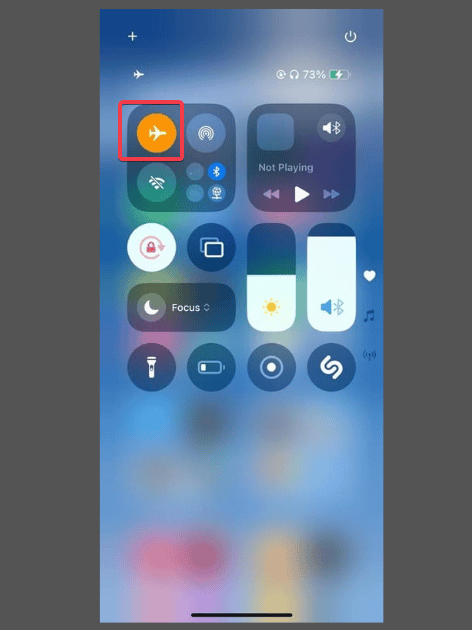
Swipe down or up to open the Control Center, depending on your iPhone model. Tap the Airplane icon to cut off both Wi-Fi and cellular data. This stops the download immediately.
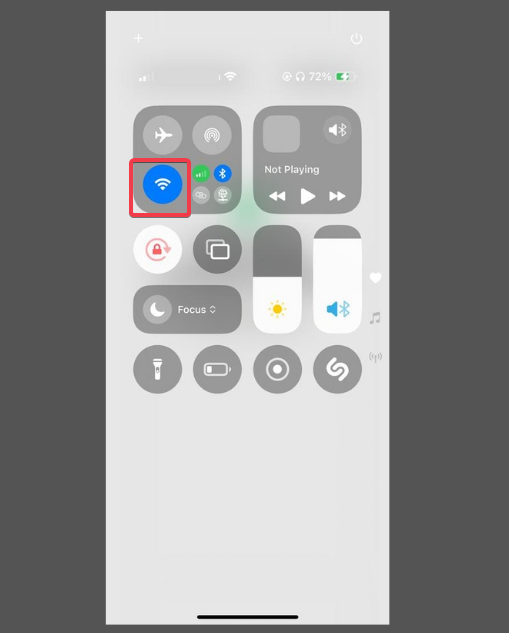
Alternatively, tap to turn off the Wi-Fi icon in the Control Center to disconnect if Airplane mode feels like overkill, without messing with your data connection.
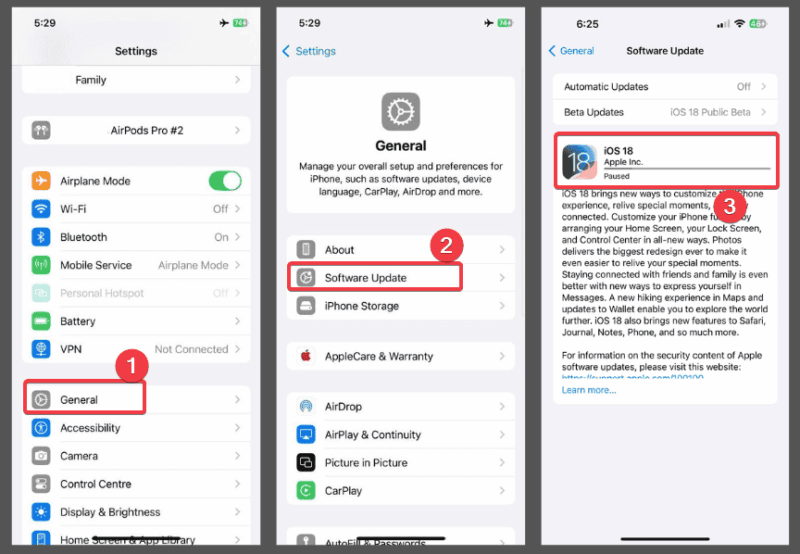
Finally, head to Settings -> General -> Software Update to confirm the download’s on hold.
Extra: See how to fix Wi-Fi issues on iPhone or cellular data issues if you encounter any woes.
Delete an Already Downloaded iOS Update
If the update’s already downloaded but not installed, you can delete it to free up space.
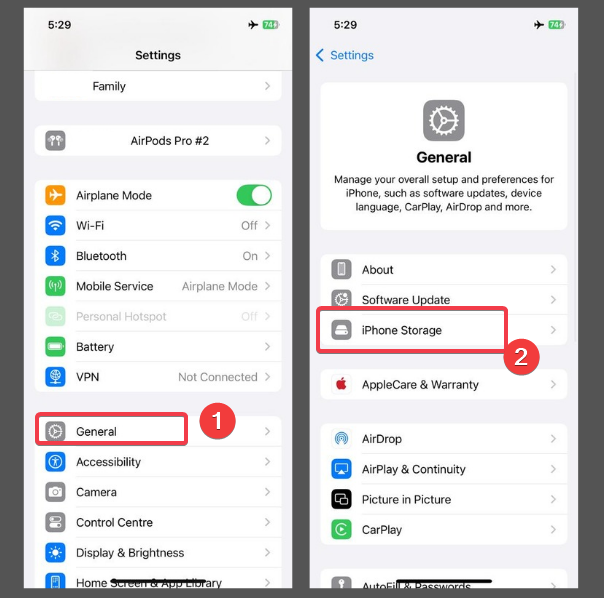
To delete, go to Settings -> General -> iPhone Storage.
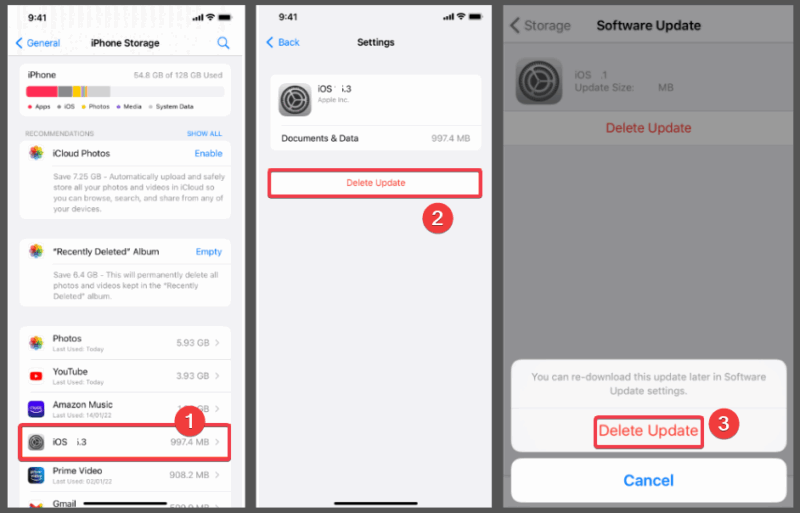
Locate the iOS update file with the version number, then tap it and hit Delete. Now, confirm in the next prompt.
If you need more tips to save space, we have a guide on freeing up iPhone storage.
Prevent Automatic iOS Updates in Settings
If you’re tired of cancelling iOS updates, you can stop automatic updates altogether.
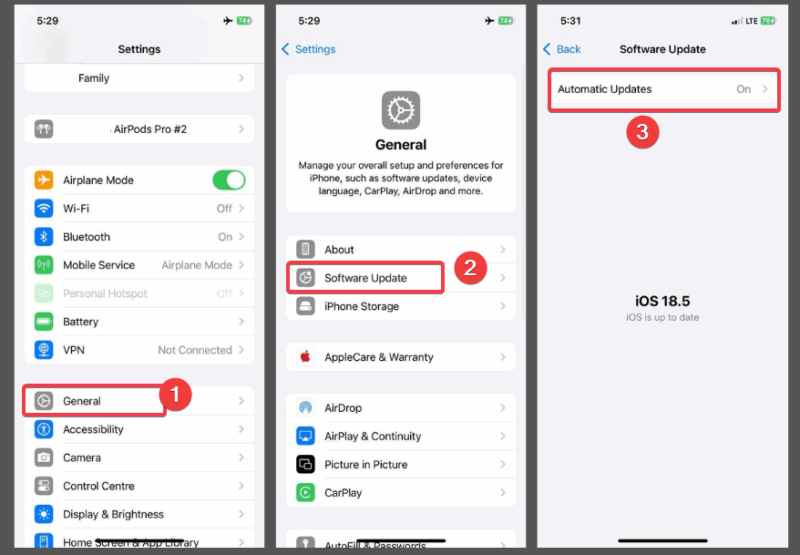
Navigate to Settings -> General -> Software Update -> Automatic Updates.
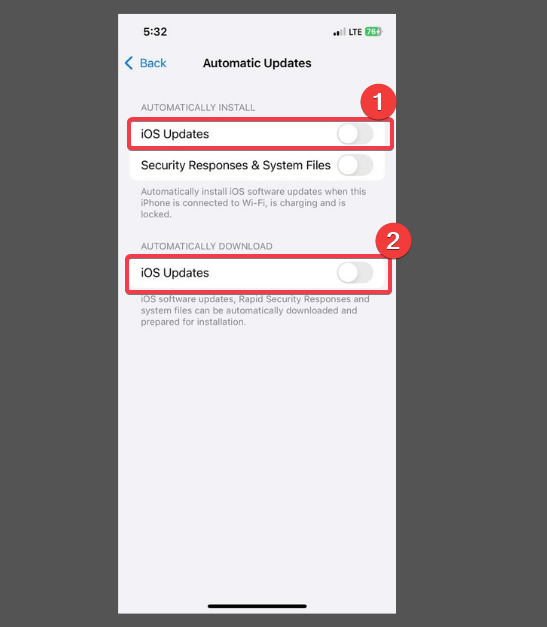
Toggle off iOS Updates under Automatically Install and under Automatically Download. This puts you manually in charge of when updates happen.
While this is good, your iPhone might lack the latest security features and patches that come with new updates. Hence, explore more iOS security settings to ensure your device is properly protected.
What to Do if the Update Has Started Installing
It’s dangerous to cancel an iOS update that’s installing. Interrupting it can mess up or brick your iPhone.
After a successful installation, if you don’t want it, you can downgrade it with iTunes. Warning: Downgrading might wipe your data, so back up first.
Cancelling an iOS update on your iPhone is straightforward when you’ve got the right steps. Whether you’re pausing a download or stopping automatic updates, you can keep your device just the way you like it. If you have any questions or suggestions, drop them in the comments!








