In another move to force Microsoft account sign-ins during Windows 11 setup, Microsoft has disabled common bypasses in the Insider preview. Commands like oobe\bypassnro, start ms-cxh:localonly, and other scripts or registry tweaks no longer work. If you still want to bypass the Microsoft account and create a local account during Windows 11 installation setup, use the following methods instead.
1. Use an Unattended Answer File (autounattend.xml)
An answer file can automate the Windows setup process by automatically answering configuration screens. You can set it to create a local account, and Windows installation will have to respect the request instead of forcing you to sign in with a Microsoft account. Since this method is necessary for administrators to set up hundreds of PCs, it isn’t affected by Microsoft’s restrictions.
To use an answer file, you’ll have to create it and put it in the root of the Windows installation media USB drive. To make the process easier, we’ll use a third-party autounattend.xml file creator. Schneegans offers a free tool to generate an autounattend.xml file that is very easy to use, so we’ll use that.
Open Schneegans’ answer file generator, and you’ll find all the tweaks you can make to the installer. You can preconfigure answers and also add/remove functions for a custom Windows installation.
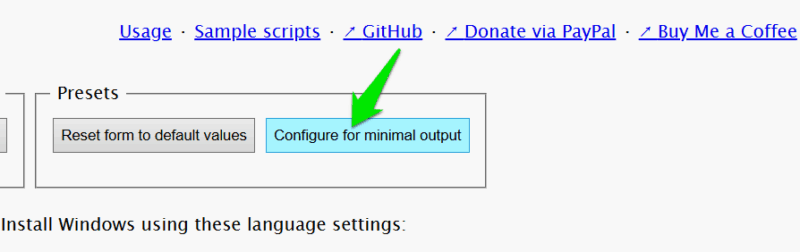
You can change all these settings as you like, but for demonstration, we’ll set the default settings and only change the local account creation setting. Click on the Configure for minimal output button to set defaults for all settings.
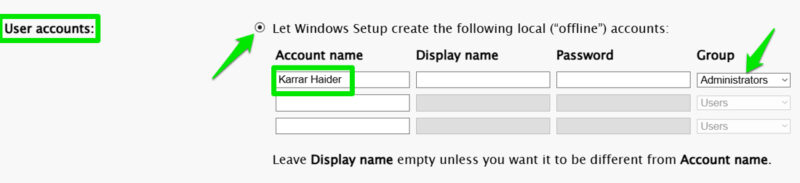
Move to the User accounts section and select the Let Windows Setup create the following local (“offline”) accounts option. Provide the account name and select Administrators under Group. You can provide a password too, or leave it, and you’ll be asked to create one after you log in to the local account.
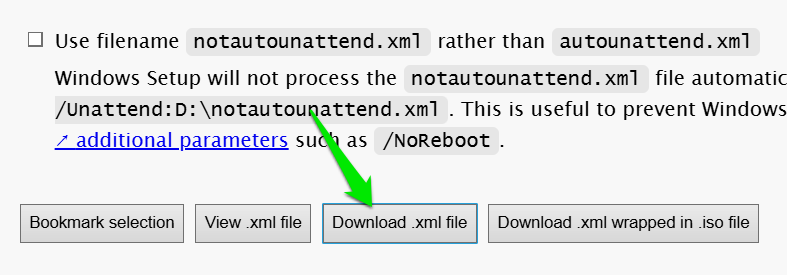
Scroll to the very bottom and click on the Download .xml file button to download the file. Make sure its name stays as “autounattend.xml.”
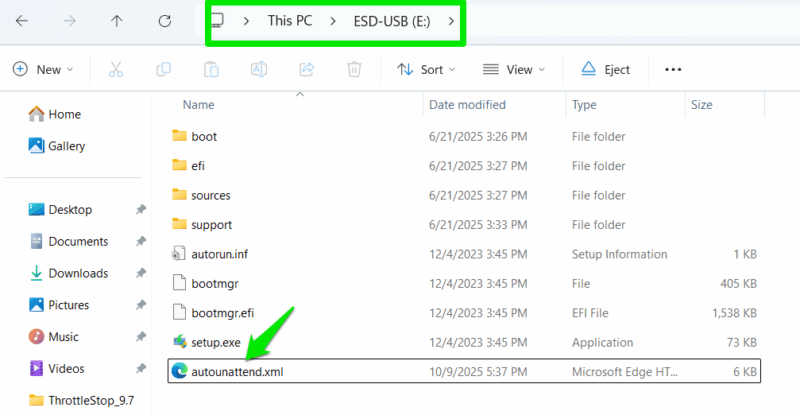
Next, attach the USB drive with Windows 11 installation media. Move the autoattend.xml file to the root of the USB drive, where the Setup and bootmgr files are. You can now install Windows 11 with this USB, and it will log you in to a local account instead of asking to create a Microsoft account.
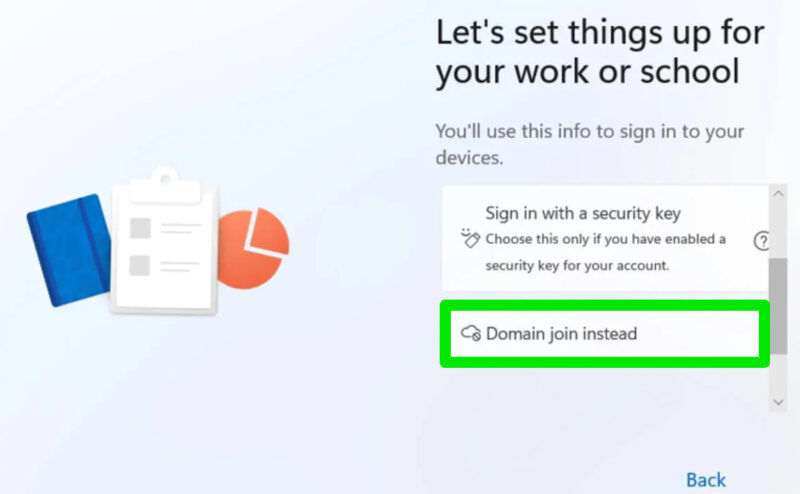
Select “Domain Join Instead” During Setup
For Windows Pro and Enterprise users, there is an easier way to create a local account during Windows 11 installation setup without needing any scripts or installer tweaks. Windows 11 installer allows Pro and Enterprise users to create work or school accounts, and that process has an option to create a local account. Here’s what you need to do:
During setup, when you are asked to set up the device, choose Set up for work or school option. Afterward, click on Sign-in options and select Domain join instead. That’s it, you’ll be provided with a screen to create a local account. The ambiguous wording “Domain join instead” actually just means creating a local account; no strings attached.
Use Rufus to Create Windows 11 Installation Media
For creating a Windows 11 USB drive, you can use Rufus, which gives you the option to configure the installer to skip the Microsoft account and create a local account. Rufus doesn’t use the OOBE tricks for skipping these requirements, so it’s safe from Microsoft’s latest restrictions.
Download Windows 11 ISO, attach a USB drive to the PC, and launch Rufus. Here, select the Windows 11 ISO in the Boot selection section, and Rufus will automatically fill in all details.
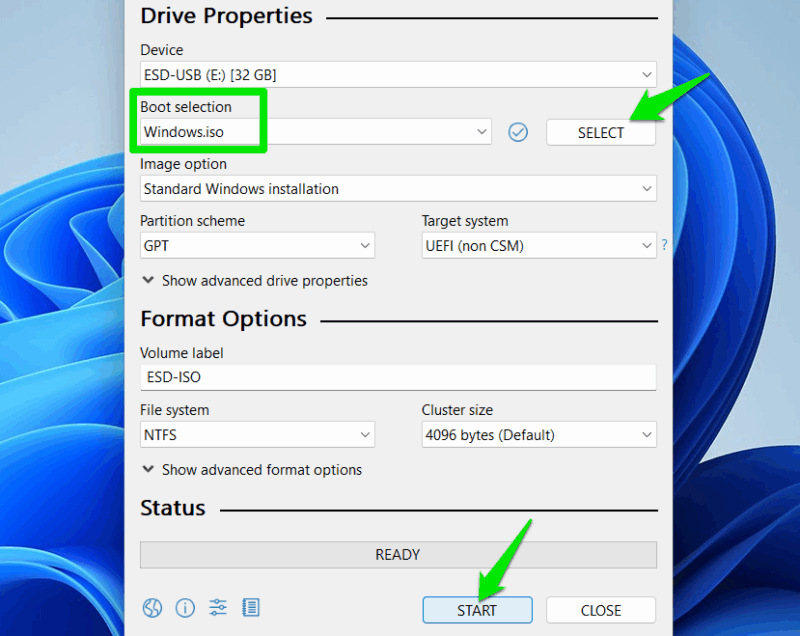
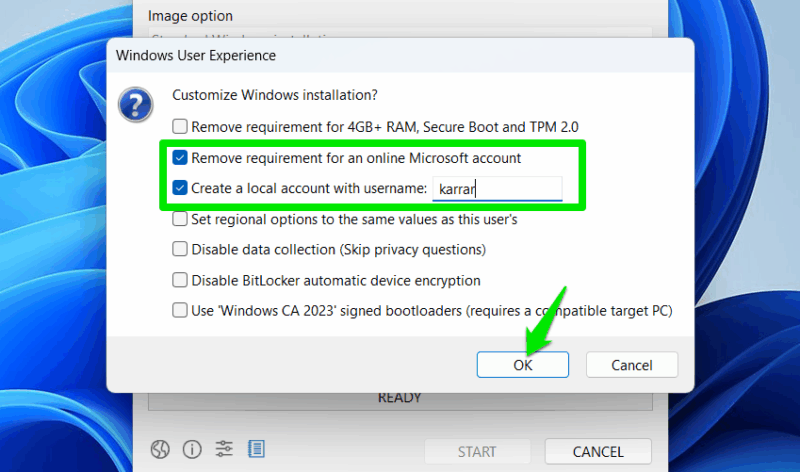
Click on Start, and you’ll be provided with some customization options. Here, select both Remove requirement for an online Microsoft account and Create a local account with username options. Provide the username and click on OK to create the Windows 11 installation media. This Windows installer will directly create a local user account with your given name.
These methods should remain relevant for the foreseeable future, as they utilize official features, and not temporary workarounds. If you’re unsure which account type to use, check out this guide comparing Windows 11 local and Microsoft accounts.








