
A new BYOVD (Bring Your Own Vulnerable Driver) attack exploits a legitimate, signed driver that contains a vulnerability. This allows attackers to achieve kernel-level code execution, bypass Microsoft Defender, and install ransomware. To avoid falling victim, follow the protection measures in this guide.
How the BYOVD Attack is Evading Microsoft Defender Protection
This BYOVD attack exploits the rwdrv.sys driver to gain kernel-level access and then deploy the malicious hlpdrv.sys driver to disable Microsoft Defender shields from the Registry. The rwdrv.sys driver is usually installed and used by optimizer apps like Throttlestop or some fan control apps. It’s a legit driver, but it can be exploited to gain kernel-level access. Here’s how the attack works:
- The hackers gain access to the PC. Usually by compromising the network, but it can be done using Remote Access Trojans (RAT) as well.
- They install the rwdrv.sys driver that Windows trusts by default.
- Using the rwdrv.sys driver, they gain kernel privileges to install the malicious hlpdrv.sys driver.
- hlpdrv.sys edits Windows Registry values to disable Microsoft Defender shields.
- With protections disabled, the attacker installs ransomware or executes other malicious tools.
So far, Akira ransomware is associated with these attacks, but with protection down, malicious actors can do whatever they want. Follow the below protection measures to stay safe:
Enable Windows Security Features
There are Windows security features that can prevent such attacks from happening or even protect when Microsoft Defender shields are down. Search “windows security” in Windows Search, open the Windows Security app, and enable the following security features that are disabled by default.
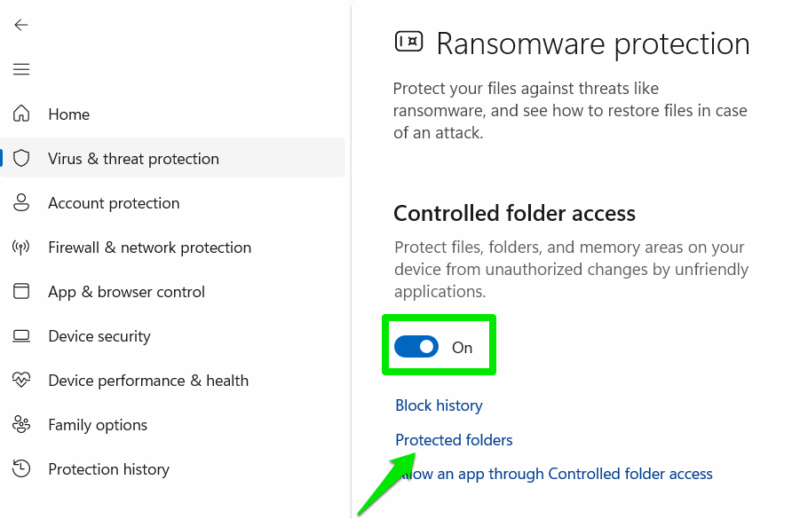
- Controlled Folder Access: this feature is a ransomware protection feature that will resist attacks even with Defender shields down. Go to Virus & threat protection → Manage settings → Manage Controlled folder access and enable Controlled folder access toggle. You can then add protected folders that will resist ransomware attacks.
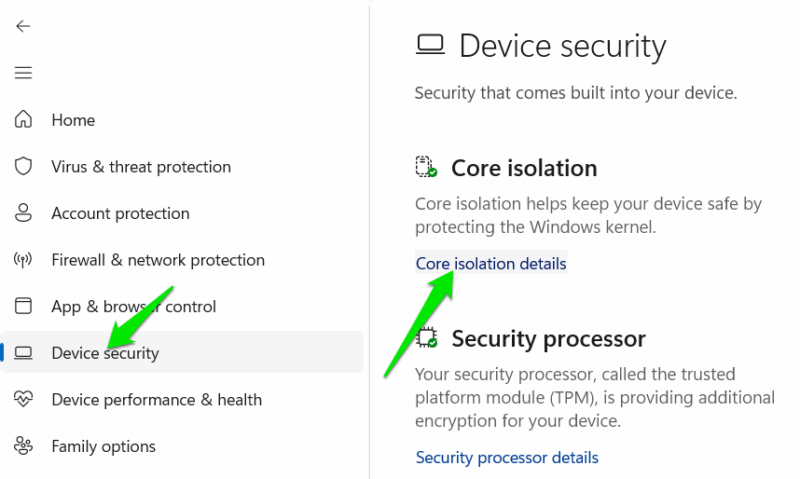
- Core Isolation features: the core isolation features can prevent the installation of vulnerable drivers and the execution of malicious code. If all are enabled, it greatly increases security, and BYOVD may not even enter the system. Go to Device security and open Core isolation details. You should enable all features here, but Memory Integrity may require driver management to turn on.
Uninstall Kernel-Level Utilities If They Are Not Necessary
Many utility tools that work at the kernel level use the rwdrv.sys driver. If this vulnerable driver is already present, it can make the job of hackers much easier, as they won’t have to install their own copy. In fact, recent attacks utilized the already installed driver. If it’s not necessary, you should avoid using utility tools that install rwdrv.sys, like Throttlestop or RWEverything.
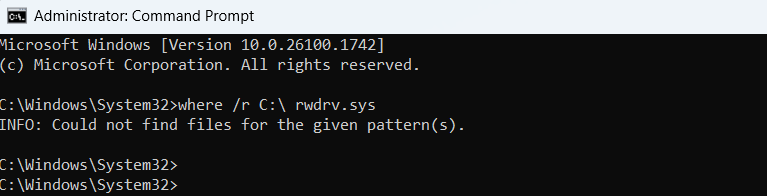
To confirm if you have rwdrv.sys installed, search “cmd” in Windows Search, right-click on Command Prompt, and click Run as administrator. Here, run the command where /r C:\ rwdrv.sys and let it scan. If rwdrv.sys driver is found, you need to find the app that installed it and uninstall it.
Use a Standard Account for Everyday Use
For best protection, we always recommend not using an admin account and depending on a standard account for day-to-day use. Against BYOVD, this is especially important. This attack heavily depends on admin privileges to install the vulnerable driver or utilize it.
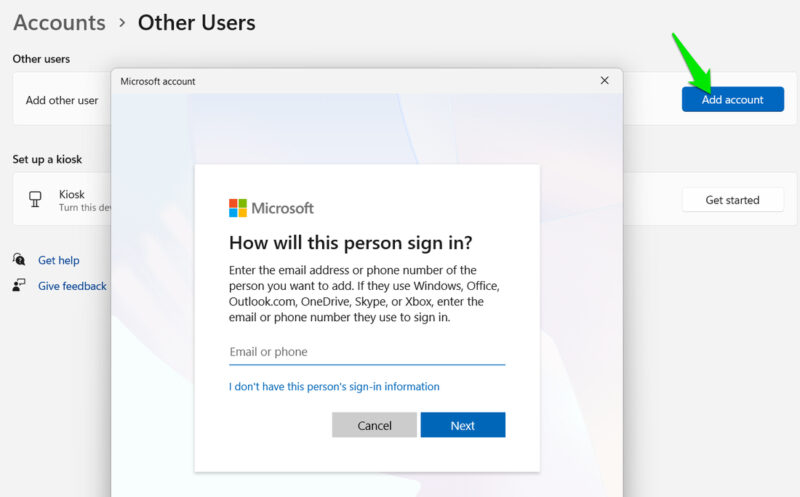
On a standard account, the hackers won’t be able to make any elevated changes to the PC, so the attack will stop at inception. If they do try, you will be notified of the action. To create a new standard account, open Windows Settings and go to Accounts → Other users → Add account. Follow the instructions to create a new account and set it as Standard.
Use a Different Antivirus Software
This attack specifically has instructions to disable Microsoft Defender shields; the same instructions won’t work for other third-party antivirus software. Third-party antivirus programs use different methods to manage shield-on/off functions, such attacks can’t exploit them with a universal instruction.
Just install any free antivirus program with real-time scanning to stay safe, like Avast or AVG Antivirus.
Security researchers (GuidePoint, Kaspersky, and others) have already tracked Akira ransomware using rwdrv.sys in BYOVD attacks and have published IoCs. Hopefully, Microsoft will do something about this threat in the near future. Just to be safe, enable all Windows security features, especially advanced Microsoft Defender features.








