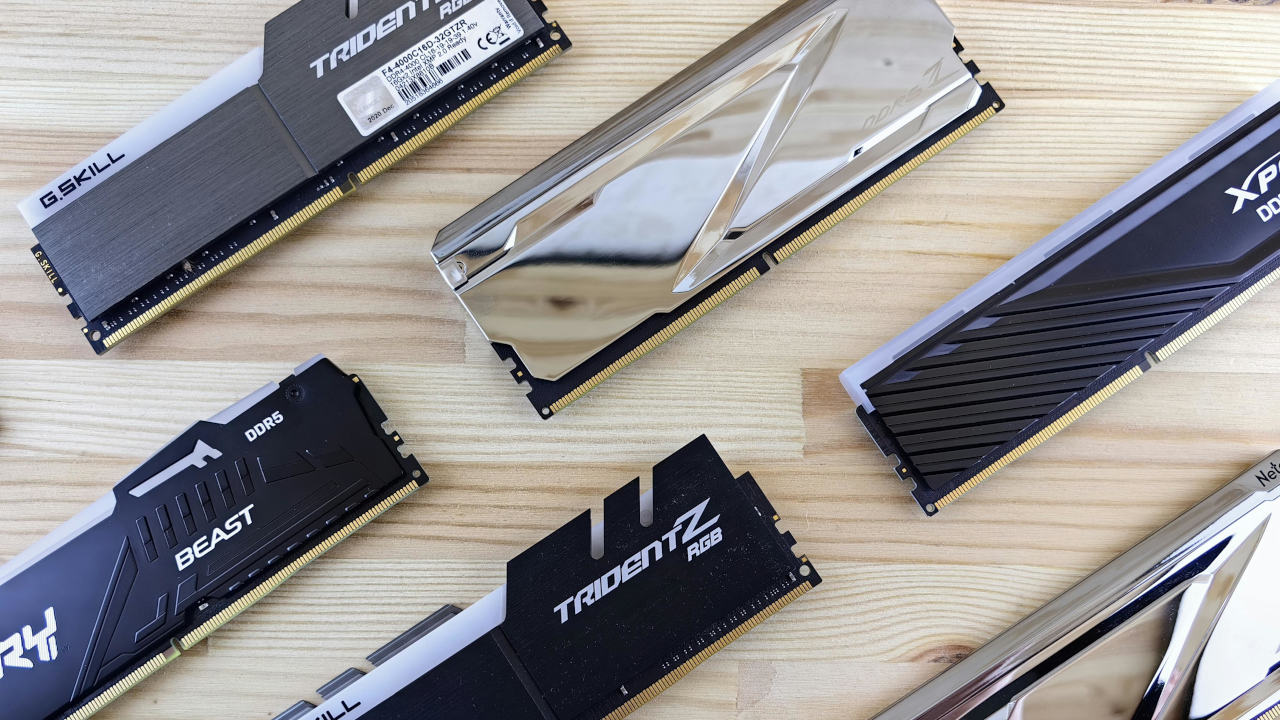
When buying memory (RAM), there are many factors to take into consideration, but they start at developing an understanding of what exactly computer memory is, what your system will be compatible with, and the maximum speed it can support. In the era of DDR5 RAM and beyond, with frequent DRAM shortages, these questions become particularly important, since you also want to be able to identify exactly how much you need without breaking the bank.
Before proceeding, I also want to take some time to clarify the difference between “static” memory and “dynamic” memory. Dynamic memory (RAM) is what we’re going over here, which is referred to as such because it’s constantly being written and rewritten by your devices.
Static memory refers to storage like your HDD (Hard Disk Drive) and SSD (Solid State Drive), though there are times where the line blurs in the form of paging files and other forms of virtual memory, where a small portion of your storage drive is used in tandem with your main system memory. Virtual memory is not nearly as fast as proper DRAM, but helps keep your system stable, and faster SSDs will lessen the slowdowns incurred by relying on it.
RAM Type: DDR5 and other RAM Generations Explained
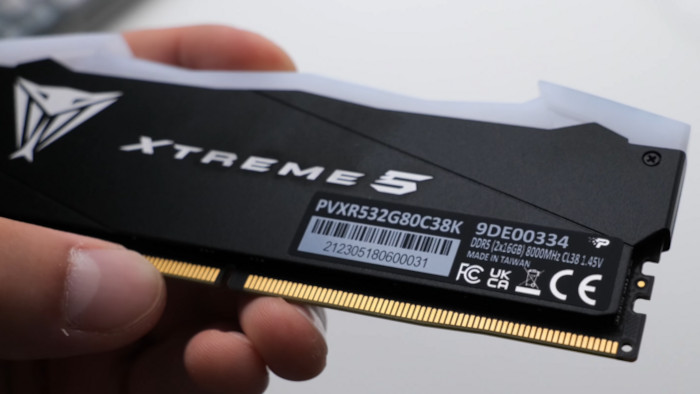
Computer memory is mostly broken into generations of supported DRAM. DDR (Double Data Rate) RAM was introduced in 1998, and has since become the main standard upon which desktop memory is iterated. Modern RAM in the form of DDR4 and DDR5 RAM still have similar form factors, but operate at much higher speeds and capacities than their predecessors.
- DDR RAM — Introduced in 1998, caps out at roughly 400 MT/s.
- DDR2 RAM — Introduced in 2003, caps out at roughly 800 MT/s.
- DDR3 RAM — Introduced in 2007, caps out at roughly 1600 MT/s.
- DDR4 RAM — Introduced in 2014, caps out at roughly 5100 MT/s.
- DDR5 RAM — Introduced in 2020, caps out at roughly 8000 MT/s.
- DDR6 RAM — To be introduced in 2027, with an estimated range of 8800-17,600 MT/s.
Note: RAM overclocking and evolving standards do sometimes see these trends broken, particularly in the case of long-lived standards like DDR3 and newer. The numbers above are provided as an approximation, but exceptions like 2133 MT/s DDR3 RAM do exist. Typically, the newer introduced standard will start at or near the previous standard’s peak.
RAM Form Factor: DIMMs for Desktops, SO-DIMMs for Laptops and Other Form Factors
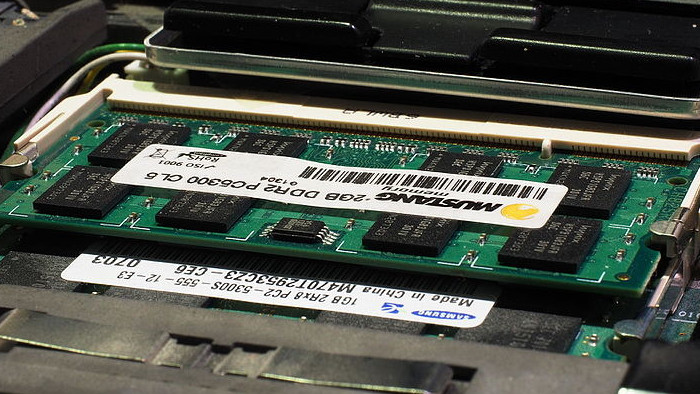
A major question to consider when buying RAM is what size/form factor of RAM you need, since this question can change drastically between devices. If you aren’t sure, it’s always best to look up your specific PC or motherboard’s model to learn what kind of RAM it takes (and how fast it can go, or if it’s even upgradable).
Typically, though, the rule is as follows: DIMMs for desktop memory and SO-DIMMs for laptop memory. The two form factors look quite similar, but are not interchangeable. Additionally, different generations of DDR RAM are not slot-compatible like PCIe and NVMe expansions, so it’s important to make sure you buy the correct RAM size and generation for your PC.
RAM Speed and Channels: Megahertz (MHz) and Megatransfers (MT/s) Explained
Typically when RAM is advertised with “MHz” speed, what they actually mean is MT/s, and only about half of that will be achieved unless you’re running the RAM in a Dual-Channel or Quad-Channel configuration. The reason behind this is that you need 2 (Dual-Channel) or 4 (Quad-Channel*) RAM sticks to achieve the “Double Data Rate” for which DDR RAM is named, and doing so will in fact double your Megatransfers.
This is slightly harder to explain to end users than MHz, though, especially since MHz does not actually increase in a Dual-Channel or Quad-Channel configuration. For these reasons, DDR RAM has historically been advertised with MHz numbers instead of MT/s numbers, but more and more manufacturers are starting to opt for the more accurate MT/s terminology instead.
Anyway, as a general rule of thumb, higher is better with MT/s, but you’ll need to enable your RAM’s marketed speeds in your BIOS (and have at least a Dual-Channel configuration) in order to have the best experience. With only 1 RAM stick or an uneven number, you may be limited to roughly half of the rated speeds, or worse if you don’t even enable Intel XMP/AMD EXPO memory frequencies in your BIOS.
Common users don’t need to worry as much about RAM speed over RAM capacity, but competitive gamers and professionals should try to shop for the fastest RAM they can reasonably afford.
Note: Your maximum RAM speed will also be limited by your motherboard, so be sure to check what your motherboard/laptop/etc’s maximum supported RAM speed before buying upgrades. Additionally, Quad-Channel usually doesn’t further increase speeds beyond Dual-Channel, and at times four slots will still operate all the sticks in Dual-Channel. What matters in these scenarios is not to use an uneven number of RAM sticks and to try and stick with the same model (or at least same spec) for each stick in every system.
RAM Capacity: How Much RAM You Really Need
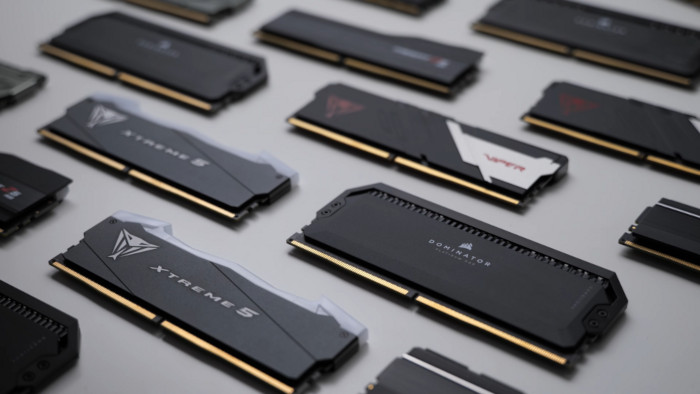
One of the biggest questions for a prospective PC builder or buyer is how much RAM you actually need, especially in an era of ever-rising memory and storage prices. On modern systems, maximum capacity is usually far beyond anything you could feasibly afford as an end user, so what’s the right middle ground?
Below, I’ll list common RAM capacities and what they are most suited for:
- 4 GB or Less of RAM — Anemic by modern standards, but workable for web browsing and retro gaming, especially if you use it on a lightweight operating system like ChromeOS. Since the pivot to 64-bit operating systems in the mid-2000s, the majority of new systems simply don’t bother with such low capacities. Even smartphones typically have more RAM than this, these days.
- 8GB RAM — A solid entry-level for RAM capacity, suitable for common users and light gaming. AAAs and larger-scale titles will often demand more than this, though, and heavy enough web browsing, video editing, etc. will quickly bring this capacity to its knees.
- 16 GB RAM — The firm mid-range of RAM capacity for modern systems and workloads. Enough for all but the most memory-demanding games and perfectly feasible for video editing and other tasks, though you’ll also want to invest in fast NVMe storage to reduce slowdown incurred by relying on a paging file.
- 32 GB RAM — The ideal high-end range of RAM capacity for modern systems. More than enough for gaming and content creation alike, especially with higher-clocked kits.
- 64 GB or More of RAM — The point at which you are likely building or upgrading a system intended for server, virtual machine, or enterprise content creation use. Consumer applications are limited, and even in times of good RAM pricing, this is still a lot of computer memory, far more than most individuals will ever use or need.
Note: For users who are relying on a CPU-integrated graphics solution instead of a discrete graphics card or discrete GPU, keep in mind that you’ll also need to allocate some RAM to your video memory and higher speeds will be more important. More on this below.
A Note on VRAM (Video Memory)
VRAM (Video Random Access Memory) or Graphics Memory usually isn’t purchasable or expandable by the end user, since it’s almost always built right into a discrete graphics card. However, people who are using an APU (Accelerated Processing Unit, as dubbed by AMD) or simply a CPU with Integrated Graphics, do need to take this into greater consideration, since their CPU and iGPU need to share the same pool of available desktop memory.
If you’re using an iGPU, it becomes extremely important to have a lot of fast, high-capacity RAM installed within your system. Dual or Quad-Channel RAM configurations for achieving maximum speeds are desirable, and being able to allocate as much of that RAM as possible (perhaps even half: for example, a 32 GB dual-channel configuration using 16 GB each for iGPU and CPU) to video memory will improve graphics performance.
Of course, iGPUs typically aren’t all that performant even with lots of RAM allocated, but this is a sliding scale depending on how powerful your iGPU really is. (Typically AMD’s are better, but Intel’s have been improving over time.)
But in handheld PC and laptop PC form factors where your system is reliant on an iGPU that you can’t replace with a discrete GPU, it becomes very important to allocate lots of system memory to graphics, especially with the ever-increasing VRAM requirements of modern games in mind.
Wrapping Up
I hope that this up-to-date guide on buying RAM helped answer any questions you might have had about buying desktop memory and pointed you toward the right kit or kits for your needs.
For my personal competitive gaming and content creation use, I’ve been using 16 GB since about 2020 (late 2025 being the time of writing), but I am considering an upgrade to 32 GB ahead of what may prove to be a decade-long RAM shortage. Hopefully if you’re reading this, RAM is affordable, and the idea of snagging a 16 or 32 GB kit is perfectly feasible for your budget and not a nightmare that will require compromises to other key components to even be feasible.
Regardless of shifting market conditions, here’s one final helpful tip: if you’re building a PC from a list of parts, look for RAM bundles with motherboards or storage! These are usually the best way to get a good deal on memory, and can help reduce the DIY costs a little.