You may already use Brave as an alternative to Chrome, but did you know about the Brave RSS reader? Instead of a boring, blank new tab, transform the New Tab window into a feed of your favorite sites and blogs. It’s completely free to use.
Turn on the Brave RSS Reader
Brave calls its RSS reader Brave News. For most users, it’s turned on by default, but if you did a custom installation, you might have opted out.
Open a New Tab window in Brave and try scrolling down. If you can’t go past the search box at the bottom of the screen, you don’t have Brave News turned on. If you can scroll further, you’ll see a list of stories from the default publications in the feed. Don’t worry. You can change the sources.
If you don’t have it, it’s easy to enable on both desktop and mobile.
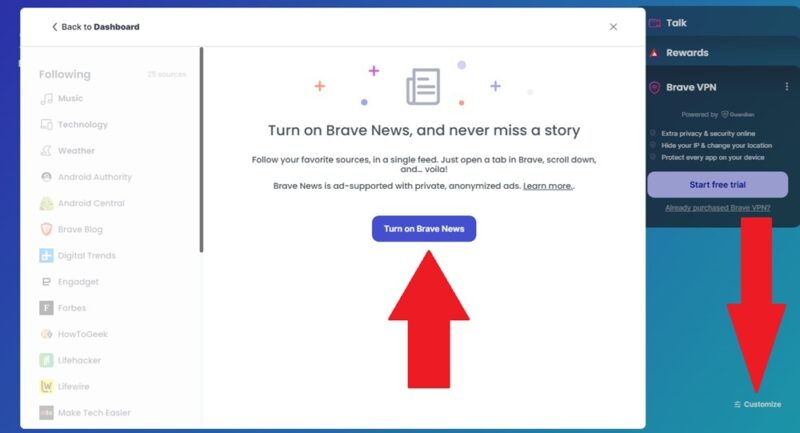
For desktop, click Customize at the bottom right corner and click Brave News in the left pane. Click Turn on Brave News to enable the feed. We’ll customize it in a moment.
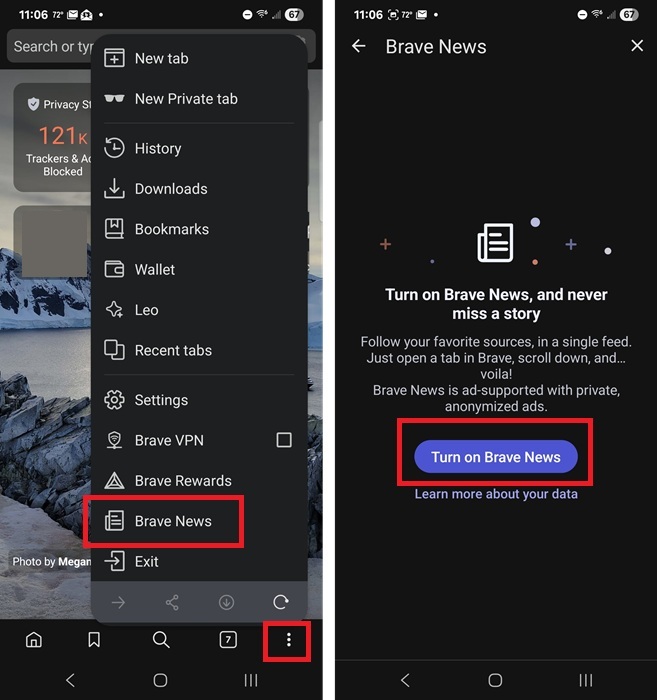
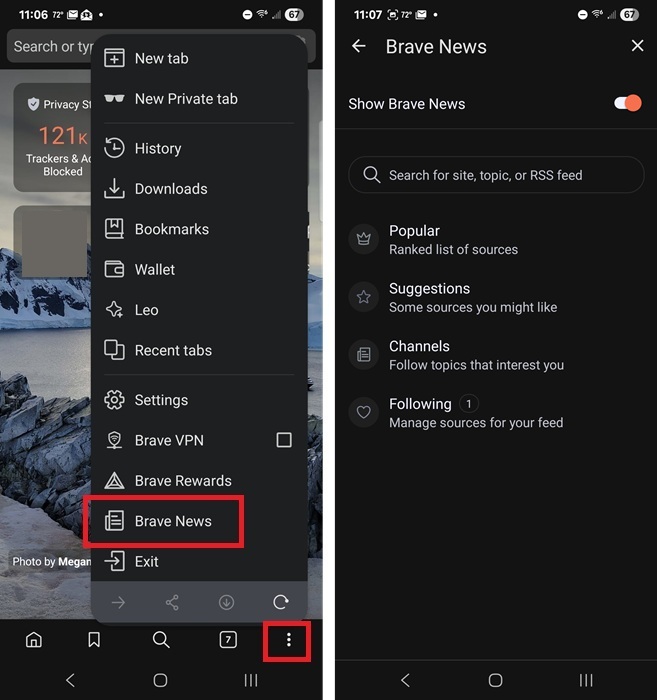
For the Brave mobile app, open a new tab and tap the Settings button at the far bottom right (three stacked dots). Tap Brave News and tap Turn on Brave News.
Access Brave News Settings on Desktop and Mobile
Once you’ve turned the feature on, you have several ways to access the Brave News settings to make changes to what you follow. Before I dive into the different ways to customize your feed, let’s walk through how to actually get to the settings.
On desktop, open a new tab in Brave and do one of the following:
- Click Customize in the bottom right corner
- Scroll down until Brave News (Brave RSS reader) appears and click the + beside Channels or Publishers on the left side
- Click the Customize button (three horizontal lines) at the bottom right
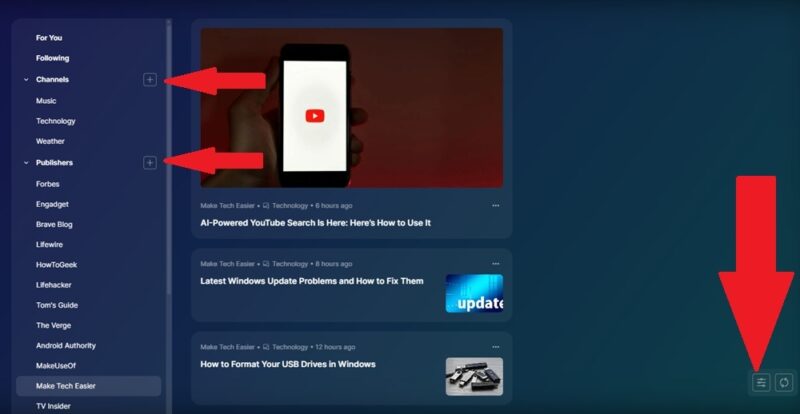
All three methods take you to the same window to add/remove sources.
On mobile, you only have one method. Open a new tab and click the Settings button (three stacked dots) at the bottom right. Tap Brave News.
Follow and Unfollow Channels in Brave
If you’re not sure what sites you want to follow, Channels are your best option. These are categories around specific topics, such as gaming, sports, technology, news, etc. Brave curates the sources for you with this method.
For desktop, open the Brave News settings and scroll down to the Channels section. Click the + (plus) beside any channel to follow it.
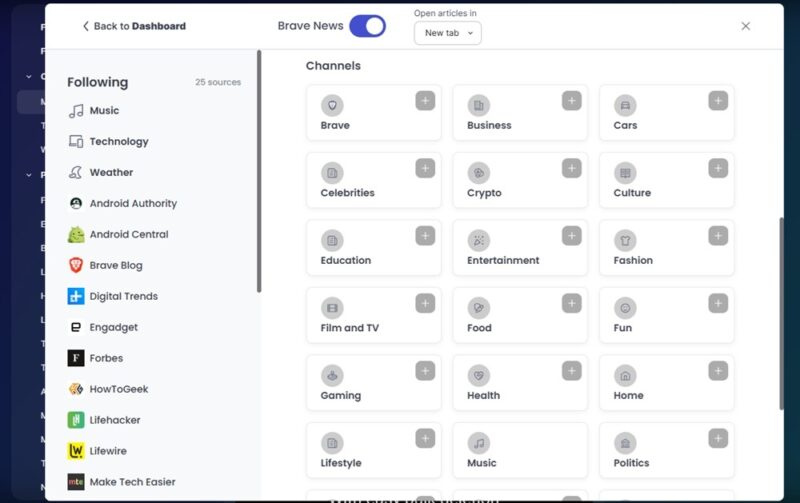
If you follow a channel and don’t like it, go back to the Channels section. Hover over the channel you want to unfollow and click the – (minus) beside the channel name.
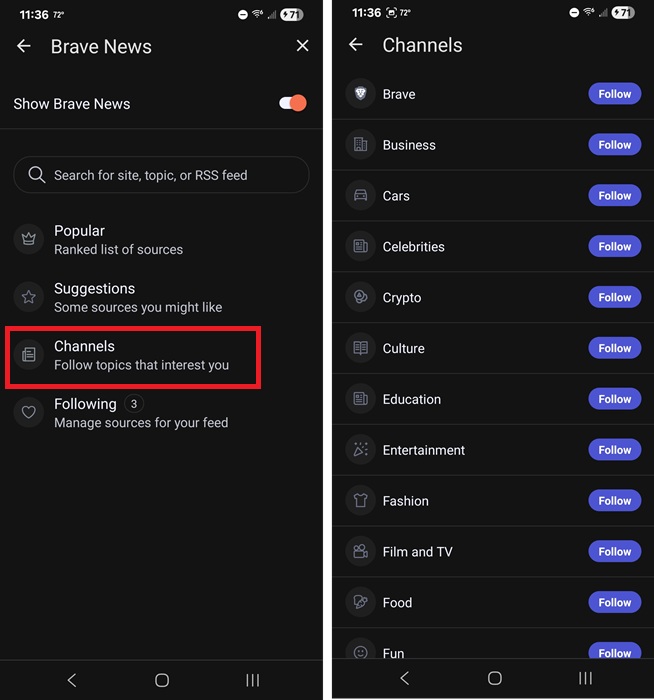
For the mobile app, open the Brave News settings, tap Channels, and tap Follow beside the channels you want to follow. For anything you don’t want to follow, tap Unfollow.
Adding Custom Sources to Your RSS Feed
Brave News isn’t limited to just a selection of curated sources. While I like some of the channels, I prefer my custom Brave RSS reader filled with the sources I’m most interested in.
Open the Brave News settings and enter a topic, website, or RSS feed into the search box. The process works the same on both desktop and mobile. For instance, if I wanted to add MakeTechEasier, I could type in the name of the site or the RSS feed address (at the bottom of any of our pages).
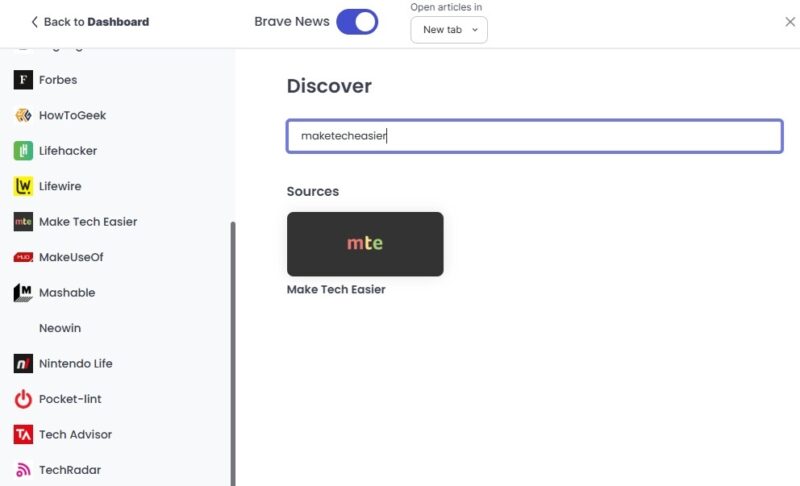
To remove a source, click Unfollow beside any source in your list in the Brave News settings. For desktop, hover over the source name to see Unfollow.
Adding Suggested Sources
At first, Brave’s suggestions might not seem worth it. But, as you add sources and channels, Brave better understands what you’re interested in. I suggest adding several sources or channels and using the feed for a week or so before seeing what Brave suggests for you. Otherwise, you’ll just see some of the most popular sources.
In the Brave News settings on desktop or mobile, scroll down to Suggestions. On desktop, click View more to see more suggestions. Follow anything that looks interesting. You can always remove it later if you want.
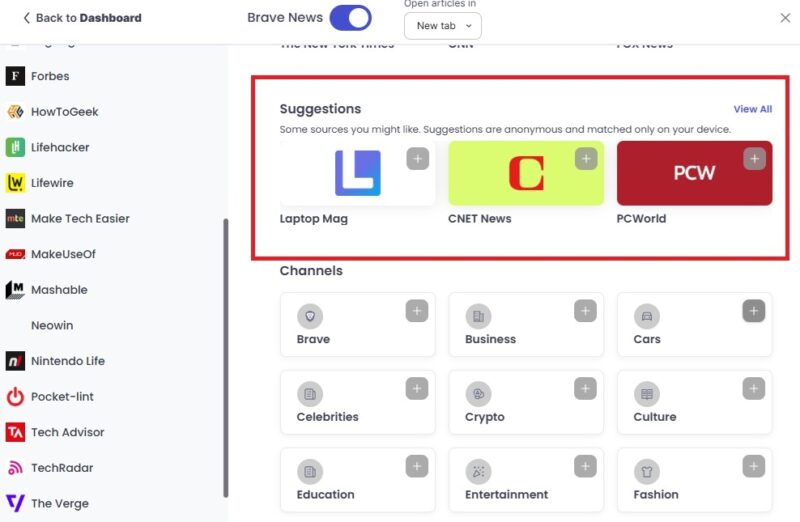
Also, as you scroll through your feed, Brave occasionally lists several suggestions.
Downsides to the Brave RSS Reader
As much as I love my handy Brave RSS reader, it’s not perfect. My biggest gripe is there isn’t any way to organize your feeds/sources. They’re just all lumped together in a list. Of course, you can just click a particular source to only see news from that source.
One of the first things you’ll likely notice is your feed has ads. These are part of Brave’s private ad program. They don’t track you and they’re clearly labeled. I know you probably hate ads, just like I do, but I only saw a few after scrolling through several dozen stories.
Next, Brave News doesn’t sync between devices. I only really use it on desktop since it’s easier to navigate, but I was disappointed to find out it didn’t sync on Android.
Speaking of the mobile app, you can’t jump to individual sources on the app yet. You just have to scroll through the feed. That makes it difficult if you’re following more than a handful of feeds.
It’s not as feature-rich as some of these RSS readers for Windows, but you don’t have to install anything extra to use it. If you want to have your own self-hosted RSS reader, set up Tiny Tiny RSS or see how to create RSS feeds for social media via RSS-Bridge.








