The taskbar is a major focus of Windows 11, with changes that redesigned how it works. While the centered Start menu is the most visible update, many under-the-hood changes have reshaped taskbar behavior. Follow the tips and tweaks in this guide to take full control of your taskbar.
1. Open Taskbar Settings Quickly
To open taskbar settings quickly from any screen, right-click on the taskbar and select Taskbar settings from the menu.
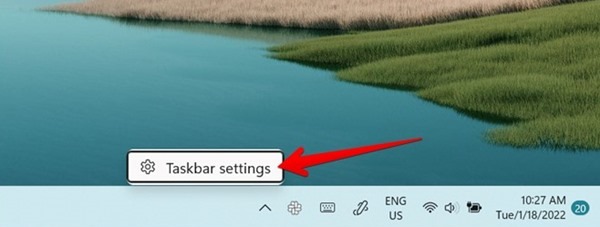
Alternatively, go to Windows Settings → Personalization → Taskbar to view Taskbar settings.
2. Change Taskbar Alignment
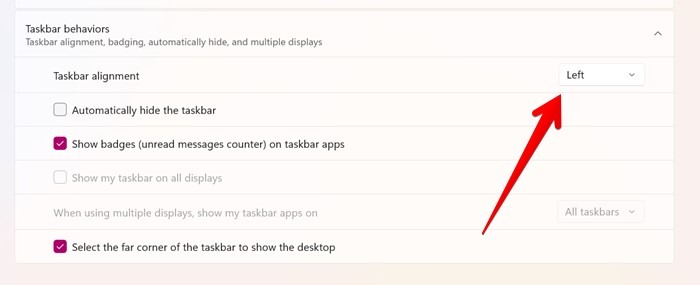
Everything on the taskbar is centrally located in Windows 11. If you prefer the old left-alignment for Start menu and icons like in Windows 10 and previous versions, you can do so from Taskbar settings:
Open the taskbar settings as shown above. Expand the Taskbar behaviors section. Choose Left in the box next to Taskbar alignment.
3. Pin Apps to Taskbar
While dragging and dropping the apps on the taskbar is the most common way to pin apps, there are few other ways to pin apps to the taskbar in Windows 11:
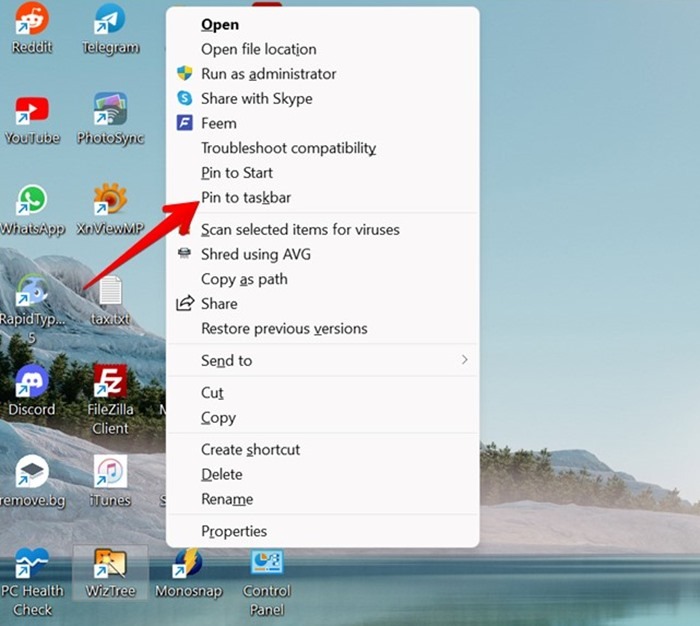
If an app is open, right-click on its icon in the taskbar and select Pin to taskbar.
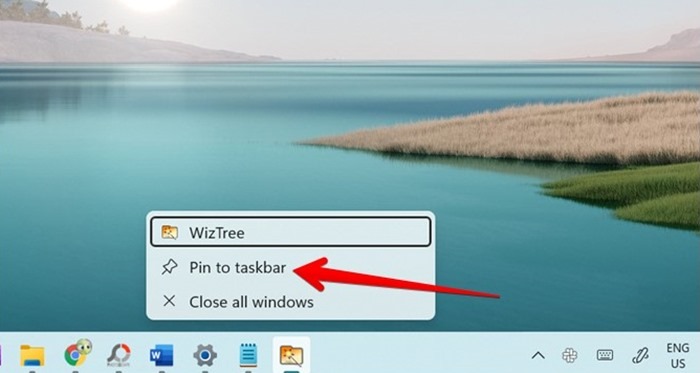
If the app icon is present on the desktop, right-click on its icon. Select More options from the menu, followed by Pin to taskbar.
Alternatively, open the Start Menu and click on All.
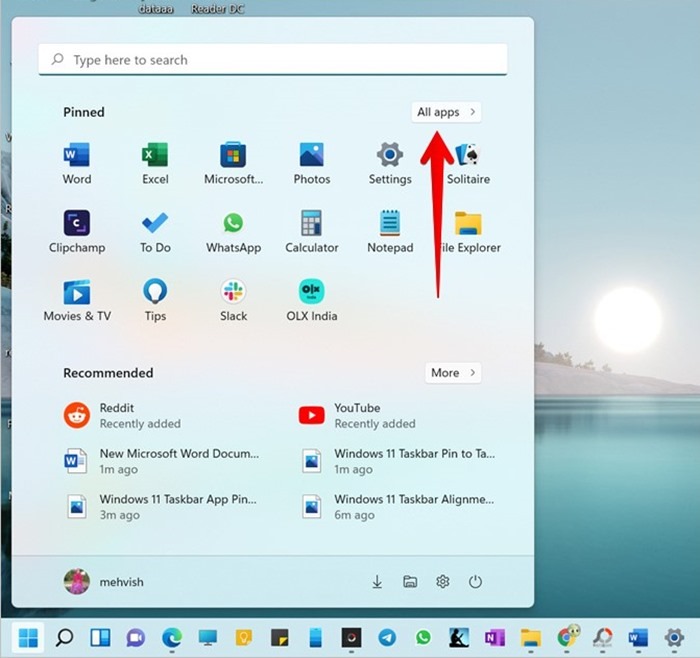
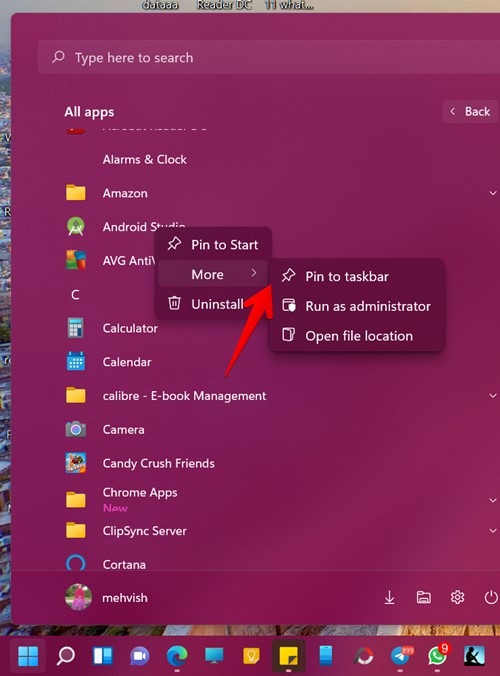
All the installed apps on your computer will show up. Right-click on the app to pin and select Pin to taskbar.
If you don’t see the option, right-click and choose More, then press Pin to taskbar.
4. Pin Web Pages to Taskbar
Just as with apps, you can pin web pages and progressive web apps (PWA) to the taskbar. Again, there are multiple ways to do so:
First, create a desktop shortcut for the web page. To do so, open the website in Chrome. Click on the three-dot icon at the top and select Cast, save and share → Create shortcut.
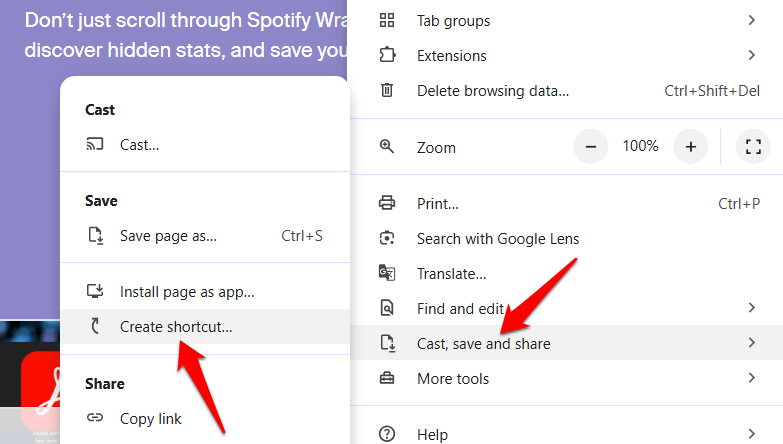
Once the shortcut appears on the desktop, you can pin it to the taskbar as we showed above.
If you don’t want to use Chrome, you can also pin web pages using Microsoft Edge. Keep in mind that the pages will open in Microsoft Edge only.
Launch Microsoft Edge and open the website you would like pinned. Click on the three-dot icon at the top. Go to More tools followed by Pin to taskbar.
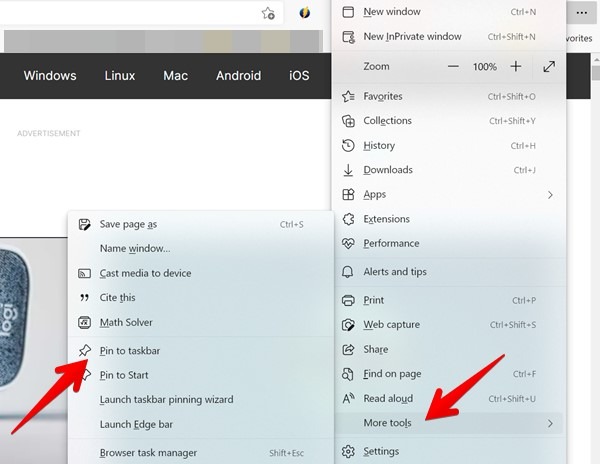
Finally, you can keep your favorite web pages pinned under the browser’s icon on the taskbar to access them quickly.
Open the web page you want to pin in the browser and close it. Right-click on the browser’s icon in the taskbar.
You will see the web page listed under the Recently closed section. Hover your mouse pointer over the web page and click on the Pin icon.
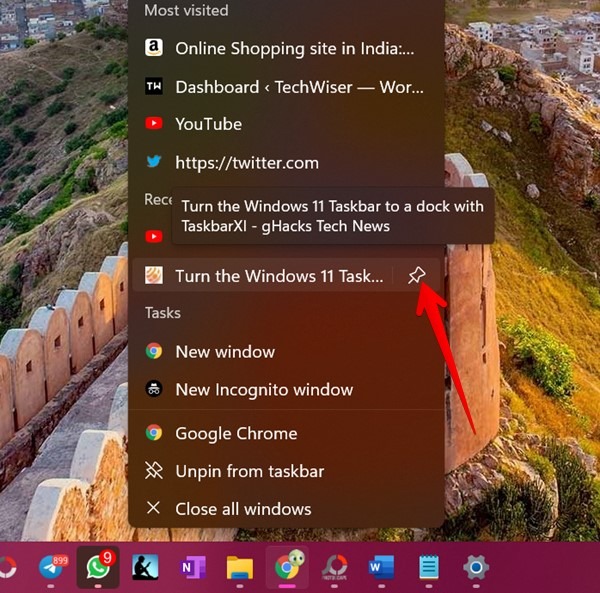
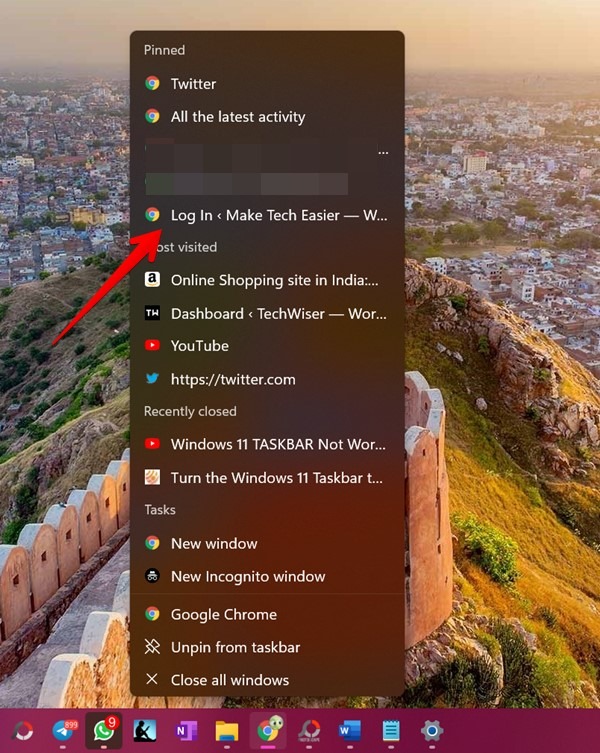
The web page will show up under the Pinned section. Now, whenever you want to open a pinned website, right-click on the browser’s icon and click the website from the Pinned list.
5. Pin Custom Folders to Taskbar
You can pin any folder of your choice, such as your work folder, favorites, downloads, etc., to the taskbar.
Right-click on the Desktop and select New → Shortcut.
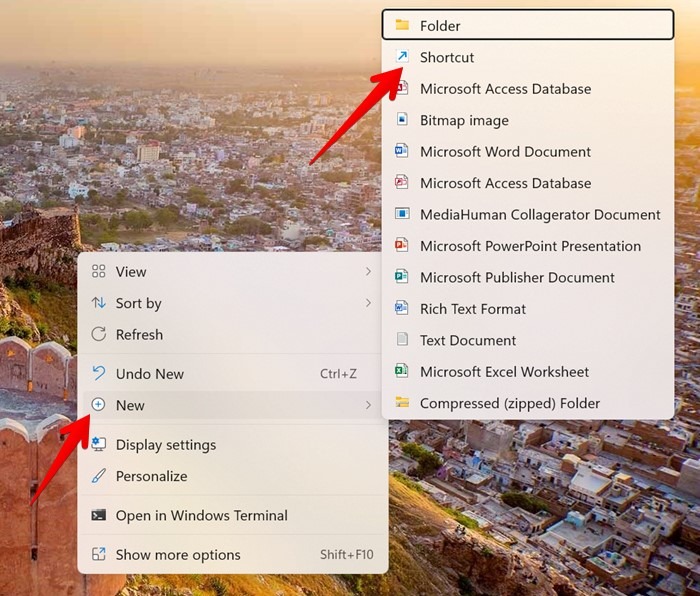
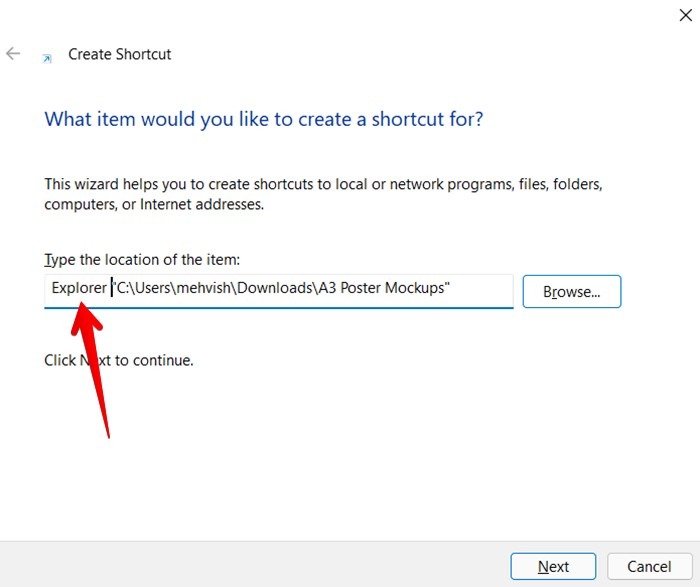
Select the location of the folder you want to pin using the Browse button. Once the location shows up in the text field, type Explorer before the location and press the Next button.
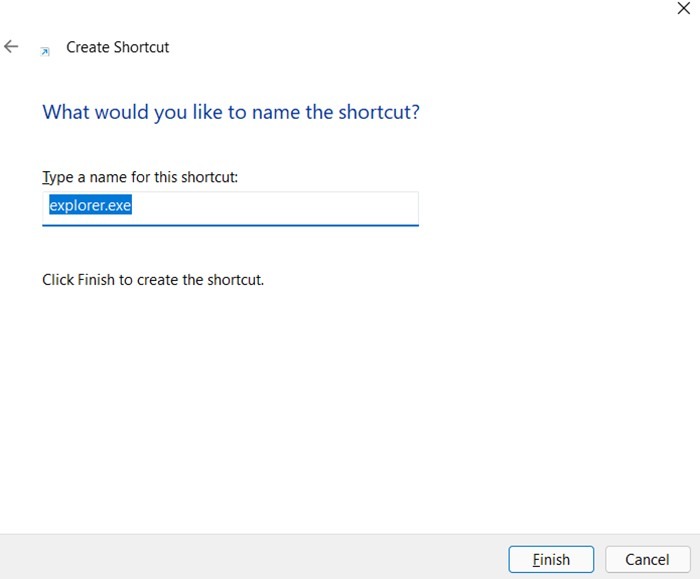
Give a name to your shortcut and click on the Finish button.
The shortcut will be created on the Desktop. Right-click on it and go to Show more options, followed by Pin to taskbar.
6. Reorder Icons in Taskbar
By default, the app icons will show up on the taskbar in the order they were pinned or opened. However, you can change their position to suit your needs by long-pressing on the app icon with the mouse and dragging it to the new position.
7. Unpin Apps From Taskbar
Right-click on the pinned app in the taskbar and select Unpin from taskbar.
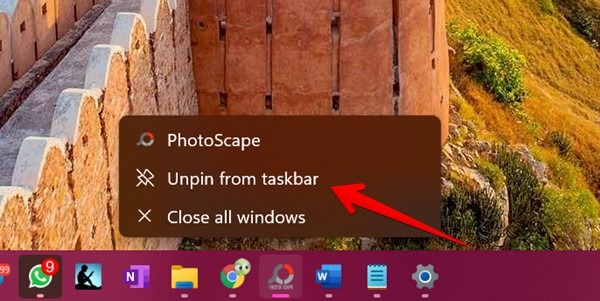
You can also right-click on the app in the Start Menu and choose Unpin from taskbar.
8. Open Grouped Apps from Taskbar
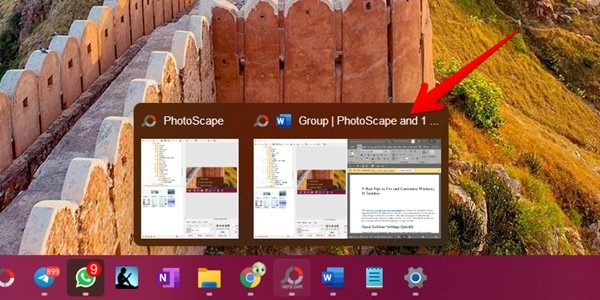
Windows 11 took multitasking to a new level using snap layouts. When you snap windows, you can open them quickly from the taskbar. Hover the mouse pointer over either of the app’s icons on the taskbar and click on the grouped apps to view them.
9. Show System Tray Icons
System tray icons are hidden by default and need to be opened by clicking on the upward arrow. If you want faster access to some tray apps, you can show their icon permanently on the system tray.
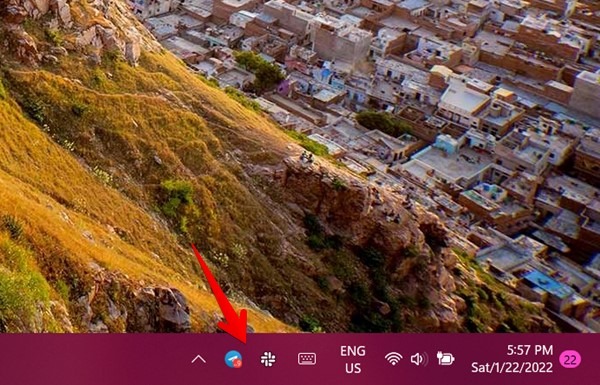
To do so, open Taskbar settings and expand the Other system tray icons section. Enable the toggle next to the items to show them on the taskbar.
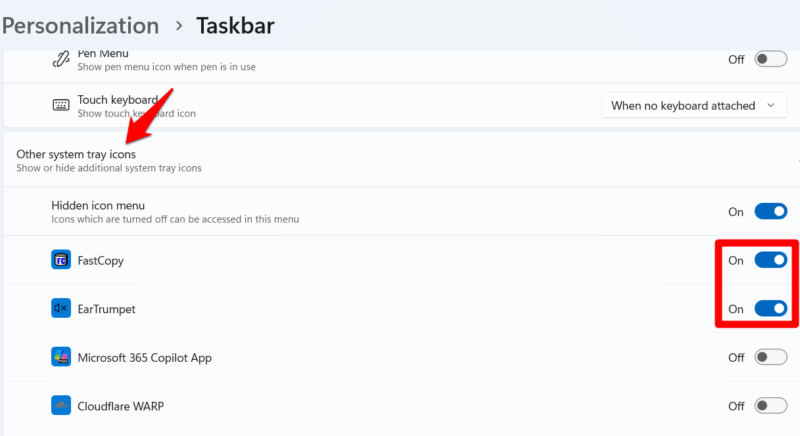
Note: you cannot hide, rearrange, or ungroup icons like battery, sound, or Wi-Fi from the taskbar corner.
10. Show or Hide Taskbar Items
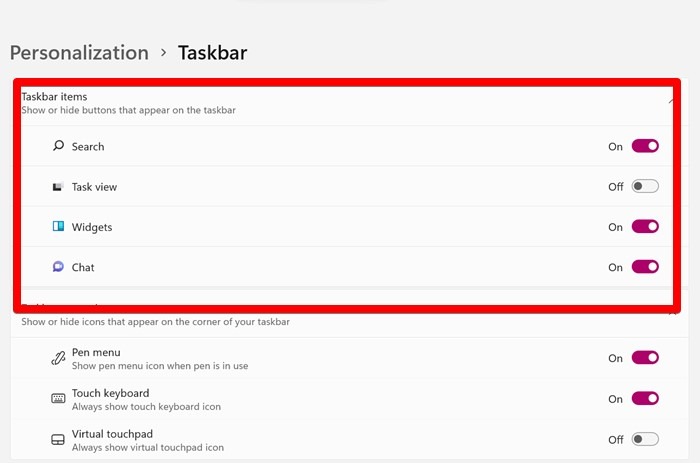
If you want to add more apps to the taskbar, you should hide items like the Search icon (magnifying glass), Task view, and Widgets from the taskbar. These are the icons that show up between the Start Menu and pinned items.
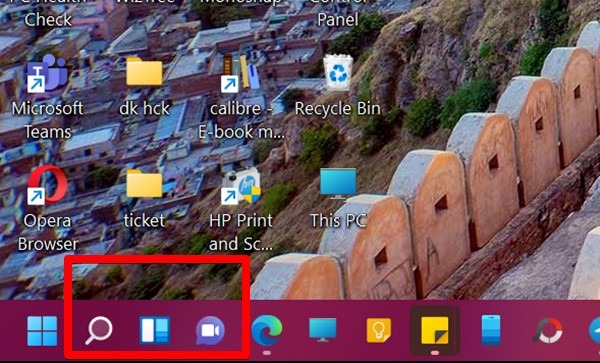
Open taskbar settings and expand the Taskbar items section. Turn off the toggle next to the items you want to remove from the taskbar.
11. Hide Taskbar When Not in Use
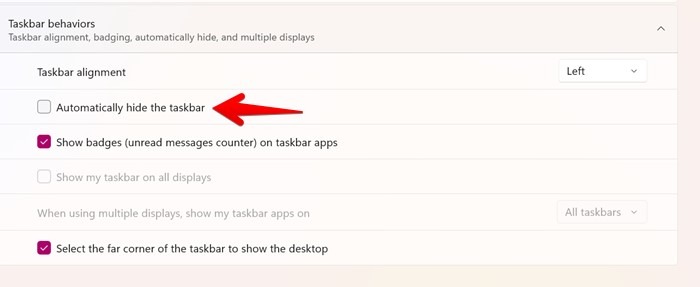
If the continuous presence of the taskbar keeps distracting you from your work, enable a setting that will hide the taskbar when it’s not in focus. The taskbar will show up only when you hover your mouse over it.
To do so, open taskbar settings. Under the Taskbar behaviors section, check the box next to Automatically hide the taskbar.
12. Show Notification Badges on Taskbar
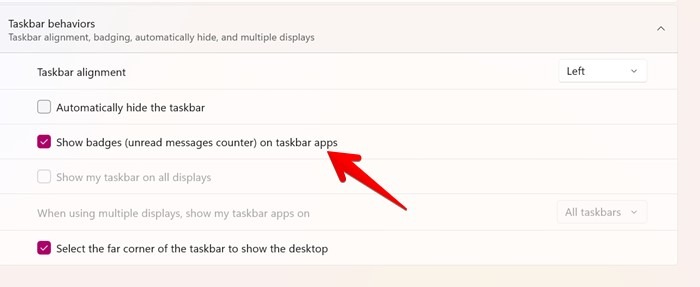
Just like smartphones, you can enable notification badges for supported apps in the taskbar. This makes it simple to determine whether you have a new message.
Open taskbar settings. Check the box next to Show badges on taskbar apps under the Taskbar behaviors section.
13. Enable or Disable Desktop View
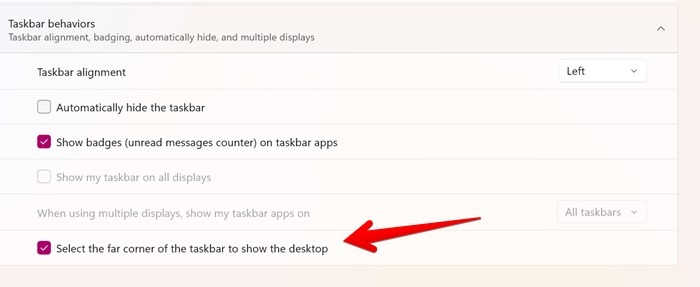
Just as with previous versions of Windows, you can minimize all apps and open the desktop instantly using the Show desktop button on the extreme right corner of the taskbar.
To activate this feature, access taskbar settings and move to the Taskbar behaviors section. Check the box next to Select the far corner of the taskbar to show the desktop.
14. Show Taskbar on All External Monitors
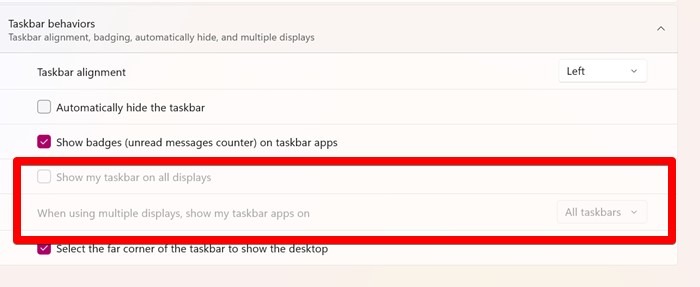
When using multiple displays, you can decide whether the taskbar should show up on other monitors or not. You can also customize how and when the taskbar apps should show up.
Open taskbar settings. Enable the toggle for Show my taskbar on all displays.
Once enabled, you can choose where the taskbar should appear from the drop-down box next to When using multiple displays, show my taskbar apps on.
15. Make Taskbar Transparent
You can make the taskbar translucent with a default setting present on your computer.
In Windows Settings, go to Personalization → Colors. Enable the toggle next to Transparency effects.
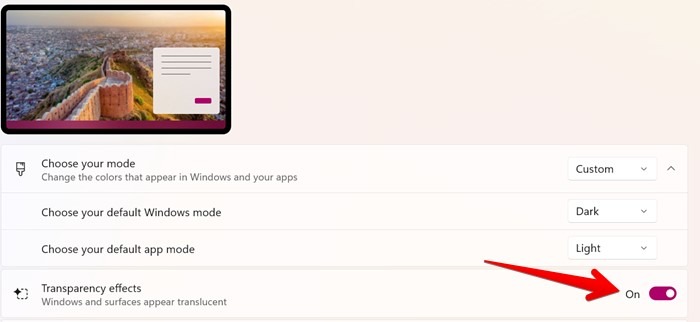
However, if you want to make the taskbar completely transparent, you should install TranslucentTB, a third-party app available on the Microsoft Store.
16. Change the Color of the Taskbar
By default, your taskbar can use either light or dark theme colors. However, with certain modifications, you can apply any color to the taskbar.
Open Windows Settings, and go to Personalization → Colors. Choose Custom from the drop-down box next to Choose your mode.
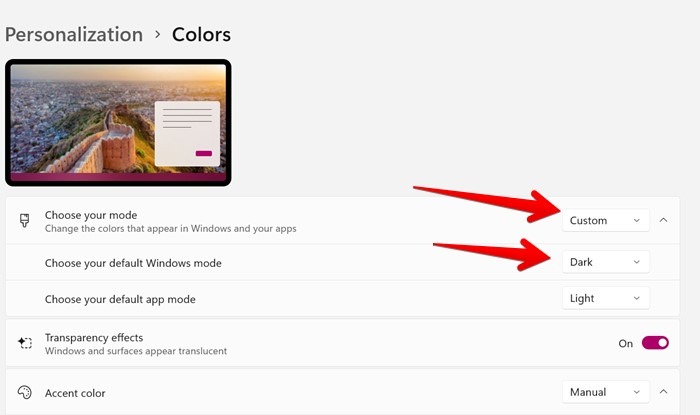
Select Dark from Choose your default Windows mode. Scroll down and enable the toggle next to Show accent color on Start and taskbar.
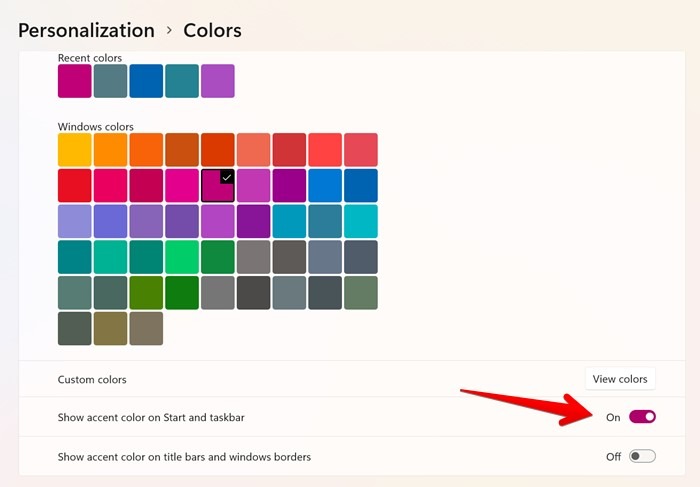
Scroll up and select the accent color, which will be used as the taskbar color.
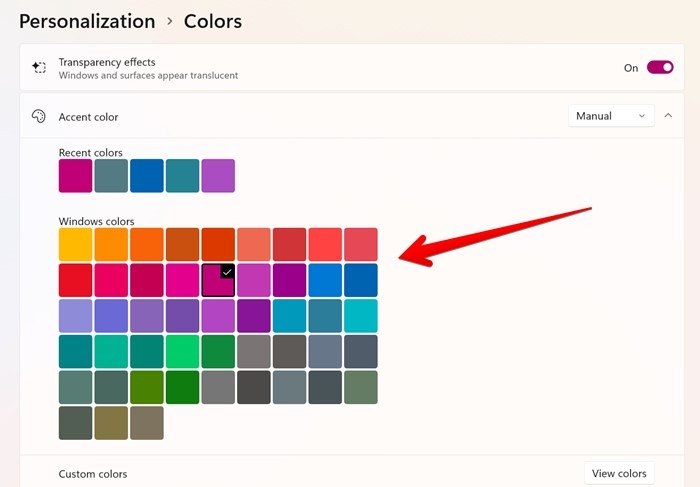
Note: the accent color will apply to the Start Menu as well.
17. Open Last Active Window from the Taskbar
When you open multiple instances of the same app, they are grouped together under one icon in the taskbar. You need to hover the mouse over the app icon to select the window to open. An easy way is to directly launch the last active window by clicking the app icon.
To do so, you need to make some Registry changes as shown below. However, make sure back up the Registry before following these steps:
- Open Windows Search and type
regedit.
- In the Registry Editor, type or copy and paste the following address into the address bar:
HKEY_CURRENT_USER\SOFTWARE\Microsoft\Windows\CurrentVersion\Explorer\Advanced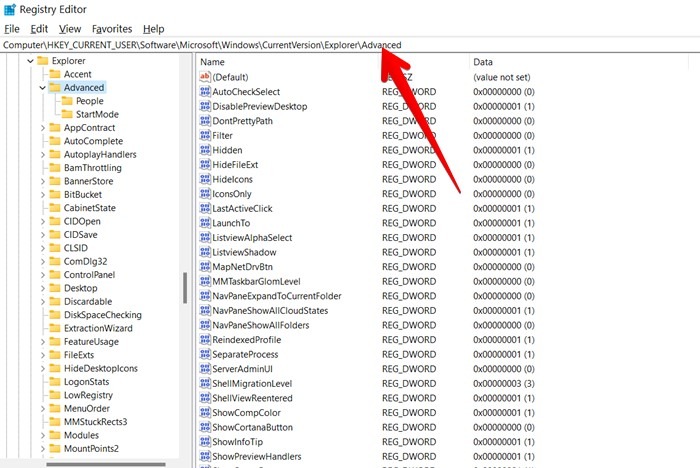
- Right-click in an empty space on the right panel and select New → DWORD (32-bit) Value.
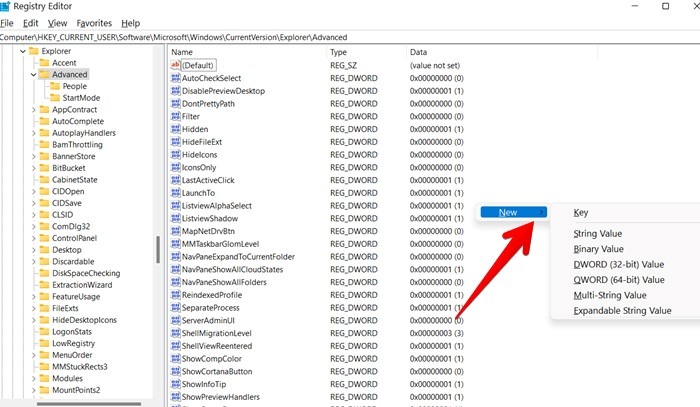
- Name it “LastActiveClick”.
- Right-click on the LastActiveClick item and select Modify from the menu. A pop-up window will appear.
- Change the Value data to 1 and click OK.
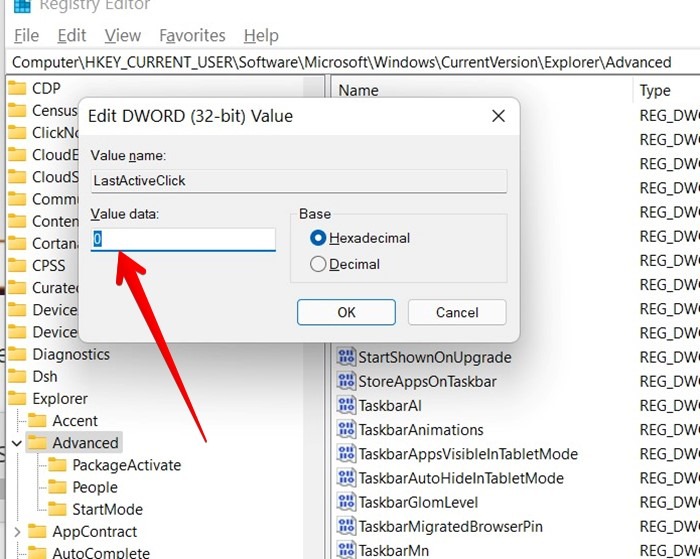
- Restart your PC.
18. Show Seconds in Windows 11 Clock
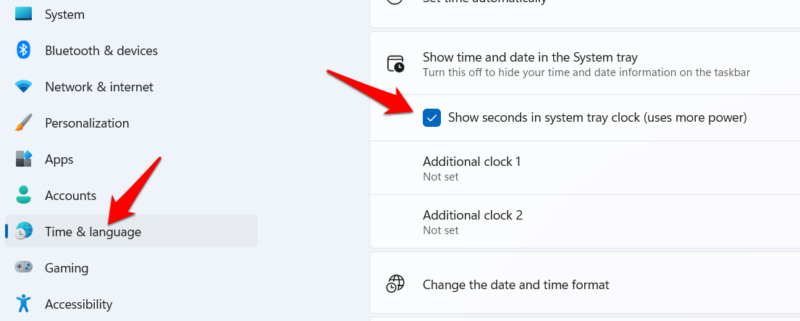
Unlike Windows 10, where you used a Registry hack to show seconds on the Windows 10 Taskbar clock, Windows 11 has a built-in setting to enable it. In Windows settings, go to Time & language → Date & time and enable the Show seconds in system tray clock option under Show time and date in the System tray.
19. Ungroup Folders or Apps in the Taskbar in Windows 11
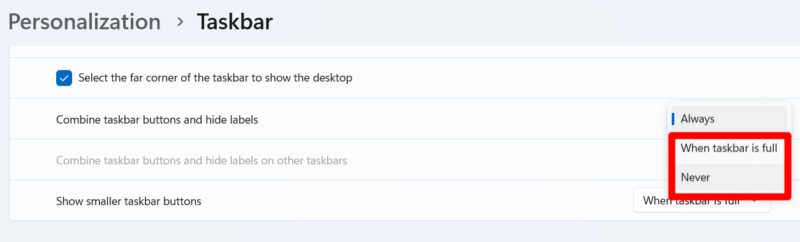
Windows 11 groups apps and folder instances under a single icon, but this behavior can be changed to show each instance separately. In taskbar settings, move to the Taskbar behaviors section. At the bottom, select Never or When taskbar is full next to the Combine taskbar buttons and hide labels option.
20. Make Taskbar Icons Smaller in Windows 11
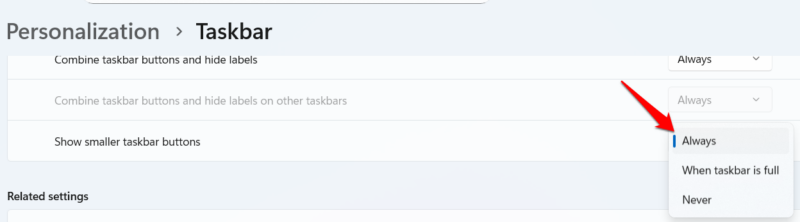
By default, Windows 11 taskbar icons only become small when there are too many icons on the taskbar. You can change this behavior to always use small icons if you want. In the taskbar settings under the Taskbar behavior section, set the Show smaller taskbar buttons option to Always.
21. View Additional Calendars and Clocks
When you click on the date and time in the taskbar, it shows the calendar and notification panel. You can add additional calendars and clocks to this area.
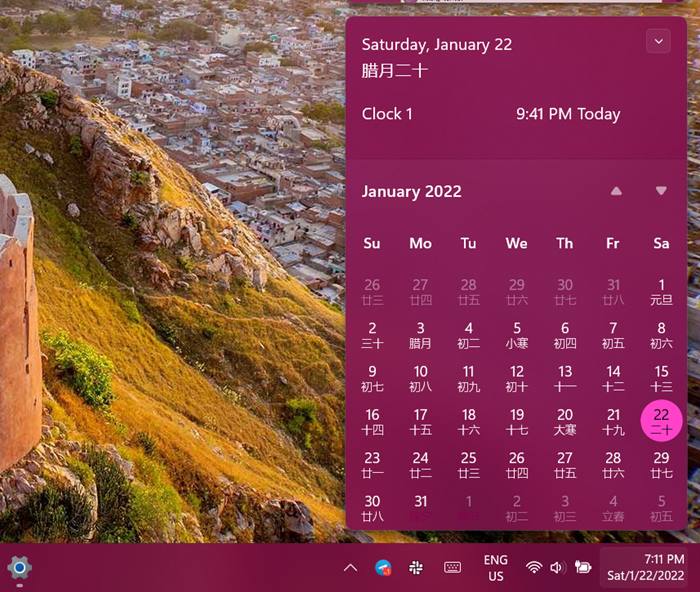
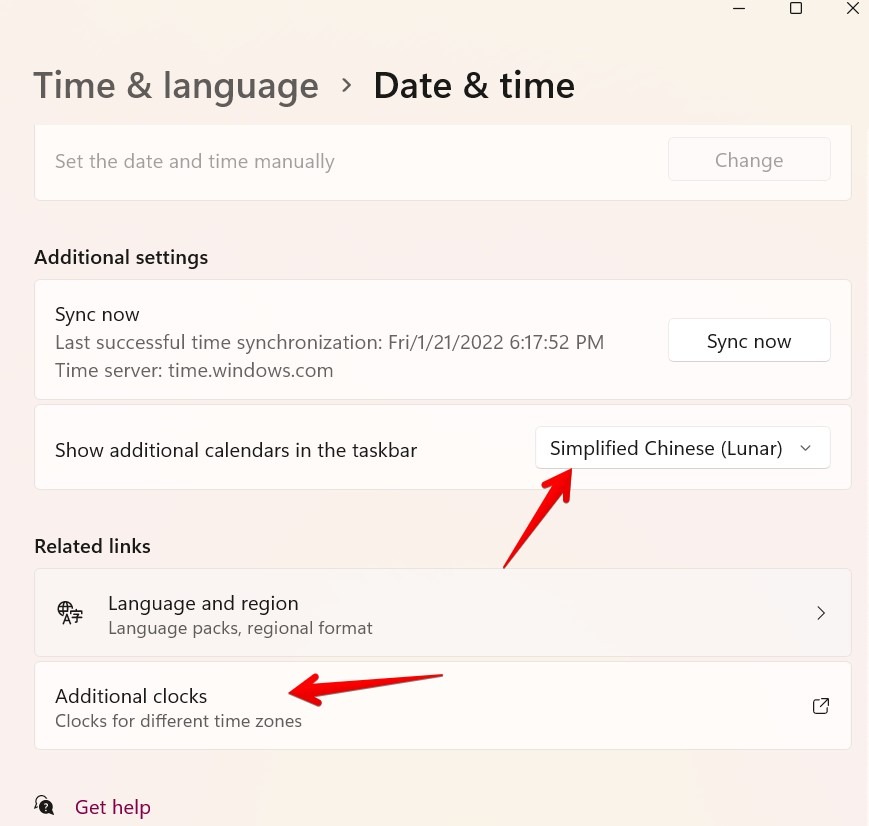
Go to Windows Settings → Time & language → Date & time. Click on the drop-down box next to Show additional calendars in the taskbar and select the desired calendar.
Similarly, scroll down and click on Additional clocks. Select the additional time zones to show.
22. Enable “End Task” Directly from the Taskbar
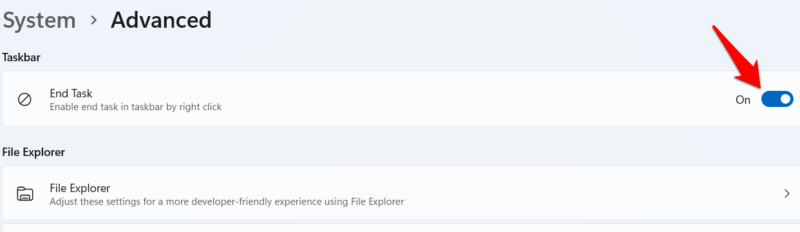
You don’t have to open the Task Manager to access the End task option that immediately stops a process. You can add End task directly to the taskbar to quickly kill an app and its processes. To do so, go to System → Advanced in Windows Settings and enable the End task toggle.
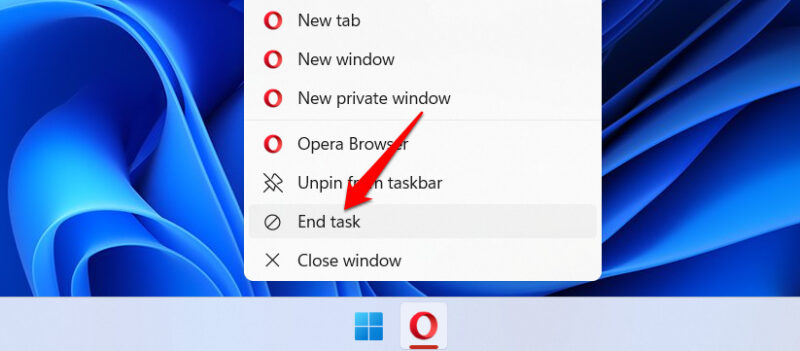
Now, you can right-click an app on the taskbar and select End task to immediately kill it. Just remember that ending apps like that can lead to data loss, as it will close without saving data.
These tweaks will help you fully customize the taskbar in Windows 11 and improve your workflow by offering faster access to Windows functions. If your taskbar is acting up or any of these features aren’t working, follow the steps in this guide to fix the taskbar not working.








