
Even if you don’t use PDFs every day, chances are you work with them at least once a week. The problem is, most PDF tools are either limited in features or come with hefty subscription fees. And if you care about privacy, uploading sensitive files to some random cloud service is definitely not the best idea.
This is where self-hosted, open-source PDF editors come in. They give you full control over your documents, keep your data private, and often rival (or even beat) the functionality of commercial tools. Plus, many of these projects can be deployed in just a few minutes using Docker.
Here are some of the best open-source PDF editor tools you can host on your own server.
1. Stirling-PDF
If I had to pick just one self-hosted open-source PDF editor tool, Stirling-PDF would be it. This tool is an all-in-one Swiss Army knife for PDF manipulation. It’s built to be lightweight, incredibly feature-rich, with a clean and intuitive interface. It can easily handle large files and process them quickly without consuming excessive system resources.
Key Features
- Merge and split PDFs with a few clicks.
- Convert PDFs to images (and vice versa).
- Rotate, reorder, and delete pages.
- Compress large files without killing quality.
- Add text, watermarks, annotations, and digital signatures.
- Supports OCR for turning scanned images into searchable text.
- Add or remove passwords, set user permissions.
- Compare two PDF files and detect changes.
It’s designed to be run in Docker, which means you can have it up and running in under five minutes. Just pull the image, map your port, and you’re good to go. You can also use a simple Docker Compose file provided by Stirling-PDF.
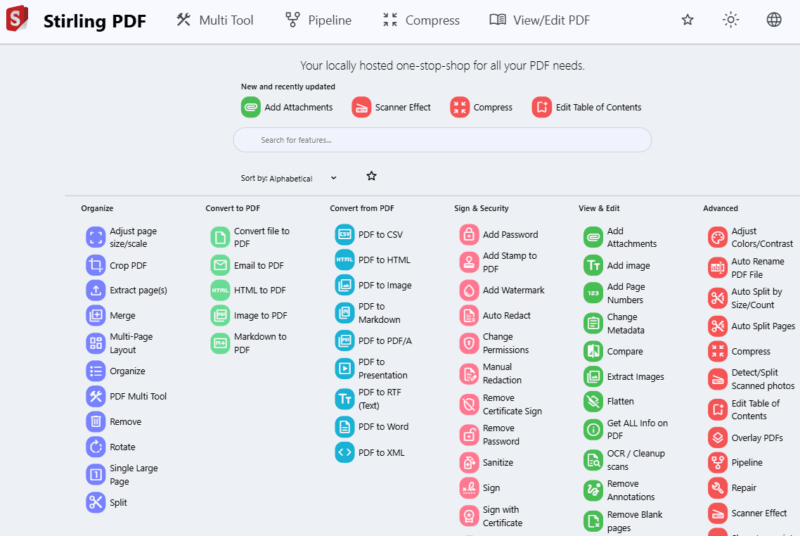
Stirling-PDF does not have a dedicated mobile app or official mobile client , but you can easily use it on your phone’s browser. Simply enter the server’s IP address or domain, and use Stirling-PDF just like an app.
2. PdfDing
Unlike Stirling-PDF, which provides a comprehensive workshop full of every PDF tool, PdfDing provides you with a web interface that is less about complex document processing. It is more about direct content editing such as changing text, moving images, and adding annotations.
Key Features
- Simple drag-and-drop editing.
- Merge, split, and reorder pages visually.
- Password-protect or remove restrictions from PDFs.
- Basic annotation support such as highlighting text, adding sticky notes, drawing freehand, and others.
- Works great on both desktop and mobile browsers.
- It’s great for organizing your library too—tag files, search quickly, and preview without downloading.
- Allows you to directly select and edit existing text blocks.
- Add, remove, or reposition images within the document.
Just like Stirling-PDF, PdfDing is also Docker-friendly. You can simply pull the mrmn/pdfding image, run it with basic commands, map the port and that’s it. Now you can access it via localhost or from your IP address. Because the image is smaller and requires minimal configuration, you can easily get it running on small memory devices like Raspberry Pi 4 without any performance issues.
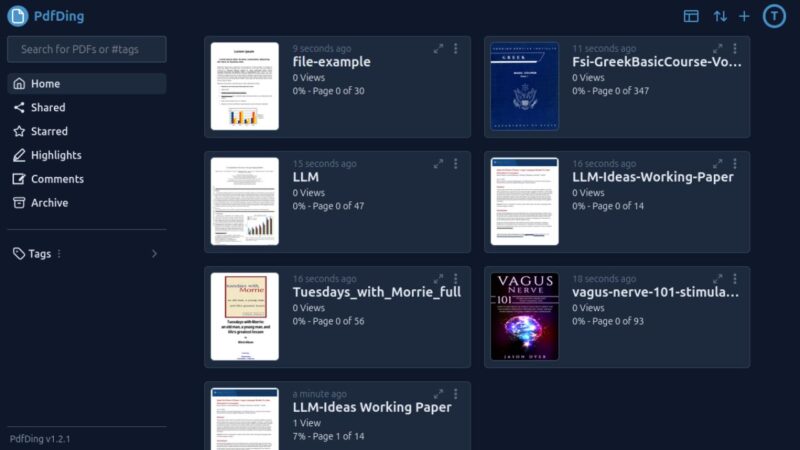
PdfDing is fully browser-based, so you can access it on your mobile’s browser by entering your server IP address.
3. OnlyOffice
You might already know OnlyOffice as a full-fledged office suite alternative to Microsoft Office or Google Workspace. But what many people don’t realize is that it also includes robust PDF editing capabilities. In fact, it’s one of the few open-source solutions that lets you edit PDFs in a word processor-like interface.
Key Features
- Edit text directly inside PDFs (not just annotate).
- Add comments, highlights, and shapes.
- Sign PDFs digitally.
- Convert PDFs to DOCX, ODT, or other editable formats.
- Create fillable forms from scratch.
- Integrates with platforms like Nextcloud, Seafile, and ownCloud.
- Multiple users can work on the same PDF simultaneously, with real-time changes and commenting.
- Ribbon-style toolbar makes finding functions intuitive.
- Preserves original layout, fonts, and images when converting PDFs to DOCX.
- Rewrite paragraphs, change formatting, insert tables, and more using its advanced word processor.
Deploying OnlyOffice via Docker is straightforward, thanks to the excellent official images provided. However, you can also use the Docker Compose setup provided by the developers to make deployment manageable even for less experienced users.
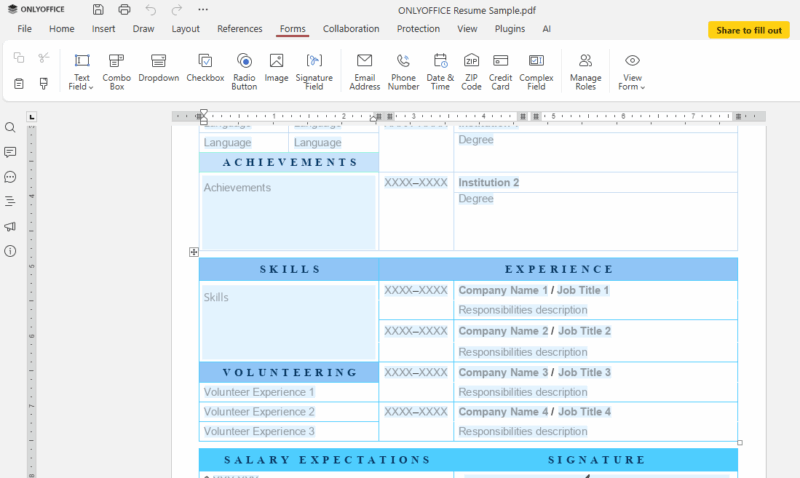
Further, if you’re already self-hosting Nextcloud or another file-sharing platform, adding OnlyOffice gives you a seamless document editing experience. There is one downside though – it’s more resource intensive than the other tools on this list. You’ll need a decent server to run it smoothly. But if you want a one-stop shop for all your office needs, it’s hard to beat.
4. Collabora Online
If you’re a fan of LibreOffice, you’ll love Collabora Online. It’s essentially a web-based version of LibreOffice, designed for self-hosted environments. And yes, that means you get PDF support as part of the package.
Collabora is designed for integration. Many self-hosted, for instance, integrate Collabora with Nextcloud to create a complete, self-hosted alternative to Google Drive and Google Docs. Its handling of PDFs is excellent, providing a seamless bridge between the fixed-format world of PDFs and the fluid, editable world of office documents.
Key Features
- Open and annotate PDFs directly in the browser.
- Add text, comments, highlights, and shapes.
- Export PDFs into editable text formats.
- Real-time collaboration with multiple users.
- Deep integration with Nextcloud and ownCloud.
Deploying Collabora Online with Docker is the recommended method. The developers provide a well-maintained Docker image. Typically, you’ll run it alongside another service like Nextcloud, and the two containers will be linked together using a Docker Compose file.
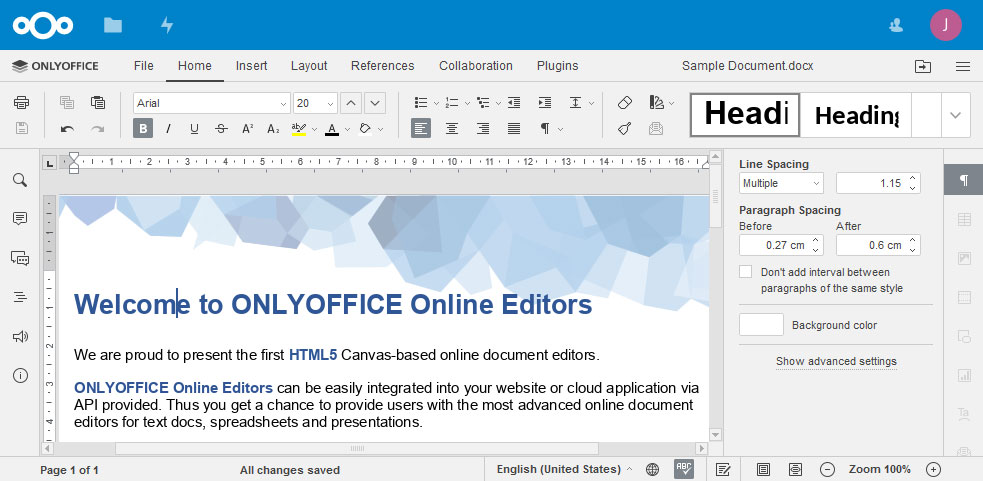
Collabora can be resource-intensive, especially with multiple concurrent users. I recommend at least 4 GB of RAM for comfortable operation, more if you’re planning to support many simultaneous editors.
Warning: Self-hosting a PDF editor comes with security responsibilities, especially since these tools often handle sensitive documents. To stay protected, always use authentication and encryption, ideally by placing the service behind a reverse proxy like Nginx or Traefik.
Final thoughts
Each tool I’ve covered serves different needs, but they all share common advantages: no ongoing subscription costs, complete data privacy, and customization possibilities that commercial solutions can’t match. Although the initial setup might feel intimidating, it pays dividends in the long run, both financially and in terms of capability.
You can choose whichever tools you like, or even run multiple services, because Docker makes it easy to test multiple options, and you might even find yourself using different tools for different purposes.
Further, if you have a lot of scanned bills, receipts, or important letters sitting in a folder on your computer that is impossible to search through, then also try hosting the Paperless-ngx tool on your server. This tool ingests your documents, uses OCR to read the text, and then automatically tags and sorts them for you, making everything instantly searchable.








