
As Linux users, it’s a special moment when we first open up a terminal and start working on the system in a way that’s most efficient, powerful, and flexible. However, your first foray into the terminal could potentially be intimidating, as all you’re greeted with is a blinking cursor and an endless world of possibilities. To help with that, we show you some Bash tips and tricks to work smarter, not harder, in the terminal.
Bash vs. the Terminal
If you are thinking that Bash is the terminal, and vice versa, you are more wrong than right. The terminal is the application (or graphical interface) where you type commands on to interact with the system. Bash is the shell (programming language for UNIX) that interprets the commands you type and execute them. So when we open the terminal and work on it, we are actually dealing with the Bash shell (or zsh, fish or whichever shell that comes with your system). The following tips and tricks are command lines tips that work on the Bash shell, rather than the Terminal application.
1. Create Custom Aliases for Frequent Commands
Ever get tired of typing out the same long command every single time? Or do you have commands that you type a dozen times a day? If that’s the case, you should be using aliases. With aliases, you don’t need to type the whole thing, you just type your short, memorable alias.
For instance, instead of running git status every time, you could build an alias like gs or any other shortcut based on your preference. You can create aliases either temporarily for your current session or permanently.
To create a temporary alias for your current session, you can use the alias command like this:
alias gs="git status"Now, just type gs, and Bash will run git status for you. It’s that simple. You can add as many aliases as you want, but the real magic happens when you make these aliases permanent.
Simply open your Bash configuration file (usually “~/.bashrc” or ~/.bash_profile) with your preferred editor, like nano:
sudo nano ~/.bashrcNext, add your alias commands to the end of the file.
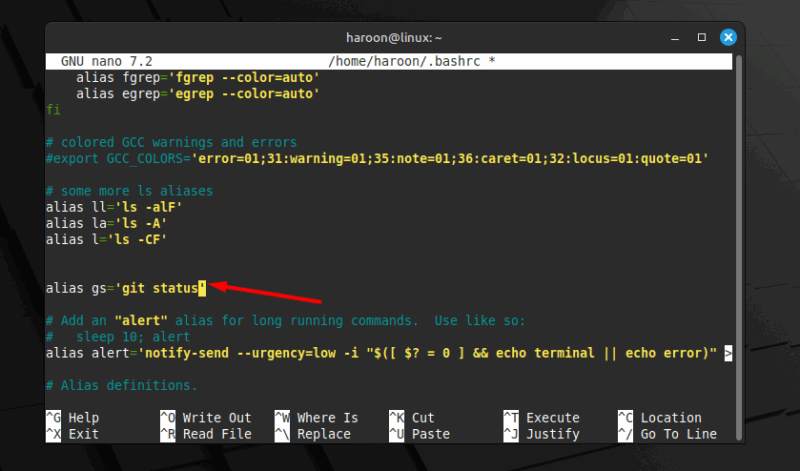
Save it, restart your terminal, or run:
sudo source ~/.bashrcNow they’ll be available every time you open a terminal. Further, I’ve got aliases for everything, especially for update and upgrade commands:
alias update='sudo apt update && sudo apt upgrade -y'Now, instead of typing the full command, I just type update, and it will do the rest.
In addition, you can even create aliases with parameters using functions:
mkcd() {
mkdir -p "$1" && cd "$1"
}
Now, mkcd projects/new-app creates the directory and jumps into it instantly. Just make sure to avoid overwriting built-in commands, or you’ll end up confusing yourself.
2. Search Through Your Command History Instantly
Scrolling through your terminal history with the up arrow can take forever. You know the command is in there, but getting to it means pressing the key again and again. Luckily, Bash has a built-in search that makes it effortless.
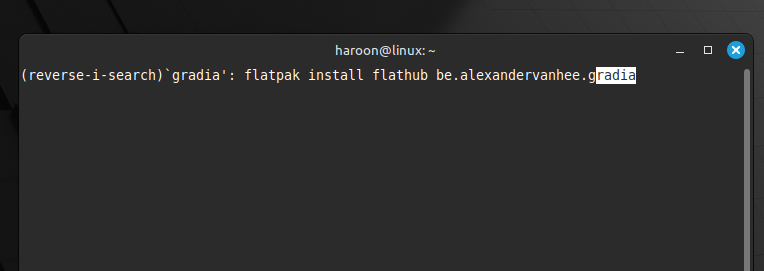
Just press Ctrl + R in your terminal. Your prompt will change, and you can start typing any part of the command you’re looking for. As you type, Bash instantly shows the most recent match from your history.
Alternatively, paste this snippet to your “~/.inputrc” file (if it doesn’t exist, create it):
"\e[A": history-search-backward
"\e[B": history-search-forward
set show-all-if-ambiguous on
set completion-ignore-case on
Reload your terminal. You can now type a few characters and use the Up/Down arrow to search the bash history for commands that begin with the typed character. For example, if you type cd / and press the Up arrow button, it will search your history for commands that start with cd /.
3. Chain Commands Together Using Pipelines and Redirection
Another great ability of Bash is that you can chain commands together. Instead of running commands one by one, you can connect them, so the output of one becomes the input of another. You can do this with the pipeline (|) operator.
For example, if you want to see only Python-related running processes, you don’t need to use two separate commands. Instead, you can chain them together like this:
ps aux | grep python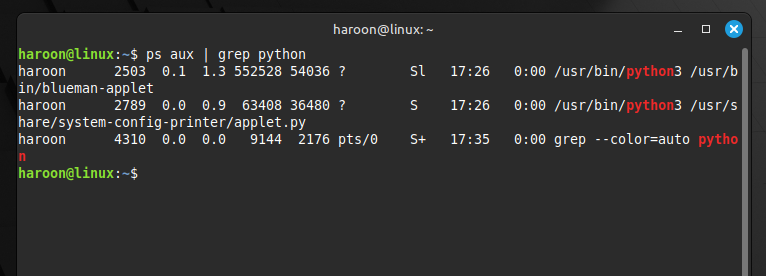
Here, ps aux lists all running processes, and grep python filters the list to show only the ones related to Python. In addition, you can keep chaining more than two commands to build quick one-liners, like this:
cat logfile.txt | grep "error" | wc -lThis counts how many error lines appear in a log file – three commands working together seamlessly.
Redirection is another essential tool. Instead of printing output to your screen, you can send it to a file. For example, let’s say you want to save the directory listing to a file. You can do that with:
ls -l > files.txtYou can also use >> instead of > if you want to append instead of overwrite. Redirection is especially useful for logs, backups, or anytime you want to save results for later.
4. Send Any Running Command to the Background
You just launched something that’s going to take forever, such as a large file transfer or a long job, and your terminal is now stuck. Instead of opening a new window, you can push it to the background.
For example. if something is running already, press Ctrl + Z. That suspends it and returns you to the shell prompt. Then type:
bgThat resumes it in the background, so it keeps going while you do other stuff. However, if you want to see which jobs are running or suspended, simply use this:
jobsYou can also bring one back to the foreground with this:
fg %1Use the job’s number; if you leave it out, fg picks the most recent. In addition, you can also start a command in the background from the beginning by appending & like this:
some_long_task &That way, it begins detached, and you get your prompt immediately. One more trick: if you’re worried the job will be killed when you close the terminal, you can run:
disown -h %jobThis bash command sends a “do not hangup” (SIGHUP) code to that job when your shell exits. Or use nohup at the start, just remember: background jobs still can write output to your screen, and not all commands like being backgrounded. Use redirection or nohup when needed.
5. Rerun the Previous Command With Root Privileges (sudo !!)
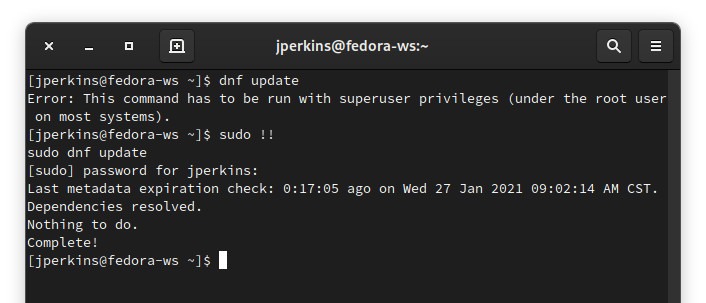
This is one that is really useful in one specific scenario that happens to me a lot. !! (bang-bang) will pull down the previous command in full. It may not seem useful, but if you think about all the times that you type a command that needs to be run under super user privileges, you’ll start to understand where this is useful.
A great example is installing scripts. Let’s say you run an installation script with “./SCRIPT-NAME.sh”, and it says you need to run it with superuser privileges. Just type sudo !!, enter your password, and you’re off to the races. It saves a bunch of time, and once you get that sequence in your muscle memory, you’ll be able to do it faster than when you were doing it wrong.
6. Run Multiple Commands Simultaneously
Sometimes you don’t want to sit around typing one command at a time. Bash lets you chain them together so they run one after the other without you having to wait. If you just want them all to run in sequence no matter what, you can separate commands with a semicolon (;), like this:
mkdir newdir; cd newdir; touch file.txtIf you only want the second command to run when the first one succeeds, use &&, like this:
sudo apt update && sudo apt upgradeOn the flip side, you can use || to run something only if the first command fails:
backup_database || echo "Backup failed!"You’re not limited to sequential commands, either. Add an ampersand at the end and the command runs in the background and freeing up your terminal. For example, you can open multiple apps right from your terminal in a variety of manners:
python script.py & firefox &This runs your Python script and opens Firefox at the same time. Also, Once you get comfortable with chaining, background jobs, and a little process substitution, you’ll stop thinking of commands as single steps and start treating them like building blocks you can snap together into bigger workflows.
7. Finding Commands with Apropos
Apropos (app-row-POE) is a command that allows you to find commands with man or manual entries based on their description. If you’ve ever found a man page of a command, it looks a little something like this:
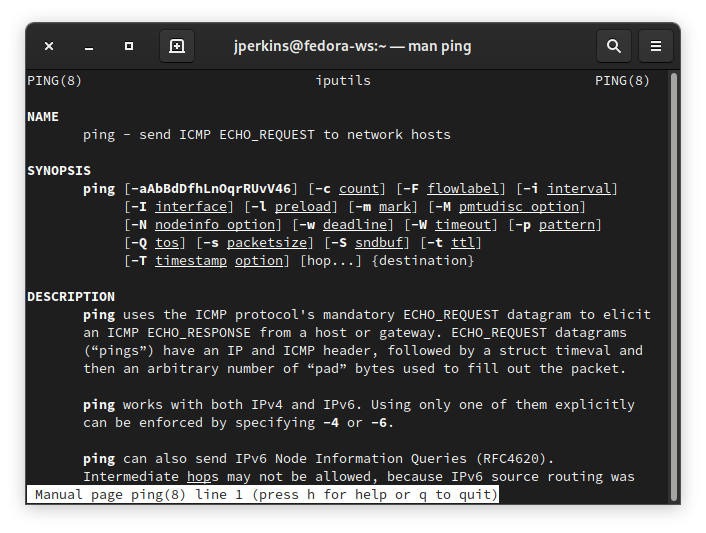
That “NAME” section at the top is what I’m talking about. If I wanted to find the ping command with apropos, I would type apropos icmp into my terminal and hit Enter. Note that it’s not case sensitive. This pulls up every command with a NAME entry that has “ICMP” in it.
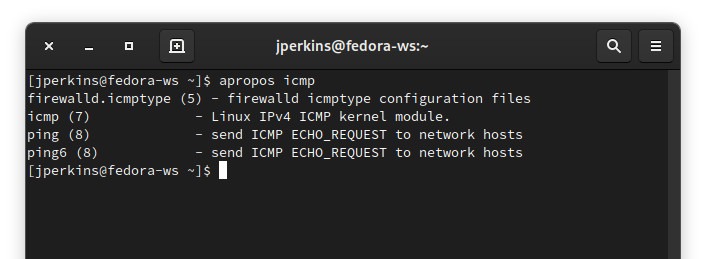
Another great use for apropos is exploring tools that you may not be familiar with, like selinux. Issuing the apropos selinux command will give you a list of all the different commands you can use to interact with the SELinux, getting you started on the road to enforcing efficiently.
8. Substituting in the Previous Command
Something that has saved me a ton of time in the terminal is figuring out how to substitute something in the previous command. If I misspell something or just need to substitute an option in the previous command, I can use a ^ key to pull the word I misspelled, then another ^ to put in the word or option I wanted.
Let’s look at an example. Let’s say I want to ping “maketecheasier.com” to make sure I have complete Internet connectivity (including DNS). But if I misspell something, I could get some kind of error. So if I accidentally ping maktecheaser.com (missing the “i”), I’ll have some troubles.
To substitute the misspelled option, I can type ^maktecheaser.com^maketecheasier.com, and the command will run as expected. This is a simple example, but let’s say you run a long command with lots of options or misdirect the output or errors of your command. Being able to substitute > for >> in a complex command is a lifesaver.
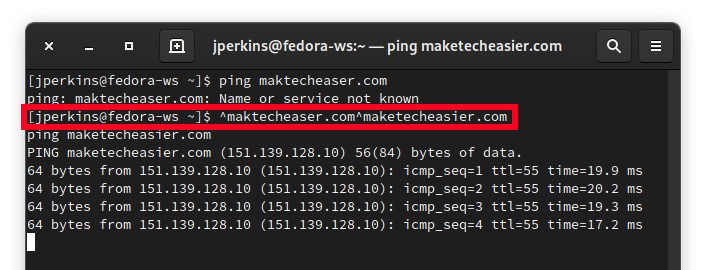
Another example is with systemd and the systemctl command. I’ll often issue multiple different systemctl subcommands, like start, stop, enable, or disable a service. I can just sub them out with ^start^enable, which will save me time.
9. Passing Arguments from Previous Commands
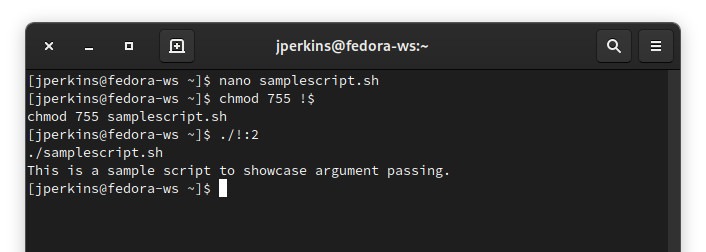
Using !$, we can pass the last argument from a command down to the current command, and with some slight variations, we can pass any of the arguments down to our current command.
Let’s look at some examples. If I’m editing a script, I may use the command nano samplescript.sh. Once I’m done with that script, I want to make it executable, so I may change the octal permissions to 755. To do that, I could use the chmod 755 !$ command. Then, to pull the name of the script again, I could use ./!:2 to pull down the second argument.
Some other examples:
!^ - first argument
!* - all arguments
!:2-$ - second through last arguments
!:2-4 - second through fourth arguments
You can substitute your numbers to pull any arguments you’d like. Bash will keep close to 100 arguments on tap with this method, and you can easily work quickly through some menial tasks like this.
I hope you enjoyed these Bash tips and tricks to help you work smarter in the terminal. You should also learn about Bash variables and special characters.








