Have you ever needed to add new lines of text to an existing file in Linux, like updating a log, appending new configuration values, or saving command outputs without erasing what’s already there? It’s a common need, especially for developers, system admins, or anyone managing scripts and automation tasks. Accidentally overwriting a file can cause data loss, so knowing how to append text instead of replacing it is crucial. In this guide, we’ll explore some useful Linux commands to append content to an existing file.
Overwriting vs. Appending
Appending and overwriting both involve adding content to a file, but they do it in very different ways. Overwriting replaces all existing data with new content, effectively erasing what was previously in the file. Appending, on the other hand, adds new content to the end of the file without touching the existing data.
Appending Text to a File Using the Double Redirect Operator
The double redirection operator (>>) is a simple and efficient way to add new content to an existing file in Linux. It automatically creates the file if it doesn’t exist, and appends text without removing existing data.
Note: you have to be careful when using the redirection operator. A single redirection operator (>) will overwrite the content in the file, while a double redirection operator (>>) will append the text to a new line.
For example, you can use the echo command with the >> operator to append log entries to a file.
echo "Backup Completed Successfully on $(date)" >> backup.logThis command records a timestamped message at the end of the “backup.log” file.

You can also use the printf command with the double redirection operator (>>) to append text while maintaining better control over formatting. It’s commonly used to add structured data or formatted messages to files.
printf "User login attempt: %s\n" "$(date)" >> system_activity.txtThis command appends a formatted log entry with the current date to the “system_activity.txt” file.

You can also use the cat command with the double redirection operator to combine multiple files. Doing this appends the contents of one file to another, which helps maintain combined reports or logs.
cat mte.txt >> example.txt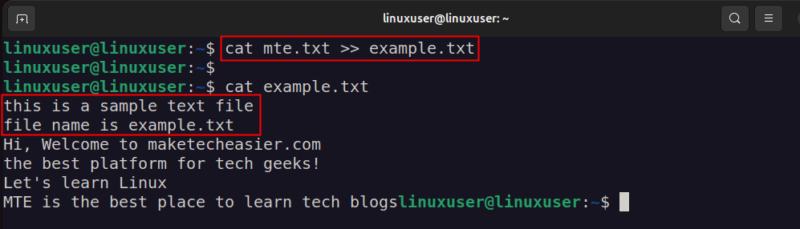
Last, but not least, you can also use the double redirection operator to save the output of any command to a specific file.
ls >> logs.txt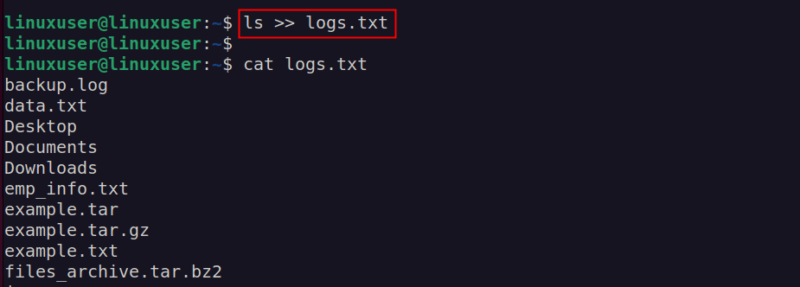
Remember, >> only adds text at the end of the file. It can’t place it between lines.
Using the tee Command to Append Text to a File
The tee command reads input from the terminal and writes it to a file. It’s often used when you want to save a command’s output while still viewing it on the screen. This can be done in two ways: using the tee command with the -a option or using the double redirection operator (>>).
To append content using the -a option:
tee -a mte.txtThis command will enter you into an interactive mode where you can type any text. When you are done, press Ctrl + D to exit.

In the second method, you can use the redirection operator with the tee command like this.
tee >> mte.txtThis works the same way, but the text you type won’t appear again on the terminal.
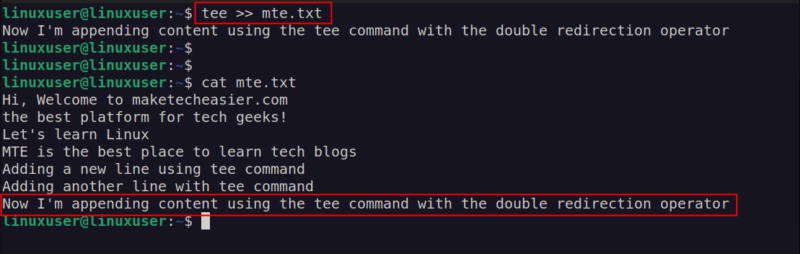
Make sure to use the tee command with the -a flag or >> when appending. Otherwise, the file will be overwritten.
Adding Text to a File Using the sed Command
The sed command, short for stream editor, is used to modify text in files or input directly from the terminal. This command is useful when you need to add text at specific lines or match certain patterns in a file.
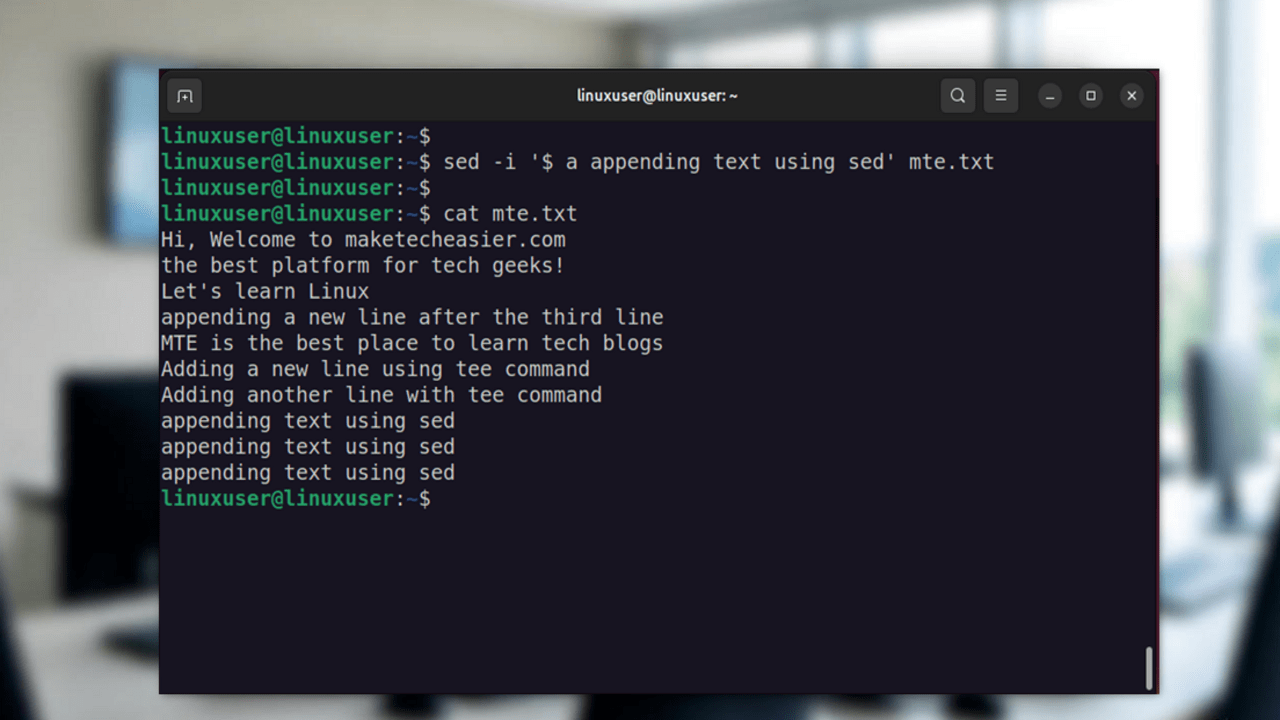
sed -i '$ a\' Replace text_to_append with the text you want to add, and file_name with your actual file name. For example:
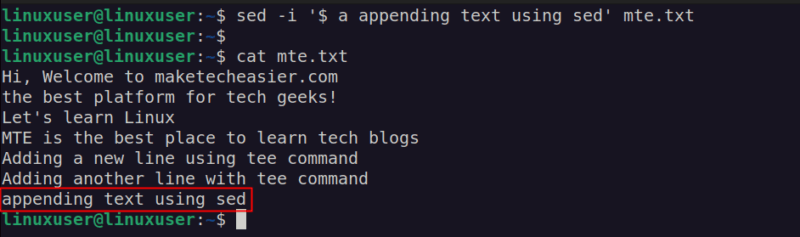
sed -i '$ a appending text using sed' mte.txtHere, we use the $ sign to add the new line at the end of the file, while a stands for “append”, telling sed to add the new line to the existing content.
The sed command also lets us insert text at a specific line number. For example, to add a line after the third line, use 3 instead of the $ sign.
sed -i '3 a appending a new line after the third line' mte.txt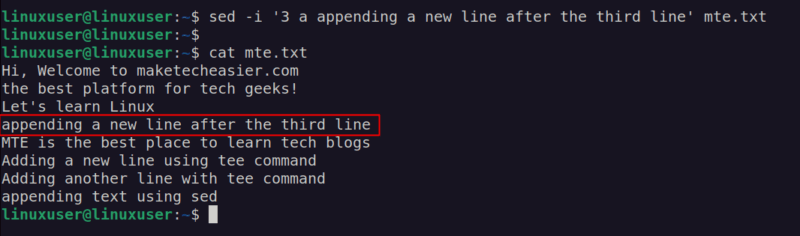
Apart from these command-line tools, you can also use text editors like Nano and Vim to append content at any specific location.
Redirecting Standard Output and Standard Error to a File
In Linux, you can redirect both the standard output and standard error of a command to the same file. This is helpful when you want to store all command results and error messages in one place for review. For example, if you want to record both successful and failed outputs of the ls command (such as when some directories don’t exist).
ls /etc /unknown >> output.log 2>&1Here, 1 refers to the standard output, and 2 refers to the standard error.
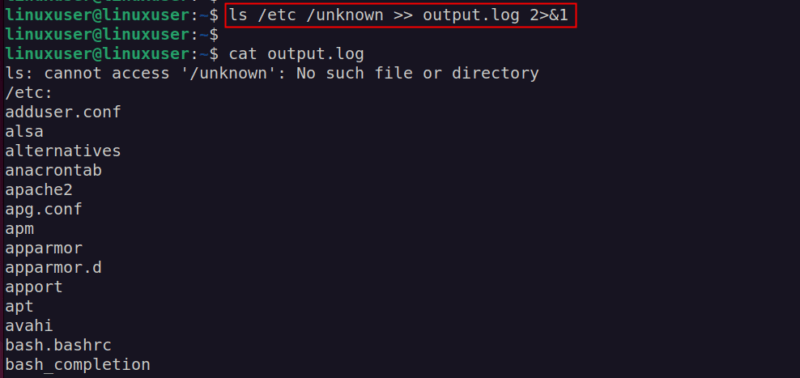
In this example, the system lists the contents of “/etc” because it’s a valid directory, but it shows an error message for “/unknown” since it doesn’t exist. The command appends both the output and the error message to the “output.log” file.
Wrapping Up
Appending text to a file is a useful skill for managing logs, automating scripts, and saving command outputs without losing data. Learning these commands helps you update files efficiently and prevent accidental overwriting. You can also explore more useful tools for efficiently working with text on the command line to enhance your command-line productivity.








