Whenever Windows slows down, Task Manager is the go-to solution. However, it doesn’t continuously track performance in the background, so it can’t catch resource spikes or random freezes. This is where AppControl lets you rewind time to catch the exact app responsible, ending the guessing game for good.
Meet AppControl: The Task Manager Upgrade
AppControl is an alternative to Windows Task Manager that focuses on real-time monitoring with data recording for up to three days. It constantly runs in the background to keep track of resource usage and lets you go back in time using a handy visual timeline.
While it has many handy features, the main problem it fixes is “vanishing processes”. If you notice a quick drop in performance, which is fixed before you can open Task Manager (or you are unable to open it), Task Manager won’t show the cause as its monitoring starts on launch. Since AppControl tracks in real-time, you can track the cause of the issue, as well as the process’s behavior over time to find fixes.
The app also has an intuitive, modern interface with smooth navigation, unlike most other Task Manager alternatives. Even then, it’s completely free to use without any restrictions or ads.
Rewind Time to Diagnose Random Resource Spikes and Freezes
Unlike the Task Manager, AppControl combines both the app/process list and performance tracking in a single interface. You’ll see a graph at the top showing the performance of the currently selected resource. If your game stutters or your browser hangs, you don’t have to guess what happened. You can simply drag the timeline back up to three days to pinpoint the exact second the CPU spike occurred to see which processes caused it.
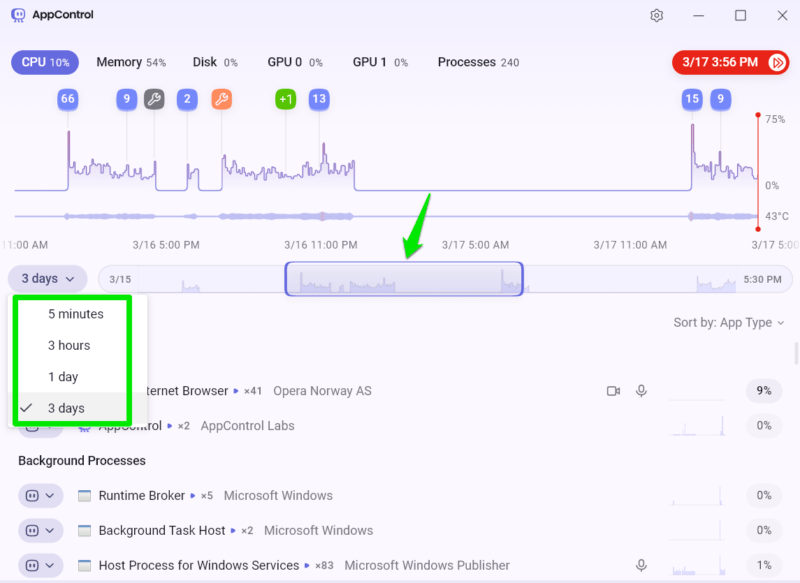
The graph itself is very interactive, with tons of useful information for system diagnosis and event tracking. You can hover the mouse cursor over the graph to see the exact percentage of resources each process was using at a particular time. If you are facing high temperature issues, you can also track temperature spikes over time and see which processes caused them.
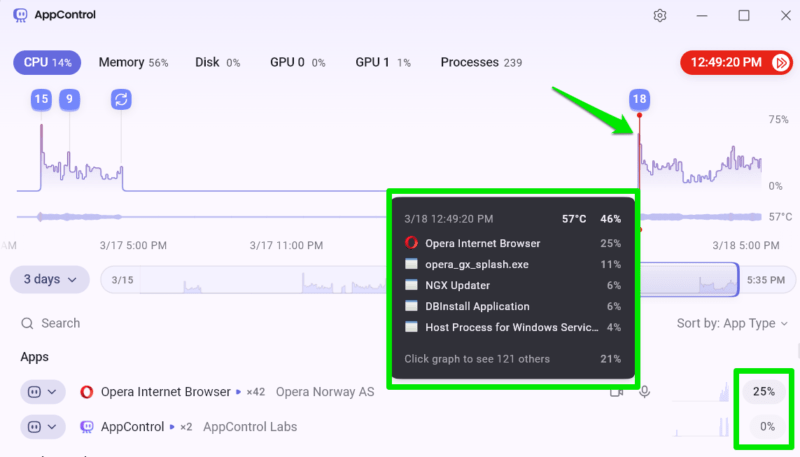
The graph also keeps track of important events and highlights them throughout history, like apps/processes launching for the first time, app updates, driver installations, etc. These events are great for finding anomalies at a glance, as you can correlate the spikes in the graph with unique events.
Protect Your Privacy By Exposing Apps Accessing Your Camera and Mic
Another interesting feature that Task Manager doesn’t have is the ability to single out apps that can access sensitive sensors like the camera, mic, and location. If you think someone is remotely accessing your PC and spying on you, just move to the Apps section at the bottom, and you can sort apps by their access to sensors. Here, select the sensor you want to track, and it will show all apps with access.
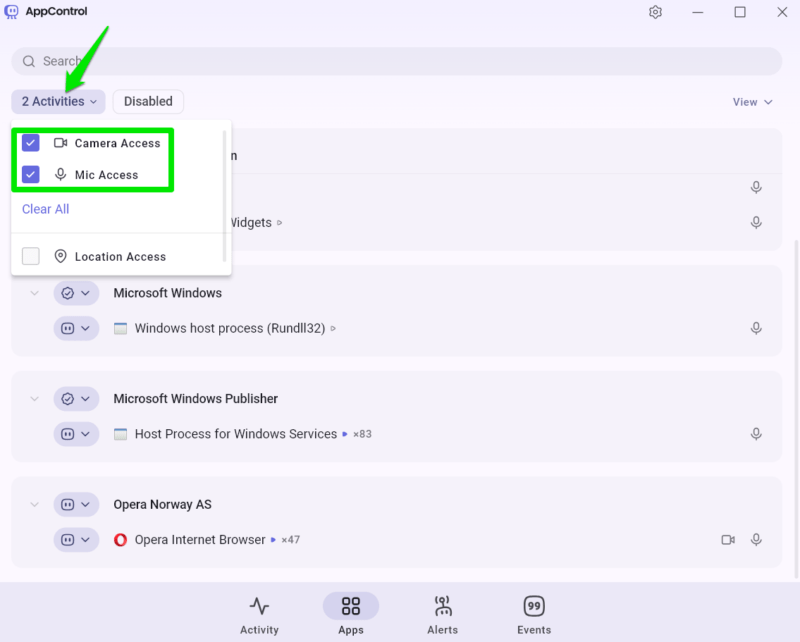
You’ll be able to see exactly when an app accessed the PC’s sensitive sensors. You can use this information to ensure no app is spying on you secretly. This feature is further enforced with custom alerts to learn exactly when a specific process accesses a sensor (more on it below).
Stay Secure With Custom Activity Alerts
To top it off, AppControl comes with built-in alerts for sensitive activities, which can be found in the Alerts section. Rather than manually checking for suspicious behavior, AppControl acts as a real-time watchdog. It actively warns you the moment an unrecognized program launches or accesses your microphone, giving you the chance to block threats before they do damage.
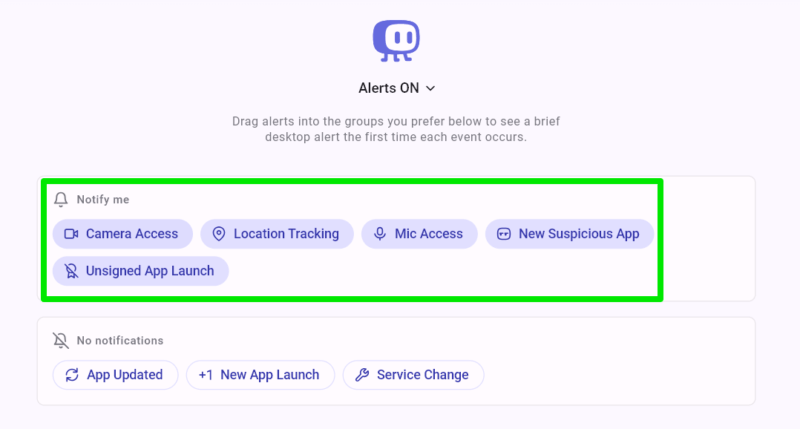
While I personally think all of these activities are worth enabling alerts for, I recommend at least enabling alerts for unsigned apps, sensor access, and suspicious app launch. Although keep in mind that for the suspicious app checking feature, it will check the apps against an online database. Don’t enable this alert if you want to ensure the app only works offline for privacy.
Can AppControl Replace Windows Task Manager?
I won’t say AppControl will fully replace the Task Manager, but it can greatly minimize your dependence on the Task Manager while improving your experience. Most people open Task Manager to kill a process or track resource usage, which AppControl can actually do better. However, you’ll have to open Task Manager for advanced tasks like accessing in-depth component information, setting process priority, and managing startup programs.
Keep in mind that AppControl uses about twice the resources compared to the Task Manager. It isn’t a lot considering how few resources the Task Manager uses, but it’s worth considering when comparing the two.
I recommend allowing AppControl to start with Windows and let it sit in the system tray to track resources. Other than the configured alerts, you won’t even notice it’s there until you need its retrospective analysis. If you prefer a more all-in-one solution, you should give PC Manager a try.