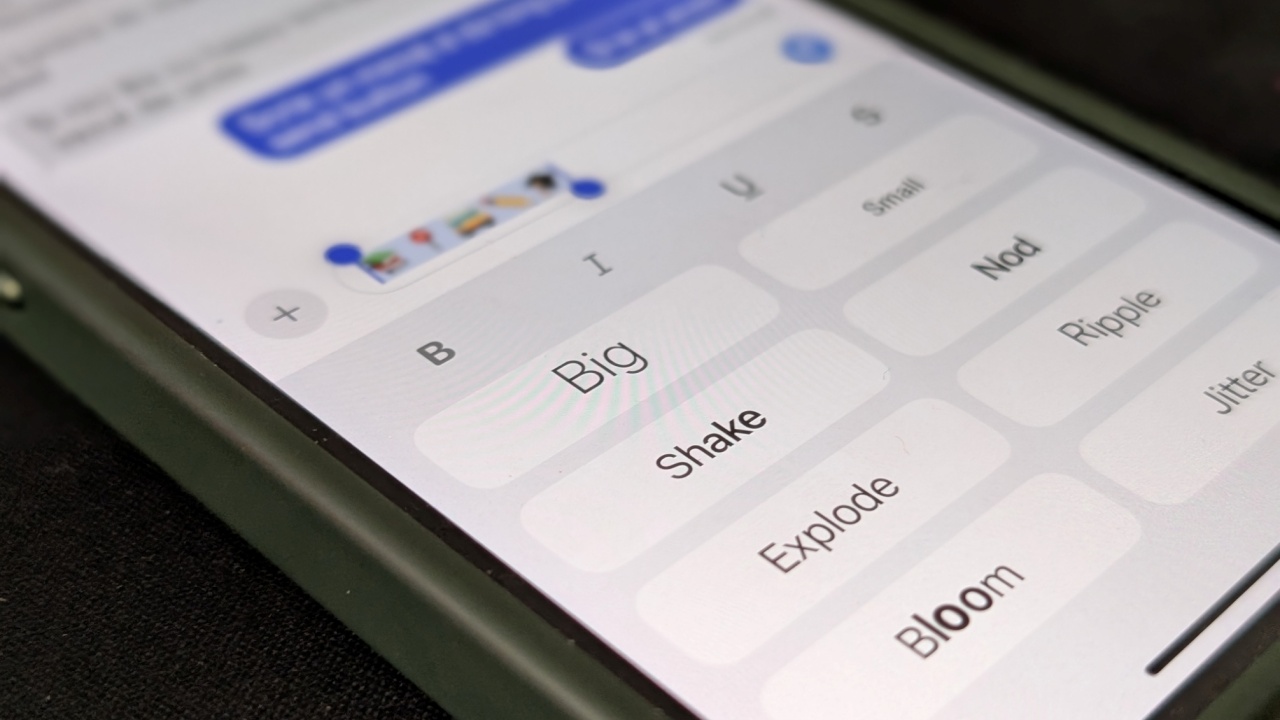
While Apple’s next iOS 26 release may be grabbing headlines, there’s still a lot to discover in iOS 18. For instance, did you know that you can animate your texts and emojis when texting from the Messages app? Here’s a closer look at how you can liven up your chats right now.
Good to know: if your iPhone has a Dynamic Island, here’s how you can hide it from view.
Add Simple Animations to Text in Messages on iPhone
To access various simple text effects in your Messages app, you need an iPhone or iPad running iOS 18 or above. Make sure you check your software version by going to Settings -> General -> About. See the iOS version there. By the way, if you ever want to stop an iOS update while it’s in progress, here’s how to do that.
Next, go ahead and open the Messages app and go to an existing thread. Or start a new one.
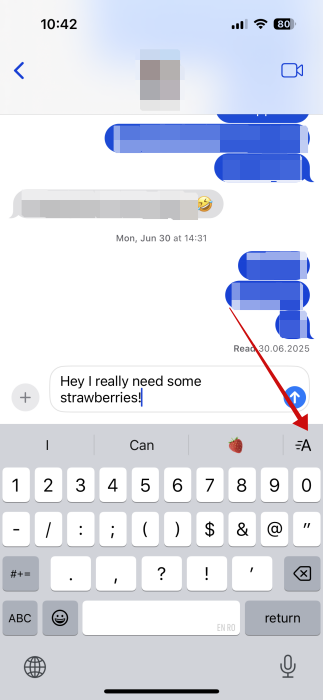
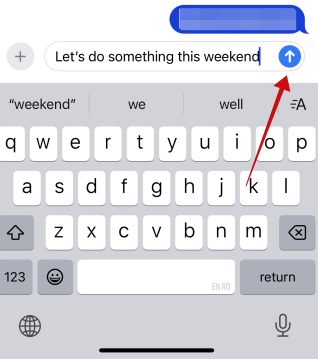
Type your text and press the effects button (A) that appears in the suggestion bar underneath.
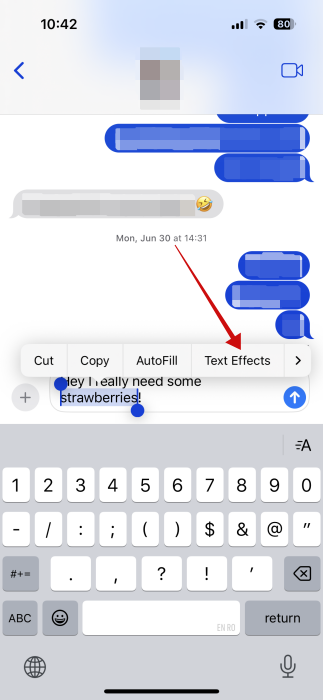
Alternatively, double tap on a word to select it or the entire message and find the Text Effects option.
A menu will appear showing a series of simple effects including Ripple, Jitter or Shake. You can go ahead and apply each in turn to see what they accomplish.
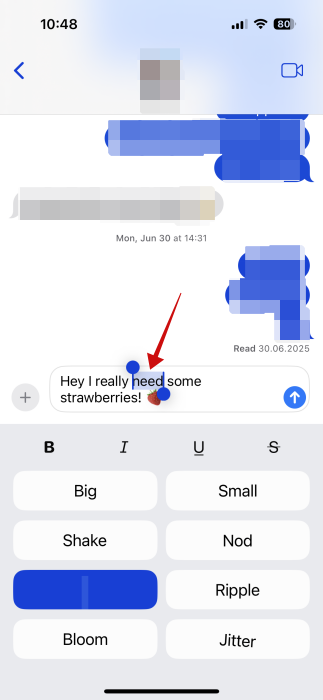
It’s possible to have multiple animations on one phrase. For instance, on one word you can apply an effect while on another, you can opt for a different one.
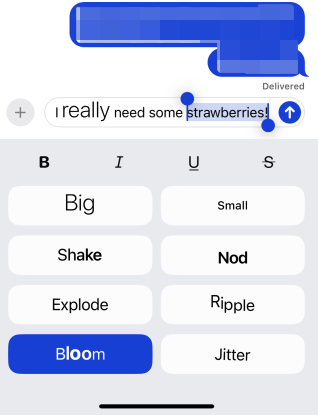
The best part is that you can also apply these fun effects on emoji or stickers. Speaking of which, did you know that you can use Emoji Kitchen on iPhone as well? Here’s how.
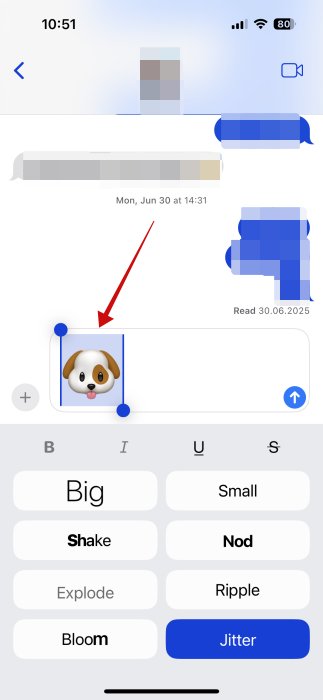
From the same menu, you can also format your text – you have the options to bold, italic, underline or strikethrough the text.
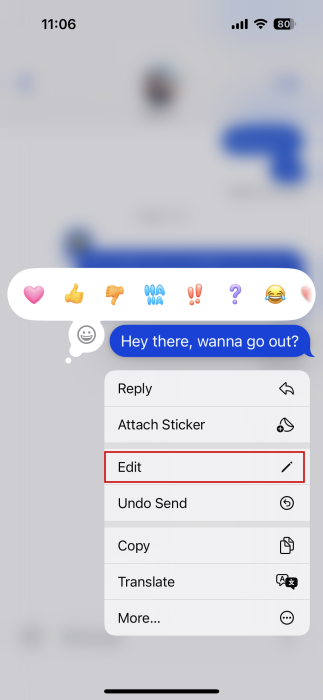
If you’ve sent the message already, don’t worry, you can add animations later to your text, provided the message is recent. You can’t edit an old text.
Long press on the message and select Edit in the drop-down menu.
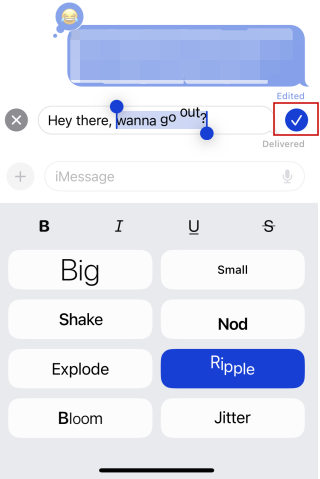
Tap the effects icon and add your animations from there. Then press the tick icon on the right to save the new message.
Tip: here’s how you can extract and copy text from an image on iPhone.
Use Text Effects for Messages on iPhone
If you want to make your messages stand out even more, try adding these additional text effects.
In the Messages app, type your text, but don’t send it just yet. Instead, long press the Send button on the right.
Go through the effects options in the bar that appears on the right and select which one you like best. For instance, Invisible ink will hide your message from view by blurring the text. Select your effect and then press on the small blue arrow to send the customized message in chat.
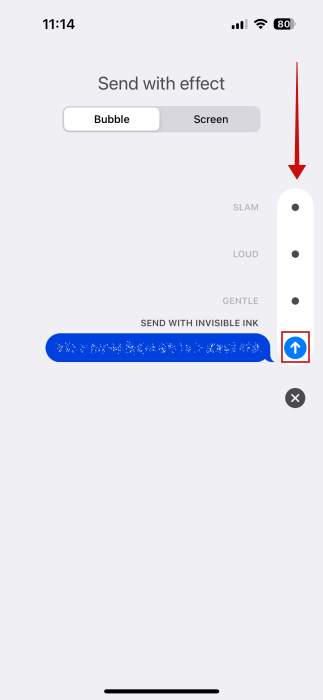
These are effects that only apply to the message bubble. Alternatively, switch to the Screen tab at the top, to try a series of full on-screen effects for your text.
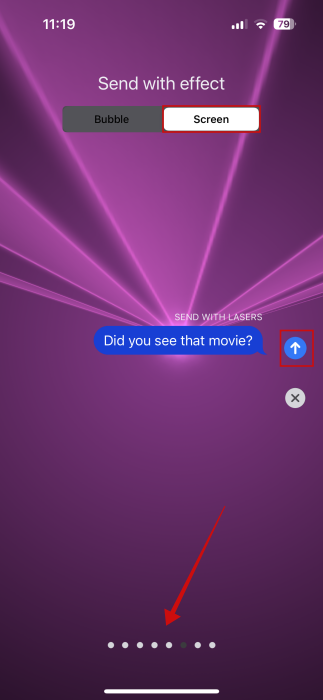
As you can see in the previews, these effects will take over the entire screen. Swipe right to view the options including Spotlight, Balloons and Confetti. You can also add emoji and stickers to your message just like with the simple effects. To send the text with your chosen effect, press on the tiny blue arrow.
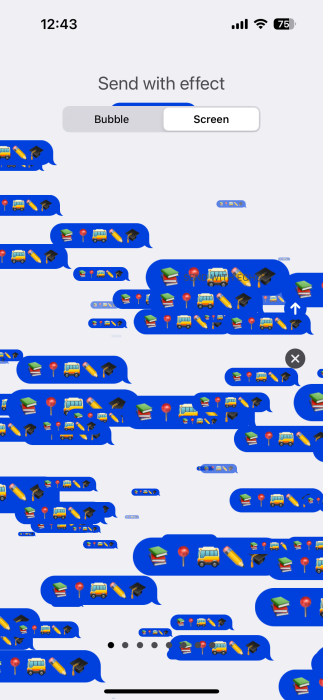
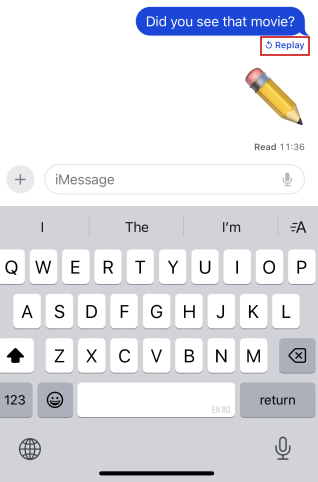
The effect will play only once for the first time the receiver views the message. However, it’s possible to Replay it by pressing the small button underneath it.
Trigger Reactions in Messages on iPhone
Some specific words will trigger reactions in the Messages app. For instance, try writing “Happy Birthday” and the screen will immediately be filled with balloons. This feature basically taps into the full on-screen effects from above, but doesn’t require you to access the Effects menu.
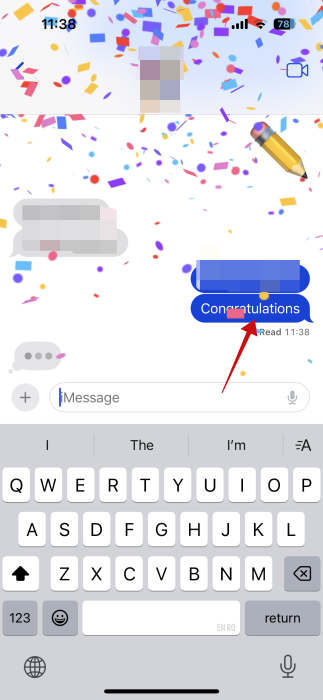
Other phrases that trigger reactions include:
- Congratulations – drops confetti
- Pew pew – launches a laser light show
- Happy New Year – launches fireworks/firecrackers
FYI: learn how to turn off Stolen Device Protection on your iPhone, if you find it annoying.
Disable Animation Effects for Messages on iPhone
If you find these effects too disruptive, you can disable them too.
Open the Settings app on your iPhone or iPad and navigate to Accessibility -> Motion.
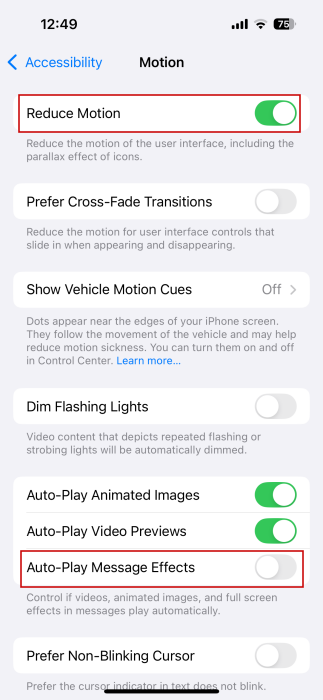
Turn on the Reduce Motion option at the top. On the same screen, turn off the Auto-Play Message Effects toggle.
After mastering text animation in the Messages app, the next step is efficiency. Explore how to create text shortcuts on your iPhone to save time while typing.








