Google’s adding AI into all of their products, including YouTube. If you’re a premium member, you get to be one of the first to try out the new AI-powered YouTube search to get a shortlist of videos for your query.
Enable AI-Powered YouTube Search
Initially, Google’s only letting YouTube Premium members test out this new AI search feature. If you’re a free user, be patient. It’ll be available soon. Also, it’s only available for English videos. The good news is it works on both iOS and Android.
Currently, it’s only available in the YouTube mobile app. From the app, tap your profile icon at the bottom right and tap the Settings cog at the top right. Scroll down to Try experimental new features. Tap Try it out under AI-powered search results carousel. You may have to restart the YouTube app before it works properly.
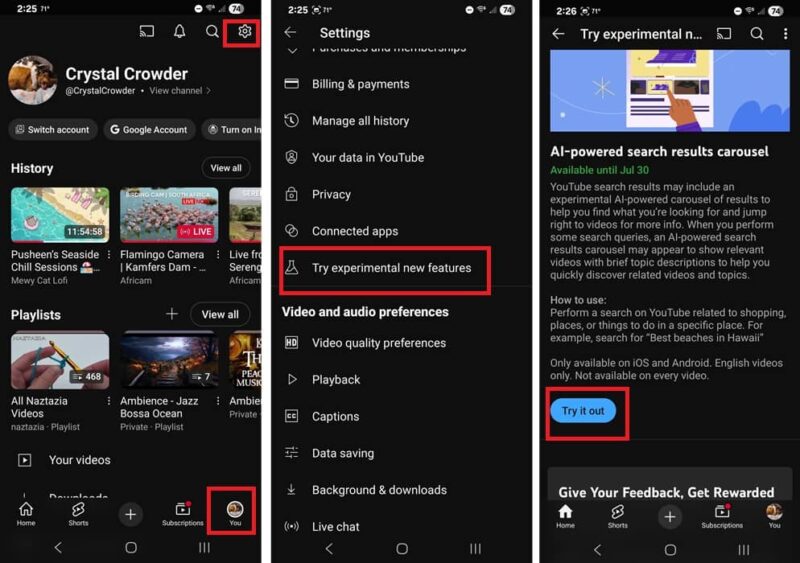
The search feature is experimental, so it’ll likely change before it’s officially released to all users. Just below the Try it out button is the option to give feedback to help improve the feature.
Trying an AI-Powered Search
Just like with Google’s AI Overviews in Google Search, YouTube’s AI search is rolling out slowly. For now, it only works with a small portion of queries. Google suggests limiting YouTube searches to shopping, things to do in specific places, and travel-related videos.
To test it, I started with the suggested search of “best beaches in Hawaii.” Instead of the usual list of results, I got Highlights along with a carousel of results.
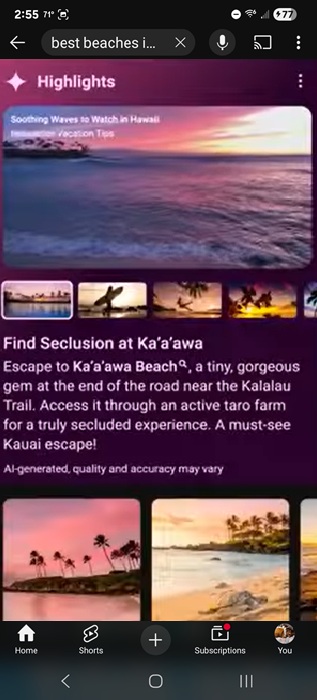
For each video in the carousel, there’s an AI-generated description below it. It’s a quick way to see if the video is applicable to your search. Of course, since it’s AI-generated, it may not always accurately represent the video.
For me, most YouTube search results never showed the carousel. Sometimes, I could enter the same search several times and the AI-powered search carousel may only appear once.
Just like with AI Overviews in Google Search, you don’t have to limit yourself to just the AI results. If you continue scrolling down, you’ll see your normal search results.
Interacting With Video Results
Here’s the big problem with the AI results. You can’t interact directly with the videos. You only see what the AI search believes is the most important part of the video for your query. If you want to like, comment, or subscribe to the channel, you’ll need to click through.
Think of the AI results just like scrolling through the regular search results. You still have to click the video itself to interact with it.
I highly suggest clicking on the most relevant videos in the carousel and giving them a “like” if they helped. This helps support the channel’s growth.
Interact With Conversational AI
If you don’t have the AI-powered YouTube search carousel, you still have another way to use AI directly on YouTube. Conversational AI originally launched for YouTube Premium users only, but is now launching for free users too.
Search YouTube as usual on the mobile app. Click a video to load it. Look for the Ask button just below the video. Tap it to start asking questions about the video.
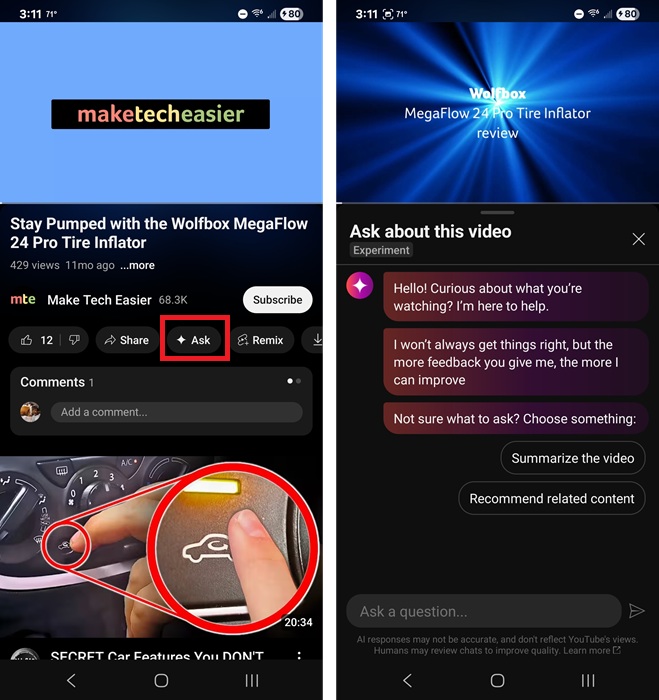
Depending on the video, you’ll see a list of suggested questions. The most useful for most users is probably “Summarize the video.” You’re not limited to just those suggestions. Ask anything you want.
For instance, if you’re watching a music video, you might ask for related artists, lyrics to the song, or what are some of the artist’s other popular songs.
Using Gemini in Place of YouTube Search
One final option to still have AI-powered YouTube search results is to just use Gemini. Since Google is behind Gemini, it integrates well with the YouTube app. You can then create detailed queries without having to first search and then use the limited built-in filters to find the video you want.
Using Gemini to search works well on both desktop and mobile. Of course, you don’t have to use Gemini if you don’t want to. Use ChatGPT or any of the other popular alternatives. These won’t integrate directly with YouTube, but you can limit your results to YouTube as part of your prompt.
Opting Out of AI-Powered Search Carousel
For now, all you have to do is go back into the YouTube mobile app Settings, tap Try experimental new features, and toggle the feature off.
The experiment is only available until July 30th. Once it’s officially released, YouTube will likely implement a way to turn off the AI search results, just like Google did with the AI Overviews.
While Google might be pushing AI, including having AI summaries in Gmail, you don’t have to use anything you don’t want to use.
If you want to get more out of YouTube beyond AI, check out these features you’re probably not using. Or, try these tips to improve your YouTube recommendations.








