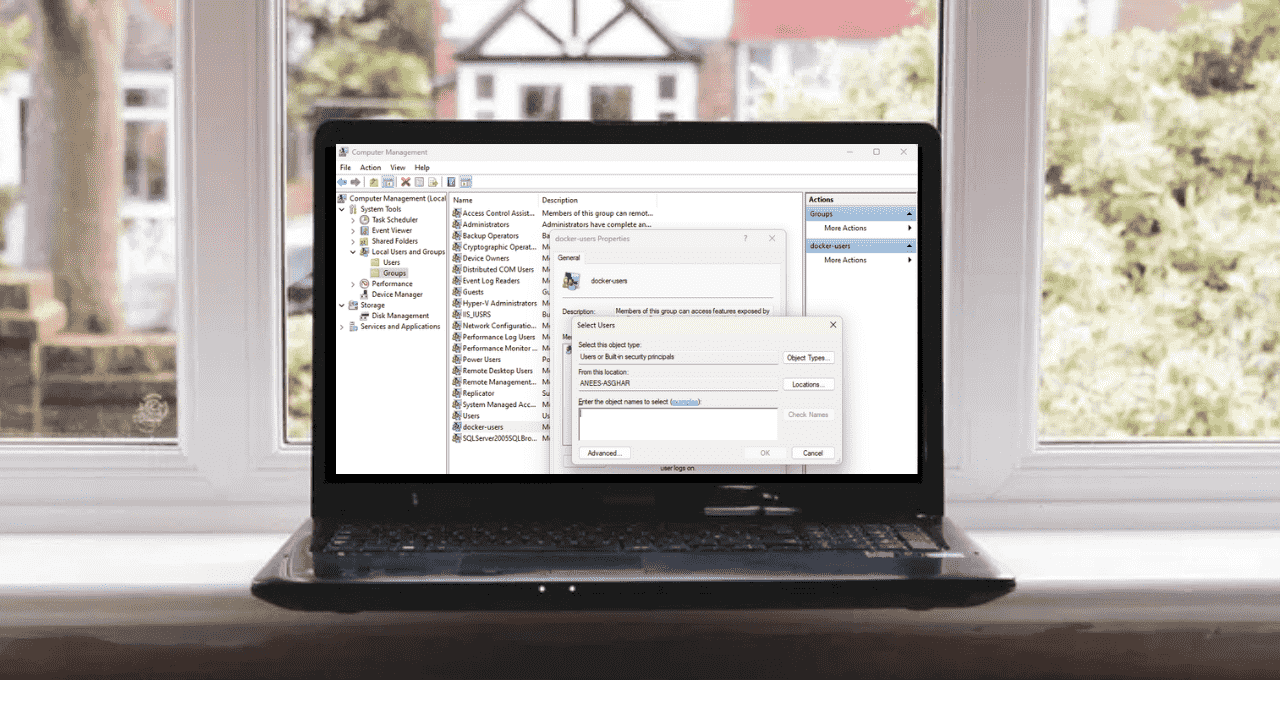
Adding your account to the “docker-users” group lets you run Docker commands without admin privileges. This not only makes your workflow smoother but also ensures safer use of Docker by reducing the chances of accidental system changes. In this guide, we’ll show you how to add your account to the “docker-users” group and work with Docker more effectively.
Why Joining the Docker-Users Group Matters
On Windows, users can belong to multiple groups, which offers flexibility but often complicates permission management. Docker assigns User IDs (UIDs) and Group IDs (GIDs) to control access inside containers. To simplify this process on Windows, you can join the “docker-users” group, which allows you to run Docker commands without administrator rights. This makes daily tasks easier, keeps access consistent without switching accounts, and lets system administrators manage permissions centrally.
Before proceeding with the process of joining the “docker-users” group, make sure Docker is installed on your system.
Add Yourself to the Docker-Users Group Using the GUI
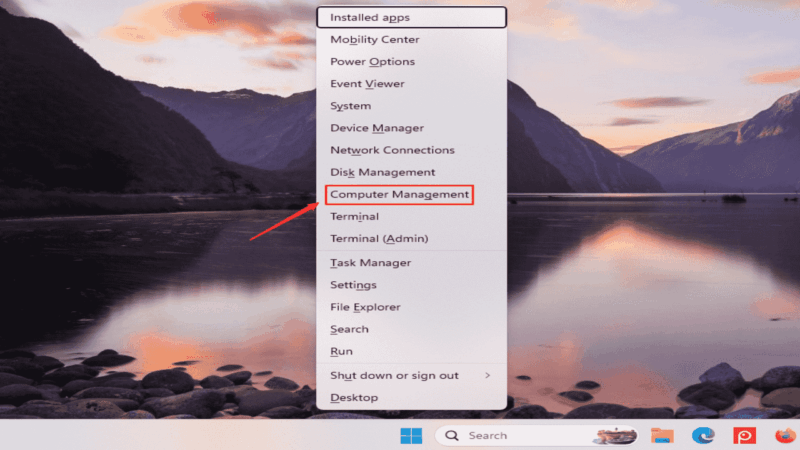
To add yourself to the “docker-users” group on Windows, first, open the Computer Management window. To do this, press Win + X and select Computer Management from the context menu:
After this, navigate to the Local Users and Groups section from the left-hand pane. Expand it and then click on Groups to see a list of all available groups on your system.
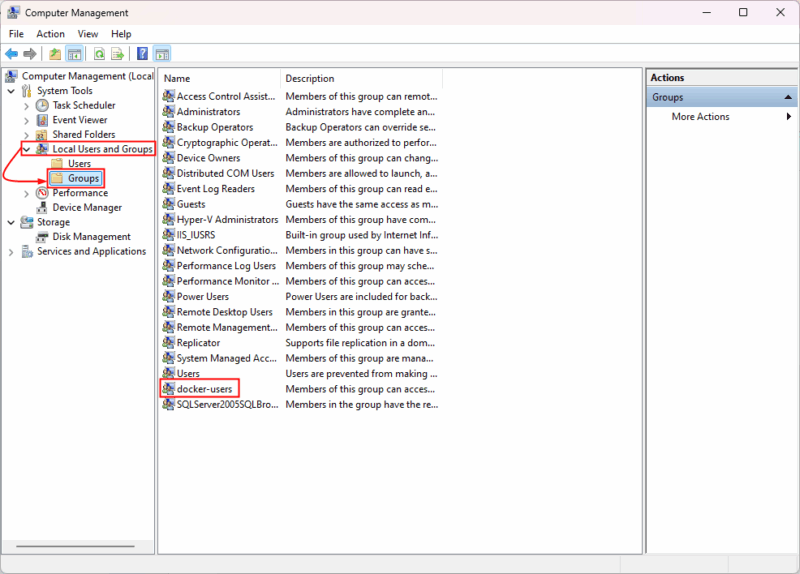
From the available groups, locate the docker-users group and double-click on it to open the properties window for that group, where you can manage its members. Now, click the Add button to include your user account in the group.
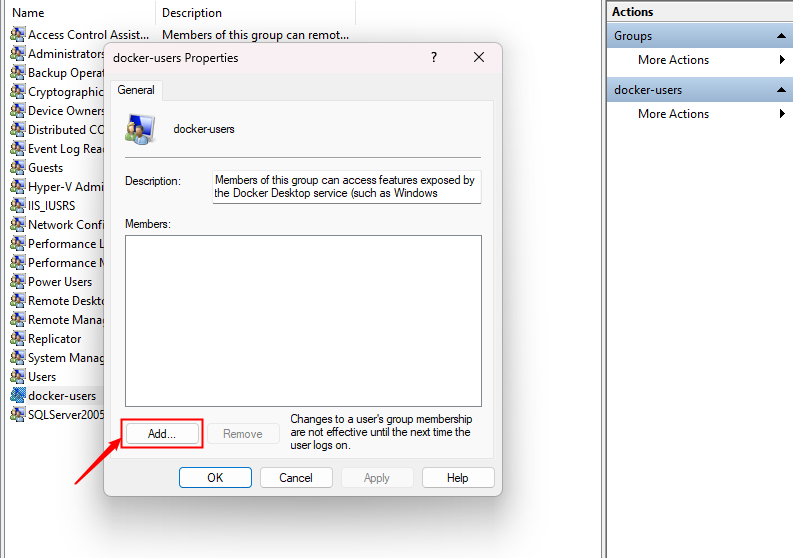
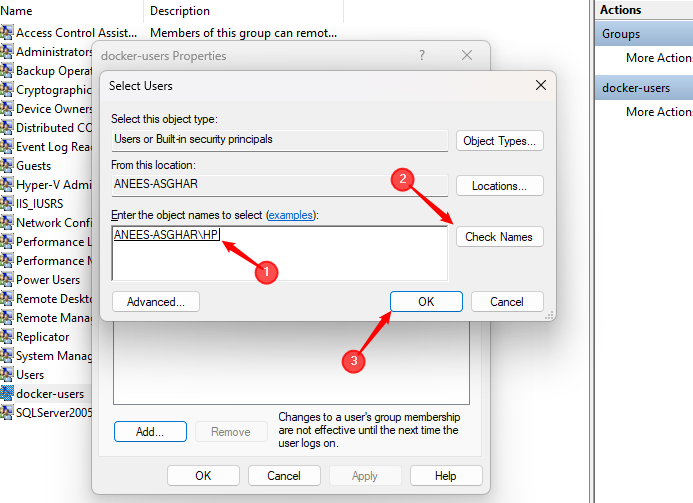
A new dialog will appear where you need to type your Windows username. After this, click on Check Names to verify it. If the system recognizes your account, confirm the selection by clicking OK.
After successfully adding your account, click Apply and then OK to close the “docker-users” properties window.
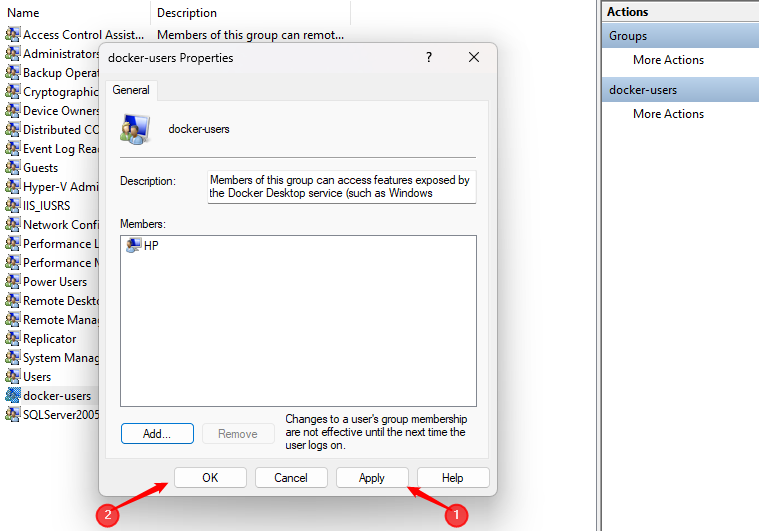
Finally, restart your computer or sign out and sign back in for the changes to take effect. Once you log in again, you will be part of the “docker-users” group and can run Docker Desktop without requiring Administrator permissions.
Add Yourself to the Docker-Users Group Using the CLI
If you prefer using the command line, you can add yourself to the “docker-users” group through either Command Prompt or PowerShell. However, make sure to open CMD or PowerShell as an administrator.
Run the following command to add your Windows account to the “docker-users” group:
net localgroup docker-users /add Make sure to replace
net localgroup docker-users "Anees-Asghar\HP" /add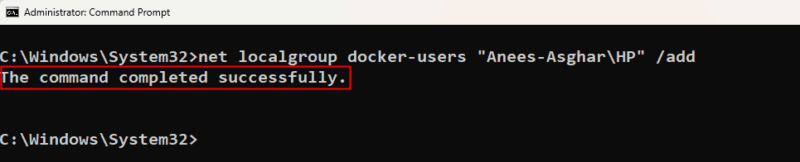
For PowerShell, you can execute the following command as an administrator to add yourself to the “docker-users” group.
Add-LocalGroupMember -Group "docker-users" -Member "Anees-Asghar\HP"
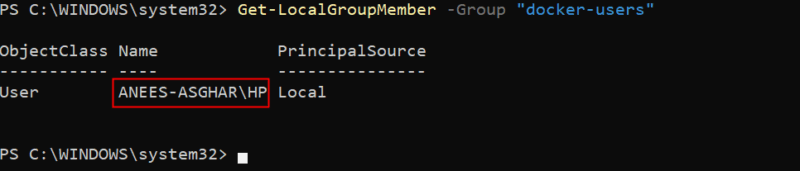
After this, you can confirm your group membership by executing the following command:
Get-LocalGroupMember -Group "docker-users"This command will return all the users available in the “docker-users” group, including “ANEES-ASGHAR\HP”:
Fix Common Issues
You may face some errors when adding Windows users to the “docker-users” group. These errors can be related to permissions, command syntax, pending system changes, etc. Here are some of the most common ones that you may encounter:
1. Access Denied Error
The “Access is Denied” error occurs when you run the net localgroup or Add-LocalGroupMember command without administrator privileges. Windows blocks the action because modifying user groups requires admin permissions.

To fix this issue, reopen Command Prompt or PowerShell as an administrator and then execute the command again.
2. Already a Member of docker-users Group
You may encounter the error “specified account name is already a member of the group” when you try to add a user who is already part of the “docker-users” group:

This indicates that the user is already added to the group, so no further action is needed.
3. Syntax Error
If you type the command incorrectly, Windows will throw a syntax error. For example, the following command misses the forward slash from /add. As a result, we encountered the following error:
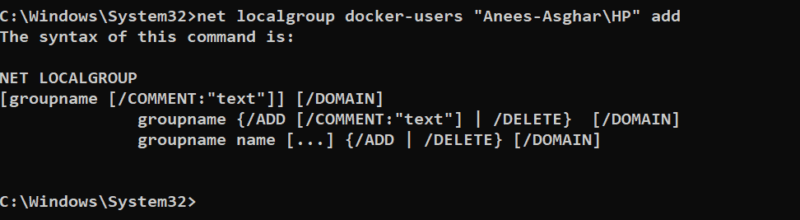
To fix this error, check your command syntax and run it again correctly. If the problem persists, log out and back in, restart Docker Desktop, and make sure the Docker service is running.
Wrapping Up
By adding your account to the “docker-users” group, you gain smoother access to Docker without admin privileges. This not only reduces permission issues and prevents accidental system changes but also lets you focus on building and managing Docker containers with confidence and ease.








