

Google Chrome offers one of the best browsing experiences on desktop and mobile devices alike. A big reason for this is that Google is constantly adding new features to it. Some of these come in the form of experimental hidden flags, but fortunately, you don’t have to be super tech-savvy to be able to take them for a spin yourself.
For example, did you know you could enable a Read Later list in your browser, which can then be accessed across all your devices? In this article, we explain how you can create your own reading list in Chrome.
What Is Chrome’s Read Later List and Why Should You Get It?
Chrome’s Read Later list lets users temporarily save pages they’d like to view and read later. But don’t we already have Bookmarks? While this in indeed the case, Read Later provides a handy separate space where you can deposit all your reading materials without mixing them with your other bookmarks.
Especially if you’re the proud owner of a gigantic bookmark list, the Read Later list removes the need to have to dig into this bottomless pit each time you want to go back to an article.
Also read: 11 Chrome Flags to Boost Your Browsing
How to Enable Your Read Later List on Chrome for Android
First, let’s take a look at how you can enable the feature on your Android device. To be able to access the list in your browser, you’ll have to perform the following steps on your desktop as well.
1. Fire up Chrome on your Android device.
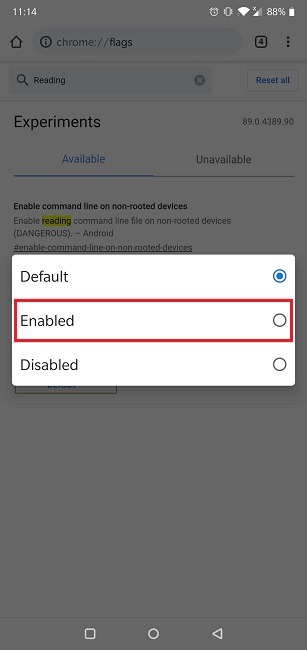
2. Type chrome://flags in the search bar at the top.
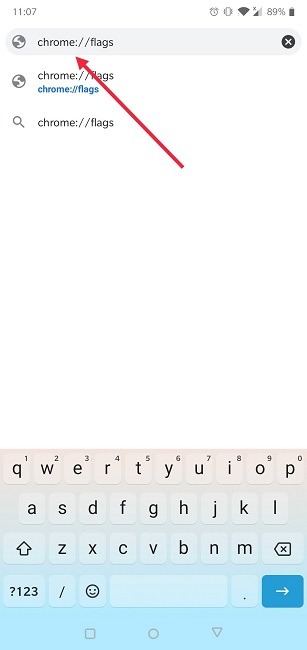
3. Use the search bar at the top to search for the term “Reading” to find the appropriate flag.
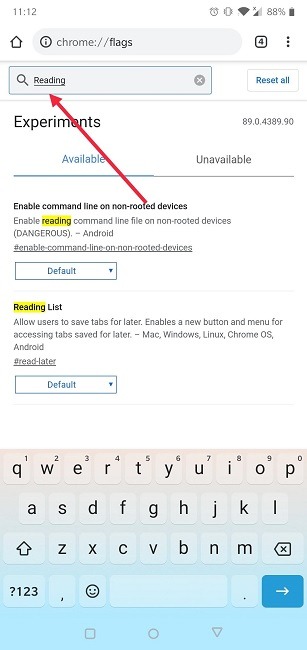
4. Notice that one of the results that comes up is called “Reading List”. This is the flag you want.
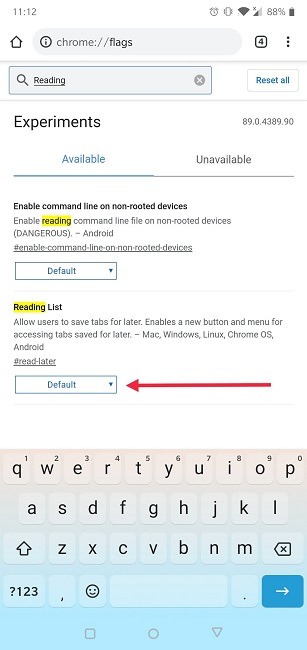
5. Tap on the drop-down box under the “Reading List” entry.
6. Select Enabled.
7. Tap Relaunch on the bar at the bottom requesting permission to reload the browser so that your changes can take effect.
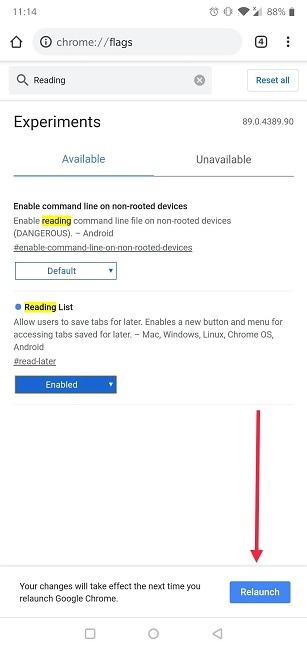
8. The “Reading List” has been created.
How to Add New Reading Material to Your List and Access It Later
Now that you’ve enabled the flag, you can go ahead and start adding articles for later use right from your Chrome browser.
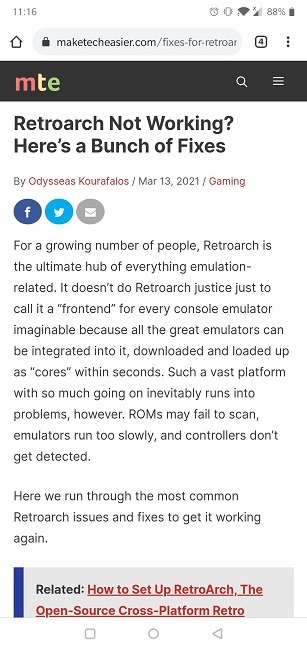
1. Navigate to a website of your choosing and open an article you wish to consult later.
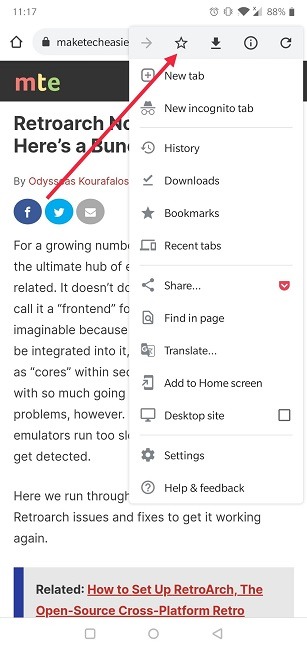
2. Tap on the three-dot menu in the top-right corner of the display.
3. Tap on the “Star” in the top part of the menu that appears, as if you were about to bookmark a page.
4. A list will pop up at the bottom of the display asking you where you want to save the page. Select “Reading list.”
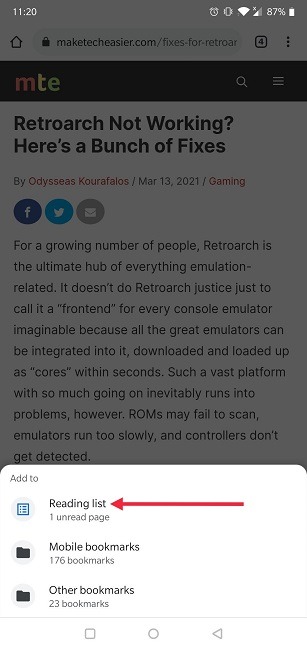
5. The article has now been added to your Read later list.
6. If you wish to access your Read later folder, once again tap on the three-dot menu in the right corner.
7. Select Bookmarks.
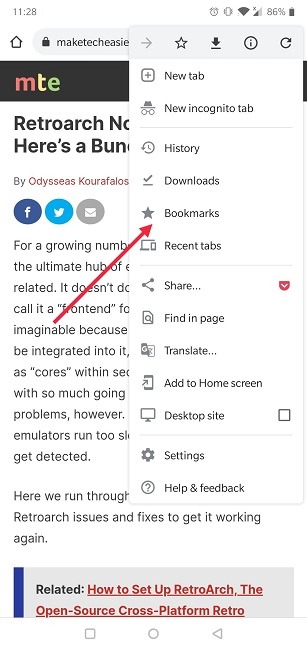
8. Tap on “Reading List.”
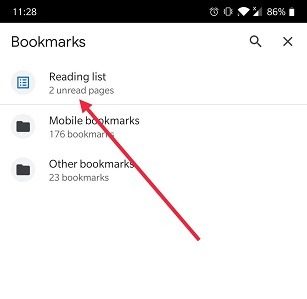
9. Your articles will be waiting for you here in the Unread section.
10. Once you’ve read an article, you can tap on the three-dot menu that is displayed next to each piece.
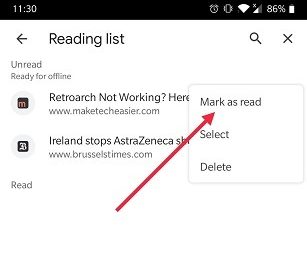
11. From here you can mark the entry as Read or you can simply Delete it for good.
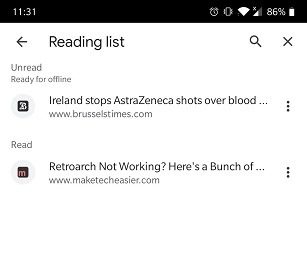
How to Access Your Reading List on Chrome for Desktop
If you want to be able to access the Reading list on your PC, you’ll first need to follow the same steps we’ve outlined in the first section of this article to turn on the appropriate flag.
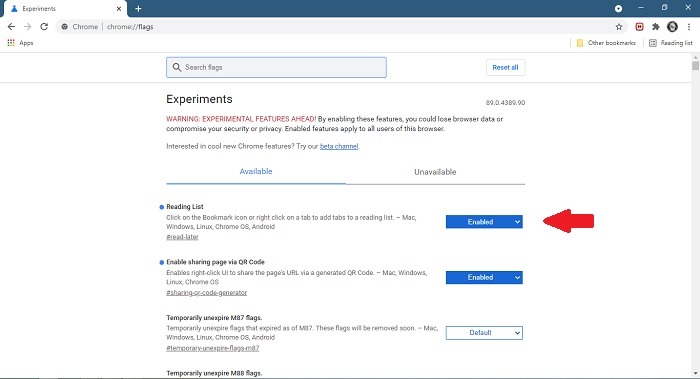
Once you’ve done so, you’ll be able to access the Reading list by clicking on the upper-right side under the three-dot menu, if you usually keep your Bookmarks bar enabled at all times.
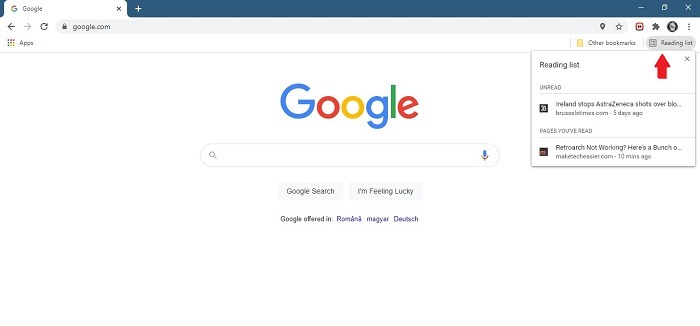
All the articles you’ve saved will be visible there, provided you’ve previously synced your data across devices. Alternatively, you can press Ctrl + Shift + B to activate the bookmarks bar whenever you wish to start reading.
Do you enjoy working with Chrome and want to learn more tips and tricks? Learn how to restart the browser without losing your tabs or how to block websites on Chrome (and other browsers).